Commercial Paper for an Invoice
The invoice lets you choose the suitable payment type, including the commercial papers defined earlier. After you enter the materials, their quantities and prices, and then choose one of the commercial papers as the payment type, the "Commercial Paper Distribution" window opens so you can set the amount paid with this paper, and distribute it into payments due after certain periods.
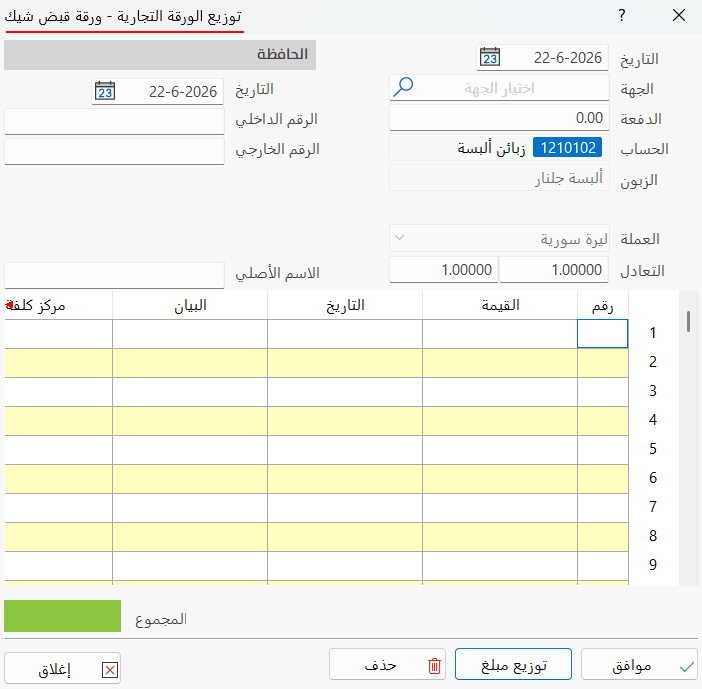
The window contains the invoice data and the portfolio, as well as the payments table. They are used as follows:
Date
By default, the field shows today's date. You can change the date by typing it or with the calendar icon in the field; this date is the issue date of the commercial paper.
Destination
Enter the name of the destination linked to the current commercial paper, after defining it with a destination card.
Payment
The field shows the value of the down payment you entered in the "Down Payment" field of the "Distribute Amount to Payments" window that opens from the "Distribute Amount" button.
Account
The field contains the name of the client's account in the invoice. It is read-only, so you cannot modify it from this window.
Customer
The customer's name appears automatically, matching the "Client" field of the invoice. It is read-only.
Portfolio
You can set the internal number and the external number of this paper to be stored in the portfolio, so you can show the commercial papers that carry certain numbers with the due commercial papers collection report.
Currency
The field shows the currency used in the "Currency" field of the invoice; you cannot modify it from this window.
Parity
The field shows the exchange rate of the currency in the "Currency" field (the exchange rate of the currency chosen in the invoice against the basic currency).
Origin Name
You can add a name for the commercial paper as its original name.
Payments Table
The table distributes the total amount of the commercial paper into a number of payments due at certain times; there does not have to be a fixed period between them: one may be due after a day and another after a week.
Enter the payments in the fields of the table, as follows:
- Number
The number of the commercial paper generated for the amount (mandatory).
- Value
The value of the payment to be paid.
- Date
The date the payment is paid.
- Notes
Additional information related to the payment.
- Cost Center
A cost center for the row that differs from the cost center set in the invoice.
- Currency parity
This can be done automatically by clicking "Distribute Amount": the amount is distributed automatically over several commercial papers due at regular intervals.
A commercial paper is generated for each row of the payments table: its status is "Not received" if it is a note receivable, and "Not paid" if it is a note payable.
Total
Shows the final total of the commercial paper's value. It is read-only.
Distribute Amount
The "Distribute Amount" button distributes the payments automatically: after you click it, the following window opens:
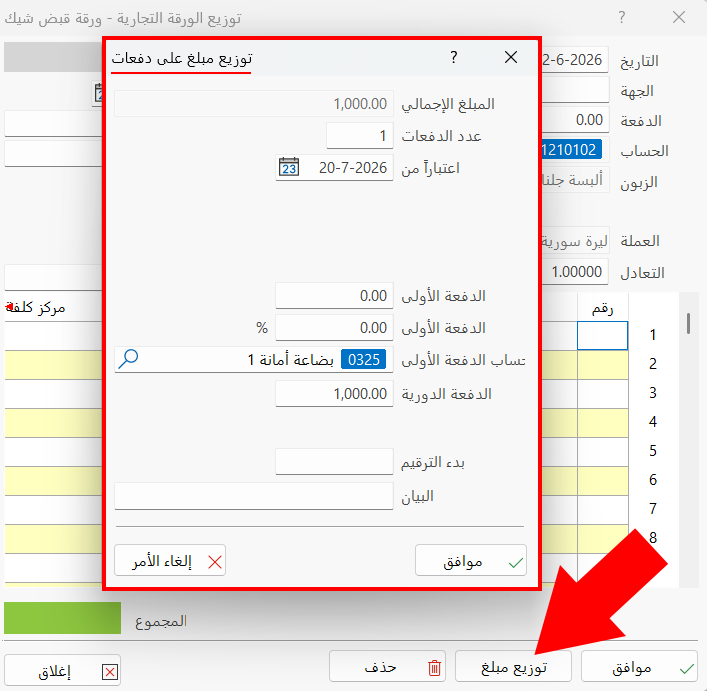
OK
Click "OK" to save the distribution of the commercial paper's payments.
Delete
You can delete the distribution of the payments by clicking "Delete": a warning window asks you to confirm the deletion; click "Delete" to continue, or "Cancel" to go back.
Close
Abandons the changes and closes the commercial paper distribution window.
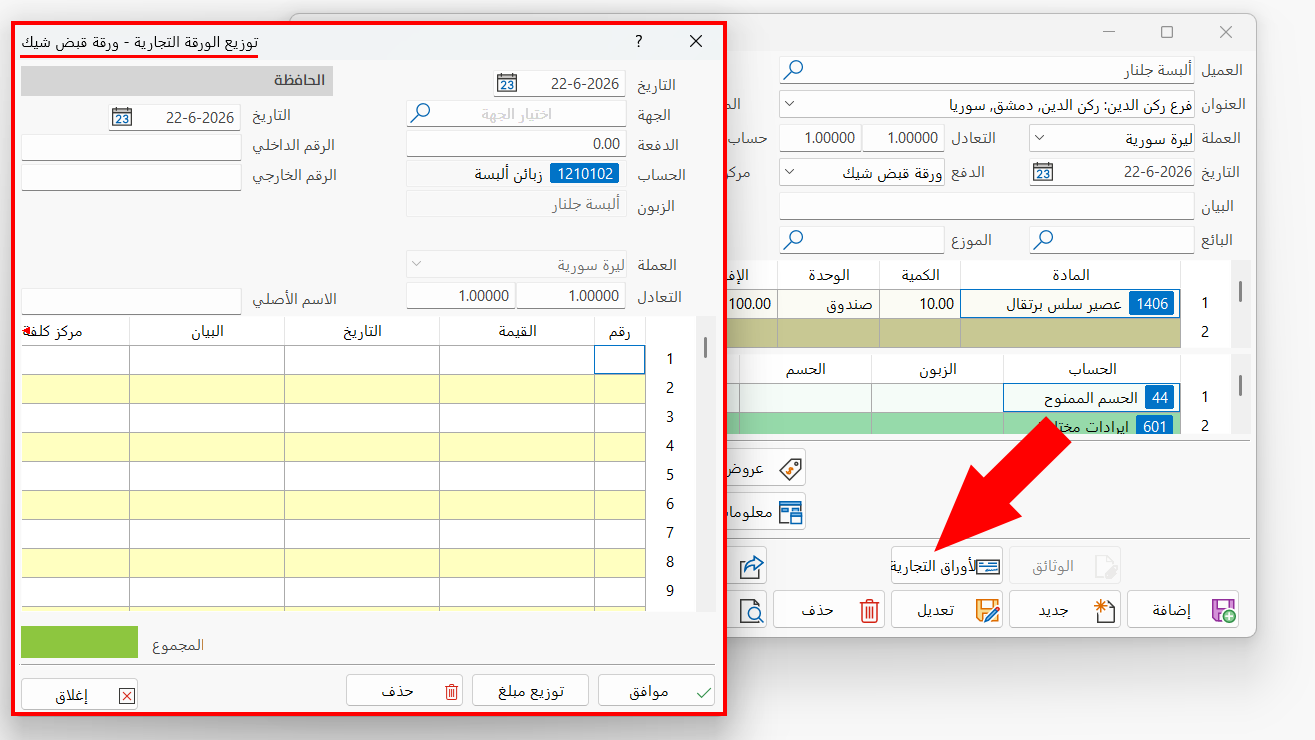
You can open the "Commercial Paper Distribution" window by clicking the "Commercial Papers" button, which is listed in the invoice window directly after you choose the payment type.
When a commercial paper falls due, the program alerts you in the "Calendar" on the desktop.
You can also request the "Due Commercial Papers" report from the Entries tab - Commercial Papers group.