Distribute Amount
Sets the details of the number of payments and their due dates, so that the payments are distributed automatically and listed in the payments table of the "Commercial Paper Distribution" window.
The "Distribute Amount to Payments" window opens when you click the "Distribute Amount" button in the "Commercial Paper Distribution" window.
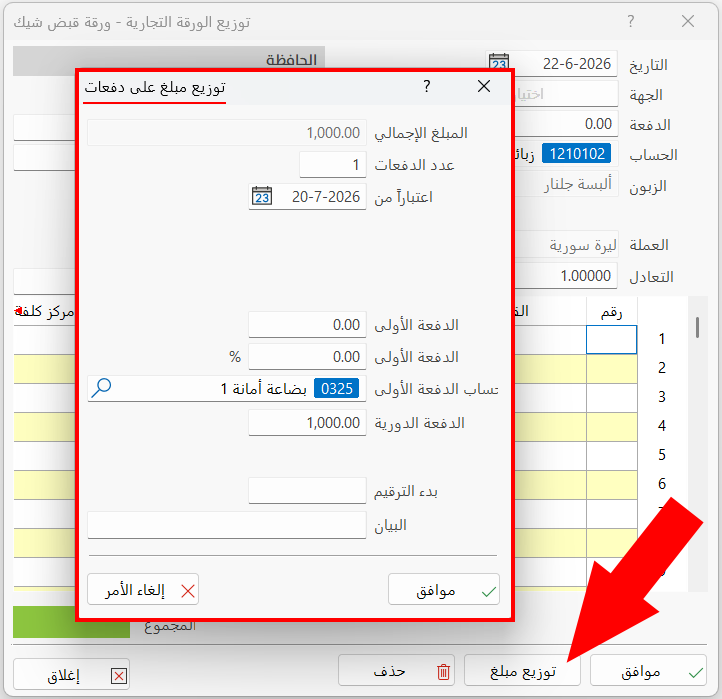
The window contains a set of fields that result in an automatic distribution of the payments:
Total Amount
The field shows the total amount of the invoice. It is read-only, so you cannot modify it.
Payments Count
Enter the number of payments over which the total amount will be distributed. When you set the number of payments before entering the value of the down payment, the program divides the total amount by the number of payments, and the value of the periodic payment appears immediately.
When you enter the value of the down payment, the program subtracts it from the total amount, then divides the result by the number of payments.
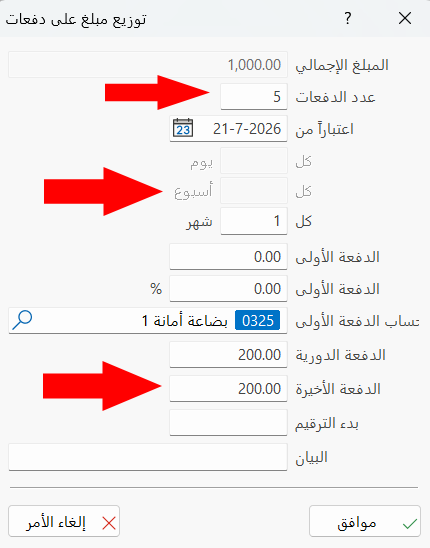
The contents of the window change after you enter the number of payments; the following fields appear:
-
Every (day, week, month)
-
Last payment
From
Set the date from which the due dates of the payments are calculated, by typing it or with the date icon in the field.
Every
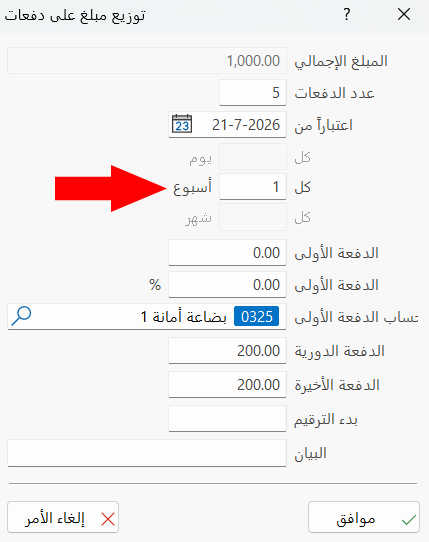
These fields appear in the window after you enter the number of payments. They set the period between payments, which can be a day, a week, or a month.
The window lets you use only one field: when you enter a value in one of the fields, the others become unavailable. For example, if you enter "1" in the week field, the day and year fields are disabled.
Down Payment
Enter the amount to be paid in advance, so that the rest of the amount (the total amount minus the down payment) is distributed over the number of payments.
After you enter the value of the down payment, its percentage of the total amount appears automatically in the next field, and vice versa.
Down Payment Percentage
The down payment percentage appears as soon as you enter the value of the down payment in the previous field; likewise, when you enter the down payment percentage, the value of the down payment appears automatically.
You can use this field when you require the client to pay a certain percentage as a down payment for the invoice: enter the percentage in the field, and the program calculates the value the client must pay out of the total amount.
Down Payment Account
Set the debit account to which the down payment is posted, by entering the name or code of the account, or by clicking the search icon in the field and choosing the account from the window that opens.
Periodic Payment
The amount due in each payment. The value of the periodic payment results from dividing the total amount by the number of payments (after subtracting the down payment, if any), and appears as soon as you enter the number of payments.
Last Payment
This field appears in the window after you enter the number of payments. Its value equals the periodic payment, but you can change the last payment and enter a value different from the periodic payment. This directly affects the periodic payment: the last payment is subtracted from the total amount, the down payment (if any) is subtracted too, and the remaining amount is distributed over the number of payments, giving the value of the periodic payment.
Start Numbering
Set the number from which the commercial papers are numbered: after you save the distribution of the amount into payments, the payments are listed in the payments table of the "Commercial Paper Distribution" window, numbered from the number set in this field.
Notes
You can attach additional information related to the payments in the Notes field.
OK
Click "OK" to save the distribution of the amount into payments.
Cancel
Click "Cancel" to abandon the changes without saving them, and close the "Distribute Amount to Payments" window.