Permissions Expander
Manages user permissions precisely and in detail: if you are the manager in charge, or the user who has all permissions, you can go further in setting the permissions of the other users.
Purpose of the Permissions Expander System
When a user is given the "Prevent" level on the permission to view cards, this may hinder their work. In such cases, you can make an exception for the cards related to their tasks, so they can view them without disrupting their work.
In another scenario, alameen ERP may contain a large number of cards (materials, customers...), all belonging to one establishment, such as a shopping center with several departments.
In this case, showing the material cards to all users would be confusing and impractical: the accountant of the foodstuffs department does not need to view the cards of the clothes department, for example.
So the permissions expander system lets you set which cards each user can view according to the department they work in, which makes things clearer and gives easy access to the relevant information only.
Activate the Permissions Expander System
To activate the permissions expander system, you must first select the "Activate permissions expansion system" option on the Save tab of the Program Options window.
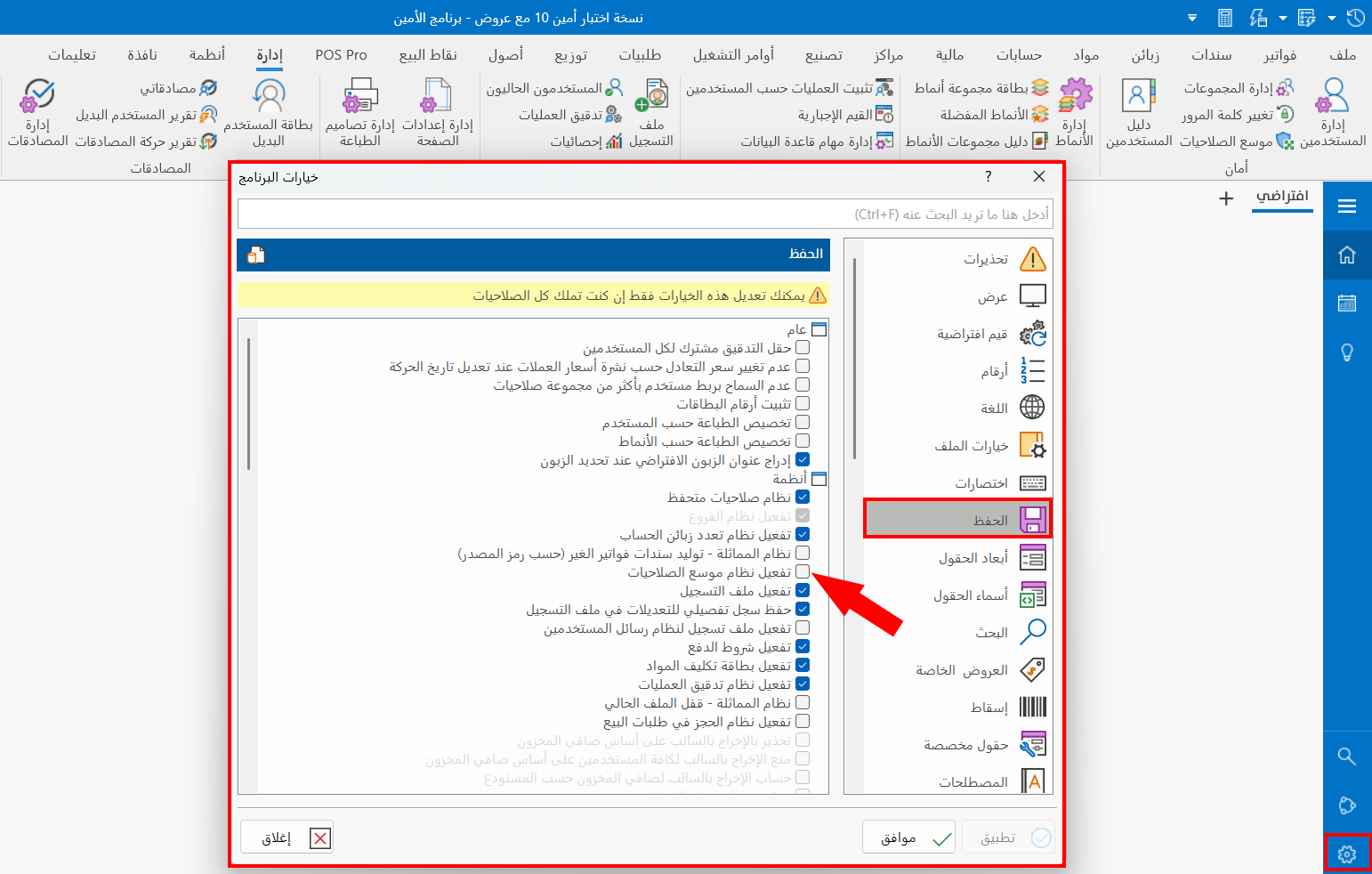
To save the operation, click "OK" in the Program Options window.
After the system is activated, you can customize permissions with the "Permissions Expander" button.
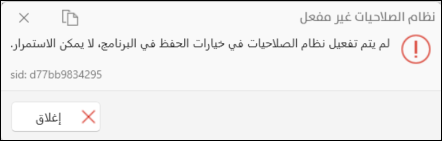
When you click the "Permissions Expander" button before activating the system, the following message appears:
Expand a User's Permissions
To start expanding a user's permissions, click the "Permissions Expander" button on the Management tab of the program's main ribbon - Security group; the window appears as follows:
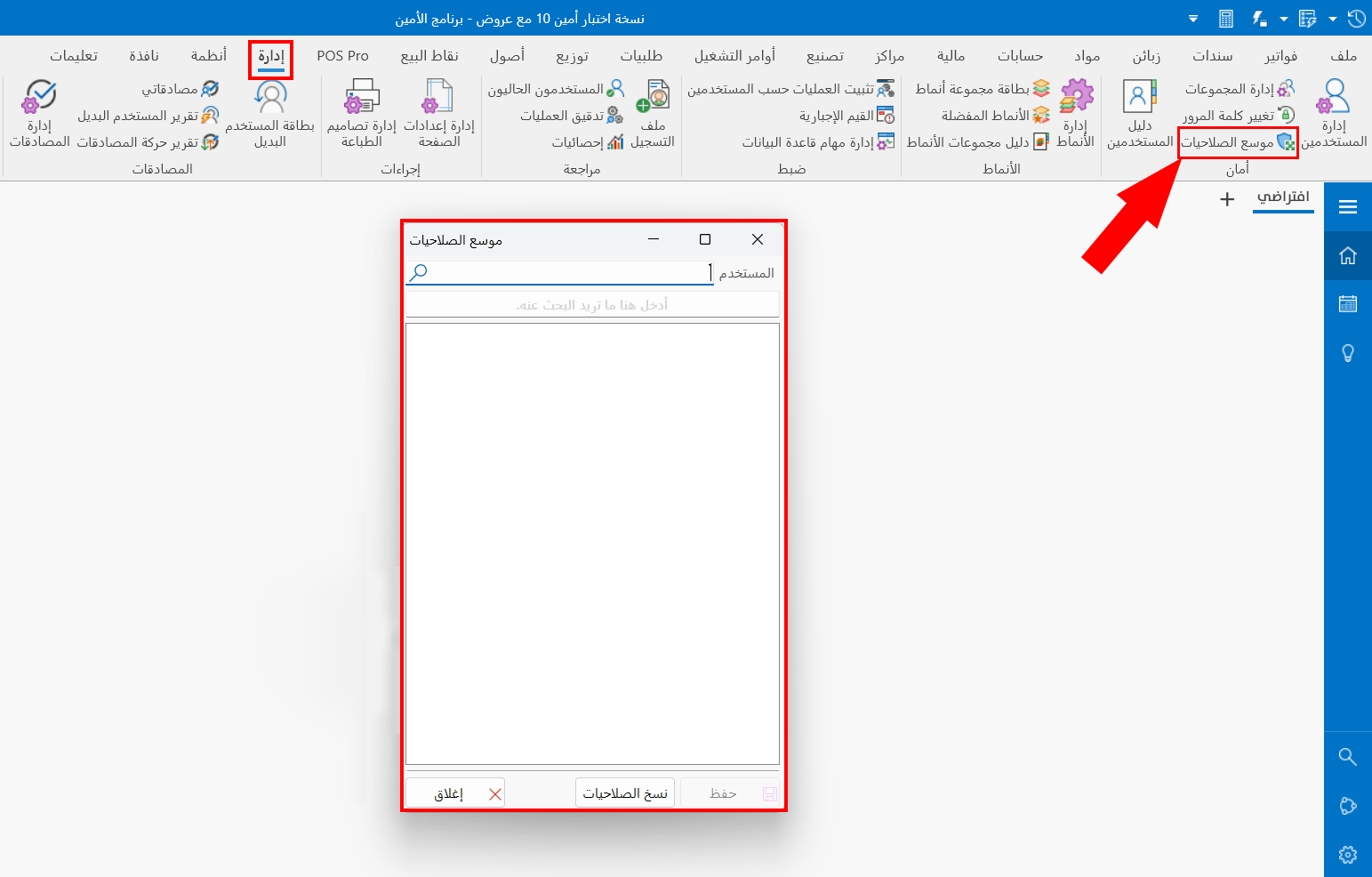
Enter the name of the user whose permission you want to expand, or look it up by clicking the search icon in the field: the "User Name" window opens, containing all the users defined in the "Users Management" window.
After you choose the user, the window lists the accounts you can select; you can also search for what you want with the search field.
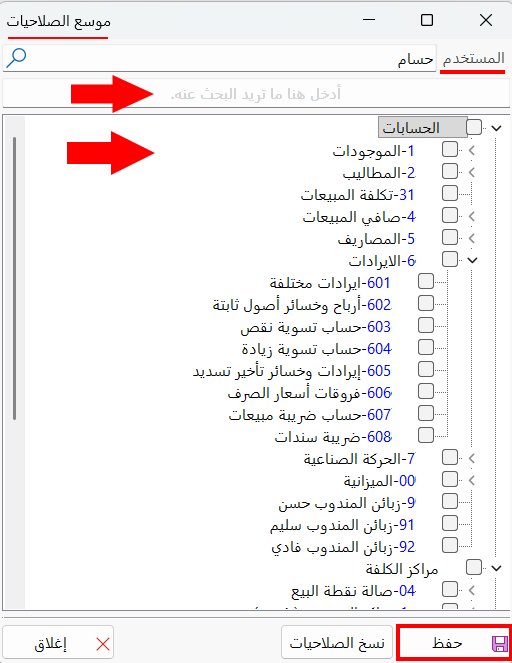
To give the user permission to view an account, click the check box next to the account, then click "Save" in the window.
Copy Permissions of Permission Expander
You can copy the expanded permissions to another user to avoid selecting them again, by clicking "Copy Permissions" in the permissions expander window; the following window opens:
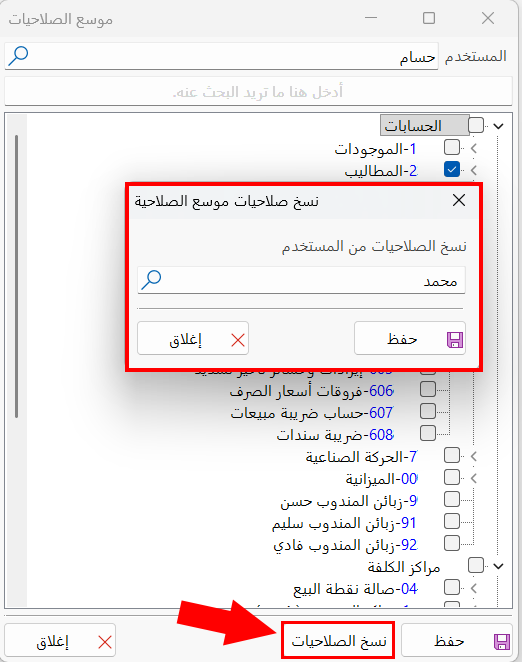
Enter the name of the user you want to copy to, or look it up with the search icon, then click "OK" in the "Copy Permissions of Permission Expander" window and in the "Permissions Expander" window.