Groups Management
You can distribute employees (users) into groups and set the permissions of each group, then define the users (in the Users Management window) and set the group each user belongs to, from which they "inherit" all or part of their permissions.
This window contains a number of tabs that let you set the permissions you want to grant or withhold from user groups on each window or operation in the program.
To manage the group as needed, you must first understand the protection structure of the program: protection in the program is divided into several levels, each of which sets the permissions granted to the group.
Tabs in Groups Management
The Groups Management window contains different tabs, each with different commands, so the users of the group can be given separate permissions for each command. The tabs are:
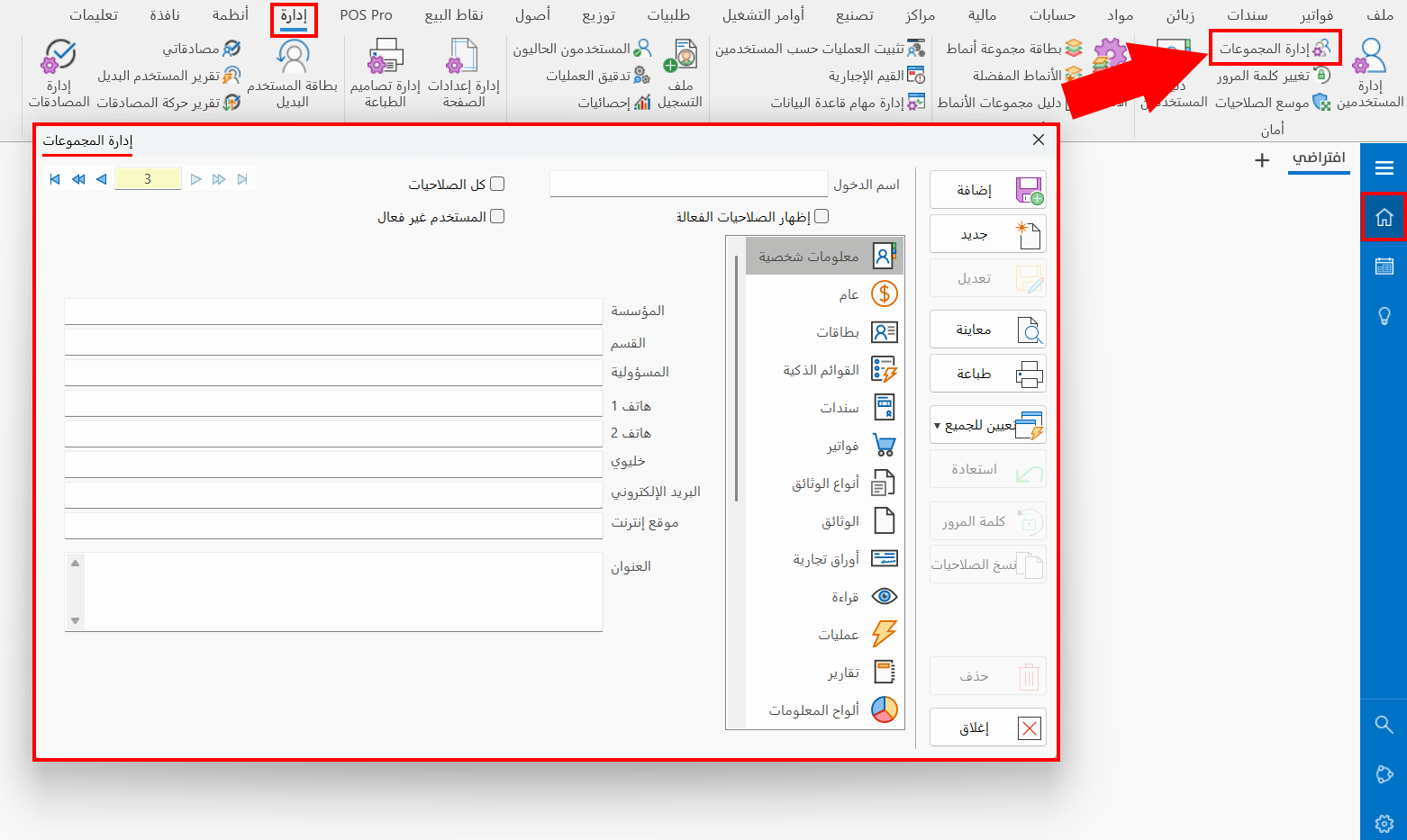
Personal Information
Enter the name of the group and its contact information, and the responsibility assigned to the users added to it.
General
This tab contains a set of fields for setting the prices on which the group's users are given permissions:
Maximum Discount
You can set the maximum discount the group of users can give in an invoice.
Minimum Price
You can set the minimum price type: the lowest price the group of users can enter in an invoice. If the user enters a price lower than the one set in this field, the program changes it to this price.
Maximum Price
You can set the maximum price type: the highest price the group of users can enter in an invoice.
Cards
Set the permission of the group's users for the actions related to the cards of alameen ERP (add, view, modify, delete).
You can grant the permission for each card of the program separately, with the security levels available for each action of the card.
By default, the program sets the "Low" security level for all tabs and actions: click "Low" and choose the level you want from the drop-down list.
Smart Lists
Set the permission of the group of users to carry out operations in the smart lists: the tab provides the operations the program allows the user in the smart lists (material and customer).
Entries
Set the permission of the group's users for the actions related to the entries of alameen ERP (add, view, modify unposted, delete unposted, post entry, modify posted, delete posted, modify value added).
You can grant the permission for each entry of the program separately, with the security levels available for each action of the entry.
Invoices
Set the permission of the group of users for the actions related to the invoices of alameen ERP (add, view unposted, modify unposted, delete unposted, post, generate journal entry, post entry, change price...).
You can grant the permission for each invoice of the program separately, with the security levels available for each action of the invoice.
Documents Types
Set the permission of the group of users for the actions related to document types in alameen ERP (add documents, view documents, modify documents...).
Documents
Set the permission of the group of users for the actions related to documents in alameen ERP (attached documents, add documents, modify documents, delete documents).
Commercial Papers
Set the permission of the group of users for the actions related to commercial papers in alameen ERP (add, view, modify, delete, return to origin...).
You can grant the permission for each commercial paper separately, with the security levels available for each action of the invoice.
Read
Set the permission of the group of users for the actions related to commercial papers in alameen ERP (add, view, modify, delete, return to origin...).
A list of the balances and prices used in the program appears, with the security level of this operation next to each balance or price. To change the security level, follow the same method used for entries.
Operations
A list of the operations and reports available in the program appears: you can withhold an operation or report from the group of users by deselecting it in the list, so that no user of this group can reach that operation or report.
Reports
The tab shows a list of the reports available in the program: you can withhold a report from the group of users or give them the suitable permission.
Dashboards
The dashboards contain analyses of the financial statements and ratios: you can give the group of users the suitable permission to view them.
Charts
This tab shows all the charts of the program: you can set the charts the group's users can view.
The tab provides the following security levels: Prevent, Inherit, None, Low.
Messages
Reminder or warning messages appear in many places in the program: you can set the user's permission for the actions related to messages in the program (add, view, modify, delete).
Branches
If the branches system is enabled, you can set the branch in which the users of the group can carry out all the operations they have permission for, and view the accounts according to the set branch and its permissions.
Groups
The window shows the groups added earlier, so you can view them or even create a group that includes other groups.
Users
On this tab you can choose the users to whom you want to apply the group's permissions: a list of all the users defined in the "Users Management" window appears, so you can add a user to the group or remove one.
Bills Accounts
On this page you set the accounts with which the different invoice forms will be generated, and in which the permission of the group of users to issue or add them is set (such as sales and purchase invoices...).
Orders
Set the permission of the group of users for the actions related to sales and purchase orders in alameen ERP (add, view, modify, delete, prepare...).
Manufactories
You can give the group of users permission on the job orders of manufactories (direct material issue, production lines...).
Job Orders
Set the user's permission for the actions related to job orders in alameen ERP (view the General tab, cancel finishing the job order, modify the job order form...).
The available security levels are limited to (Prevent, Inherit, None, Low).
Shipping
Set the permission of the group of users for actions in the shipping operation, such as (view unshipped, read price, receive).
Approvals
Set the permission of the group of users to approve invoices and entries in alameen ERP (modify unapproved, modify partially approved, modify approved...).
Control Buttons in the Groups Management Window
Use the buttons in the window as follows:
Add
Saves the data entered for the new group of users.
New
Empties the windows of their data, ready to add a new group of users.
Modify
Saves the changes made to the permissions of an existing group of users.
Preview
Previews the final form of the permissions of the group of users before printing them or exporting them to a file.
Print
Prints the permissions of the group of users on the printer.
Set All
Applies one permission level to all the operations and actions on the tabs of the window.
Restore
Restores the default permissions to grant them to the current group of users.
Password
Sets a password that the users added to the group must enter each time they try to log in to alameen ERP.
Copy Permissions
You can quickly copy the permissions of a user defined earlier, without having to set them for each group separately.
From the card of the group to which you want to copy the permissions, click "Copy Permissions": the "Copy Users Permissions" window opens, as follows:
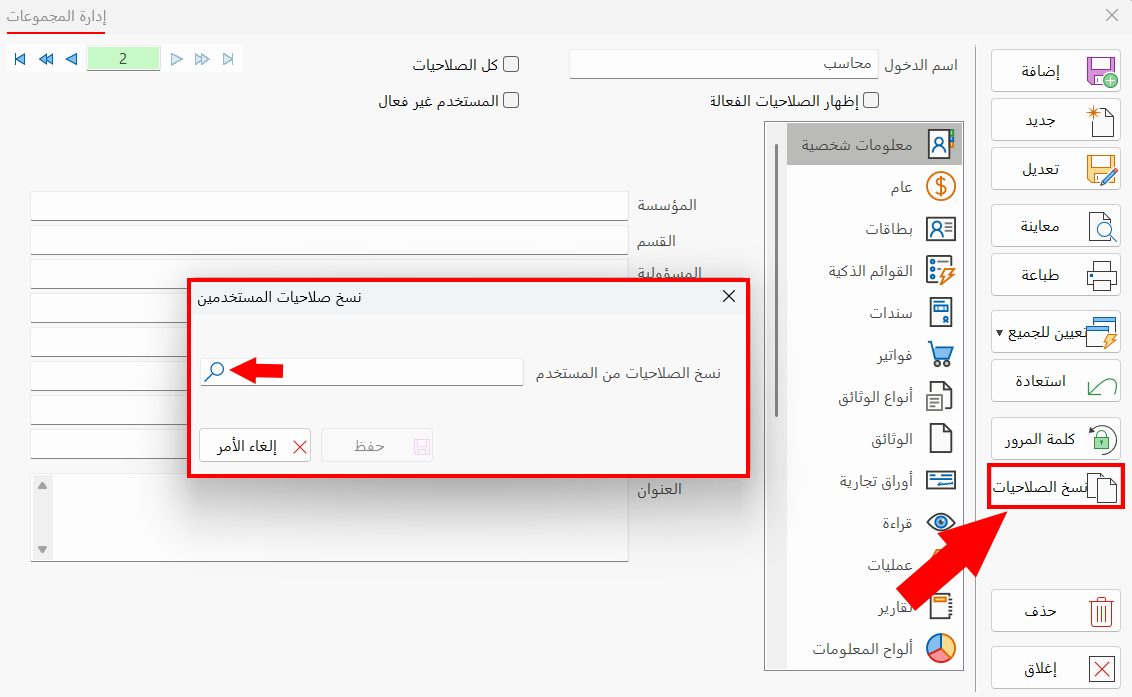
Enter the name of the user whose permissions you want to copy to the current user, or look it up with the search icon in the "Copy Permissions from" field.
Click "Save" to complete copying the settings.
Delete
Deletes the current group of users and stops it from appearing. Note that deleting the group does not delete the users in it.
Cancel
Leaves the Groups Management window and returns to the desktop.
Actions in the Groups Management Window
You can use the actions available in the Groups Management window to give full permissions, or to prevent the users of the group from entering the file, without having to set the permission on the program's cards and operations separately. The window contains the following actions:
Full Authorities
You can enable this option if you want to give the users of the group all the permissions on the program, so that all the users in the group have the permissions of the system administrator; you then do not need to set any of the other permissions.
Inactive User
When you no longer need a user, or are not using them, you can enable the "Inactive User" option to prevent them from logging in to the file or carrying out any action in the program.
Show Active Permissions
You can use this option when you define user groups and set the permissions of each group: if a user inherits their permissions from a group, enabling this option shows the actual permissions of that user.
Security Level
All the windows of alameen ERP (cards, invoices, entries, commercial papers...) have a security level that can be set by the manager or the person who has all permissions, so that those who do not have the same security level or a higher one cannot reach them.
For example, when the manager adds a purchase invoice and gives it a high security level, and a user's permission to read the prices of purchase invoices is set to the medium level, that user cannot see the prices of this invoice.
The security levels of the program are:
- Prevent
Prevents the user or group from performing an operation or action.
- Inherit
This option is used when the user belongs to a group, to give the user the same permission granted for this operation or action in the group.
- None
Denies the user certain actions in the program.
- Low
The first security level. It is held by those given little permission, who can perform the operations that have the same level.
- Medium
The level above Low. A user who holds it can perform the actions and operations that have the same level or the Low level.
- High
The highest security level. Whoever holds it can perform all operations and actions of lower levels.