Customer Screen
The Customer Screen option, in the point of sale options - user settings, adjusts the settings of the customer screen and customizes the tables shown on it.
What Is the Customer Screen?
A peripheral added to the point of sale that shows customers the material table (the order table) and the dashboard (the order totals table), so they can see the data of the order: its materials and value.
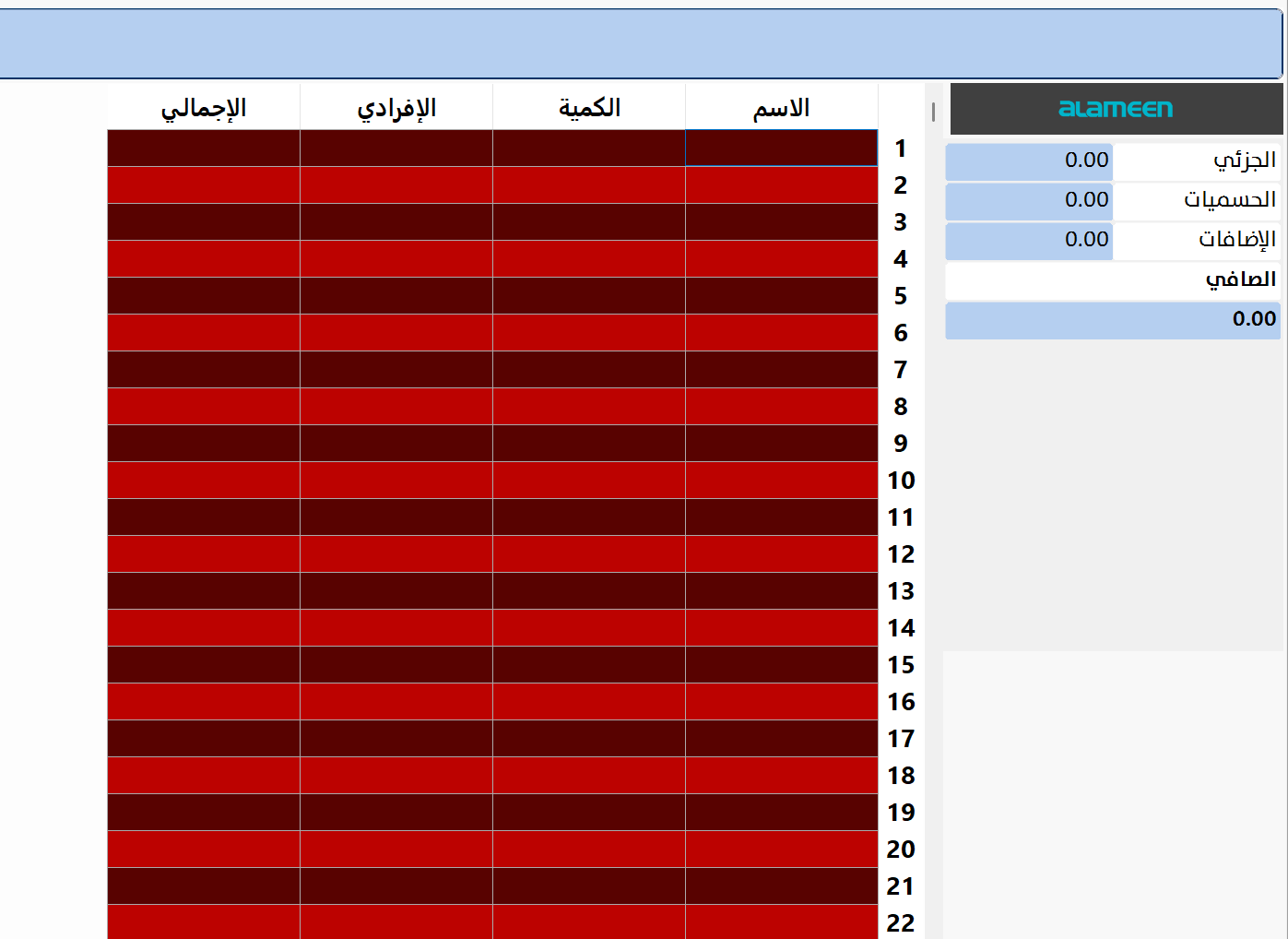
Define the customer screen as a peripheral of the system from the Program Options window - Peripherals tab - peripheral type field.
After connecting the customer screen, you can go to the "Customer Screen" option in the Program Options window - Point of Sale tab.
After you click the option's button, the Customer Display Settings window opens, as follows:
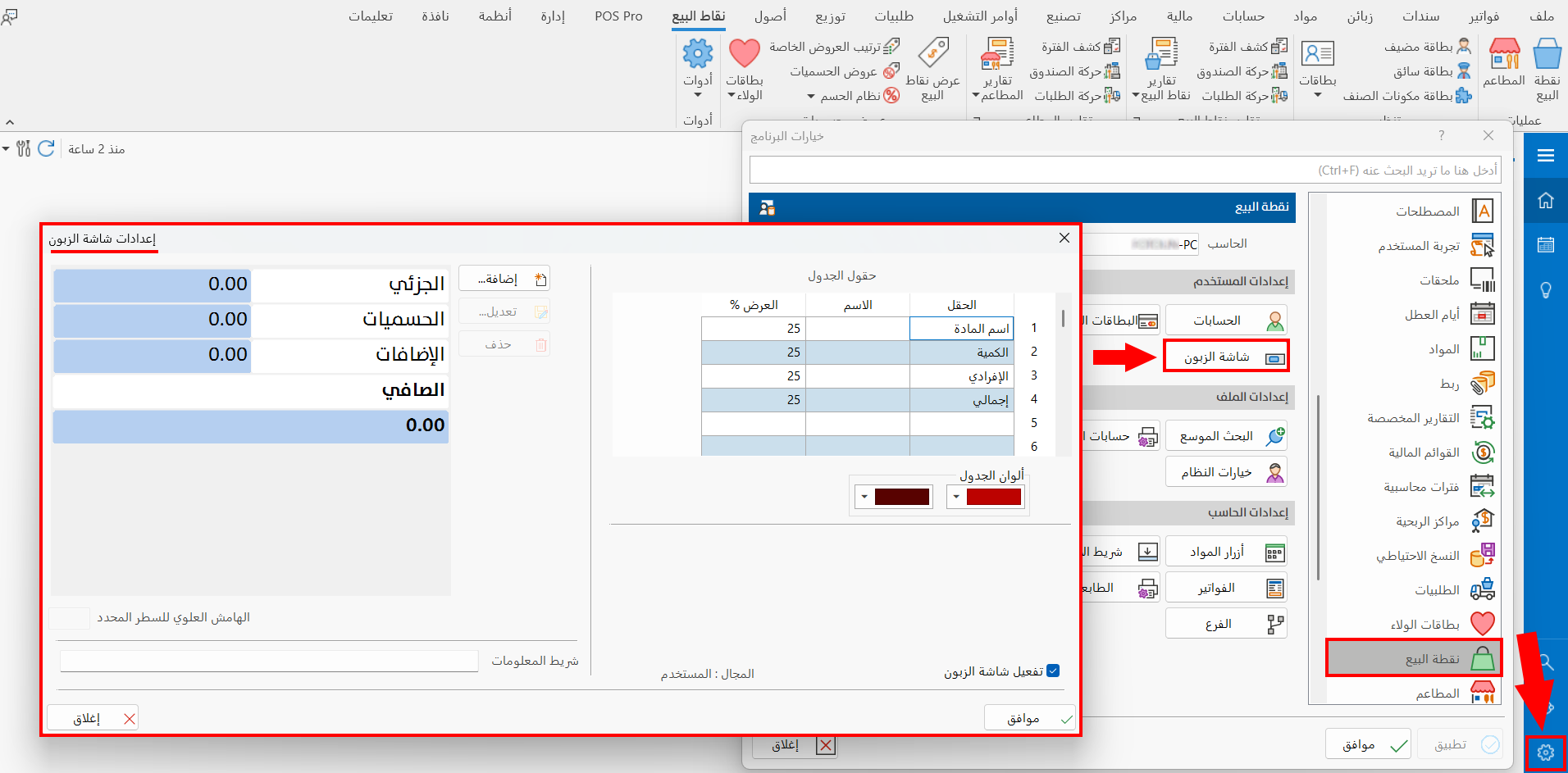
Activate Customer Display
Click the check box next to the option until it turns blue; you can then use the customer screen (after connecting it as a peripheral of the system).
Contents of the Customer Display Settings Window
The window contains several sections:
Table Fields
You can control the fields of the material table by adding new fields or resetting the default fields. You can modify the following:
- Field
Double-click with the left mouse button in the field cell and choose a field from the drop-down list to modify an existing field, or click in an empty cell to add a new field.
- Name
You can rename the field and choose the name that suits your work.
- Width %
Set the width percentage of the field in the table by typing the value.
When you modify the table fields of the customer screen, the same change is not applied to the table of the point of sale interface you work on.
Table Colors
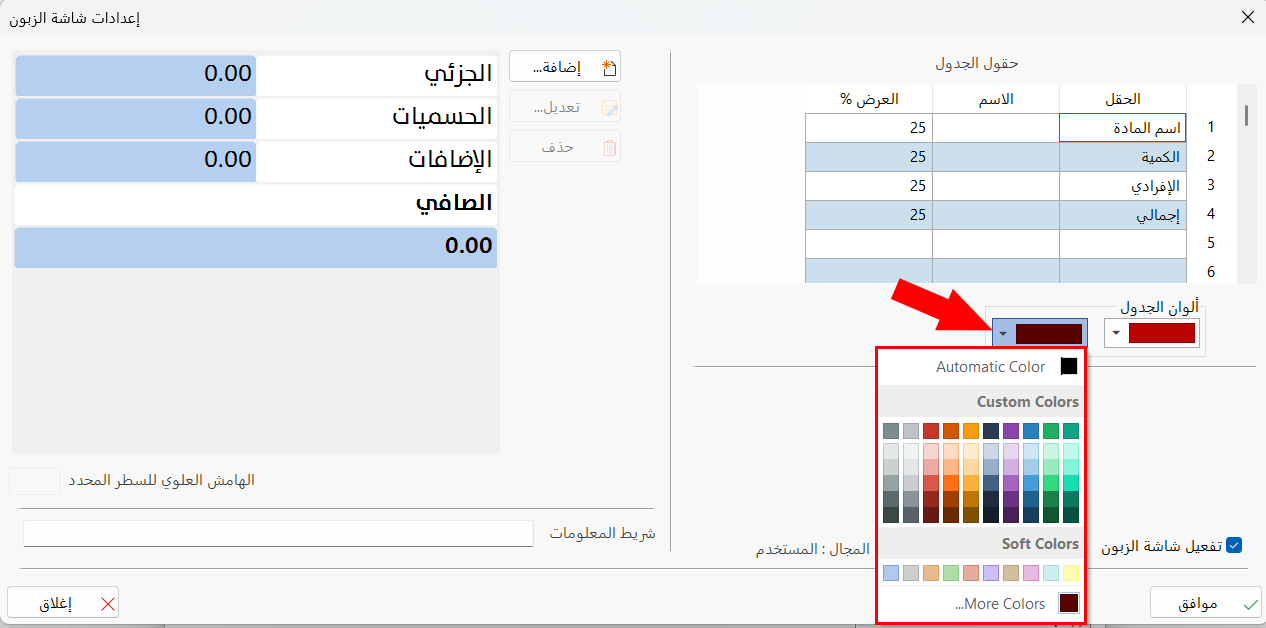
The system uses one color for odd rows and another for even rows. You can change the default colors and choose the colors to apply to the material table on the customer screen.
Click the arrow next to the color field and choose what you want from the color palette.
The Dashboard on the Customer Screen
The dashboard shows the totals of the order/invoice: subtotal, discounts, additions, net.
You can use the following buttons to adjust the dashboard:
- Add
Adds a new row to the dashboard: after you click the button, the "Add Information Board" window opens. Click the arrow in the Information field to open a list of the items you can add, set the format you want (cell width, font size, background and text colors...), and choose the position of the row among the rows of the dashboard. When you have finished setting the format, click "OK".
- Modify
Click the row of the dashboard you want to modify, then click "Modify": the "Add Information Board" window opens, where you can modify all the fields; when you have finished, click "OK".
- Delete
Click the row of the dashboard you want to delete, then click "Delete": it is deleted immediately.
- Top margin of the selected row
The system uses a default margin of (2) between rows; you can control the top margin of the selected row after clicking it, by entering the number in the field.
Information Bar
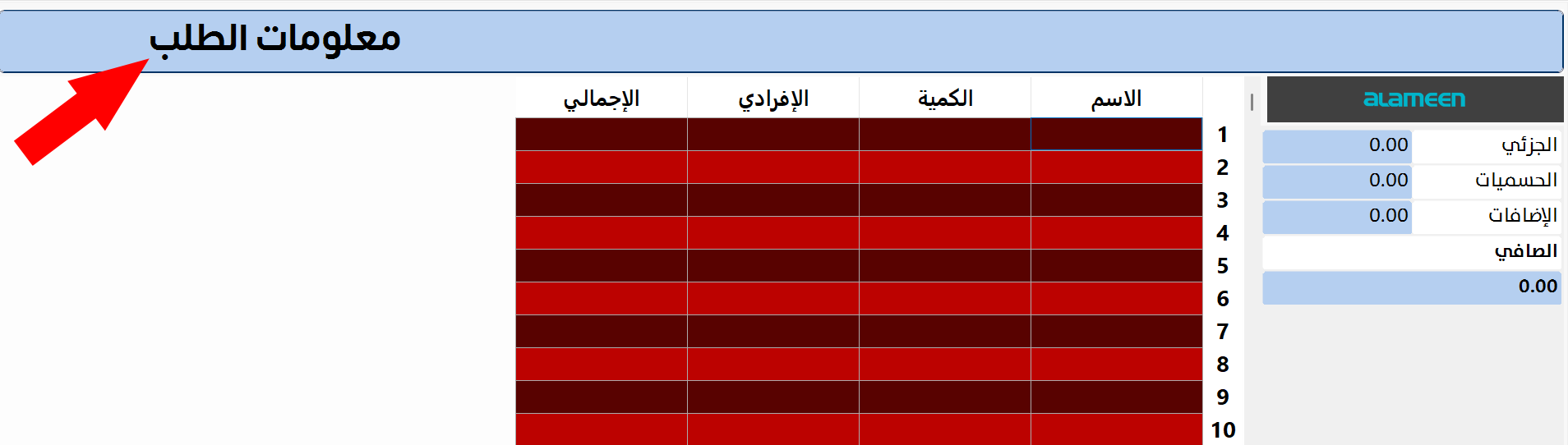
You can add explanatory text to the information bar at the top of the customer screen, by entering the text in the field, for example "Order Information"; it appears as follows:
Click "OK" in all windows to save the settings.