Accounts
To use the point of sale interface, the mandatory options of the system must be set: the accounts and the invoices.
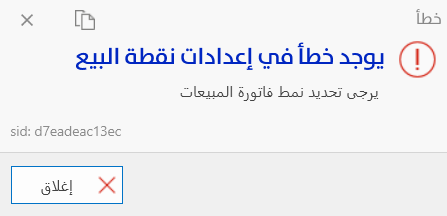
When you click the "Point of Sale" button before the accounts and invoices are set, an error message directs you to set the required option in the options window.
To set the accounts, open the "Program Options" window and click the "Point of Sale" tab; the "Accounts" option opens the following window:
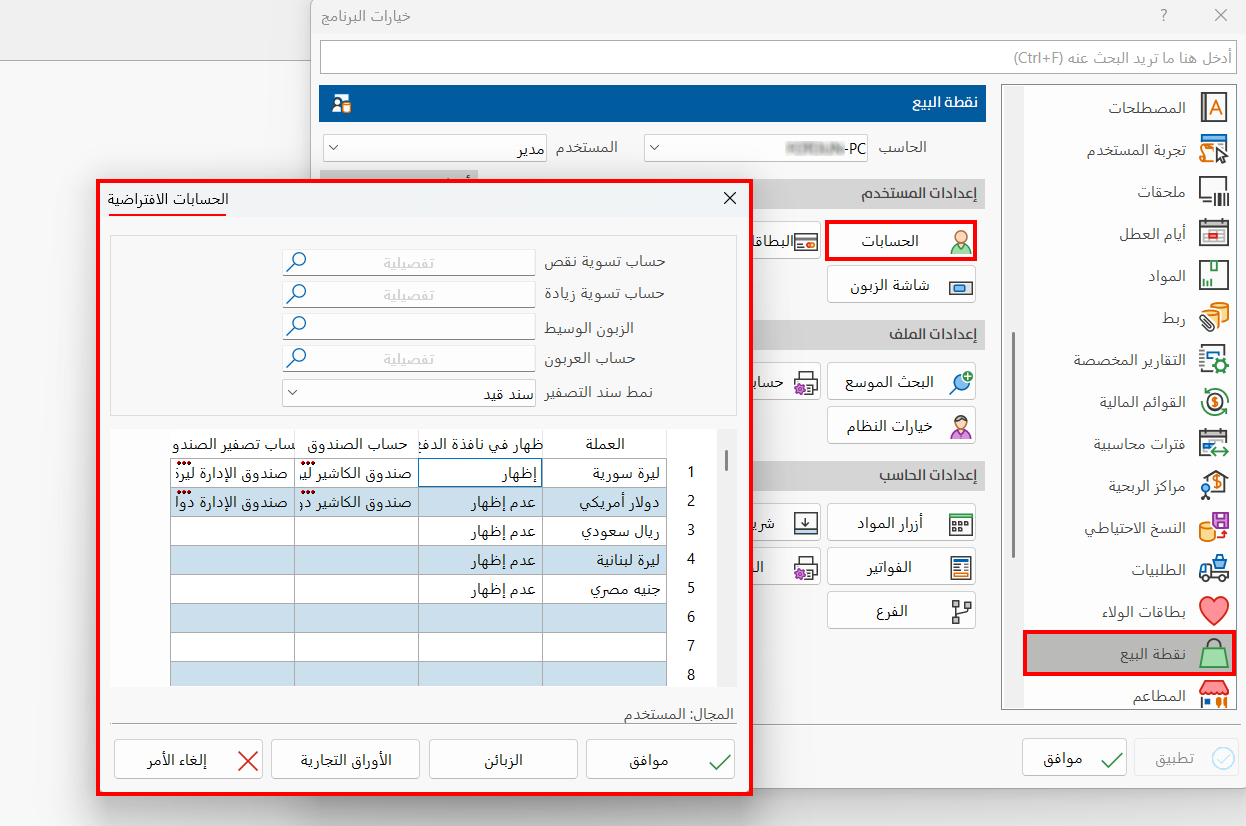
Default Accounts
The window contains a set of fields for entering the accounts you defined earlier with account cards:
-
Shortage settlement account
-
Increase settlement account
-
Intermediate customer
-
Down payment account
Enter the name or code of the account, or look it up with the search icon in the field.
Zeroing Entry Form
Choose the entry form from the drop-down list of the field: the list shows all the entries forms added in the "Entries Forms" window.
Currency
The table shows all the currencies defined in the file, so you can set the currencies you will use at the point of sale.
The table contains the following fields:
-
Currency
-
Show in Payment Screen
-
Cash Account
-
Cash Reset Account
To show a currency in the point of sale interface, double-click with the left mouse button the "Show in Payment Screen" field of that currency: a list with two options (Show, Don't Show) opens.
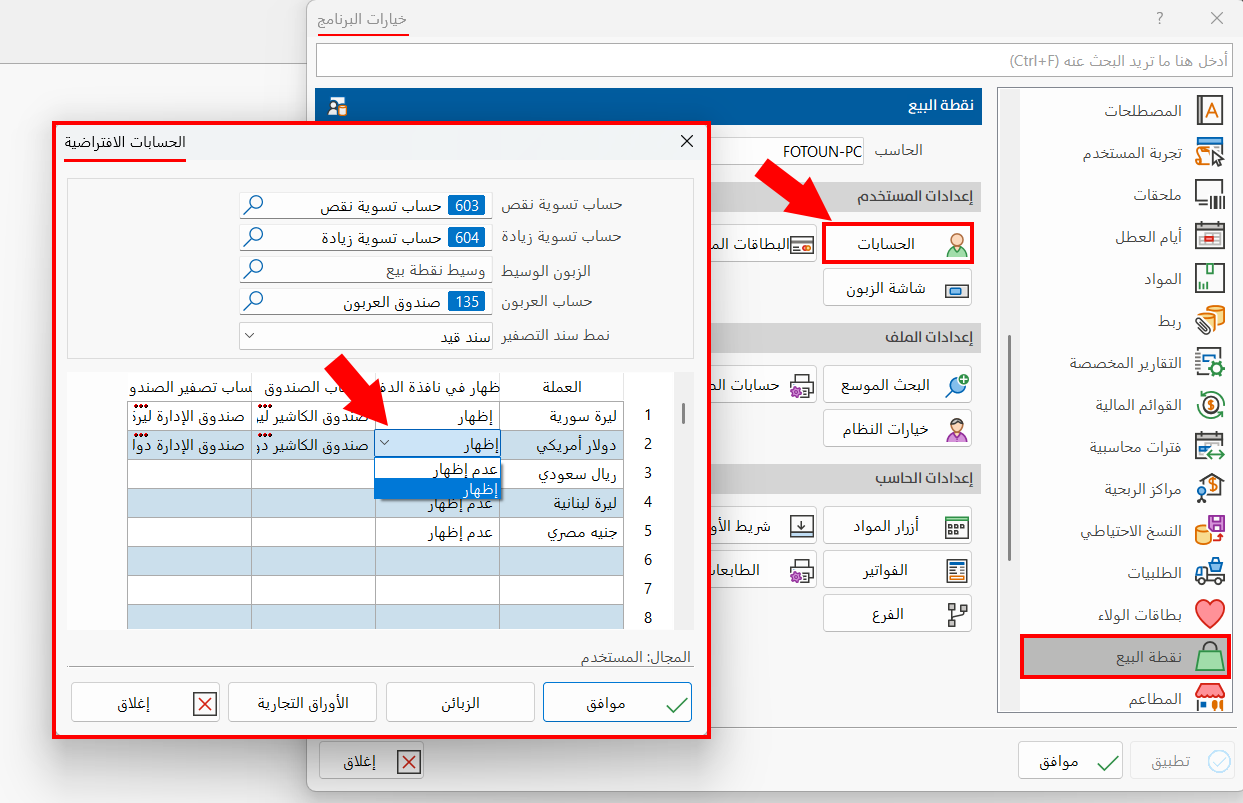
You cannot choose "Don't Show" for the main currency of the file.
Customers
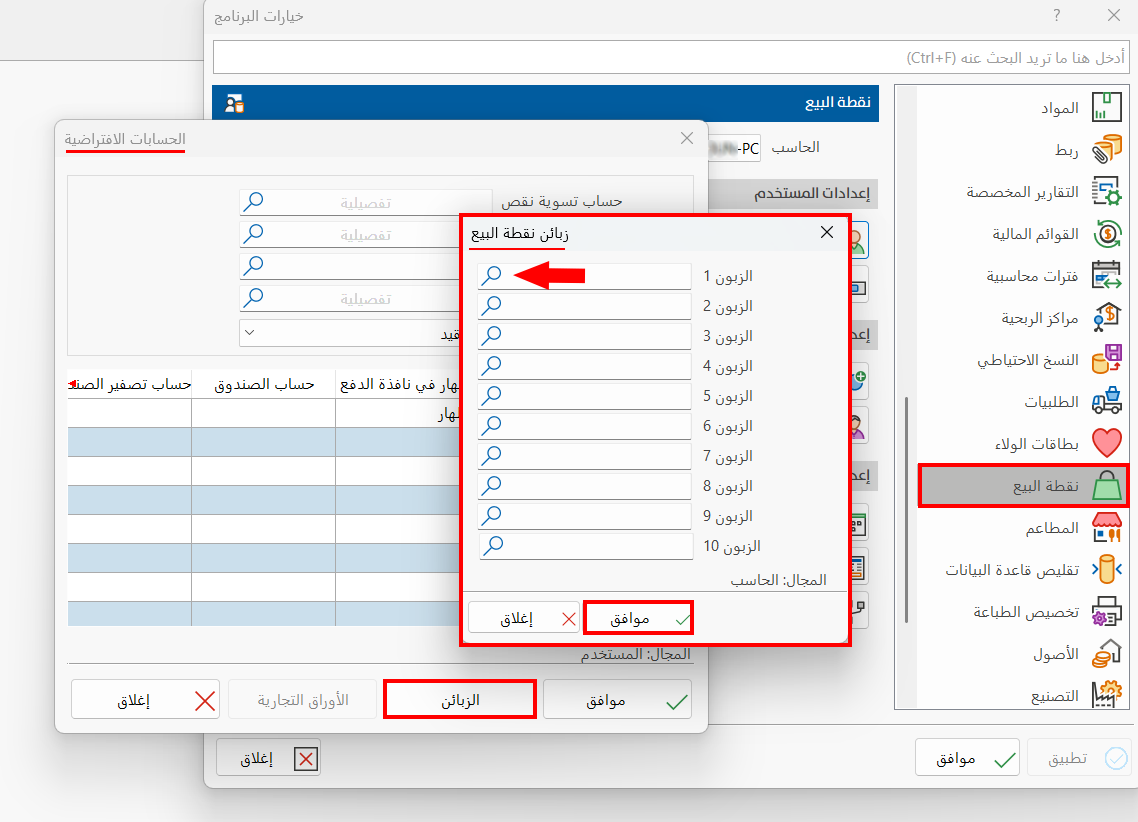
With this button, the program lets you add a limited number of customers in the "POS Customers" window and link each added customer to its own command button in the point of sale interface.
After you click the "Customers" button, a window opens with ten numbered fields (Customer 1, Customer 2...).
Enter the name or code of the customer in the field, or use the search tool to choose them in the "Select Customer" window, then click "OK" in the "POS Customers" window.
Commercial Papers
You can control whether commercial papers are shown in the payment screen: after you click the "Commercial Papers" button, the following window opens:
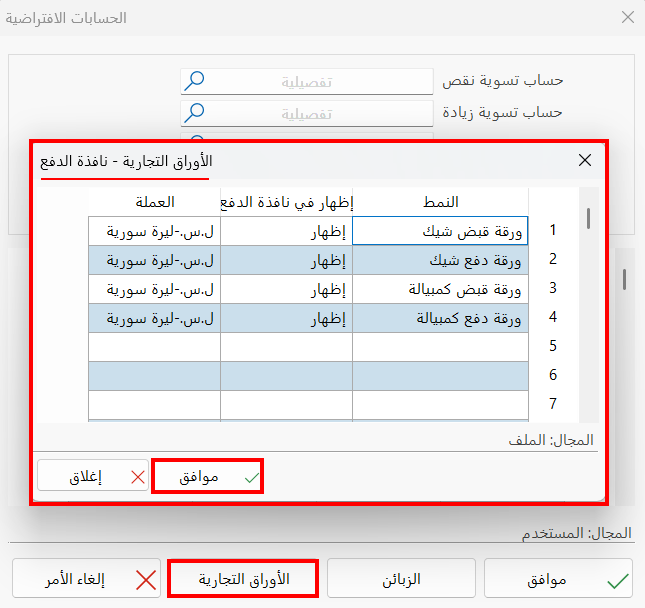
The window lists all the defined commercial papers, so you can control whether they are shown and the currency used for them.
To show a commercial paper in the payment screen, double-click with the left mouse button the "Show in Payment Screen" field of that paper: a list with two options (Show, Don't Show) opens.
Click "OK" in all windows to save the settings.