Copy Settings
You can define the settings on one point of sale and then copy them to another point on the same network with the "Copy Settings" button in the point of sale options window.
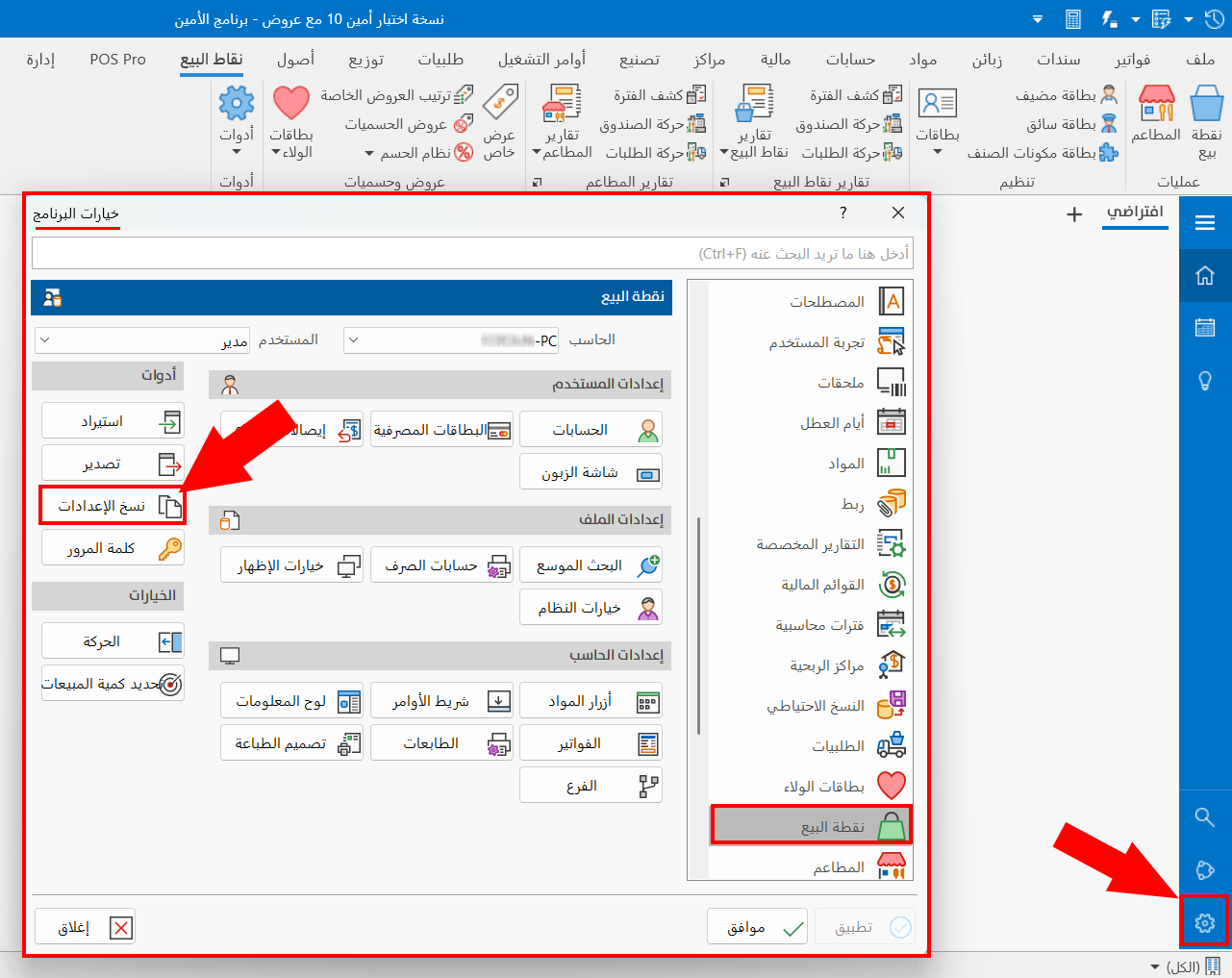
After you click "Copy Settings", the following window opens:
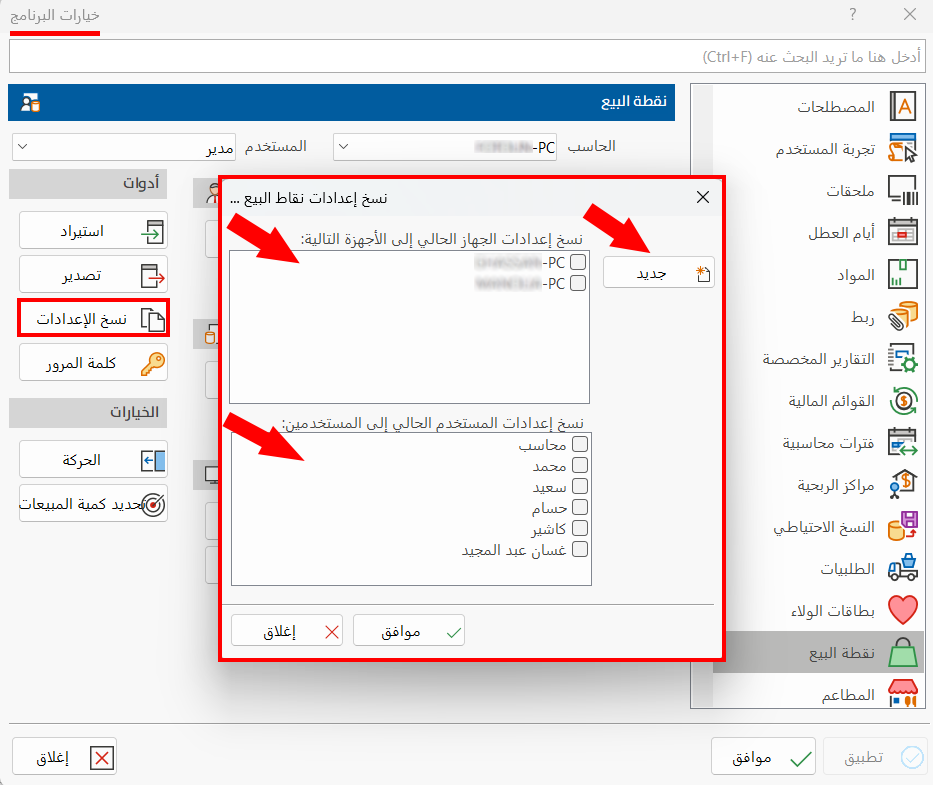
The "Copy POS Settings" window is divided into two parts.
The first part: copy the settings of the current device to the following devices. This part shows all the devices you can copy the settings to: select the computer name you want from the list.
If you want to copy the settings of the current computer to a device that is not in the list, click "New"; the following window opens:
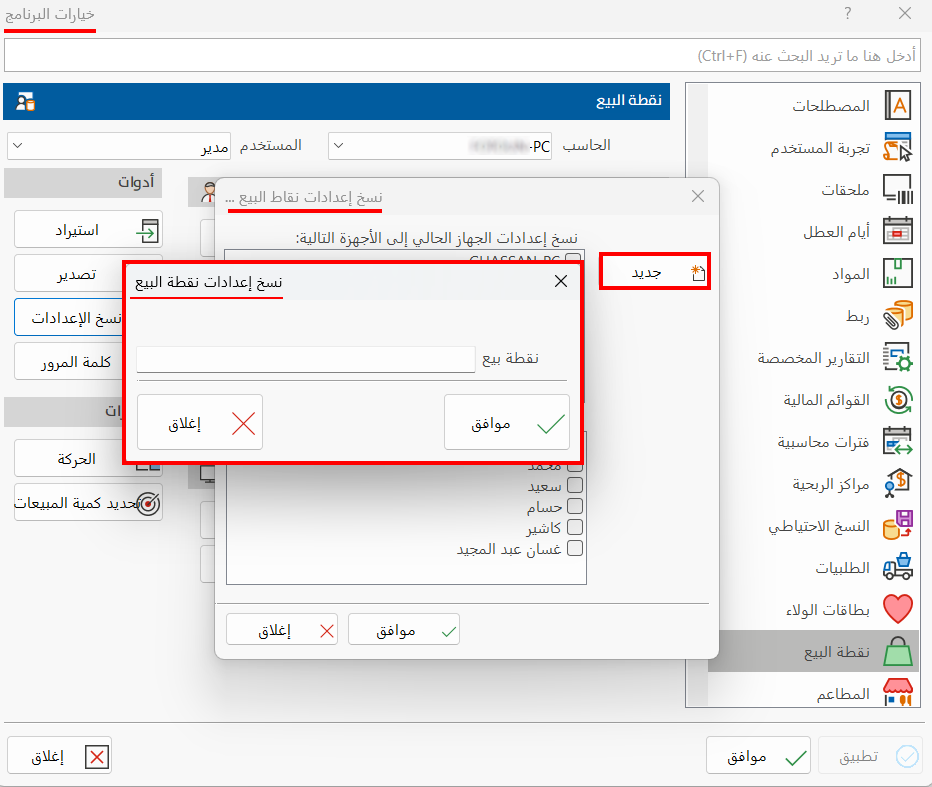
Enter the computer name in the "Station" field, then click "OK" to complete the operation, or "Close" to abandon copying the settings.
The second part: copy the settings of the current user to users. Here, copying is at the level of the file's users: select the user to whom you want to copy the current settings.
Click "OK" in all windows to save the settings.