Determine Sales Quantity
You can control the maximum sales quantity of a material allowed in a single order with the "Determine Sales Quantity" button on the Point of Sale tab - Program Options window.
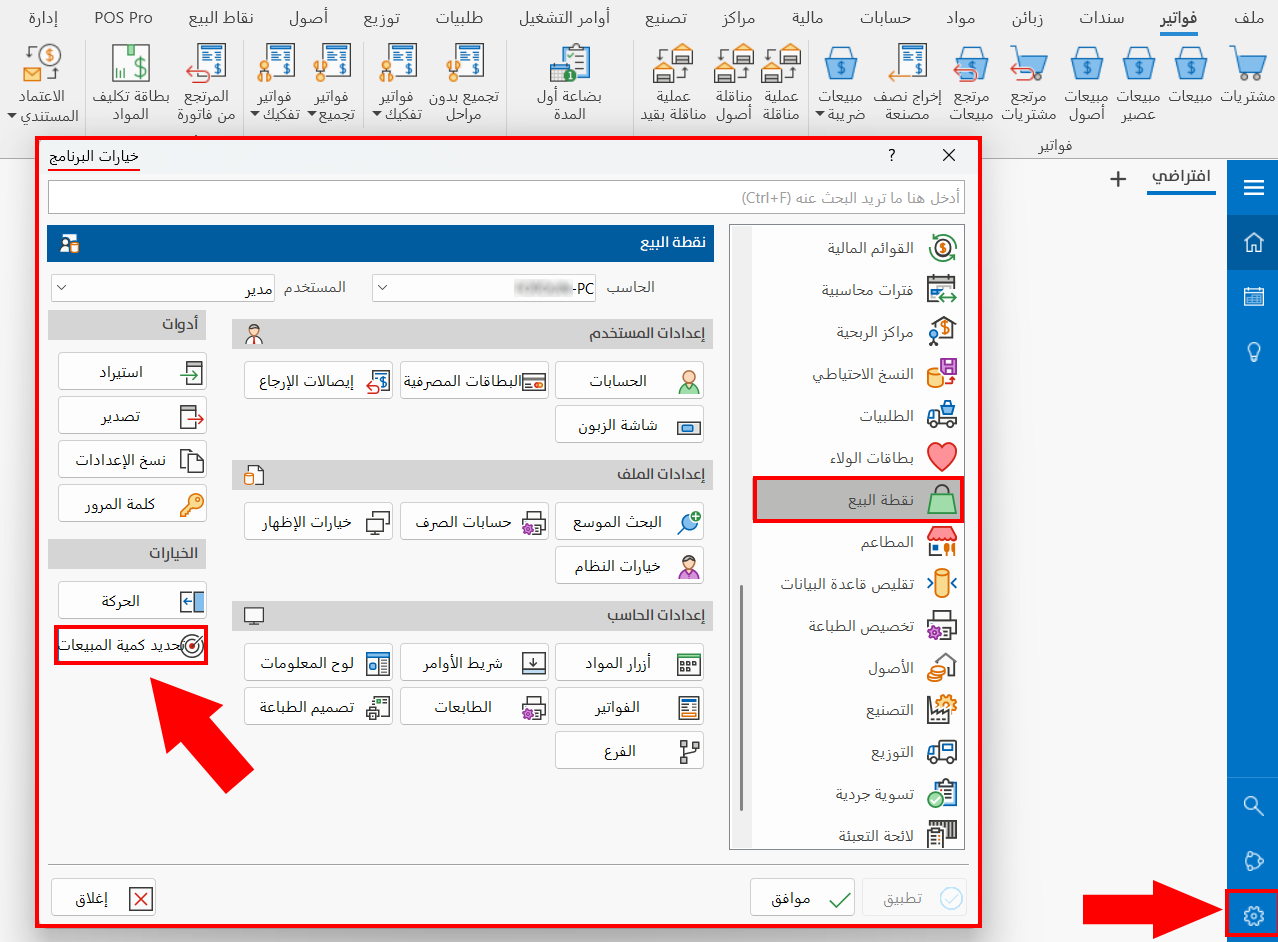
Enable the "Use the determine sales quantity feature" option in "System Options" on the Point of Sale tab - Program Options window, so you can apply the quantity limits.
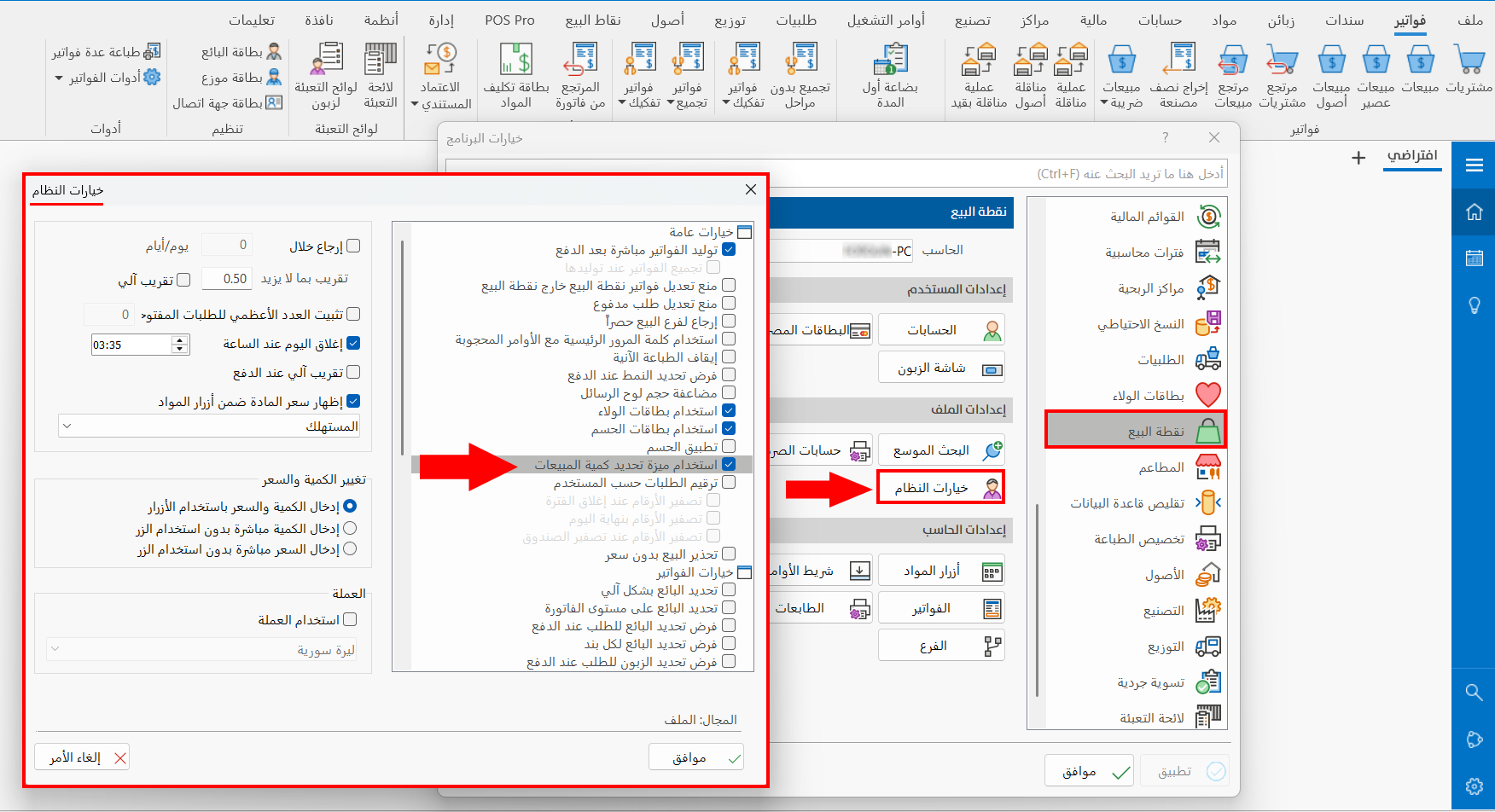
The Determine Sales Quantity Window
After you enable the "Use the determine sales quantity feature" option, you can open the "Determine Sales Quantity" window to start setting the quantities.
The window contains a table for entering the materials or groups whose allowed sales quantity in an order you want to set.
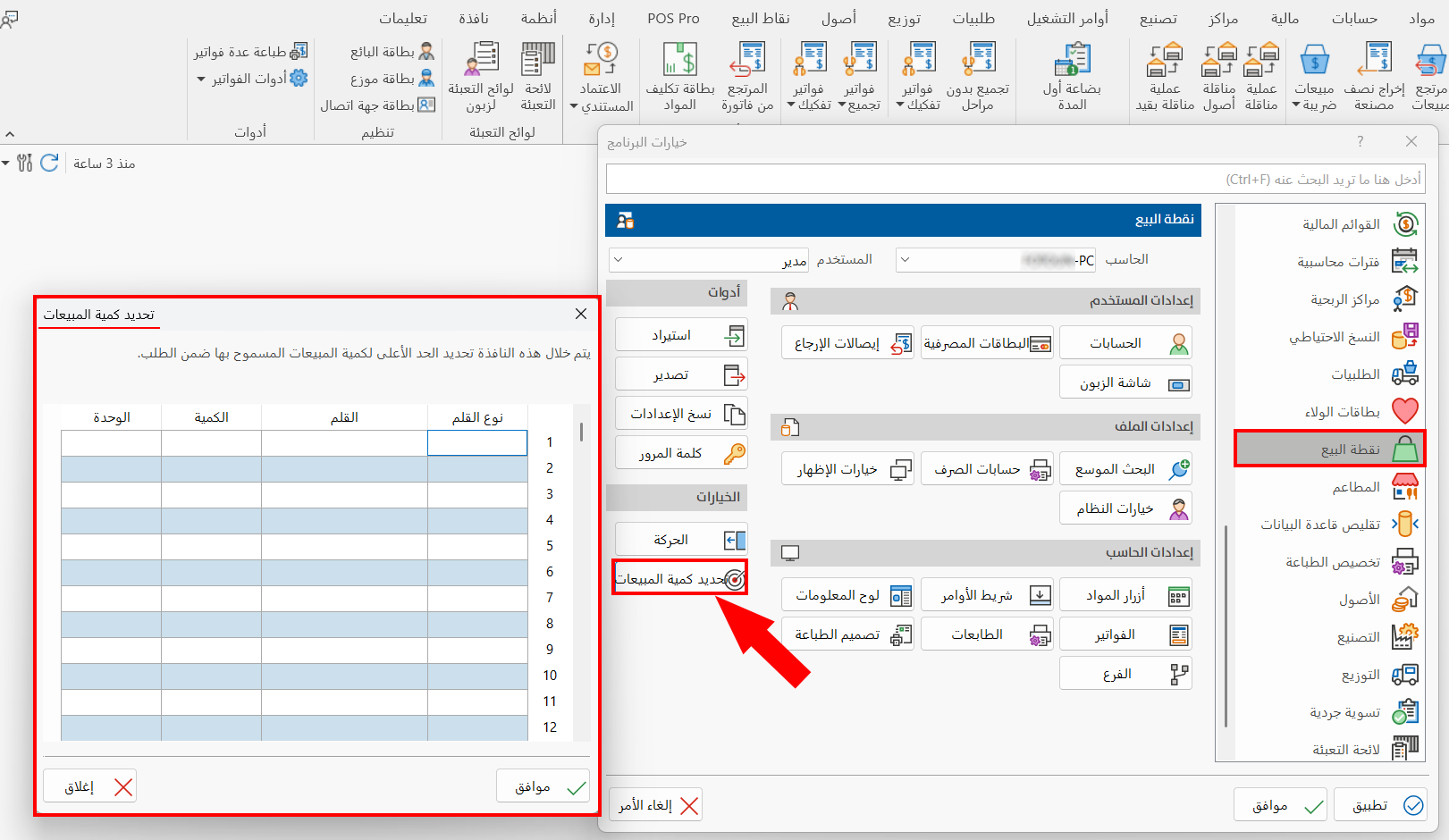
The fields of the table are used as follows:
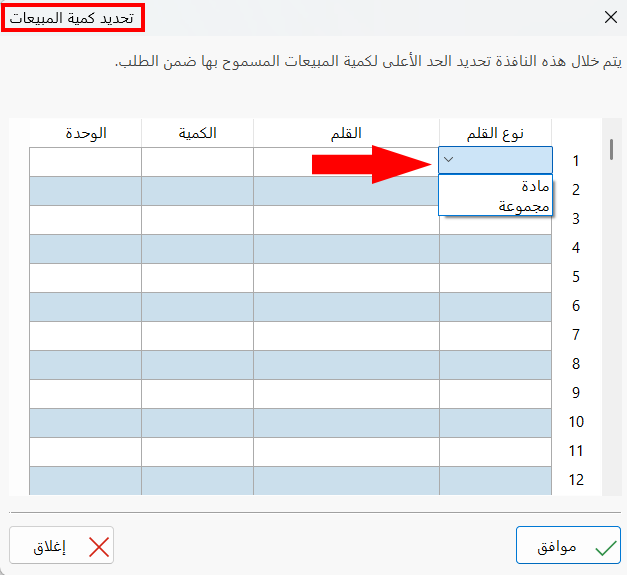
Item Type
The item type is a material or a group: you must set the item type by double-clicking in the field to open a list for choosing the type.
Item
Enter the name or code of the material/group whose quantity you want to set. If you cannot remember its name or code, type part of the name or code and press "Enter": the material/group selection window opens.
Qty
Enter the maximum sales quantity allowed in a single order.
Unit
The default unit appears automatically after you choose the material/group; you can change it and enter the unit for which you want to set the allowed sales quantity.
Click "OK" in the "Determine Sales Quantity" window to save the changes.
Click "Close" in the "Determine Sales Quantity" window to abandon the operation.
Click "OK" in all the windows (Define Motions, Motion Effects, Program Options) to save the settings.