Motion Effects
You can control the movement of the materials groups, the messages board, and the dashboard in the point of sale interface, and set the style of each of them separately, with the "Motion Effects" button in the Program Options window - Point of Sale tab.
After you click the "Motion Effects" button, the following window opens:
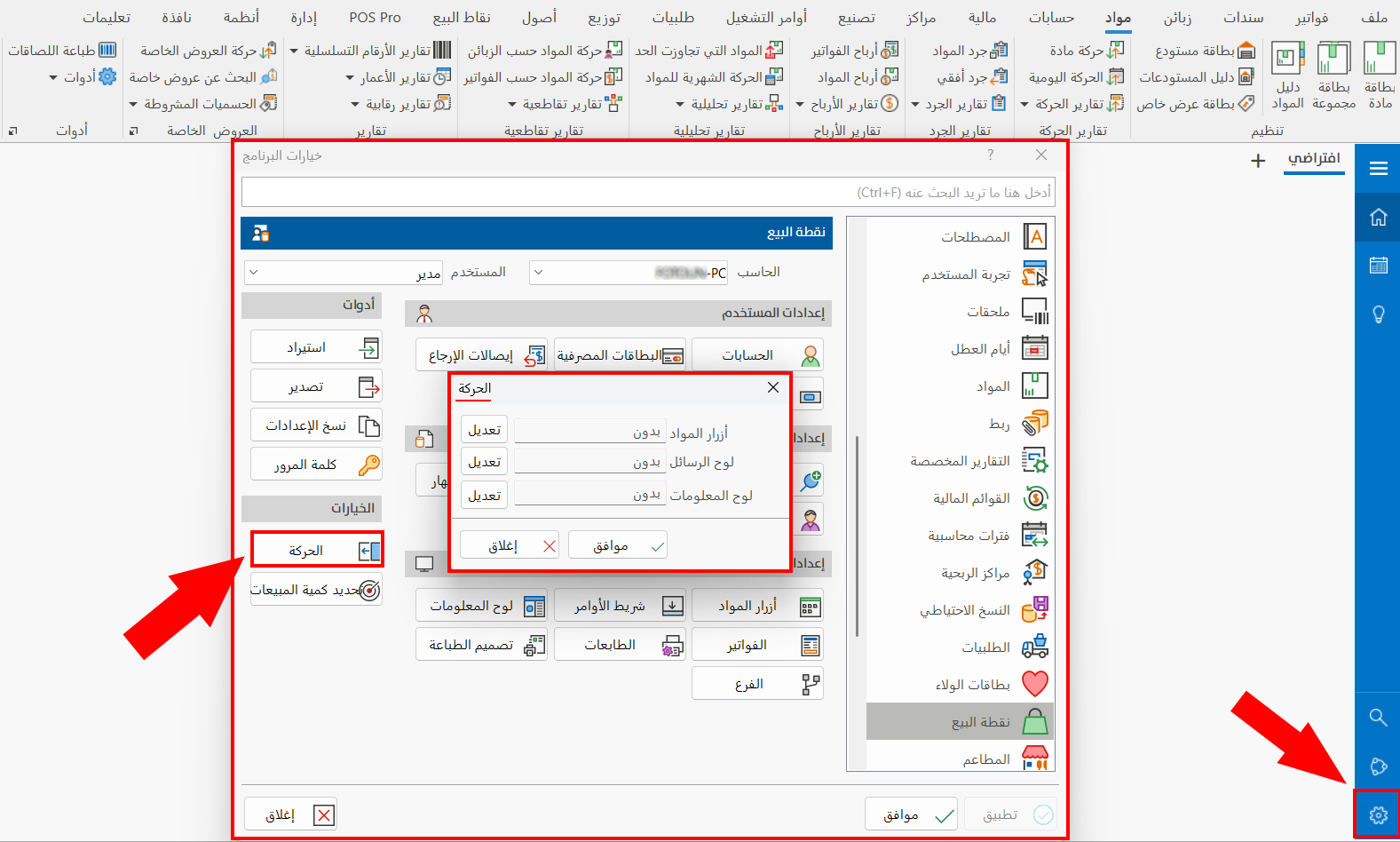
Materials Buttons
By default, the program uses no motion style between the materials buttons, so the field is set to "None".
To add a motion when moving between materials buttons, click the "Modify" button next to the Materials Buttons field; the following window opens:
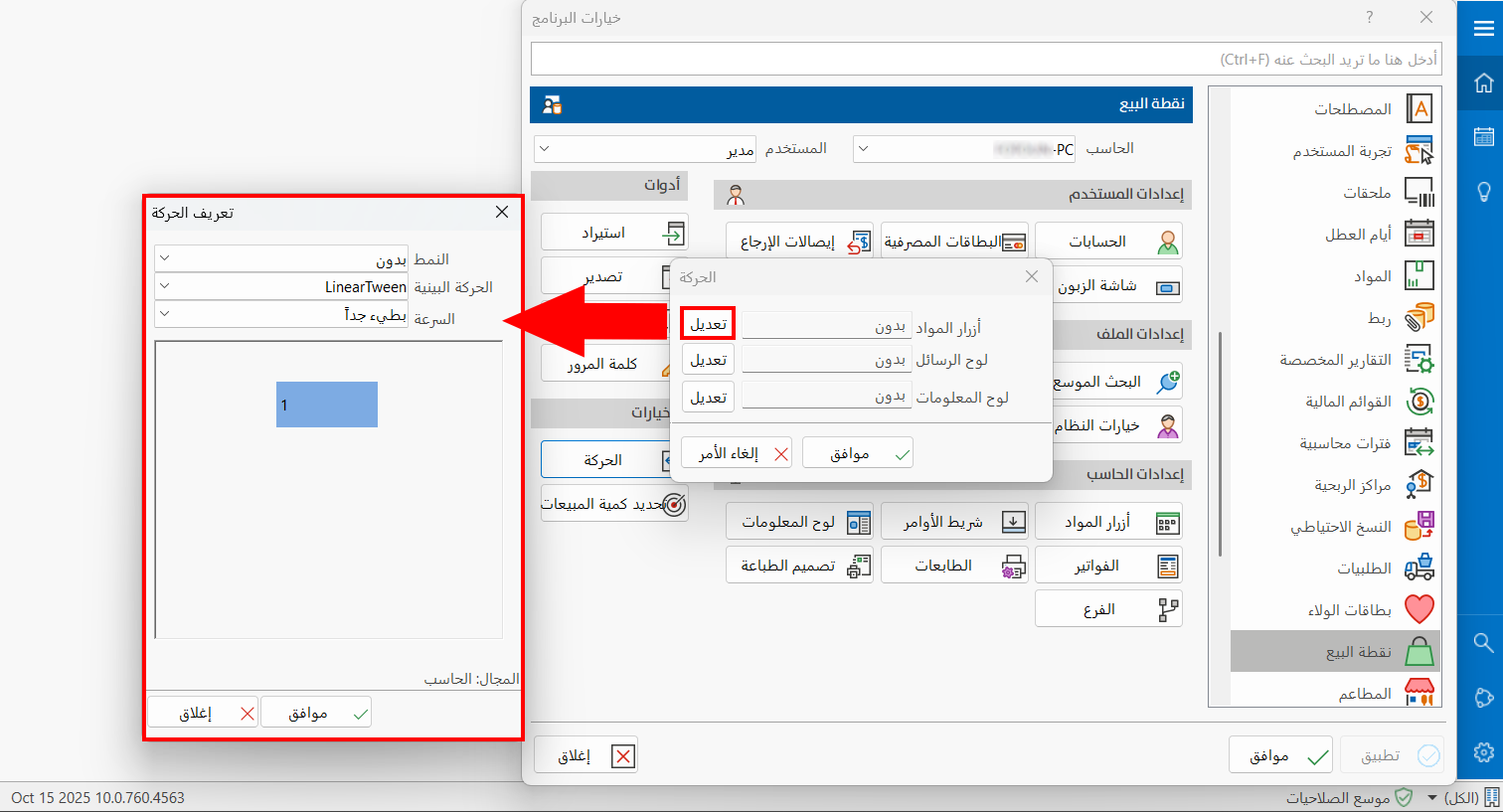
In the "Define Motions" window, you can choose the following:
Style
The program provides a list of styles that opens when you click the arrow in the field.
When you click one of the styles, it is applied immediately in the window.
Movement Acceleration
The movement of an element from one position to another, with the change appearing gradually, without breaks or sudden jumps.
First choose the motion style in the previous field, then choose the suitable movement acceleration from the drop-down list after clicking the arrow in the field; it is applied immediately in the window.
Speed
Set the speed of the movement between the groups of materials buttons from the options in the drop-down list of the field:
The motion is applied when you move between the groups of materials buttons.
Messages Board
The messages board is the top part of the point of sale interface, as shown in the image:
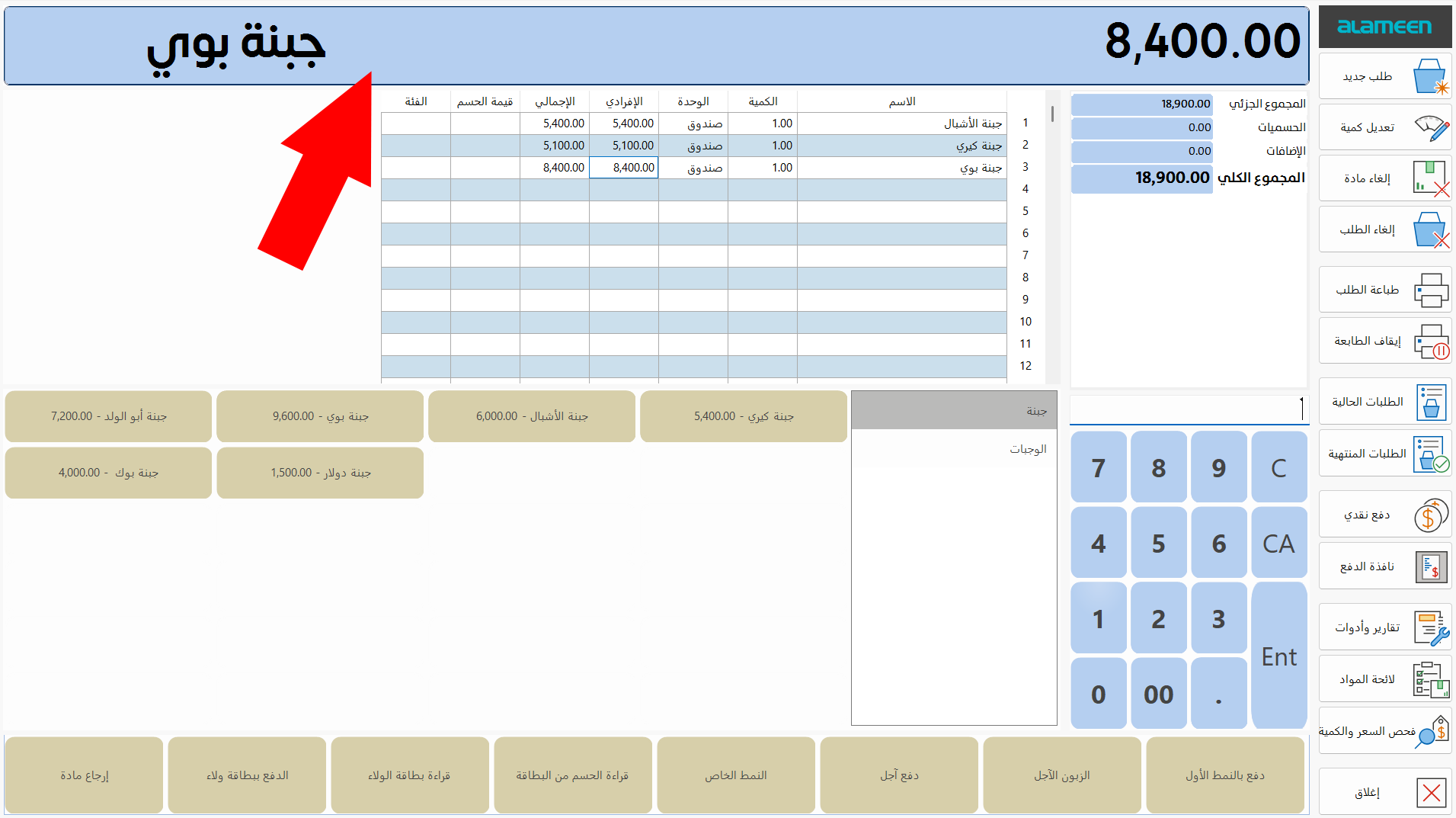
By default, the program uses no motion style for the messages board, so the field is set to "None".
To customize the motion, click the "Modify" button next to the Messages Board field: the "Define Motions" window opens so you can choose:
-
Style
-
Movement acceleration
-
Speed
Choose the "Customized" style in the Style field so you can apply the movement acceleration and speed to the messages board.
Dashboard
The dashboard is the part of the point of sale interface that shows the totals, as shown in the image:
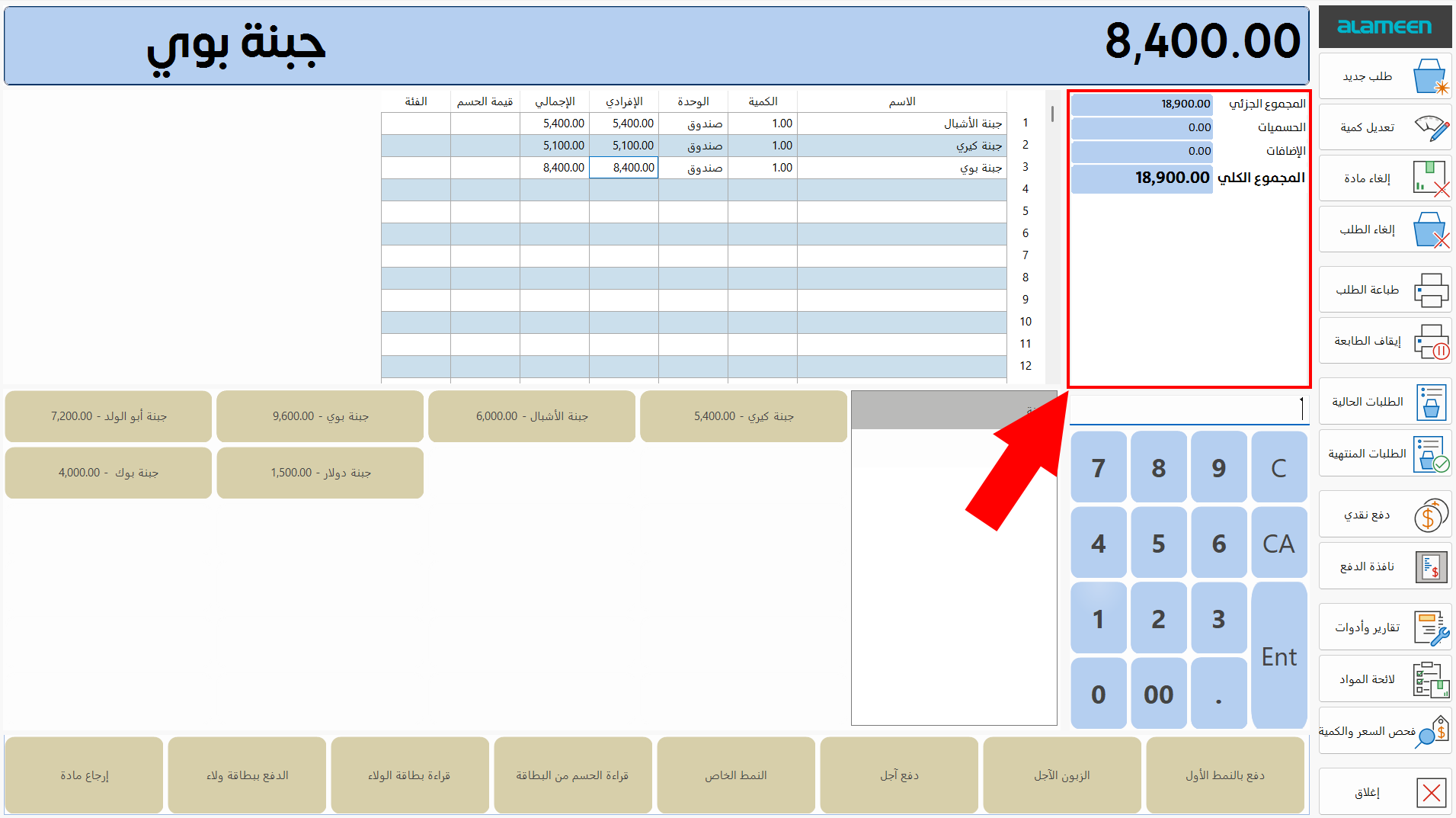
By default, the program uses no motion style for the dashboard, so the field is set to "None".
To customize the motion, click the "Modify" button next to the Dashboard field: the "Define Motions" window opens so you can choose:
-
Style
-
Movement acceleration
-
Speed
Choose the "Customized" style in the Style field so you can apply the movement acceleration and speed to the dashboard.
Click "OK" in all the windows (Define Motions, Motion Effects, Program Options) to save the settings.