System Options
The "System Options" window sets the default options of the point of sale system, the shift, and the allowed return days. If you are a user with the permission, you can set the options to suit your work.
You can reach the system options from the Program Options window - Point of Sale tab - System Options button.
Once requested, it appears as follows:
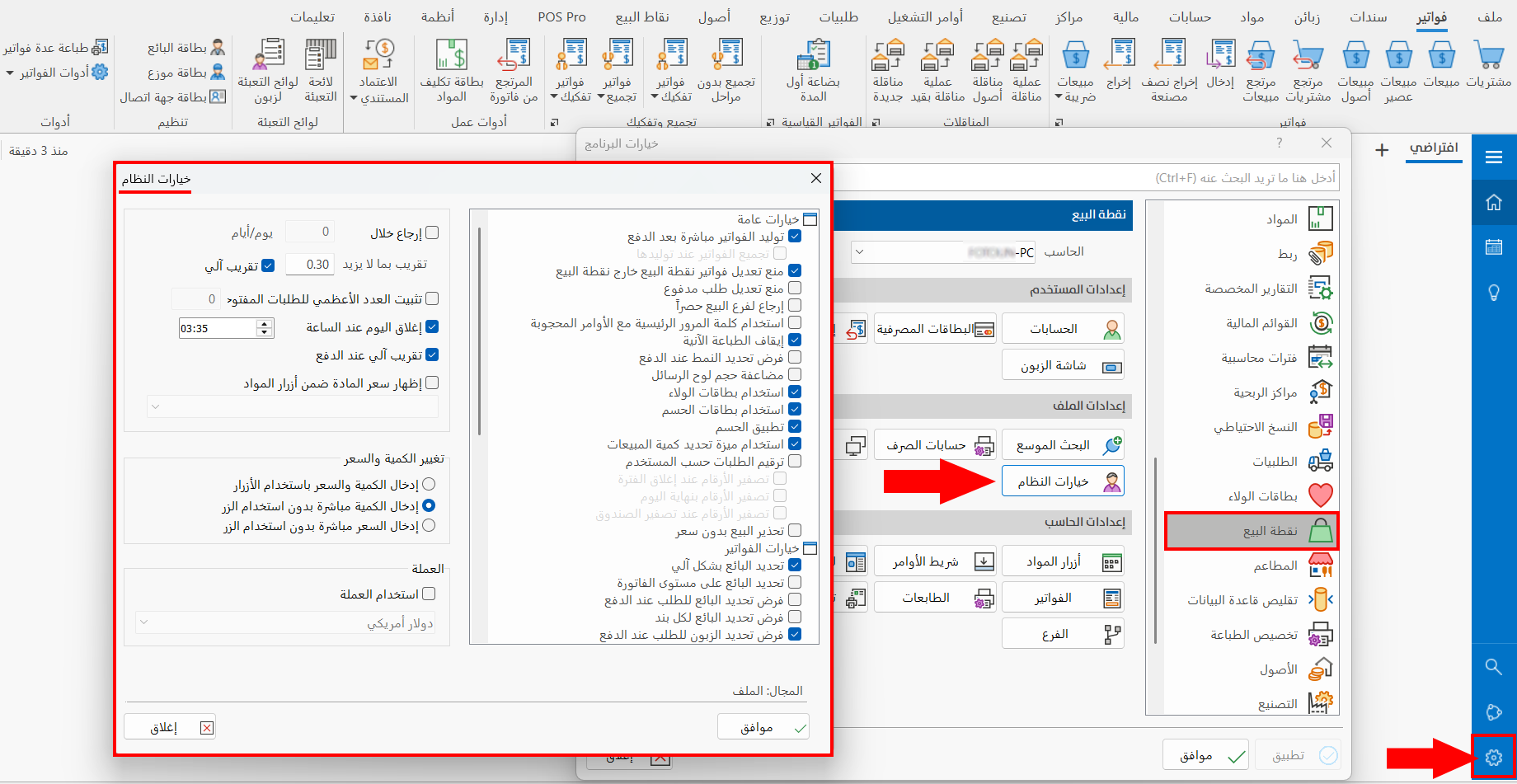
The window contains groups of general and specific options, such as invoices options, POS special offers, and loyalty cards. Some of these options are enabled by default; you can enable or disable each option according to its purpose.
General Options
The window provides a list of general options related to the point of sale system as a whole. They are used as follows:
Generate Bills Directly after Payment
Bills are generated for orders directly after each payment in the point of sale interface. (Enabled by default.)
When you disable this option, you can generate bills manually in the point of sale interface with the "Generate bills for orders without bills" tool in the window that opens from the "Reports and Tools" button in the main commands menu.
When this option is disabled, you can modify orders after they are paid and before the bill is generated manually.
Merge Bills When Generated
When you generate bills manually, you can merge a number of bills and generate a single bill with them. To do so, you must first disable the "Generate bills directly after payment" option; this option then becomes available.
Use the "Generate bills for orders without bills" tool in the "Reports and Tools" window of the point of sale interface to generate the bills of the shift or the day merged in a single bill.
Prevent Modifying Point of Sale Bills Outside the Point of Sale
You can modify bills after closing the point of sale interface, because this option is not enabled by default.
Enable the option to prevent modifying bills outside the point of sale interface: when you try to modify them, the "Modify" button is not available in the invoice window.
Prevent Modifying Paid Order
You can modify paid orders in the point of sale interface; enable this option to prevent users from making any change to paid orders.
Return Exclusively to Sales Branch
Prevents returning a sold material to a branch other than the one where it was sold. It is not enabled by default.
Use the Main Password with Blocked Commands
When this option is enabled, the commands the user does not have the permission to use are unlocked only after the main password is entered.
So if the user does not have the permission to give a certain discount on the invoice and the system administrator wants to give the customer a discount, the administrator enters the main password in the warning message, so that the user does not have to leave the program and come back to it again.
Stop Instant Print
The system prints all bills automatically after the order is paid. You can cancel automatic printing by enabling this option, and use the "Print Order" command in the point of sale interface.
Force Selecting the Form on Payment
You can select this option to use the special invoices forms you added in the point of sale invoices window that opens from the Invoices button on the Point of Sale tab - Program Options window.
After you enable the option, you cannot pay the order before setting the form of the invoice you want to generate.
Double the Size of Messages Board
The messages board appears at the top of the point of sale interface in a medium default size; you can increase its size by enabling this option.
The messages board shows the status of the order and warnings such as: all open orders must be finished, the order total equals zero, the daily package balance is not enough.
Use Loyalty Cards
You cannot use the loyalty card commands, such as "Read Loyalty Card" and "Pay by Loyalty Card", before enabling this option.
Use Discount Cards
You cannot use the discount card commands in the point of sale interface before enabling this option.
Apply Discount
Available after enabling the "Use Discount Cards" option. It applies the discounts offers directly to the order in the point of sale interface.
Use the Determine Sales Quantity Feature
Enable this option to control the sales quantity of materials in the point of sale interface; after enabling it, you can set the quantity with the "Determine Sales Quantity" tool.
Renumber Orders by Users
The following number reset options are enabled after you enable this option, so you can set how order numbers are reset in the point of sale interface for each user separately.
Zero Out Order Numbers When the Period Is Closed
Enable this option to reset order numbers when the period is closed. You can close the period with the button in the "Period Report". (Available after enabling the "Renumber orders by users" option.)
Zero Out Orders Numbers at the End of Day
Enable this option to reset order numbers at the end of the day set in the "Close the day at" field of the System Options window. (Available after enabling the "Renumber orders by users" option.)
Zero Out Order Numbers When the Drawer Is Reset
Enable this option to reset order numbers when the drawer is reset, and start new order numbers after the reset. (Available after enabling the "Renumber orders by users" option.)
Warn When Selling without Price
Select this option to use it when materials are sold without a price: a warning message appears when the order is paid and contains a material without a price.
To enter a price for the material, you must add the "Modify Material Price" command to the commands bar of the point of sale interface.
Invoices Options
Enable the options that suit you to control the fields and rows of invoices:
Select Salesman Automatically
Lists the salesman's name in the order details in the "Finished Orders" window.
Select the Salesman at Invoice Level
Forces selecting the current salesman when the order is paid and the invoice is generated: a window with all the salesmen defined with the "salesman card" opens so you can choose the salesman.
Force Selecting the Salesman for the Order on Payment
When this option is enabled, the system does not accept paying any order until a salesman is assigned to it.
Force Selecting the Salesman for Each Item
When this option is enabled, the system does not accept entering any material in the material table until a salesman is assigned to it.
Force Selecting the Customer for the Order on Payment
When you enable this option, the "Select Customer" window opens so you can choose the customer before the order is paid.
Add the Remaining Amount to the Discount
The program adds the remainder of the invoice to the discount account: when the customer pays, for example, 450 for an invoice worth 500, the remaining 50 is treated as a discount on the invoice.
Delete the Cancelled Material Completely
The system removes the invoice row after "Cancel Material" from the order. You can enable this option to prevent removing the material from the invoice permanently: the material stays among the invoice rows, but is removed from the total and the count of the order's materials, and highlighted in blue.
You can change the row color of the cancelled material in the invoice from the Program Options window - Point of Sale - Display Options.
Enter Prices without the Decimal Point
You can do without the digits after the decimal point in prices by enabling this option.
You can set the number of digits after the decimal point from the Program Options window - Numbers tab.
Group Repeated Items in the Order Rows
You can enable this option to group the materials repeated in the order in a single row.
Special Offers Options
You can set the options of the POS special offers as follows:
Apply Special Offers Automatically
Applies POS special offers directly to the order when it meets the condition set in the POS special offer card.
Recalculate Special Offers in the Order with Each Entry
Allows a POS offer to be repeated in a single order after each entry that meets the offer condition.
Apply the Special Offer to the Returned Material
You can allow the user to handle a returned material the same way it was sold in the offer: if the material was sold with a "Price-off" offer, the option allows returning it at the same value (including the price-off).
Allow Modifying the Special Offer Quantity in the Order
By default, the program prevents users from modifying offer quantities in the point of sale interface; enable this option to allow modifying the quantity in the order.
Do Not Allow Returning a Material from an Order with a Special Offer
You can prevent returning the materials given to customers in one of the POS special offers.
Use Discounts Offers
Enable this option to use the offers you add with the "Discounts Offers" card.
Receipt and Payment Vouchers Options
Fix the Cash Account in the Receipt and Payment Card
The cash account you set in the default accounts window appears automatically in the receipt and payment vouchers.
Show Cost Center
Enable this option to show the cost center field in receipt and payment vouchers.
Use Basic Currency Only
You can enable this option to prevent using in receipt and payment vouchers any currency other than the basic currency of the file.
Print the Order When a Payment Is Made with a Receipt Voucher
You can make the receipt voucher print automatically when a payment is made by enabling this option.
Reset Drawer Options
You can control the Reset Drawer tool with the following options:
Show Currency Differences When Resetting the Drawer
Currency differences appear automatically after the "Reset Drawer" tool is applied in the point of sale interface: a warning window shows the value of the currency differences.
Print the Materials Total in the Reset Receipt
Lists the materials in the receipt generated by the drawer reset, when it is printed.
Detail the Tax by Rate in the Drawer
Lists the value added tax rates in detail in the printed drawer reset receipt.
Loyalty Cards Options
Enable the options that suit you to apply them when using loyalty cards. They are:
Calculate Points When the Order Is Paid
Enable this option to calculate the loyalty card points when the order is paid.
Allow Cash Payment When Paying with Points
Enable this option to allow the customer to pay the value of the order in cash even if they have a loyalty card.
Return During
You can allow customers to return orders within a period you set, by enabling the Return during option, then entering the number of days within which customers may return orders in the field that becomes available after enabling the option.
Round by No More Than
Enter the value allowed for rounding when orders are paid.
Auto-Rounding
The system rounds automatically, according to the value you add in the "Round by no more than" field.
Set the Maximum Number of Open Orders
You can control the number of orders that can be open at the same time in the point of sale interface by enabling this option, then entering the maximum number of orders allowed.
You can view the open orders with the Current Orders button in the basic commands menu.
Close the Day At
Set the hour at which you want to end the working day, so the program starts counting a new day after this hour.
Type the hour, or use the arrows in the field to reach the hour you want.
Auto-Rounding on Pay
Enable this option to apply automatic rounding to the order value when it is paid, according to the number you add in the "Round by no more than" field.
Show the Material Price on the Materials Buttons
Enable this option to show the material price on its button: you can choose the price you want to show from the list that becomes available after enabling the option, which contains the prices you can use, such as wholesale, semi wholesale, consumer...
Change Quantity and Price
You can control how material quantities and prices are modified in the point of sale interface by enabling one of the following options:
Enter the Quantity Directly without the Enter Material Quantity Button
When this option is enabled, you can enter the quantities of materials before selecting them, that is, by entering the quantity with the numbers board, instead of the usual method of selecting the material first, then entering the quantity and clicking the "Modify Quantity" button.
Enter the Price Directly without the Enter Material Price Button
When this option is enabled, the material price is changed directly as soon as you enter the price with the numbers board and then enter the material, instead of the usual method.
Enter the Quantity and Price with Their Own Buttons
When this option is enabled, material quantities and prices are entered with their own buttons: the "Modify Quantity" button is available in the main commands menu of the point of sale interface, and you can add the "Modify Material Price" button to the commands bar.
Currency
You can change the currency you want to use at the point of sale by enabling the use currency option, then choosing the currency from the drop-down list, which contains all the currencies defined in the file.
After the currency is changed, the material prices at the point of sale are changed to the new currency, at their equivalent in the basic currency.