Payment Accounts
With the "Payment Accounts" window, you set the accounts that will appear in the account selection window that opens from the "Paid To" field of the payment voucher command window.
Customize the Payment Accounts
To set the accounts you can use in payment vouchers in the point of sale interface, click the "Payment Accounts" button on the Point of Sale tab - Program Options window.
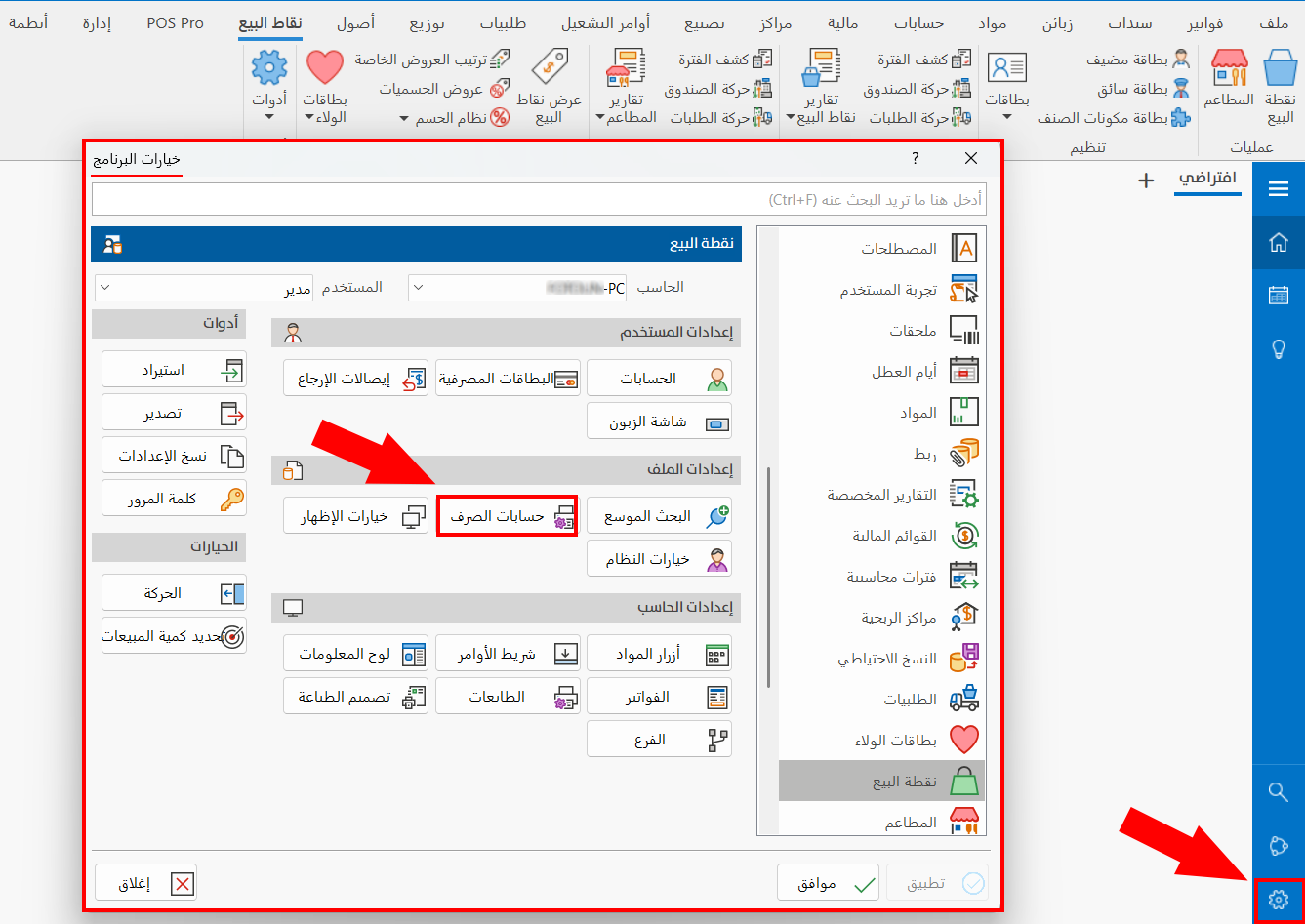
After you click the "Payment Accounts" button, the following window opens:
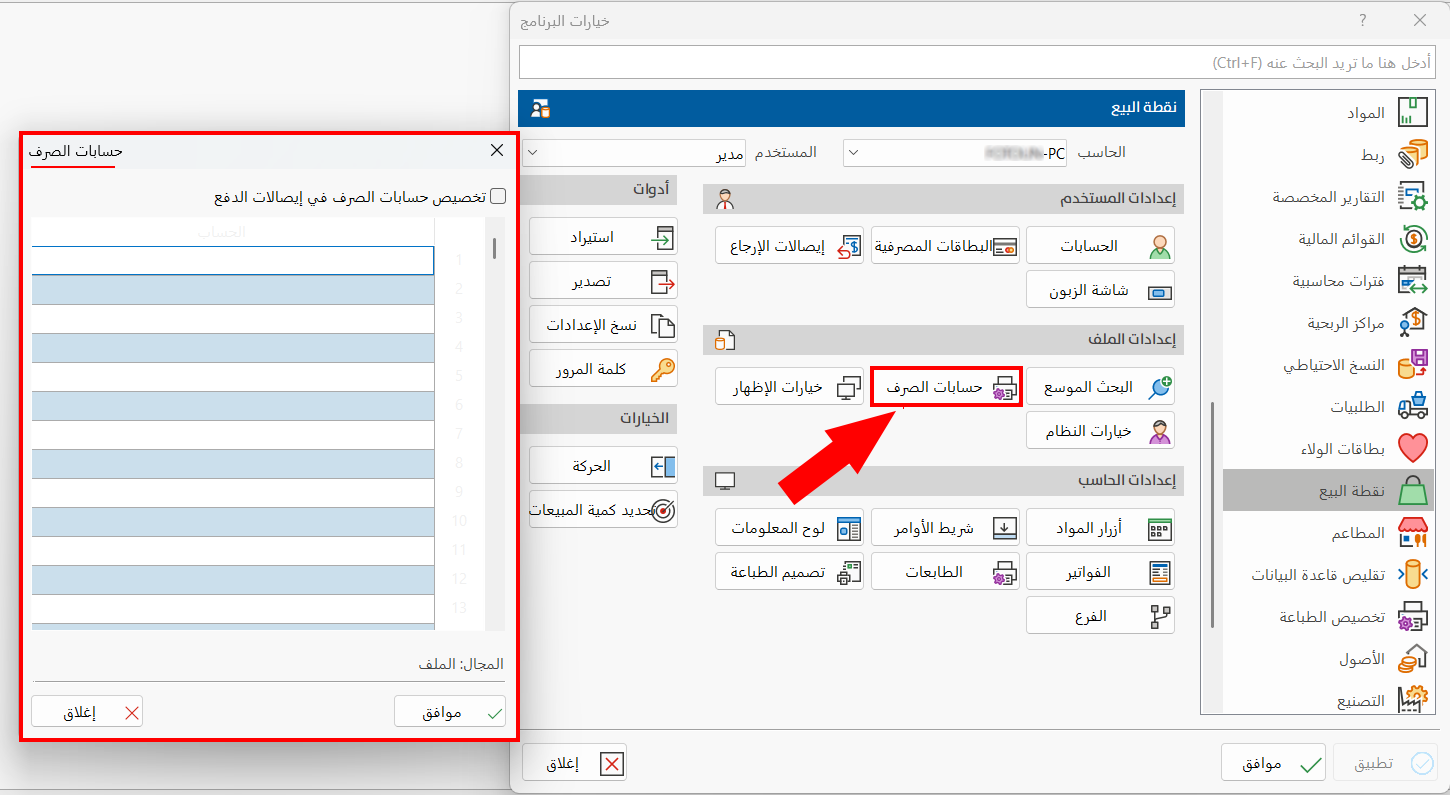
The window consists of the following:
Customize Payment Accounts in Payment Vouchers
Customizing the payment accounts depends on enabling this option. By default it is disabled, so you cannot add any account to the account table.
To start customizing the accounts and adding them to the table, enable the "Customize payment accounts in payment vouchers" option.
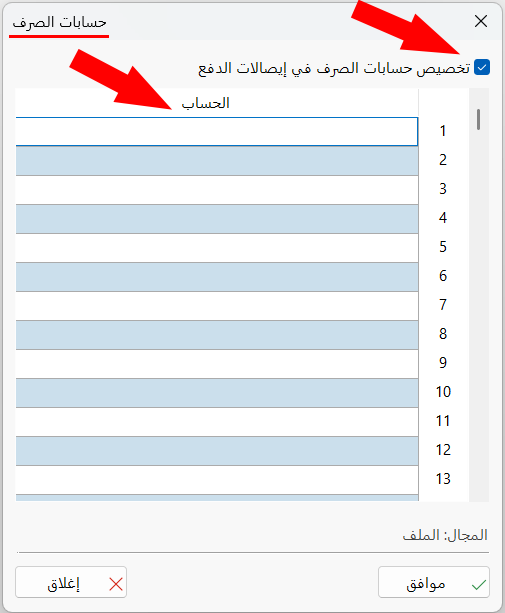
Account
The account table is available after you enable the previous option: you can add the accounts that will be shown in the "Select Account" window of the "Paid To" field in the payment voucher.
Enter the code/name of the account in the fields of the table, then click "OK" in the "Payment Accounts" window and the "Program Options" window.
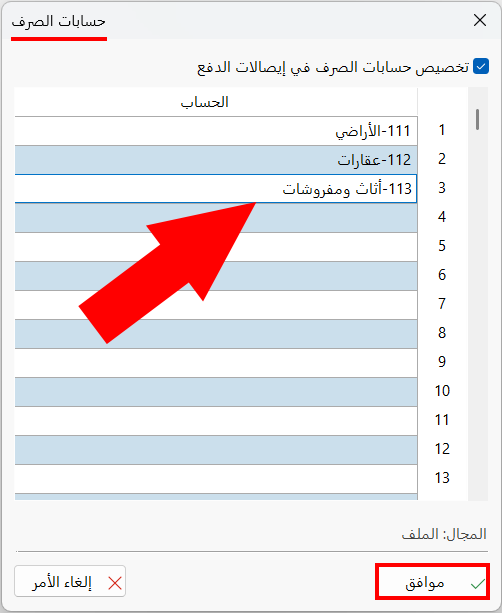
Result of Customizing the Payment Accounts
After setting the accounts in the "Payment Accounts" window, you can reach the payment voucher in the point of sale interface from "Reports and Tools".
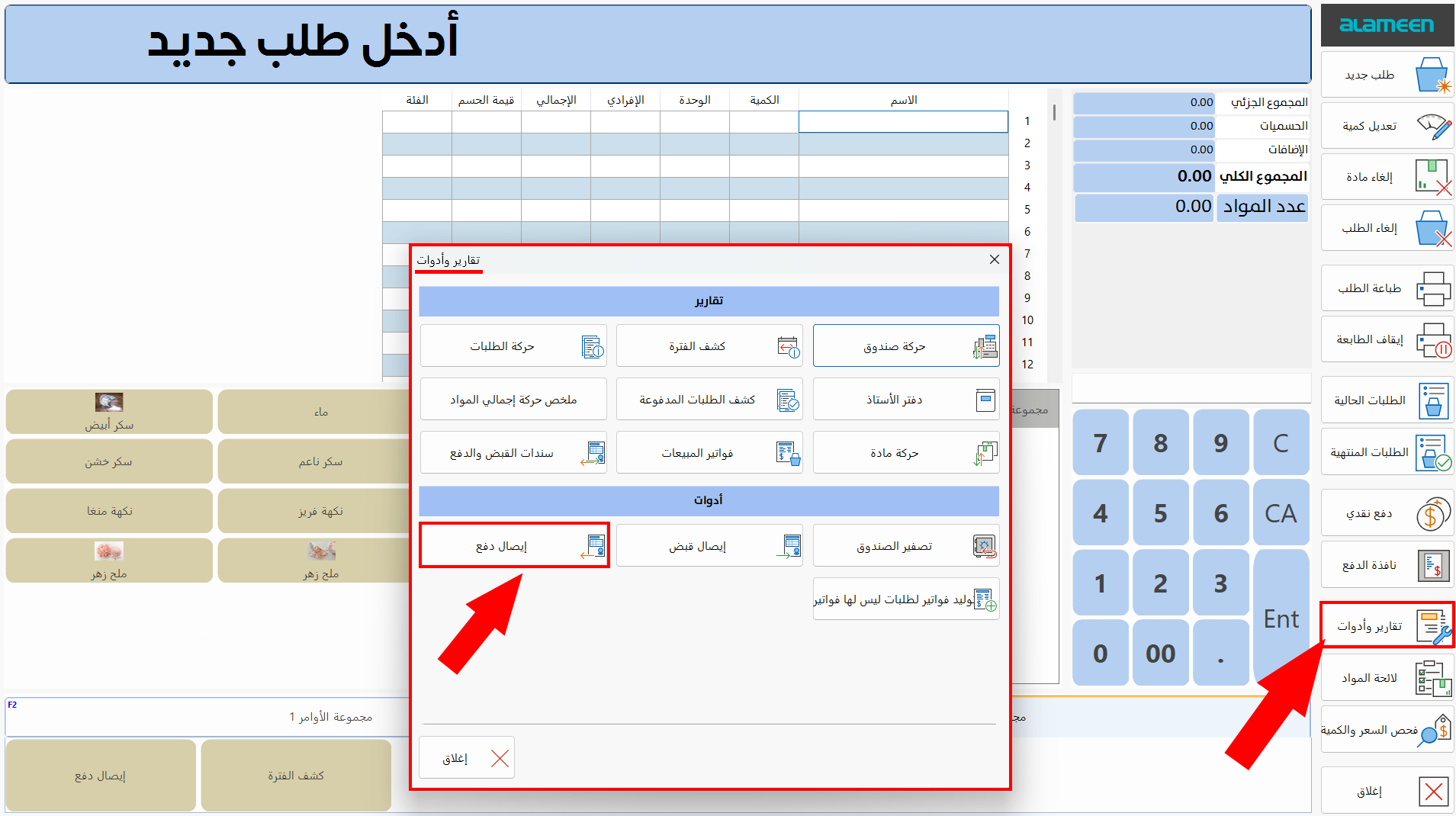
After you click the "Pay Voucher" button, it opens as follows:
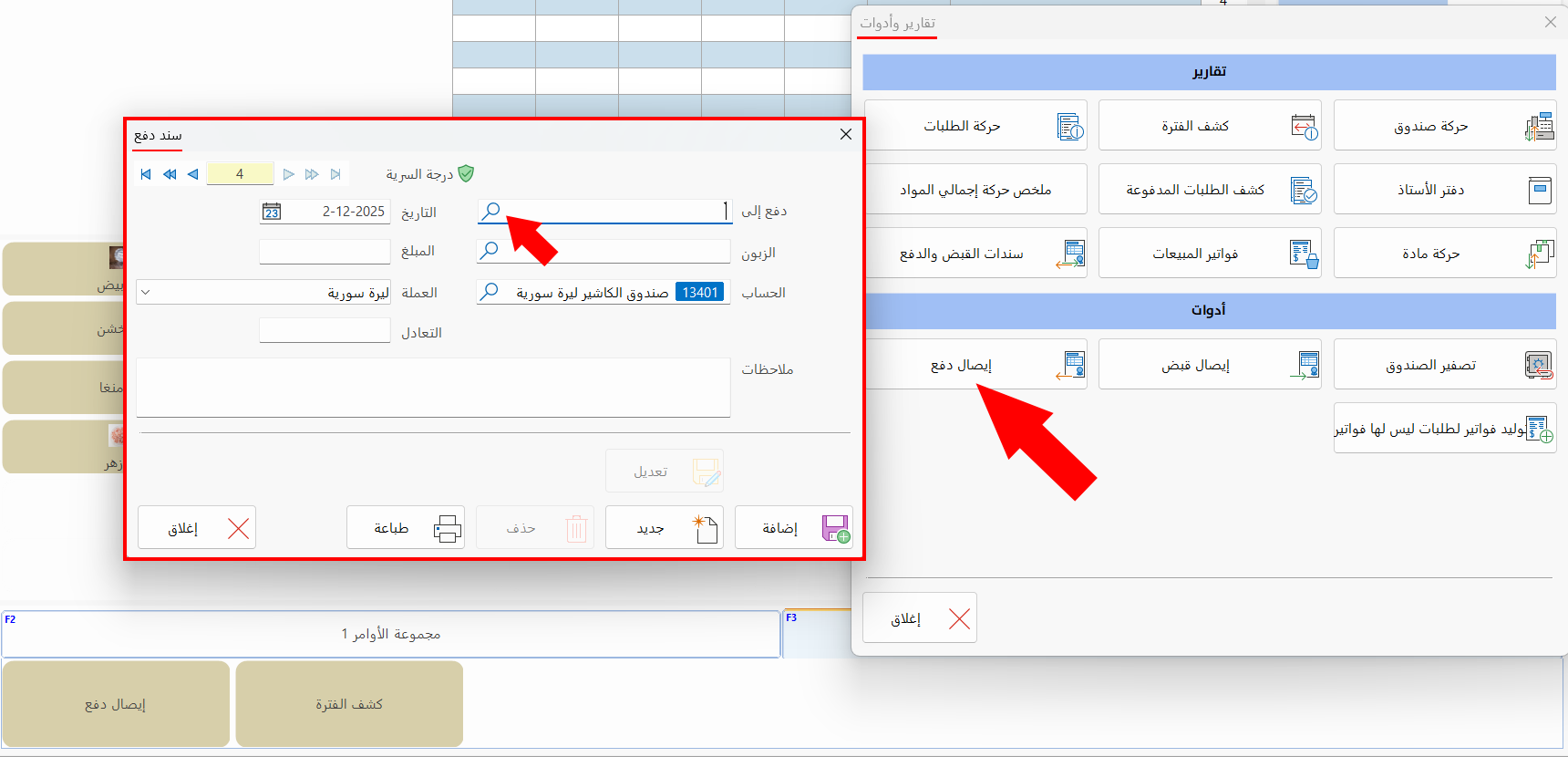
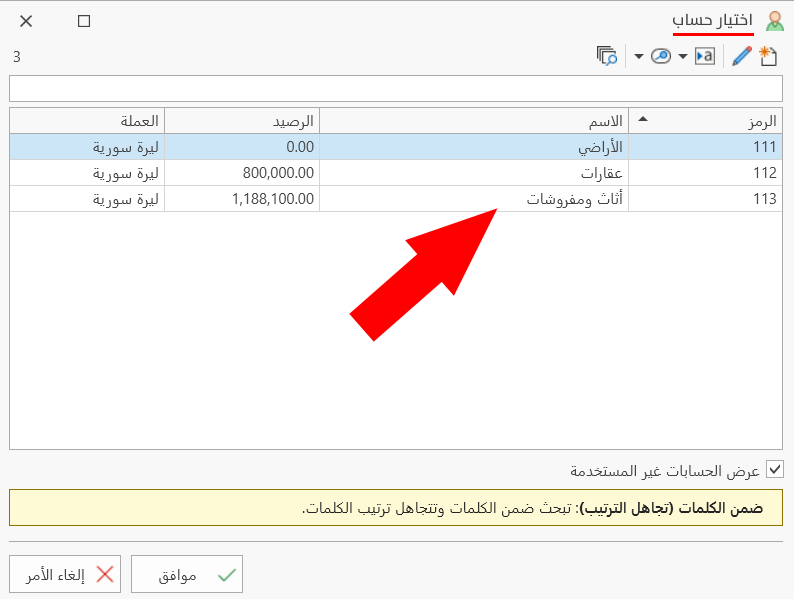
To view the accounts assigned to the payment voucher, click the search icon in the "Paid To" field: the "Select Account" window opens with the accounts set in the "Payment Accounts" window.
Click "OK" in all the windows (Payment Accounts, Program Options) to save the settings.