Extended Search
You can adjust the extended search window in the point of sale interface, customize its fields, and control how the window is shown.
What Is the Extended Search Window?
The extended search window searches for a particular material and shows the materials similar to it, based on the grouping fields set in the Program Options window - Point of Sale tab.
To use the search, you must first add the "Extended Search" button with the "Commands Bar" option in the Program Options window; it then appears on the commands bar as follows:
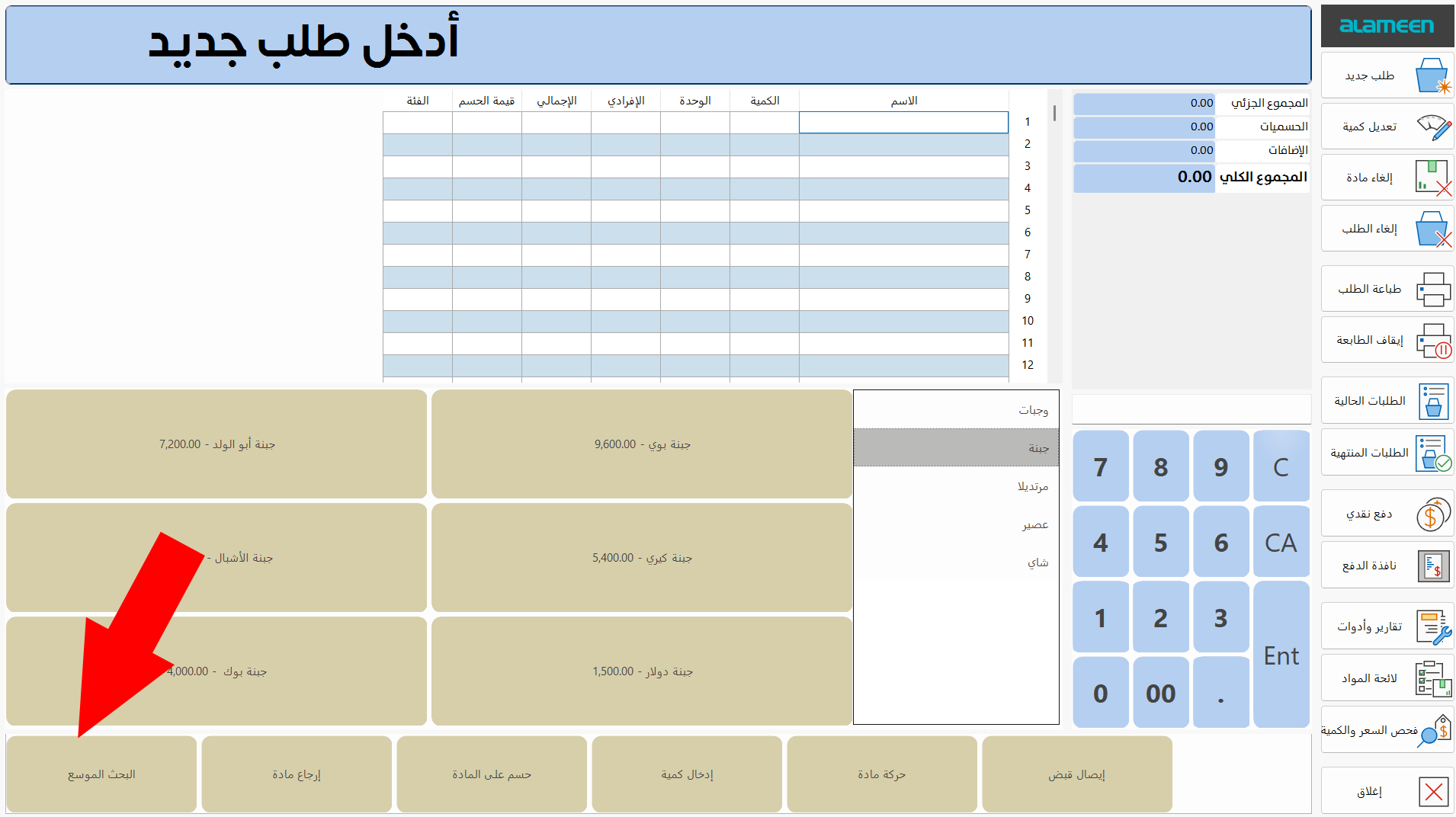
After you click the "Extended Search" command, the search window opens as follows:
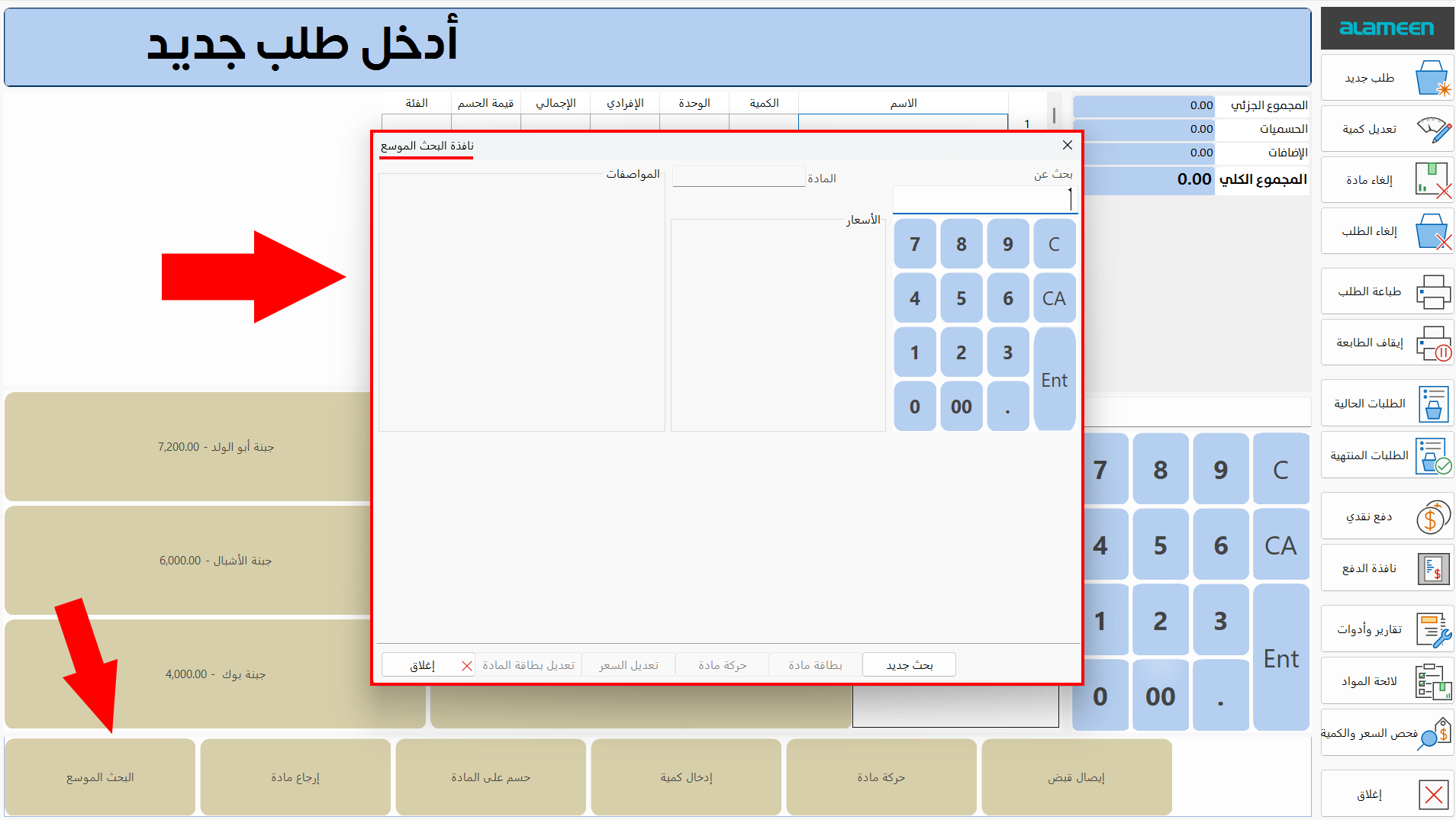
Search results do not appear before you activate extended search, as explained below.
Adjust the Settings of the Extended Search Window
You can set the default settings of the window with the options of the "Extended Search" button, which you can reach on the "Point of Sale" tab of the Program Options window.
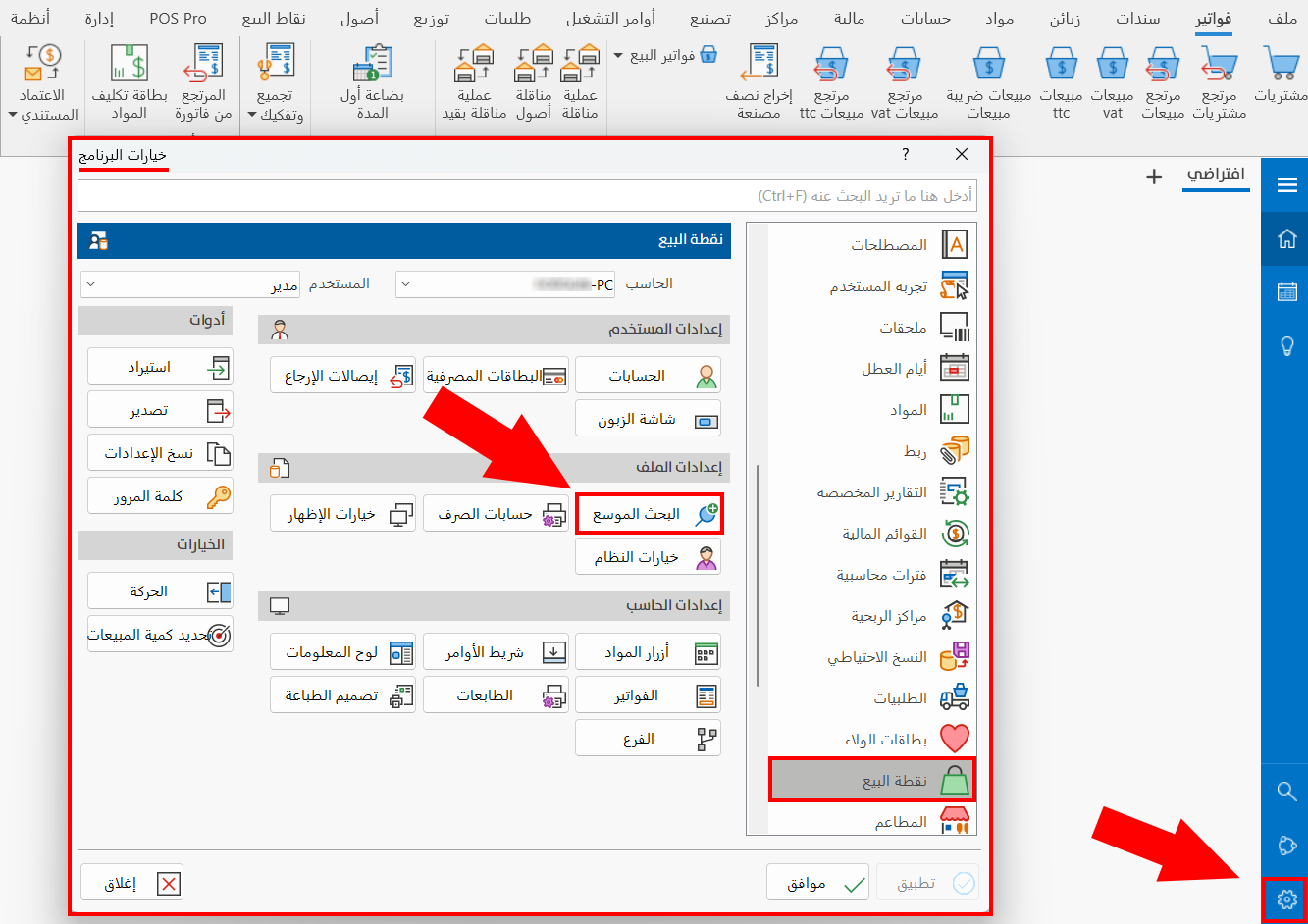
After you click the button, the following window opens:
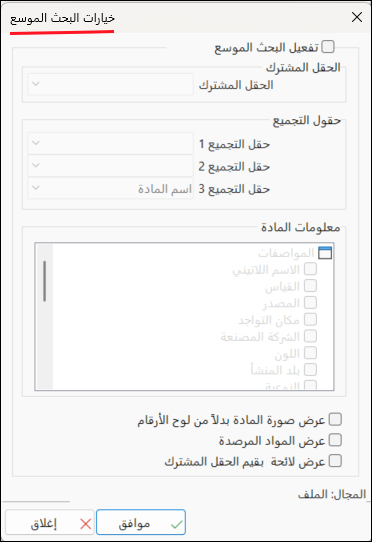
By default, the window appears inactive, so you can use it only after you activate extended search.
Activate Expanded Search
To start using the extended search window, you must enable its option in the extended search options window.
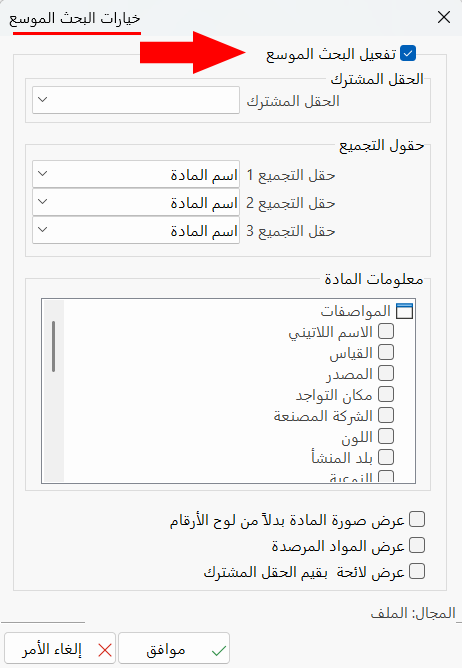
You can then set the fields of the window and select the fields you want from the material information.
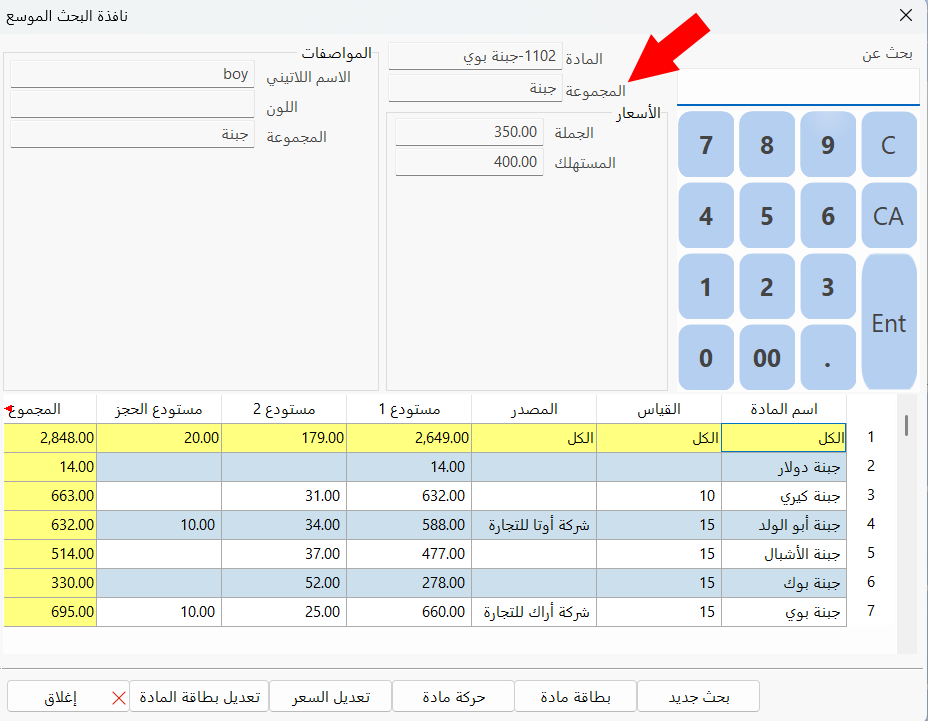
Shared Field
The field listed in the window to show additional information about the material you are searching for.
For example, if you choose the "Group" field and then search for a material, the Group field appears as follows:
Grouping Fields
The program lets you add three grouping fields: the fields shared between the materials in the point of sale interface and the material you are searching for.
Choose the grouping fields by clicking the arrow in each field: a list of the fields you can add opens.
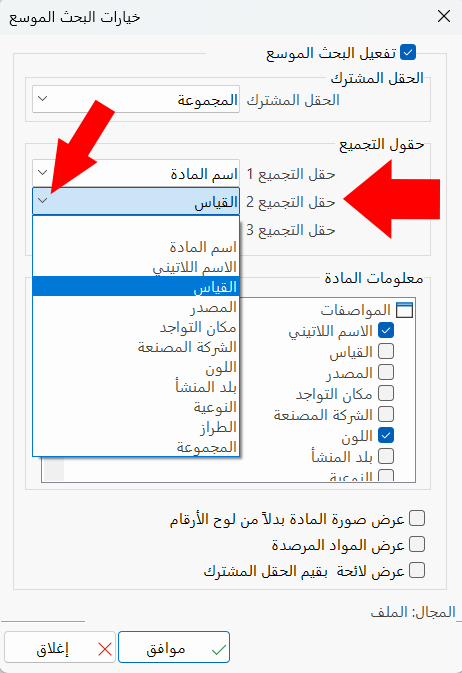
The grouping fields must not repeat: you cannot list as a grouping field the same field that is in the shared field.
Nor can you repeat a grouping field twice among the grouping fields.
You cannot skip the order of the grouping fields: you cannot choose grouping field 2 and leave grouping field 1 empty.
For example, when you set the grouping fields (material name, size, source), they appear in the extended search window of the point of sale interface as follows:
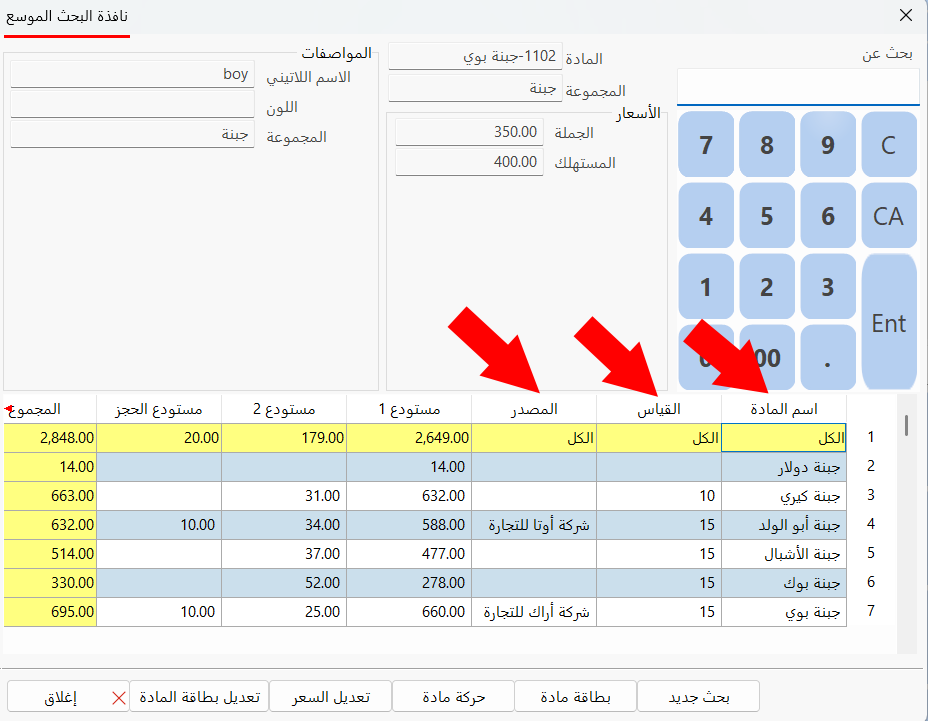
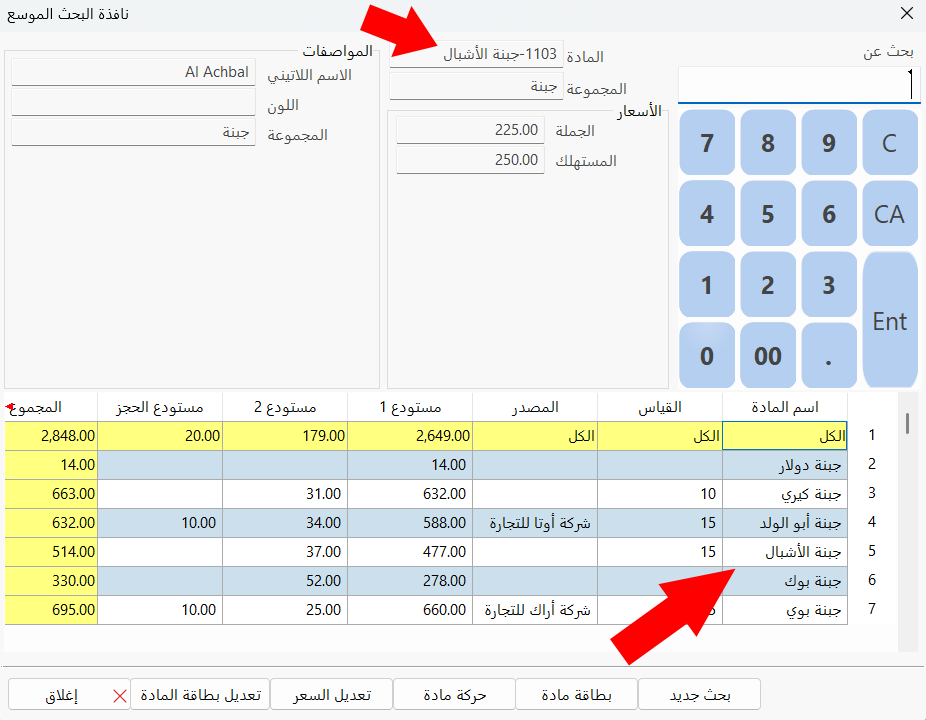
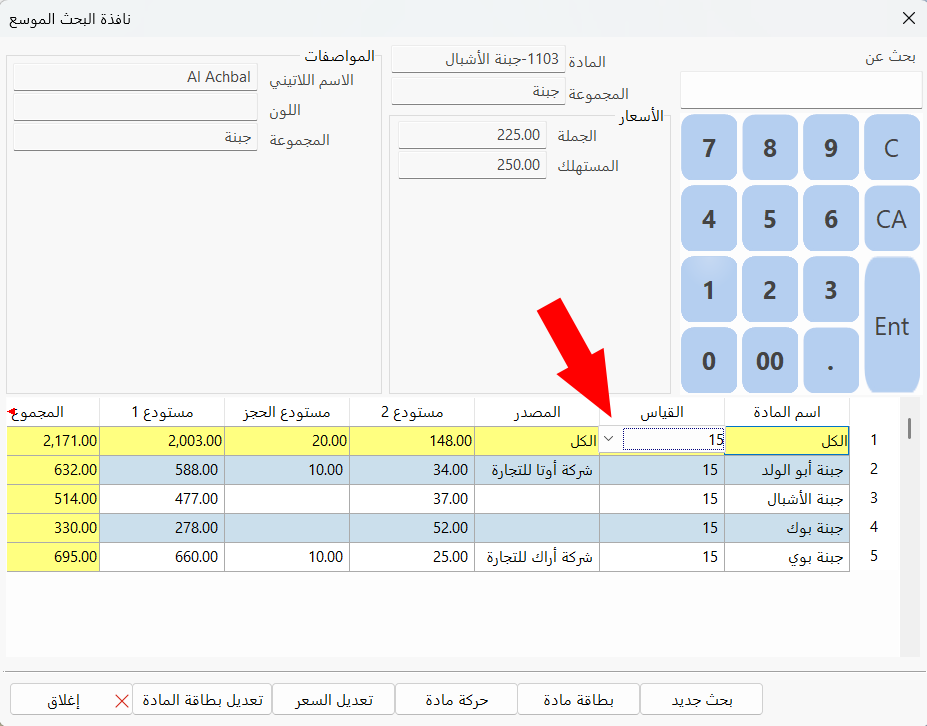
By default, the program shows all the materials in the table according to the shared field. You can filter the data of the table by clicking the "All" box in one of the grouping fields and choosing a value from the drop-down list.
For example, searching for the material "Al-Ashbal Cheese" shows in the materials table all the materials of the same group as "Al-Ashbal Cheese" (because the shared field is the Group field).
Clicking the "All" box in the "Size" grouping field and choosing size "15" shows in the table the materials with the chosen size.
Material Information
Set the fields you want to add to show the information of the material you are searching for. The program provides two sets of information, each with different fields:
Specifications
The "Specifications" set contains the fields added in the material card:
Latin name, size, source, location, manufacturer, color, country of origin, quality, model, group, specifications.
Select the fields you want to show in the extended search window, as follows:
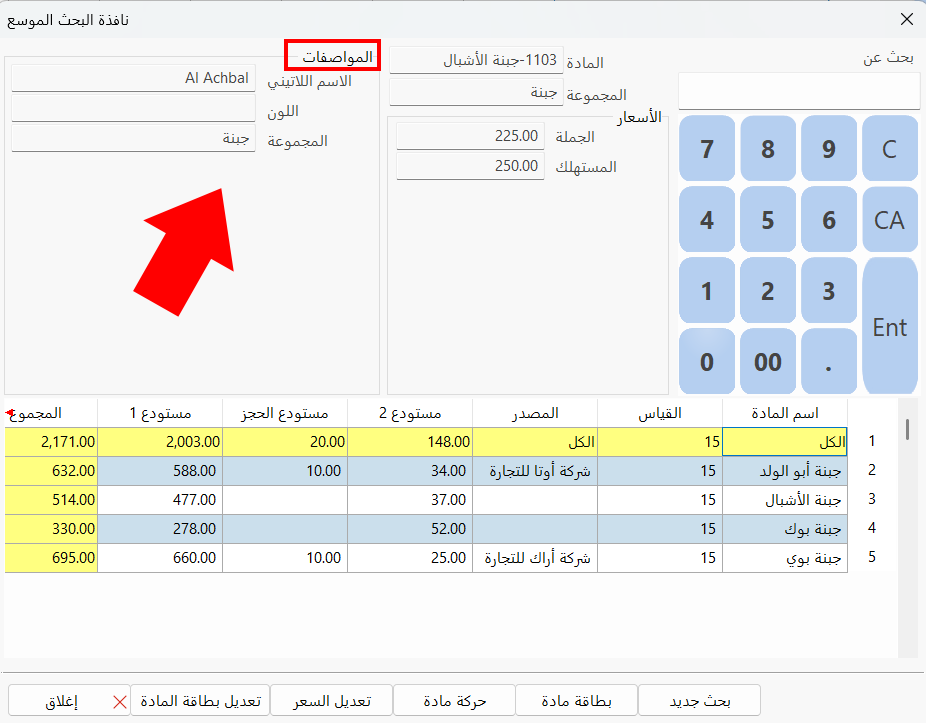
Adding material information helps you find materials with similar information.
Prices
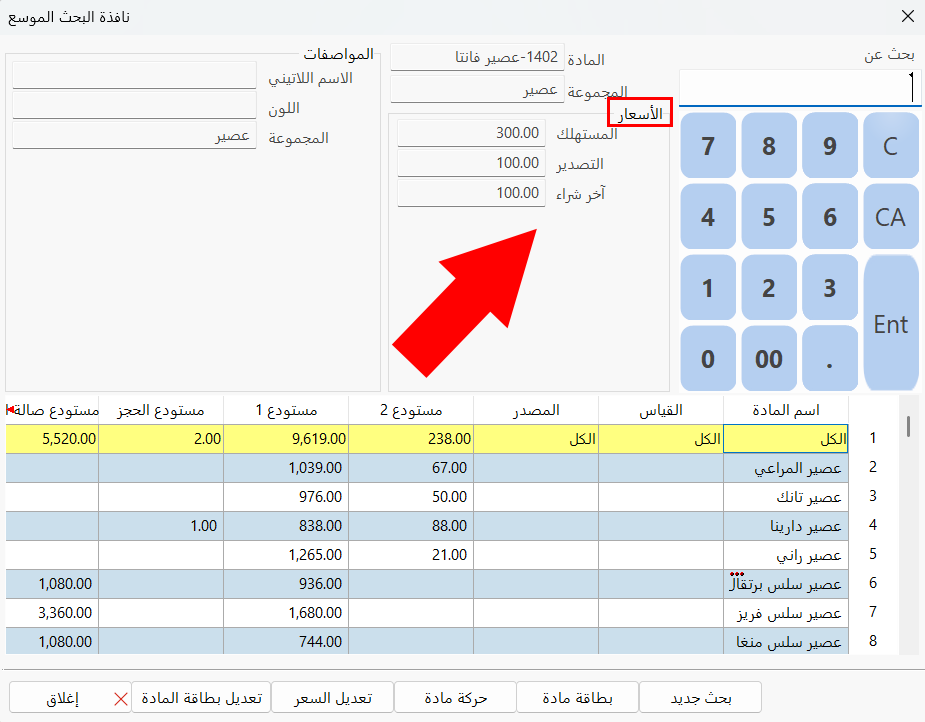
You can choose the prices of the material you want to show in the point of sale interface. For example, when you select the prices export, consumer, and last purchase, they appear in the sales interface as follows:
Show the Material Picture Instead of the Numbers Board
Enable this option to show the picture of the material in the extended search window of the point of sale interface: the pictures take the place of the numbers board in the window, as shown in the image.
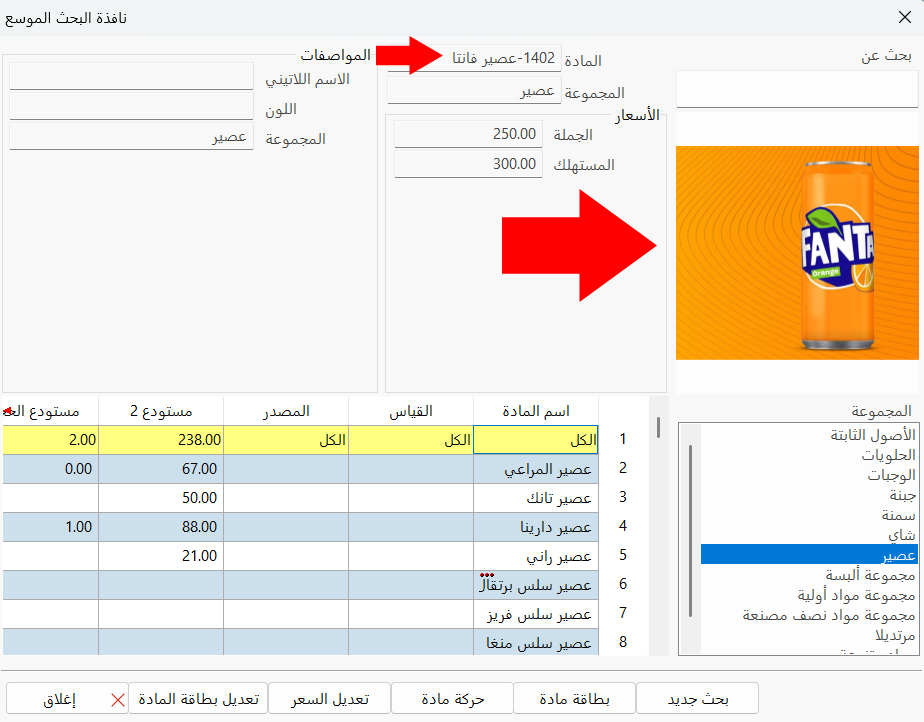
The picture shown is the one you added on the "Picture" tab of the material card and set as the default picture.
Show Balanced Materials
Enable this option to show all the materials whose quantities are 0 or more, because by default the program shows results only for materials whose quantities are 1 or more.
Show a List of Shared Field Values
Enable this option to list all the values of the shared field defined in the program.
For example, when you make "Group" the shared field, enable the "Show a list of shared field values" option, then go to the point of sale interface and click the "Extended Search" command, the list appears as follows:
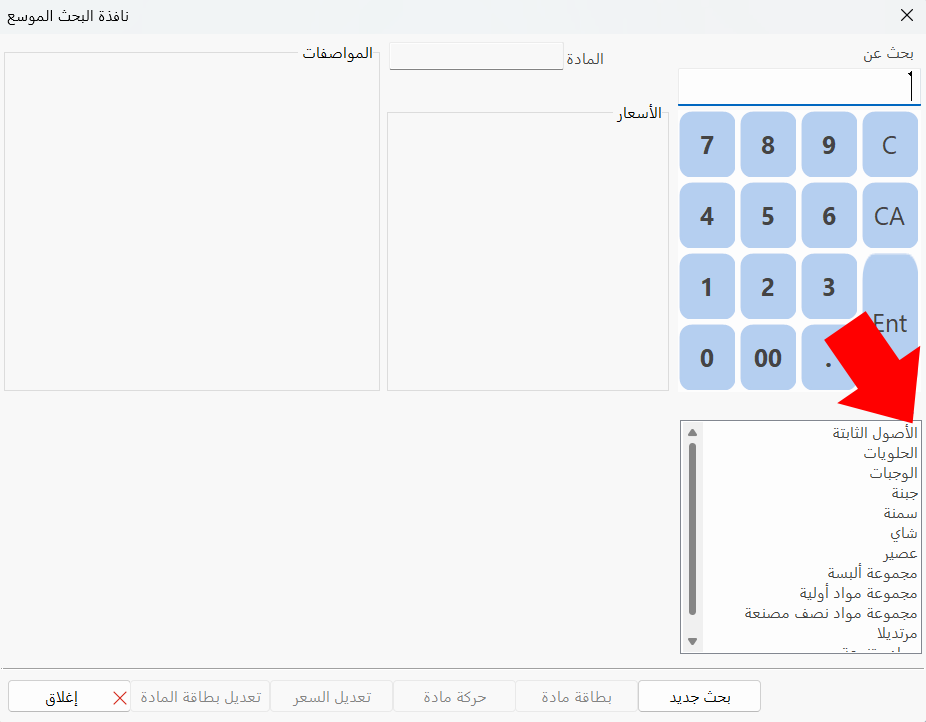
The list shows all the groups defined in the program with group cards; after you search for a particular material, the program selects the group to which it belongs.
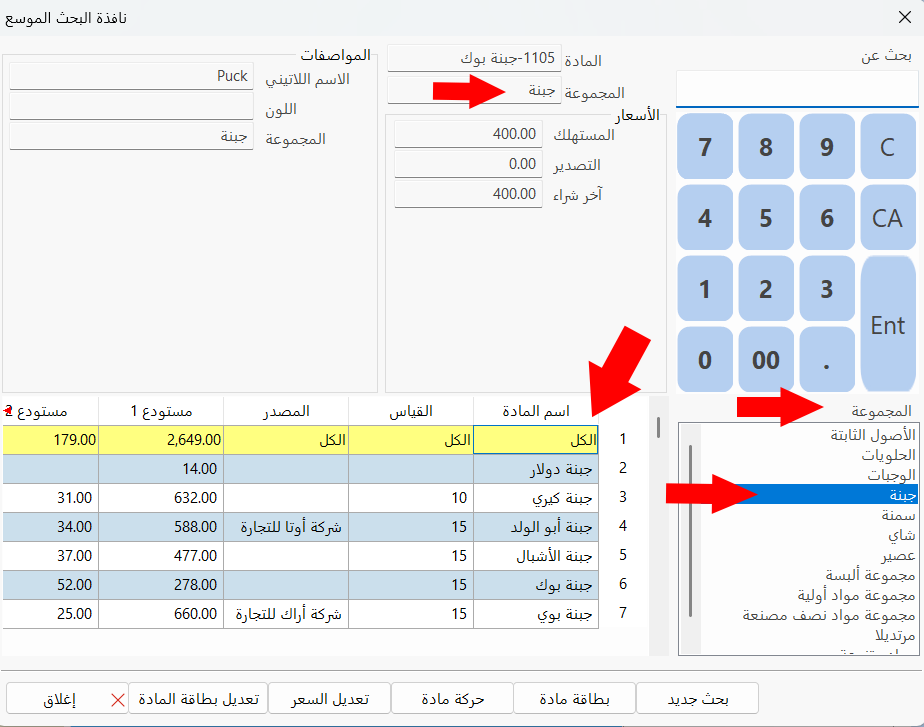
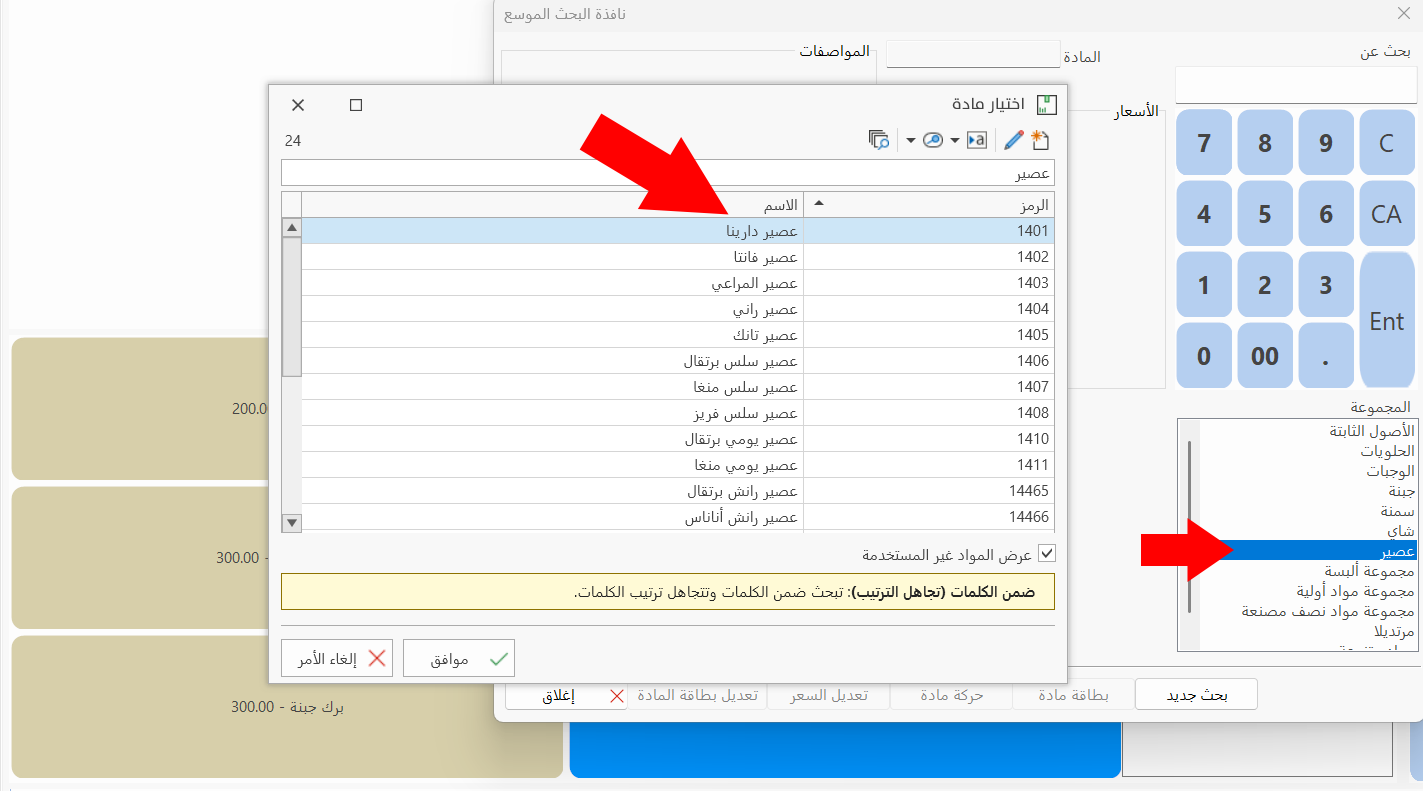
You can also click any value of the list to show all the materials that belong to it, and select the material you want from the "Select Material" window that opens.
Click "OK" in all windows to save the settings.