Display Options
You can set the fields you want to show in the material table and the colors of materials, and control the number of rows and columns of the keys board in the point of sale interface.
You can reach "Display Options" from the Program Options window - Point of Sale tab.
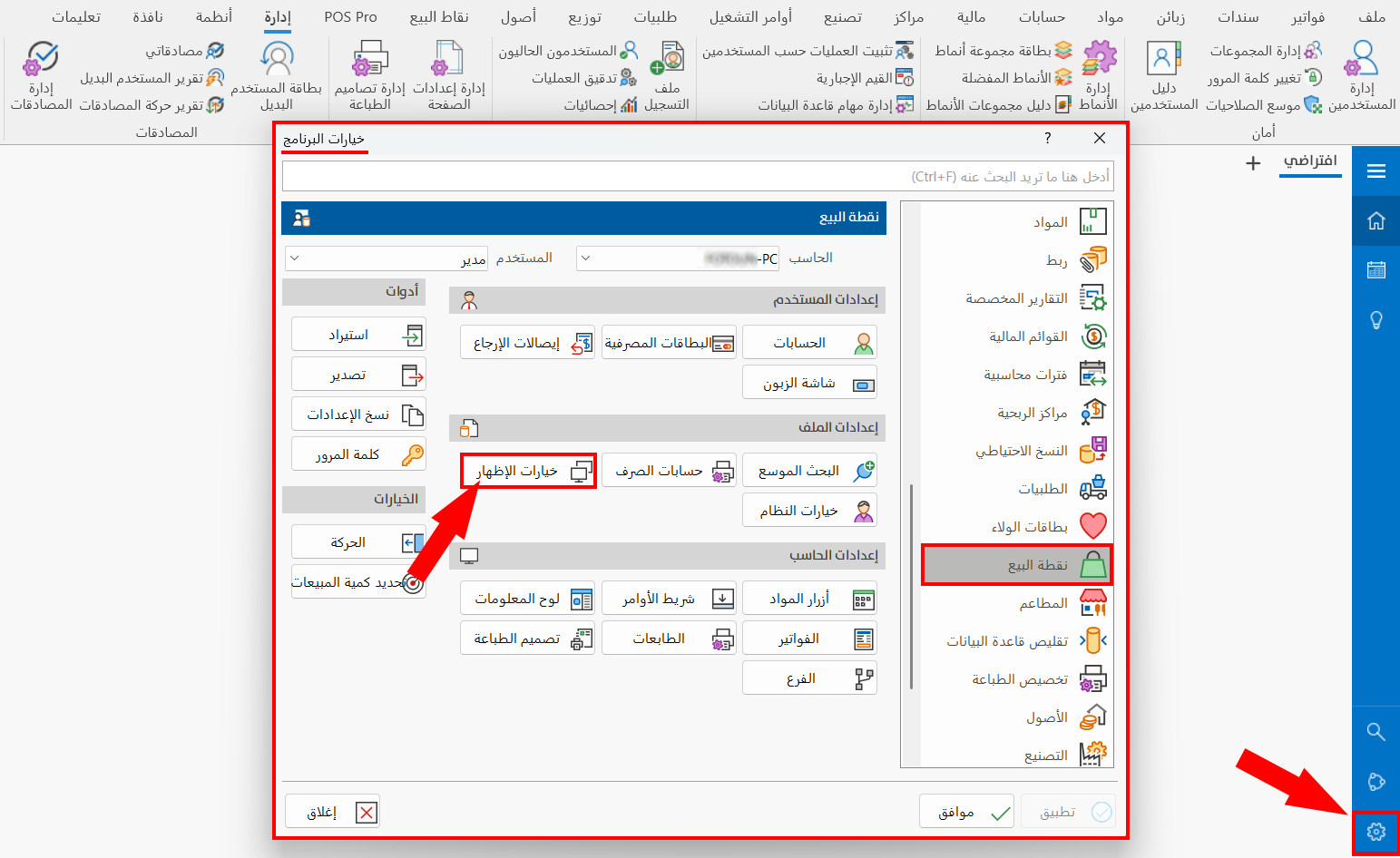
After you click the button, the "Display Options" window opens as follows:
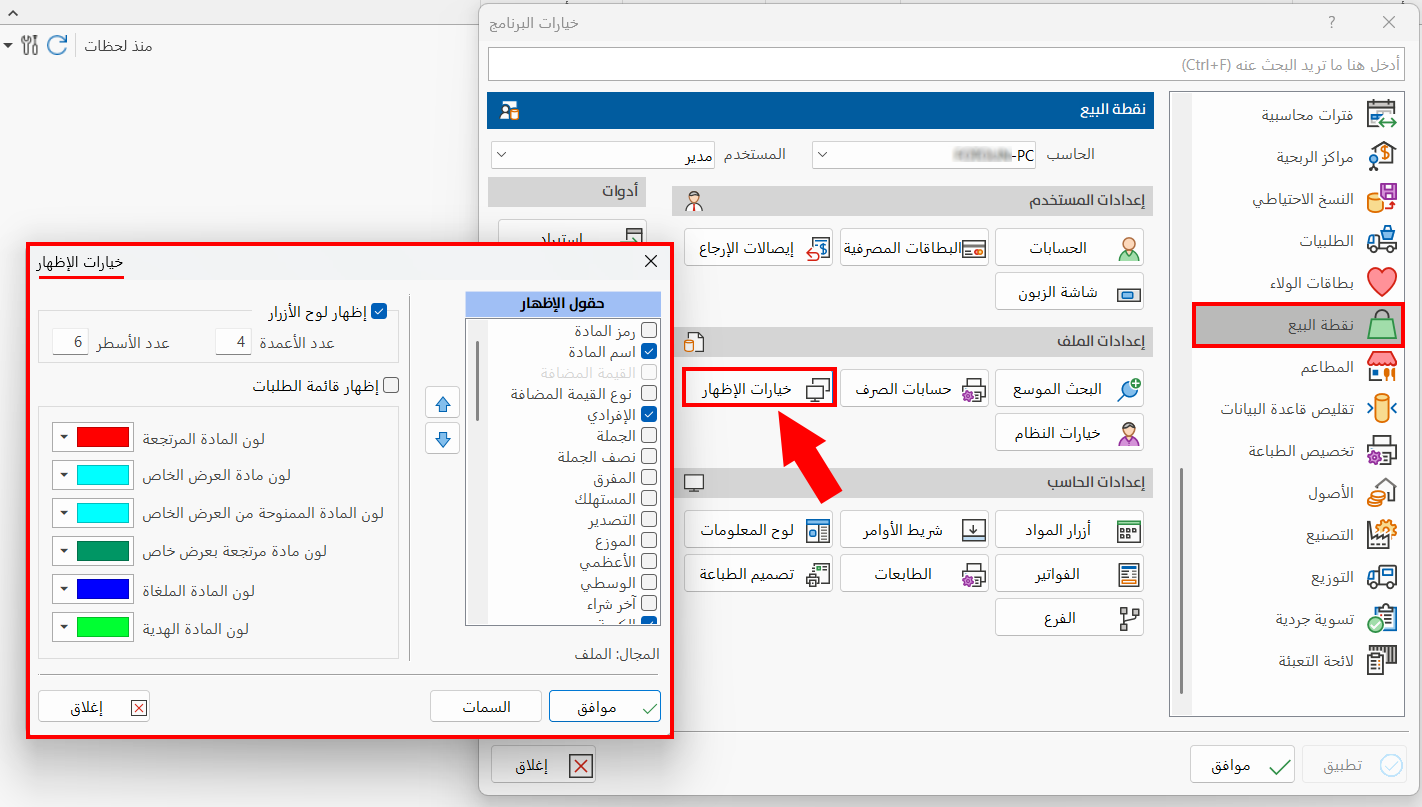
The window contains a set of options you can control as follows:
Display Fields
The display fields are the fields you choose to show in the material table of the point of sale interface.
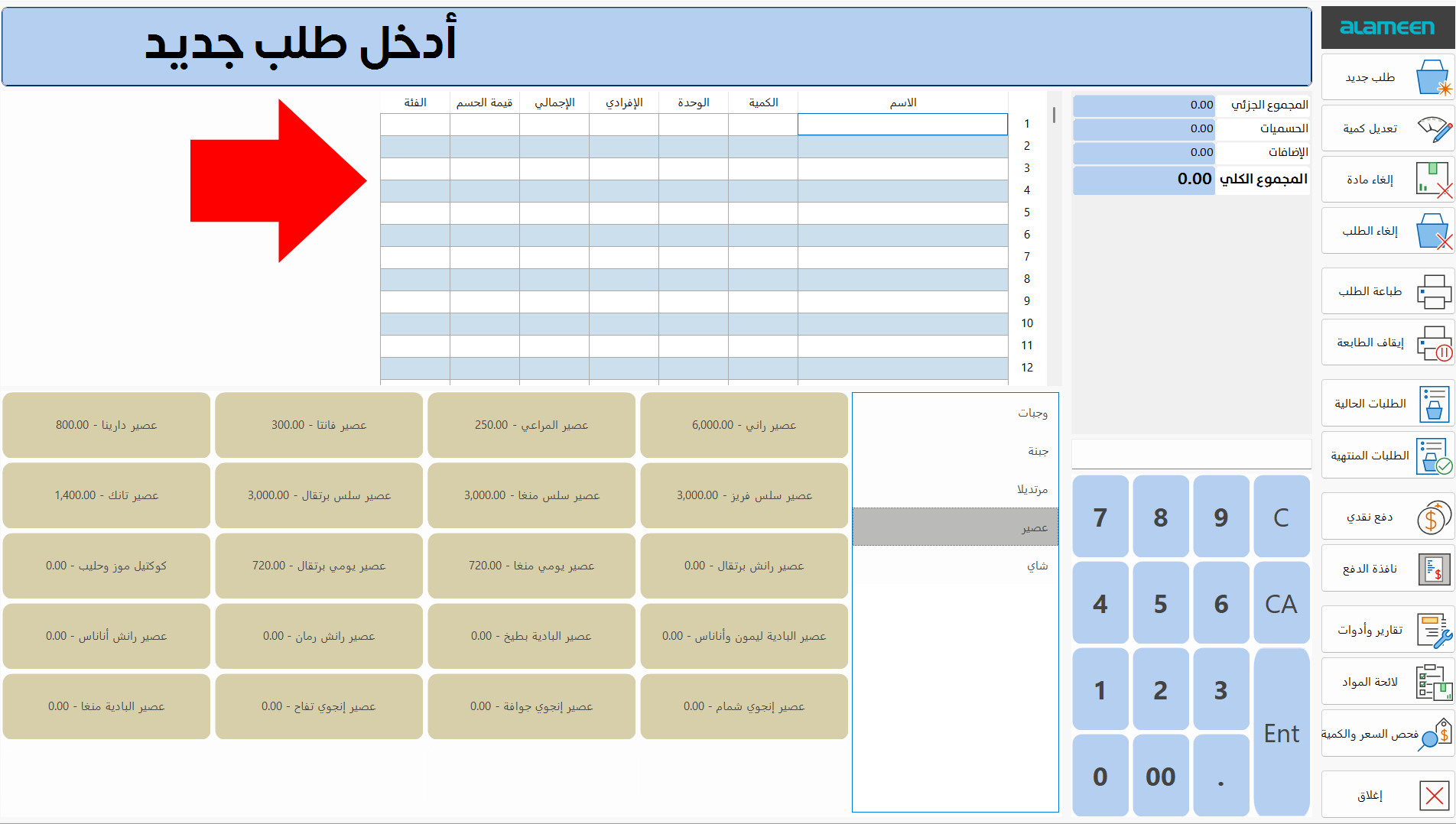
The materials table shows the following default fields: material name, unit price, quantity, unit, discount value, and total; these fields appear enabled in the "Display Fields" list.
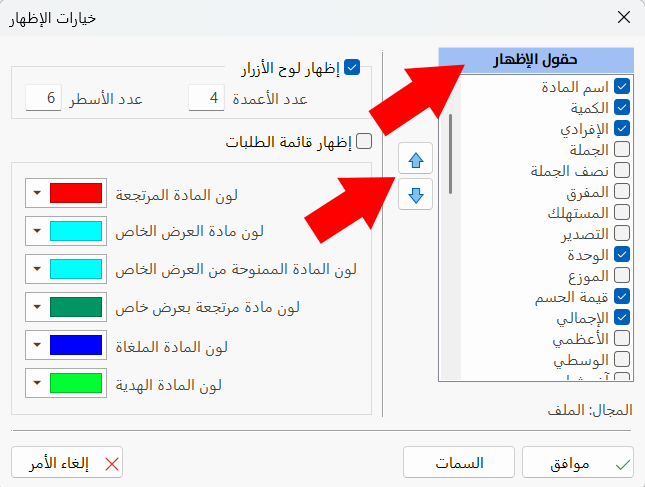
To add a field to the table, click the check box next to the name of the field.
You can arrange the fields in the material table with the arrows next to the "Display Fields" list.
Show Keys Board
The part of the point of sale interface that contains the materials buttons is called the keys board.
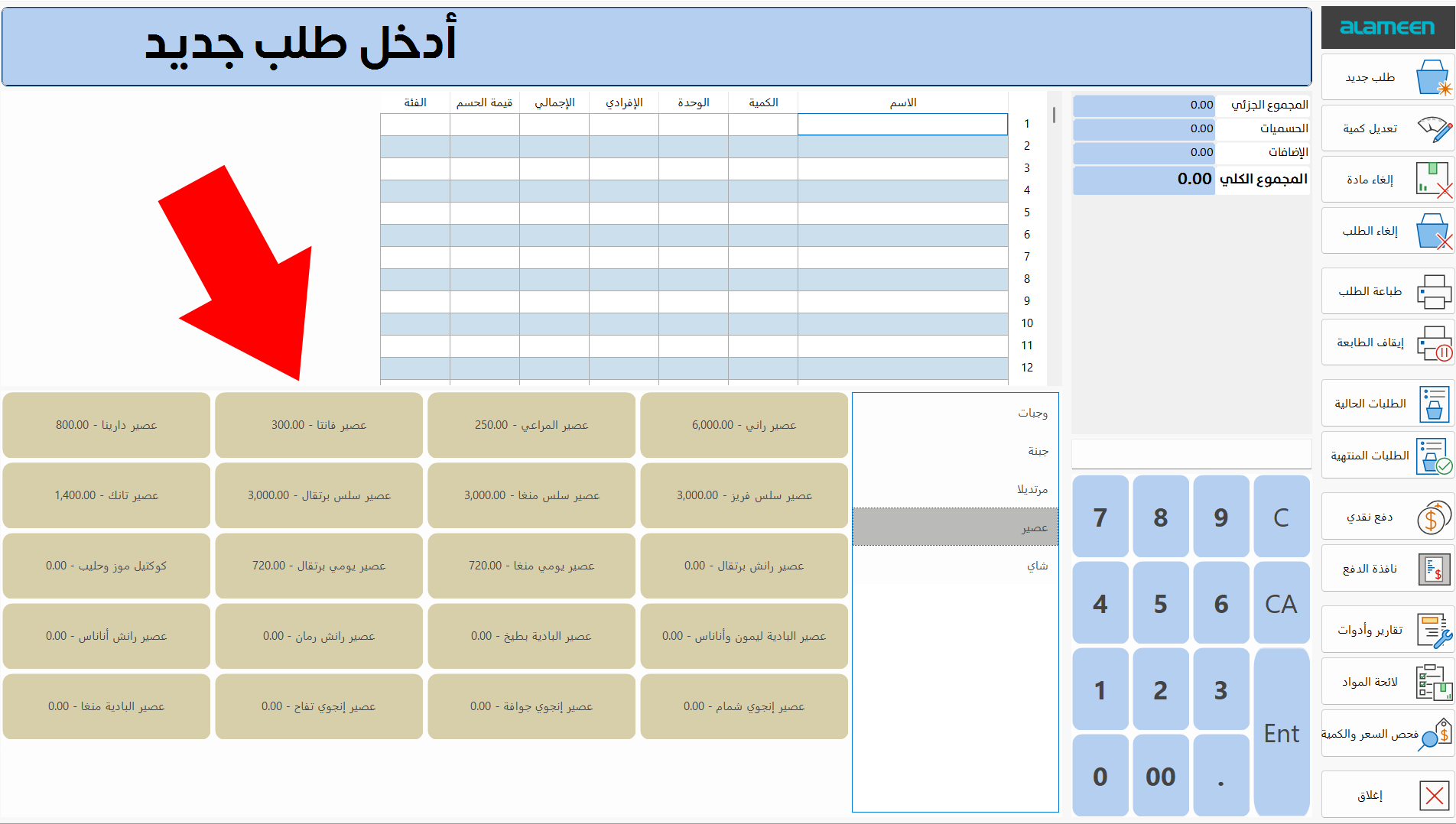
You can control how many buttons are placed on the board with the following options:
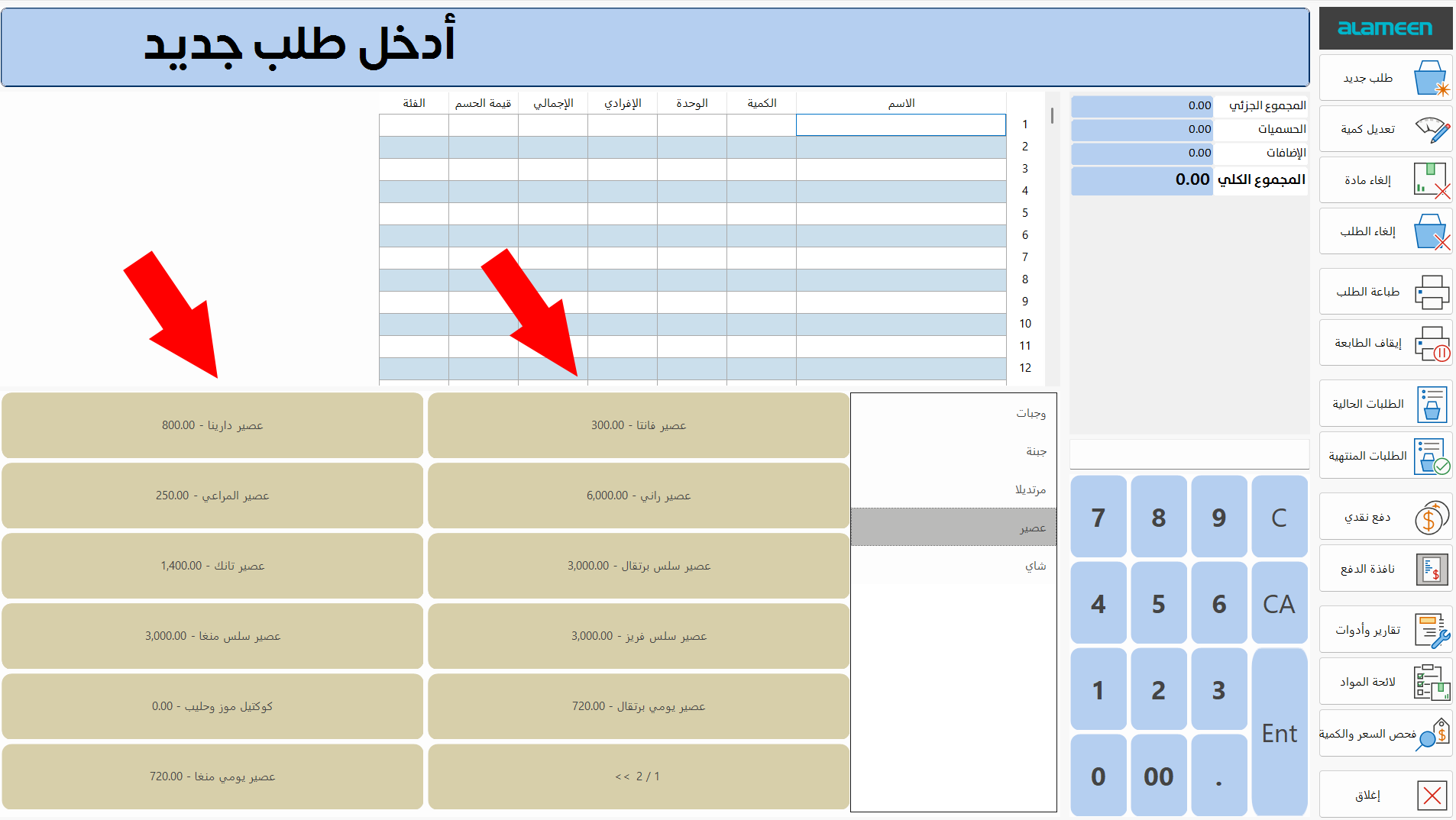
Number of Columns
Set the number of columns in which you want the buttons to be listed, by typing the number in the field; by default, the program uses four columns.
For example, entering "2" lists the materials buttons as follows:
Rows
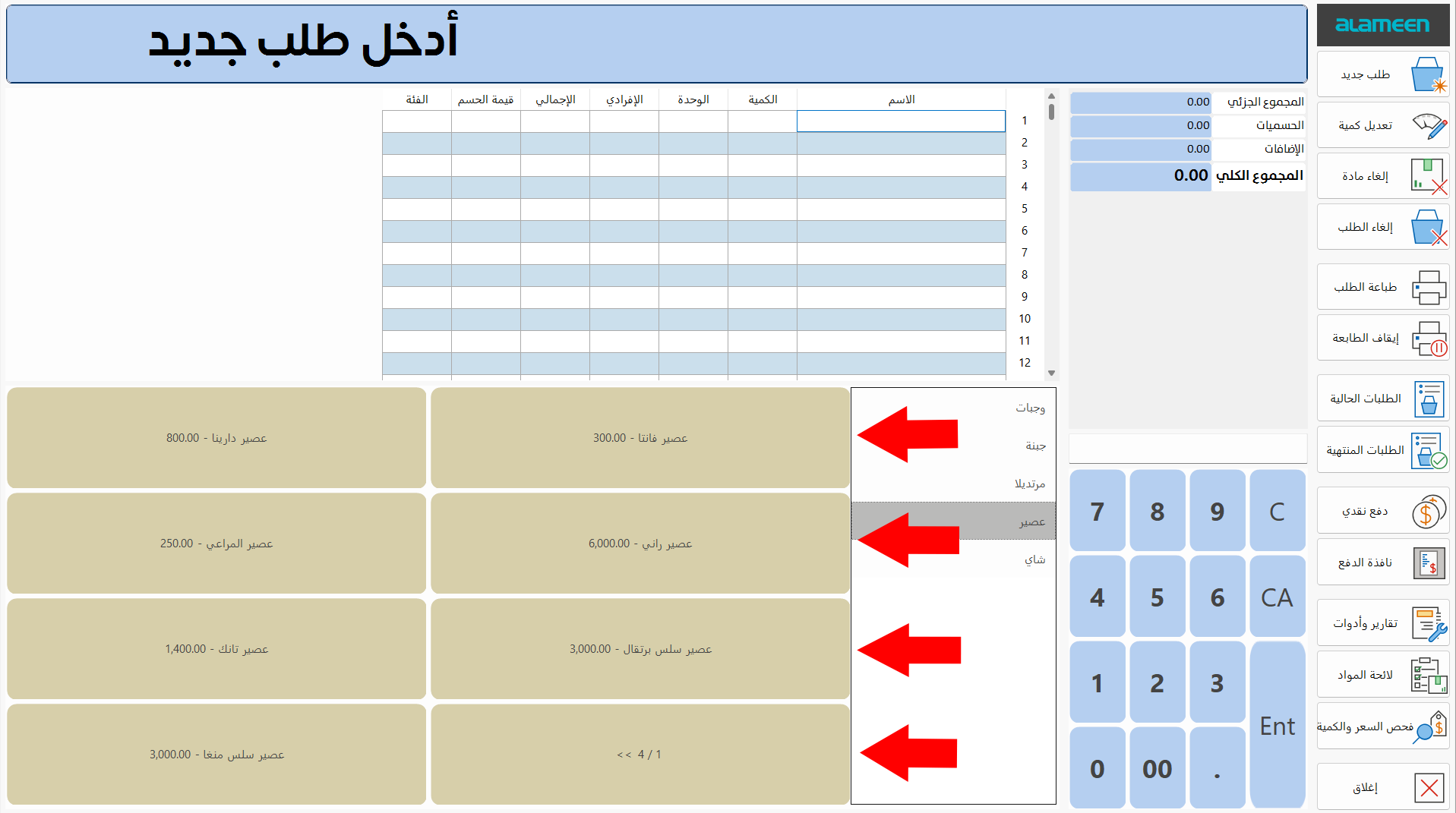
Set the number of rows in which you want the buttons to be listed, by typing the number in the field; by default, the program uses six rows.
For example, entering "4" lists the materials buttons as follows:
The number of rows and columns must be greater than or equal to 2.
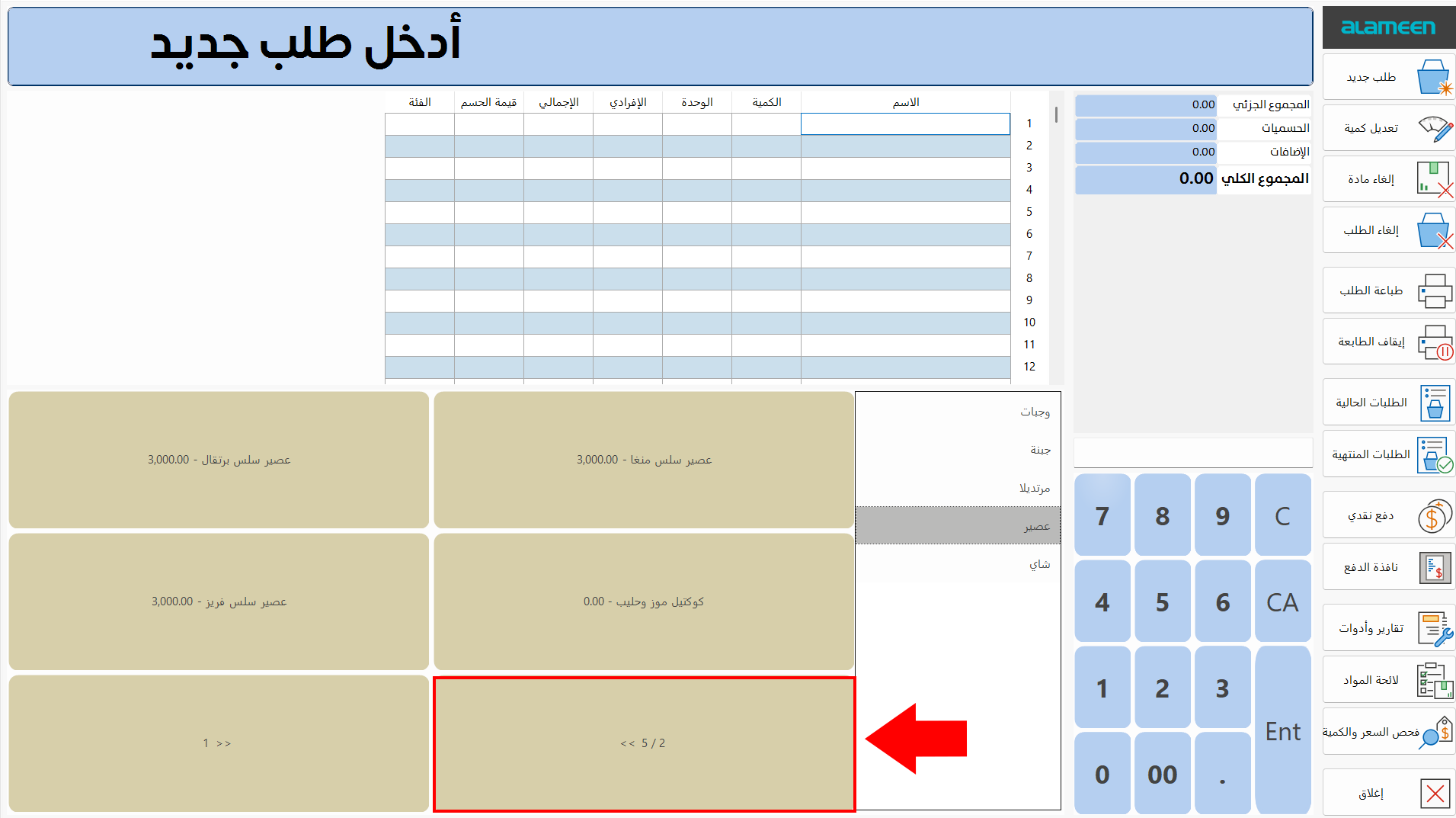
The number of columns and rows does not affect the number of materials buttons you can add to the point of sale interface: you can add an unlimited number of materials buttons and move between them with the arrow button, as shown in the image:
Show Orders List
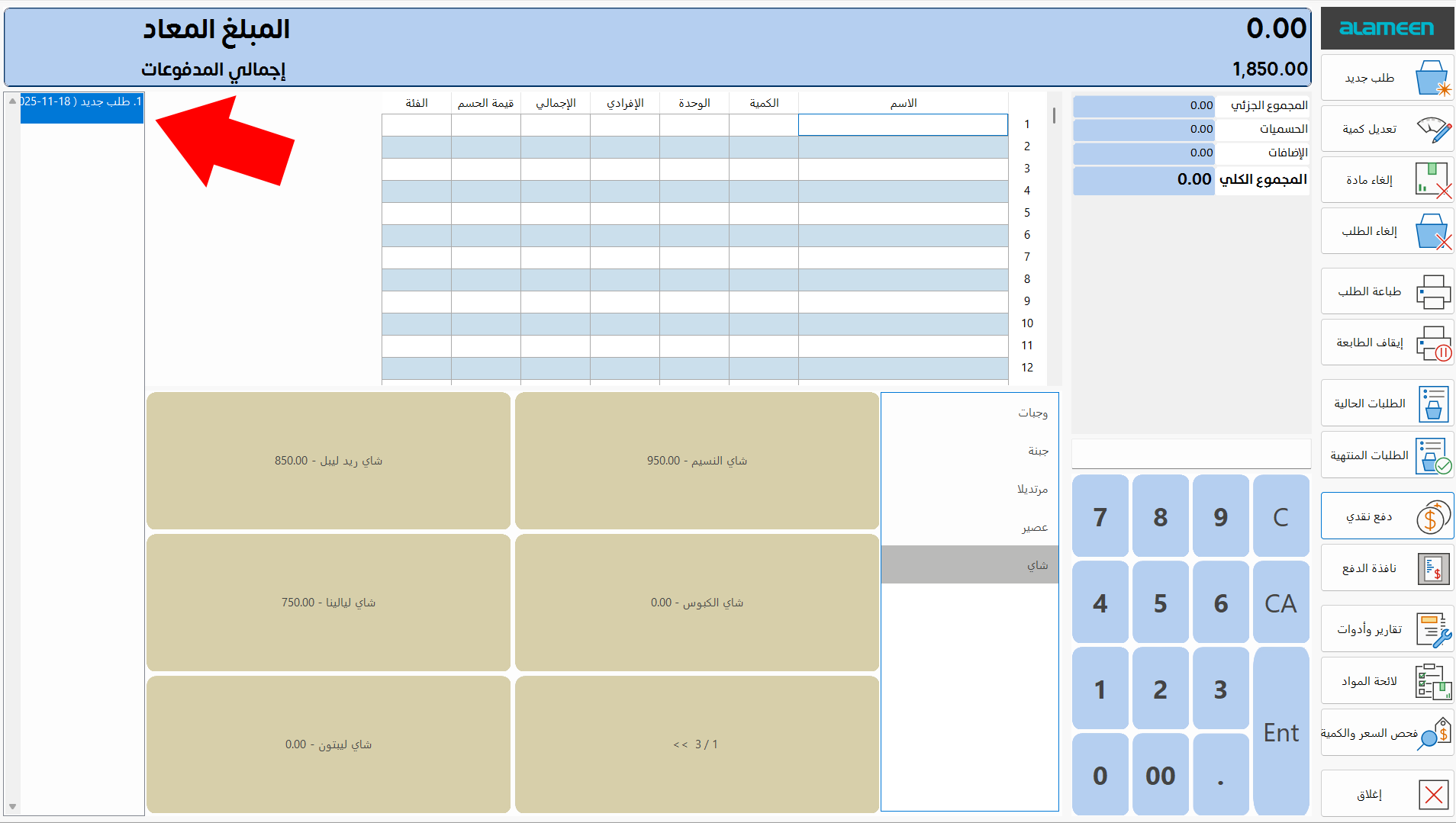
By default, the program does not show the orders list in the point of sale interface. You can show it by enabling the "Show Orders List" option; it then appears in the interface as follows:
Materials Colors
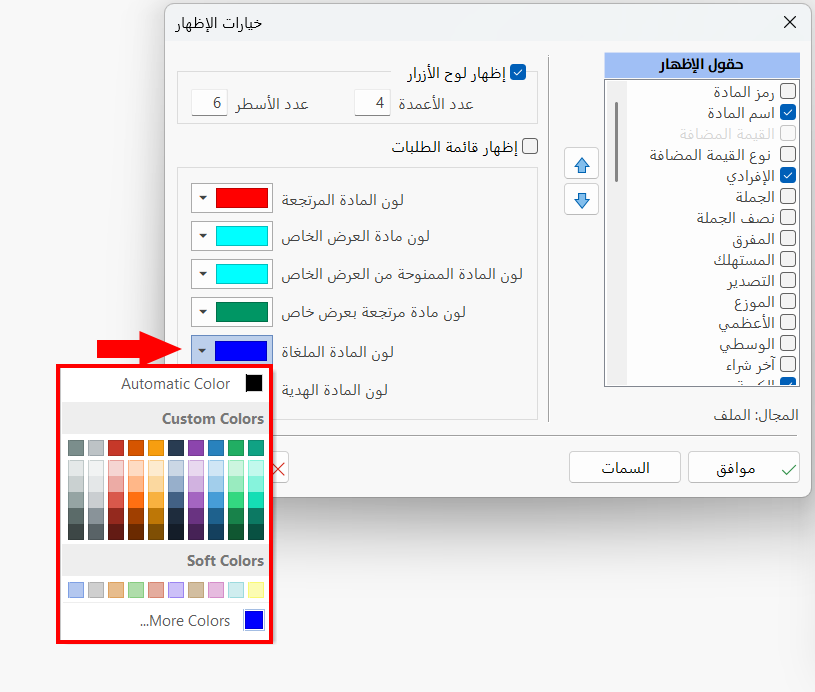
Choose the suitable color for each material by clicking the arrow in its field and choosing from the drop-down list of colors.
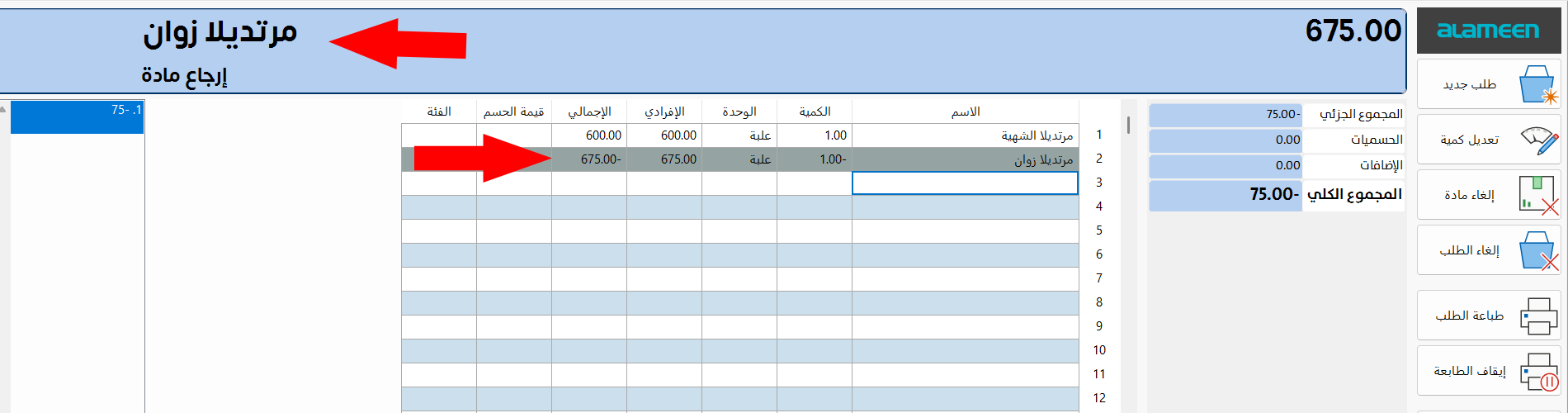
For example, after choosing gray for the returned material, returning the material "Zwan Mortadella" shows it in the material table as follows:
Themes
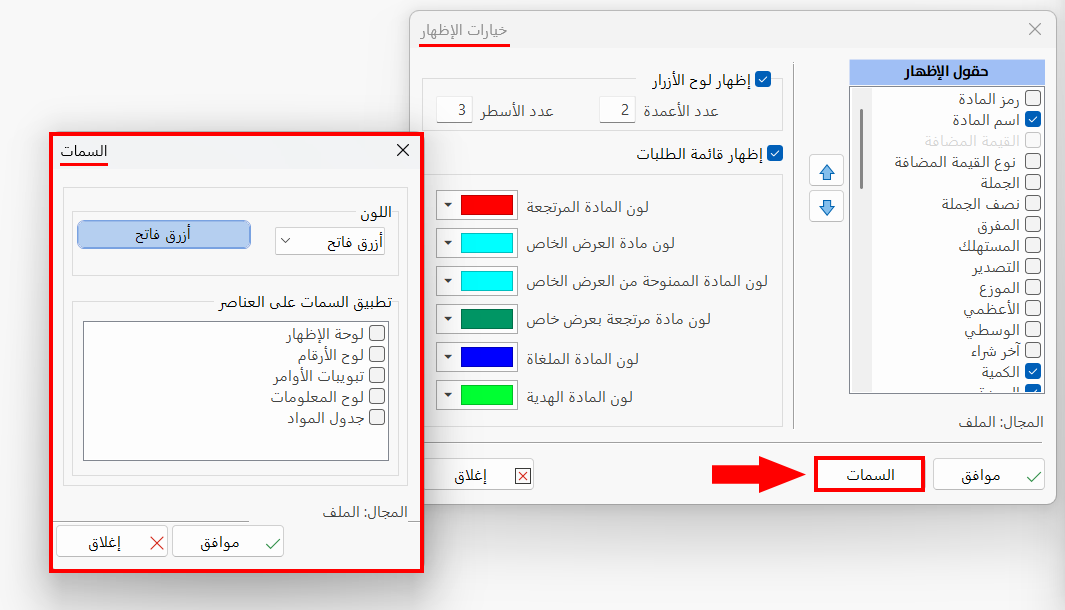
You can apply a theme to specific elements of the point of sale interface, by clicking the "Themes" button and setting the color and the element you want to apply the theme to in the window that opens.
Click "OK" in all windows to save the settings.