Printers Setting
You can use more than one printer in the restaurant or at the point of sale, by enabling the "Multi Printers" option in the Printers Setting window.
In the point of sale system, you can reach the Printers Setting window from the Program Options window - Point of Sale tab - Printers button.
In the restaurant system, you can reach the Printers Setting window from the Program Options window - Restaurants tab - Printing Options button.
After you enable the "Multi Printers" option, the Printers button is available, as follows:
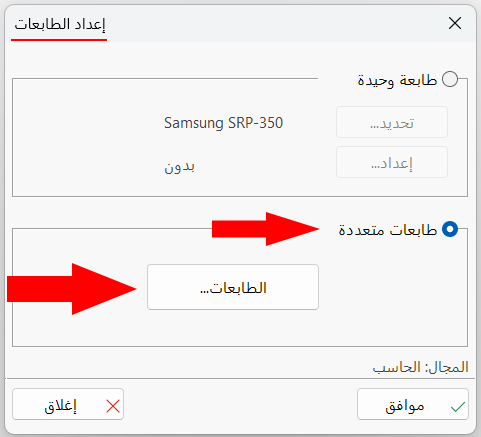
Click the button to start adjusting the printers' settings in the window that opens.
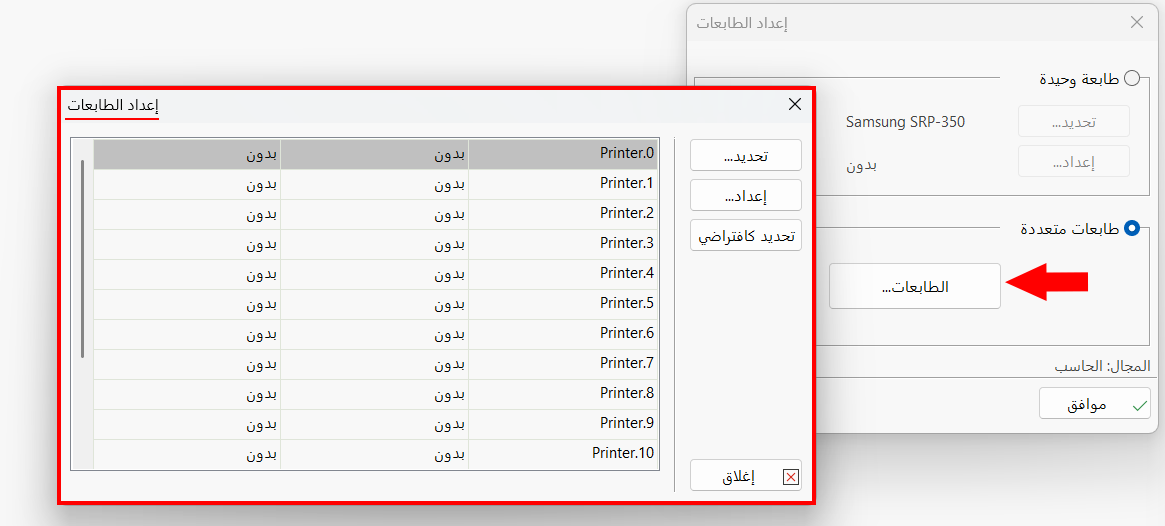
When you open the window for the first time, it shows a list of fifteen unspecified printers ("Not Specified"), that is, with no settings yet ("None"). The system supports up to 15 printers, each of which can be linked to one of the printing sections (places) defined in the restaurant or point of sale.
Set a New Printer
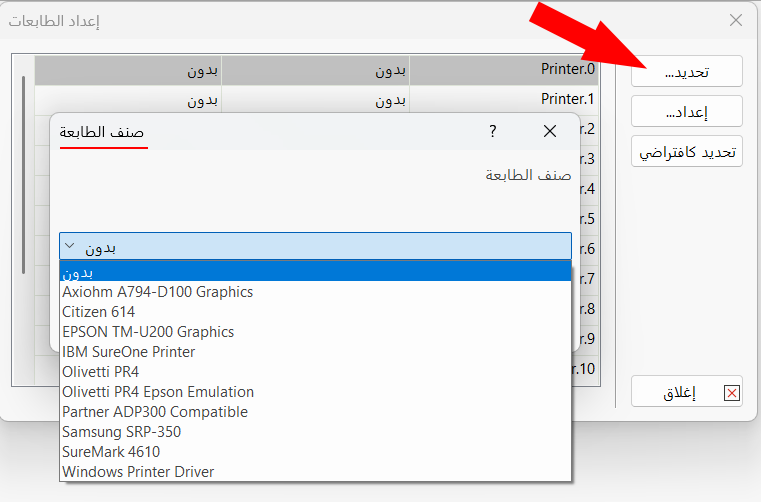
To set a printer and link it to the system, click a row that is not linked to a printer (whose printer type field is "None") until the row turns orange.

Then click "Select": the Printer Type window opens.
Set the Printer's Settings
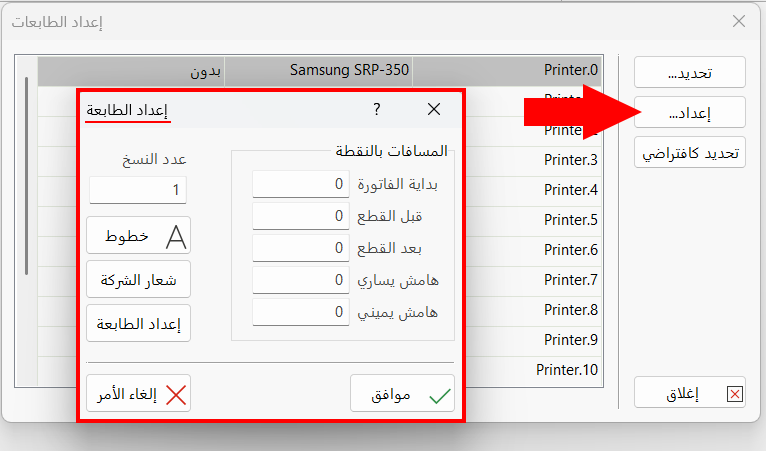
You can customize the fonts, add a company logo, and adjust the print margins of each printer separately, by clicking the row of the printer until it turns orange, then clicking "Setup": the Printer Setup window opens.
Set the Printer as Default
You can set the main printer, which is usually the cashier's printer (used to print invoices in the payment screen), by clicking the printer's row until it turns orange, then clicking "Set as Default".
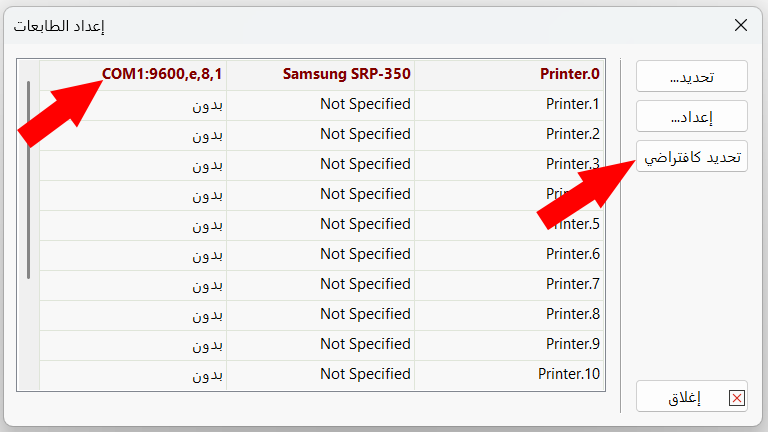
After the printer is set as the default printer, its row turns red.