Printer Setup
The "Setup" button is enabled after you set the printer type in the window that opens from the "Select" button. After you click "Setup", a window opens for adjusting the print settings of the selected printer.
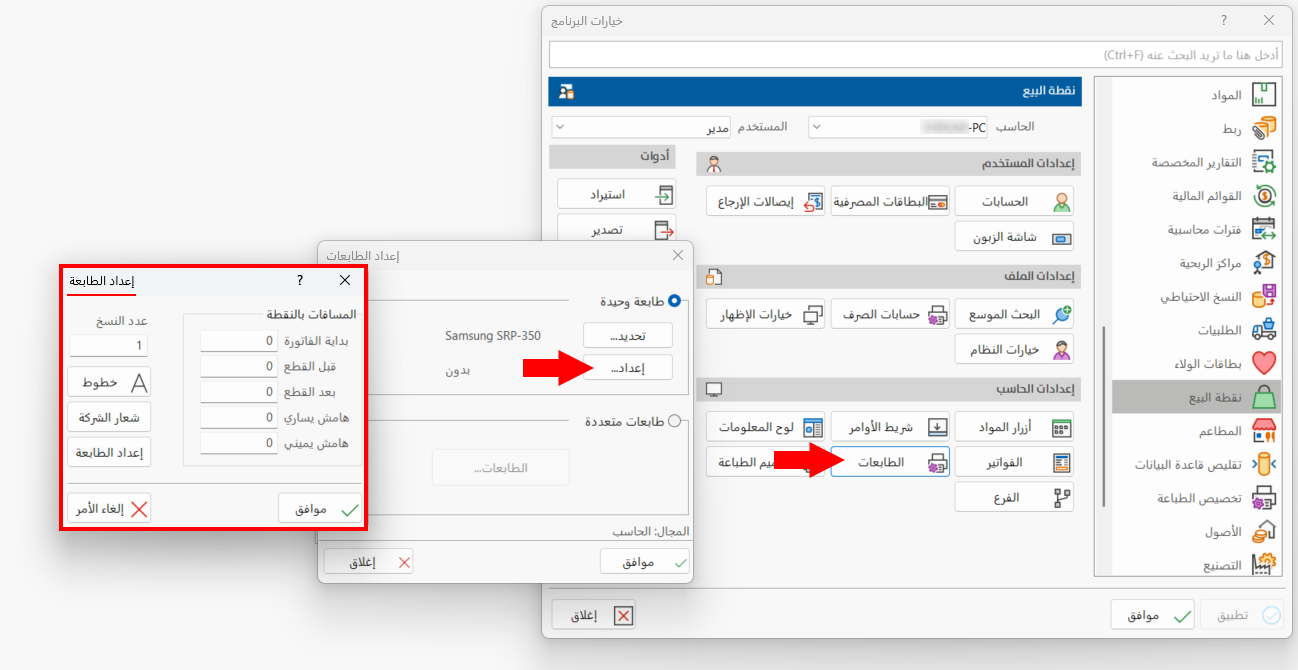
You can set up the printer with the fields of the window, as follows:
Spacing in Points
Set in the fields the spacing (in millimeters) used for printing, for each of:
-
Start of the invoice.
-
Before cut: the space between the end of printing and the end of the page.
-
After cut: the space after the page is cut, before printing another page.
-
Left margin.
-
Right margin.
Copies
Enter the number of copies you want to print by default when you click the print button in the invoice windows.
Fonts
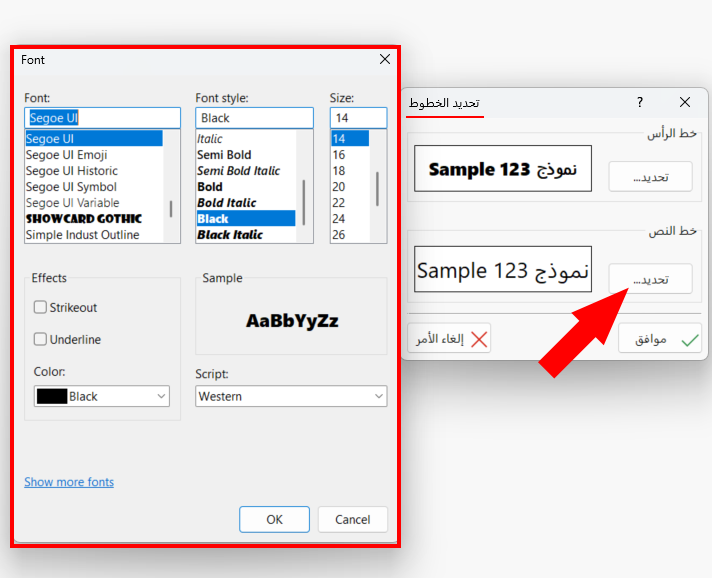
Set the header font and the text font in the window that opens from the "Fonts" button: you can set the type, size, and effects of the font used.
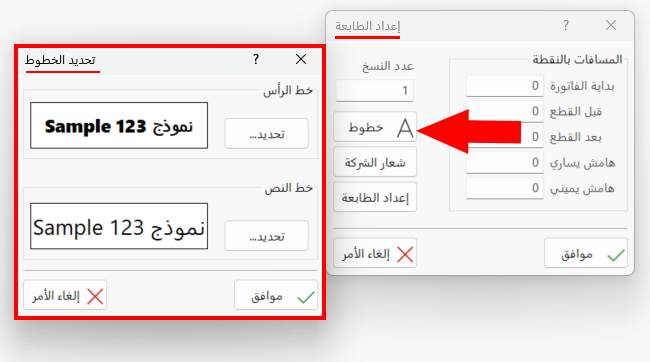
To set the style and size of the invoice header font, click the "Select" button in the header font group.
To set the style and size of the invoice text font, click the "Select" button in the text font group.
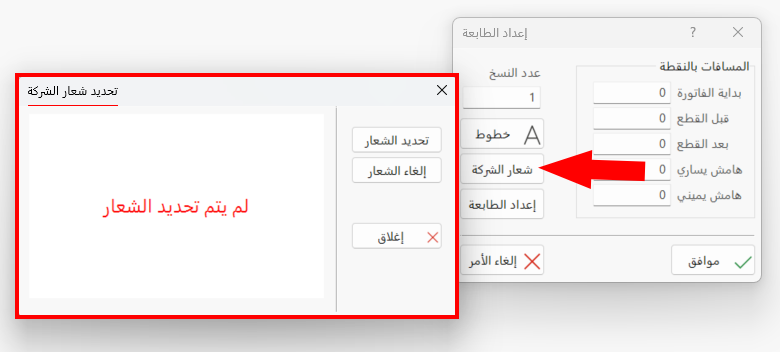
Company Logo
Click the button and set the company logo to be printed with the invoice: you can choose the logo picture from the computer.
Select Port
The Select Port window opens after you click the "Printer Setup" button, so you can choose the port to which the selected printer is connected, and the preferences of this printer.
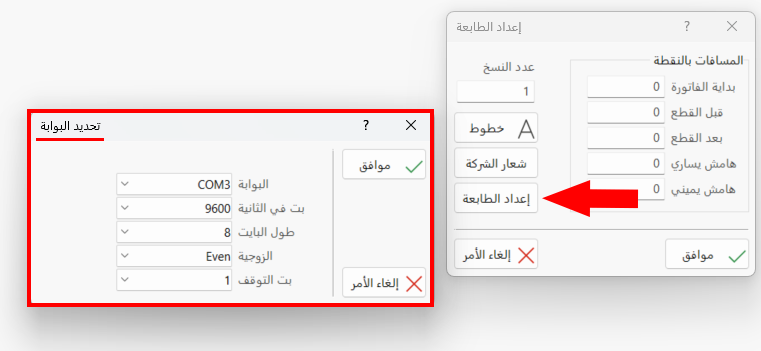
Click "OK" in all windows to save the settings.