Printers
The "Printers" button links the printers you use at the point of sale: the system lets you link one printer or more, and adjust the settings of each printer separately.
You can reach the "Printers" button on the Point of Sale tab of the Program Options window.
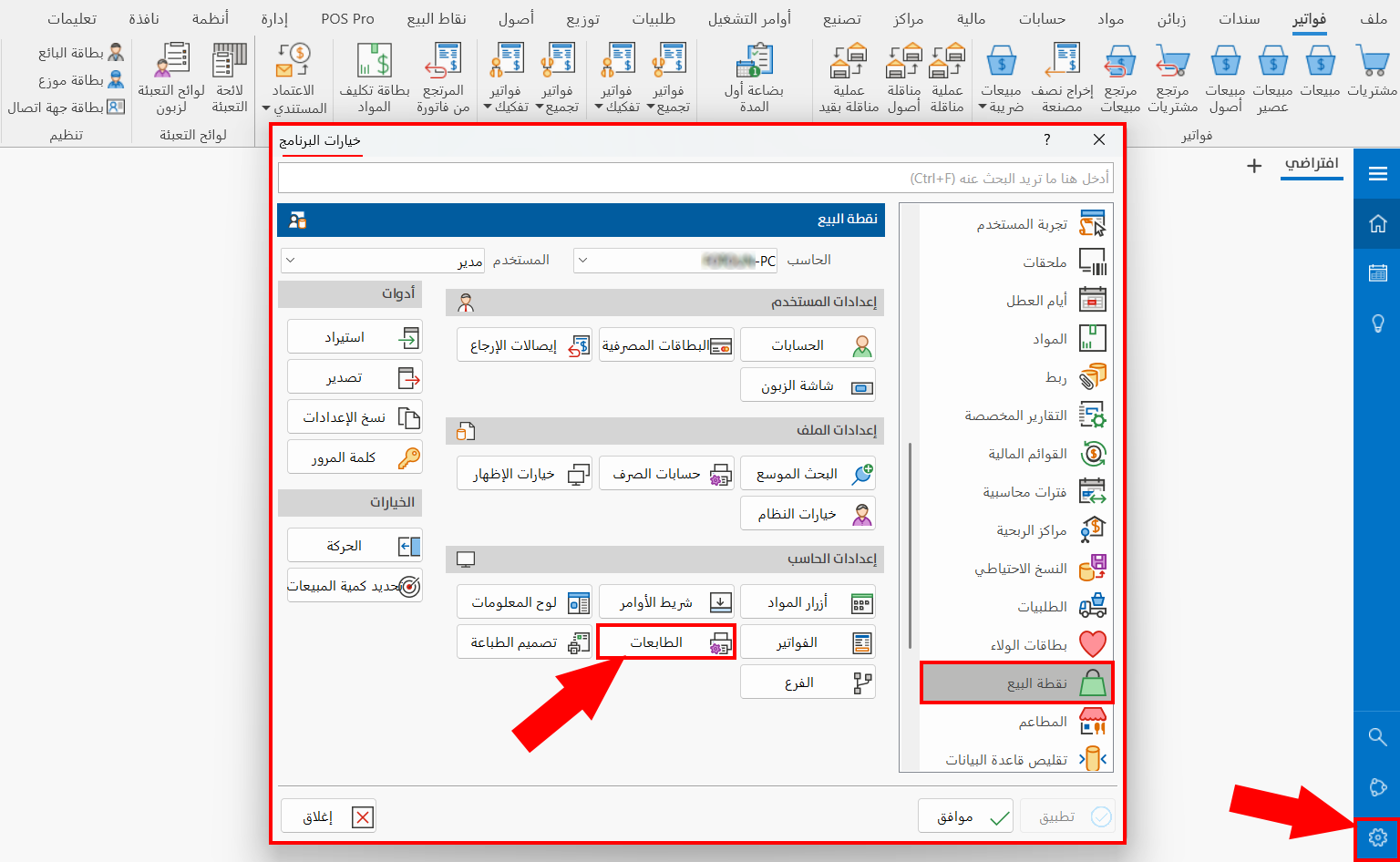
After you click it, the "Printers Setting" window opens, as follows:
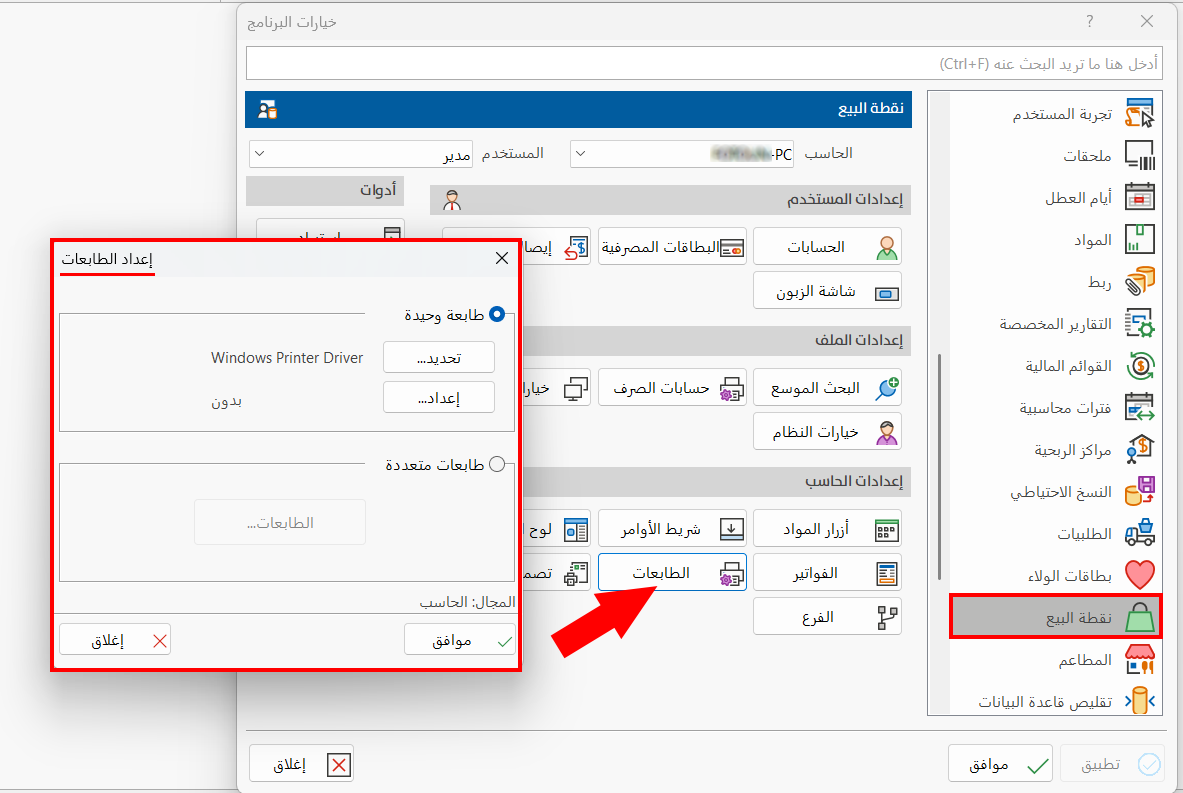
The window contains two options for setting the number of printers you want to link to the point of sale (you can enable only one of them):
Single Printer
By default, the program selects the "Single Printer" option, so the buttons linked to this option are active, and the buttons of the "Multi Printers" option are inactive.
Set the printer and adjust its settings as follows:
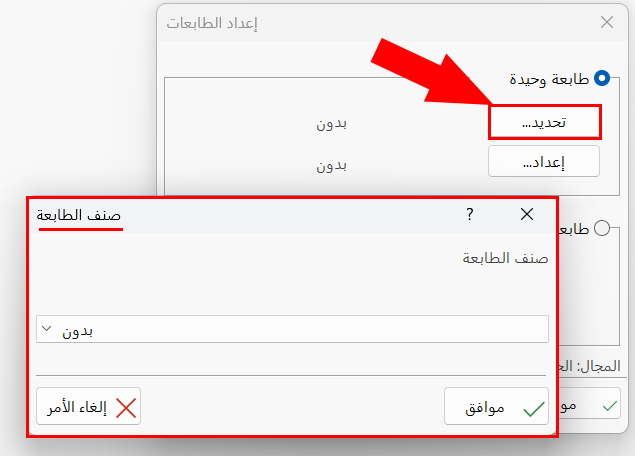
Select
Sets the type of the single printer. Clicking it opens the following window:
Setup
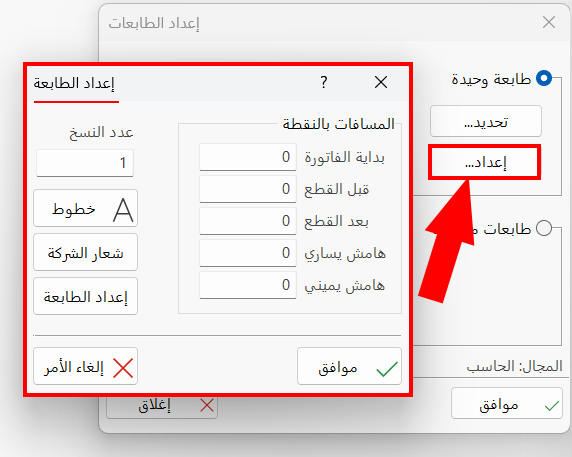
Sets the spacing and margins, the default number of copies, the default font type and size, and a company logo that always appears in printouts.
Click "Setup": the "Printer Setup" window opens as follows:
Multi Printers
If you need more than one printer at the point of sale, you must first enable the "Multi Printers" option by clicking the check box next to it.
You will notice that the "Printers" button becomes available:
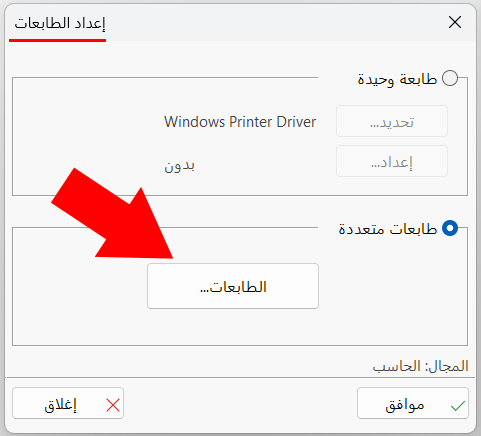
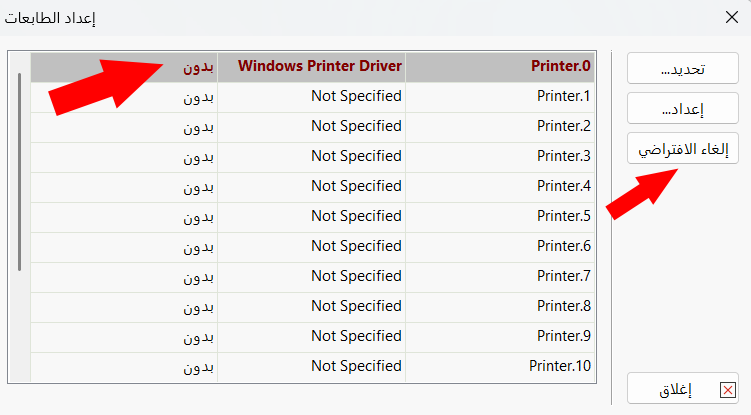
To start linking printers and adjusting their settings, click the "Printers" button; the "Printers Setting" window opens as follows:
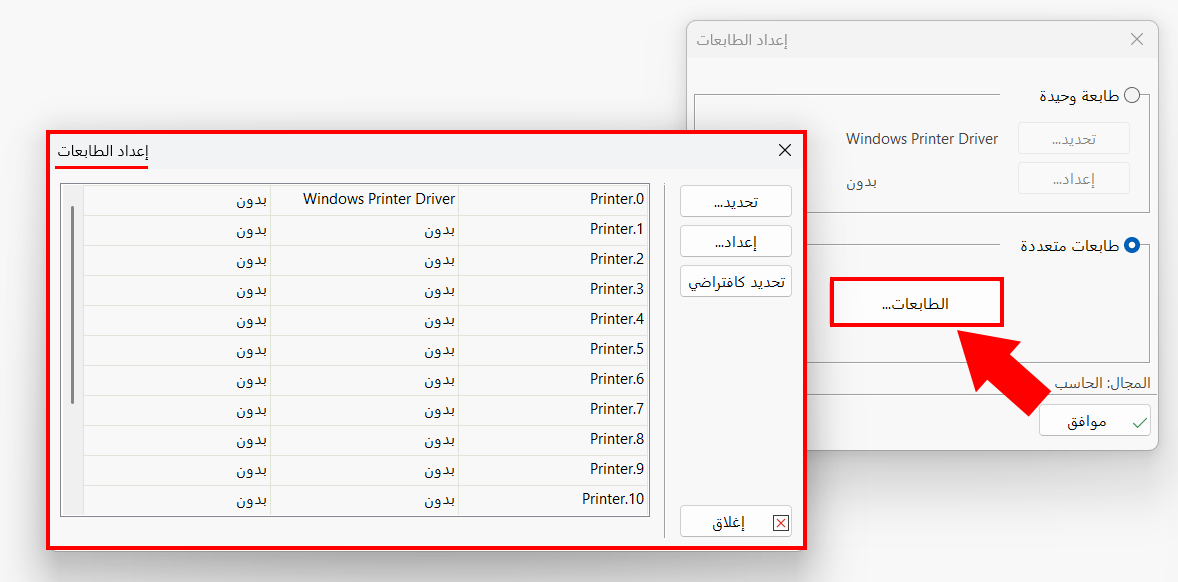
Printers Setting
The window contains a table whose number of rows equals the number of printers you are allowed to link to the point of sale: (16) printers.
To link a new printer, click a row not linked to a printer, then click "Select".
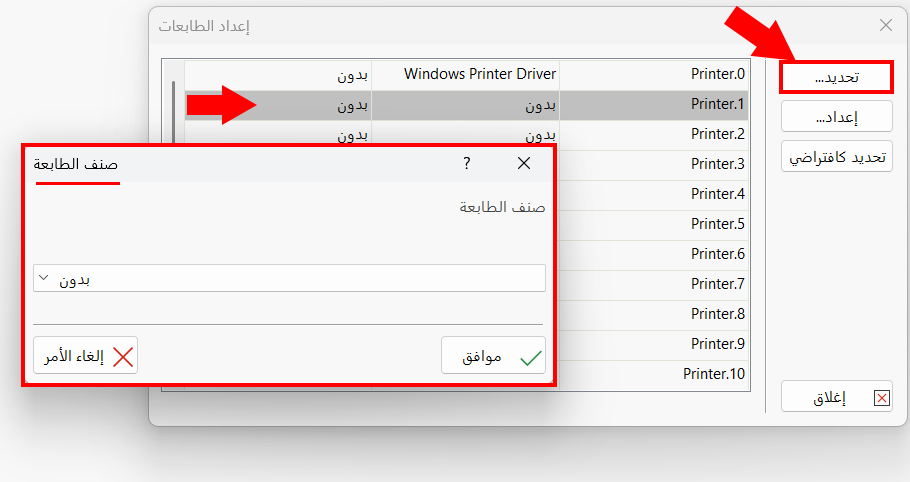
To adjust the settings of one of the printers linked to the system, click the printer's row, then click "Setup".
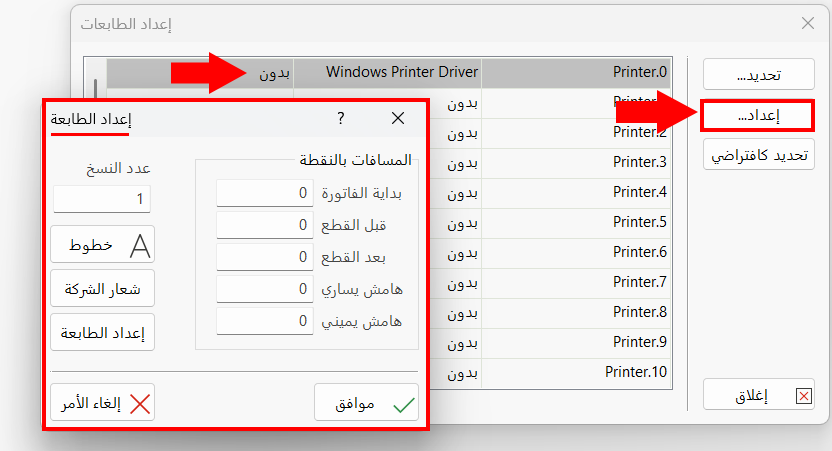
To set the printer as the default printer of the point of sale, click the printer's row, then click "Set as Default".
After a printer is set as the default, its row turns red.