Printing Options
This window sets the default options of simple printing for orders at the point of sale or restaurant, so the "Printing Options" button is available only when the "Simple Printing" option is enabled in the "Print Design Settings" window.
"Simple Printing" is usually enabled by default, so the "Printing Options" button can be used directly.
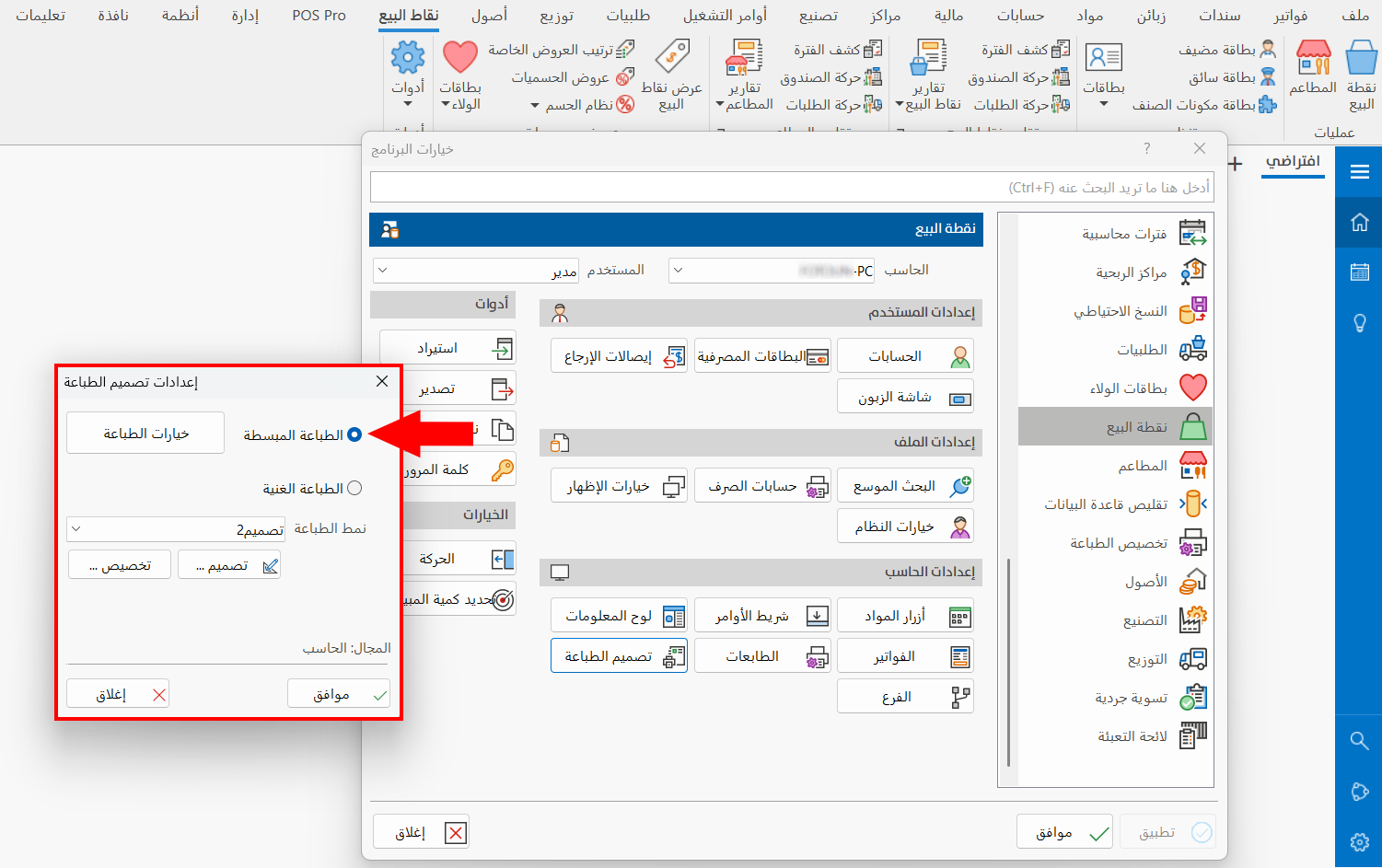
To set the printing options, click the button; the following window opens:
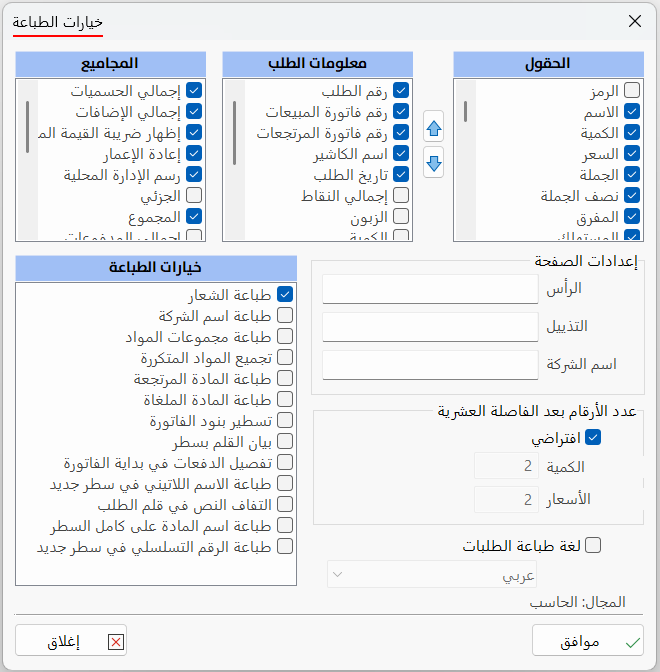
The window consists of the following options:
Fields
Set the fields you want to show in the printed invoice from the list of fields in the window, by clicking the check box next to each field you want until it turns blue.
Arrange the order of the fields in the printed invoice with the arrows next to the field list: after clicking a field, use the up arrow to move it up and the down arrow to move it down.
Order Information
The system lets you print order information in the invoice, such as the order number, the date, and the payment type: you can set the information you want to show in the printed invoice by clicking the check box next to it.
Sums
You can show the sums you want from the list in the printed invoice: the system provides a number of sums, such as the total, paid, and remaining.
Printing Options
You can enable additional printing options from the available options, including:
-
Print the logo
-
Print the company name
-
Group repeated materials
-
Wrap text in the order row
Page Setup
Number of Digits after the Decimal Point
The system uses the number of digits after the decimal point set by default, so the "Default" option appears enabled in the window.
You can set the number of decimals for quantities and prices by disabling the "Default" option; the fields become available:
-
Quantity
-
Prices
You can set the number of digits after the decimal point for each of them separately in its field.
To reach the default number of digits after the decimal point, go to the Numbers tab of the Program Options window: the window shows all the default options related to the system's numbers.
Print Language
The program's default language is the printing language the system uses automatically: when the program's interface is in Arabic, the printing language is Arabic.
To change the printing language, enable the "Print Language" option and click the arrow in the field: a list of all the languages alameen ERP supports opens:
-
Arabic
-
English
-
French
-
Turkish
-
Chinese
-
Russian
If you are a user with the permission, you can change the display language of the program from the program's main ribbon - Window tab - the drop-down list of the "Language" button: the program switches to that language immediately.
It is recommended to close the program and start it again when you switch languages.