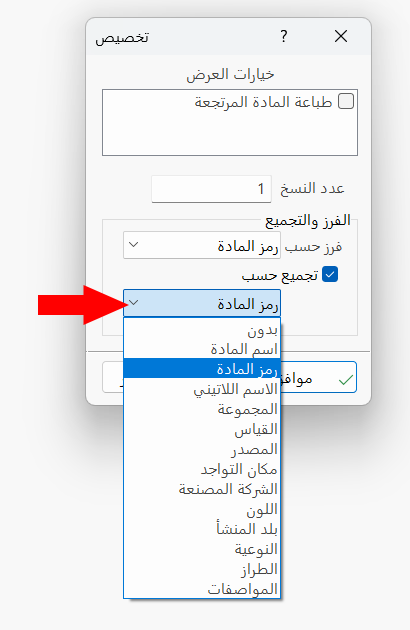
Customize Printing
You can customize the default print design settings when you use rich printing at the point of sale, after enabling the "Rich Printing" option in the "Print Design Settings" window.
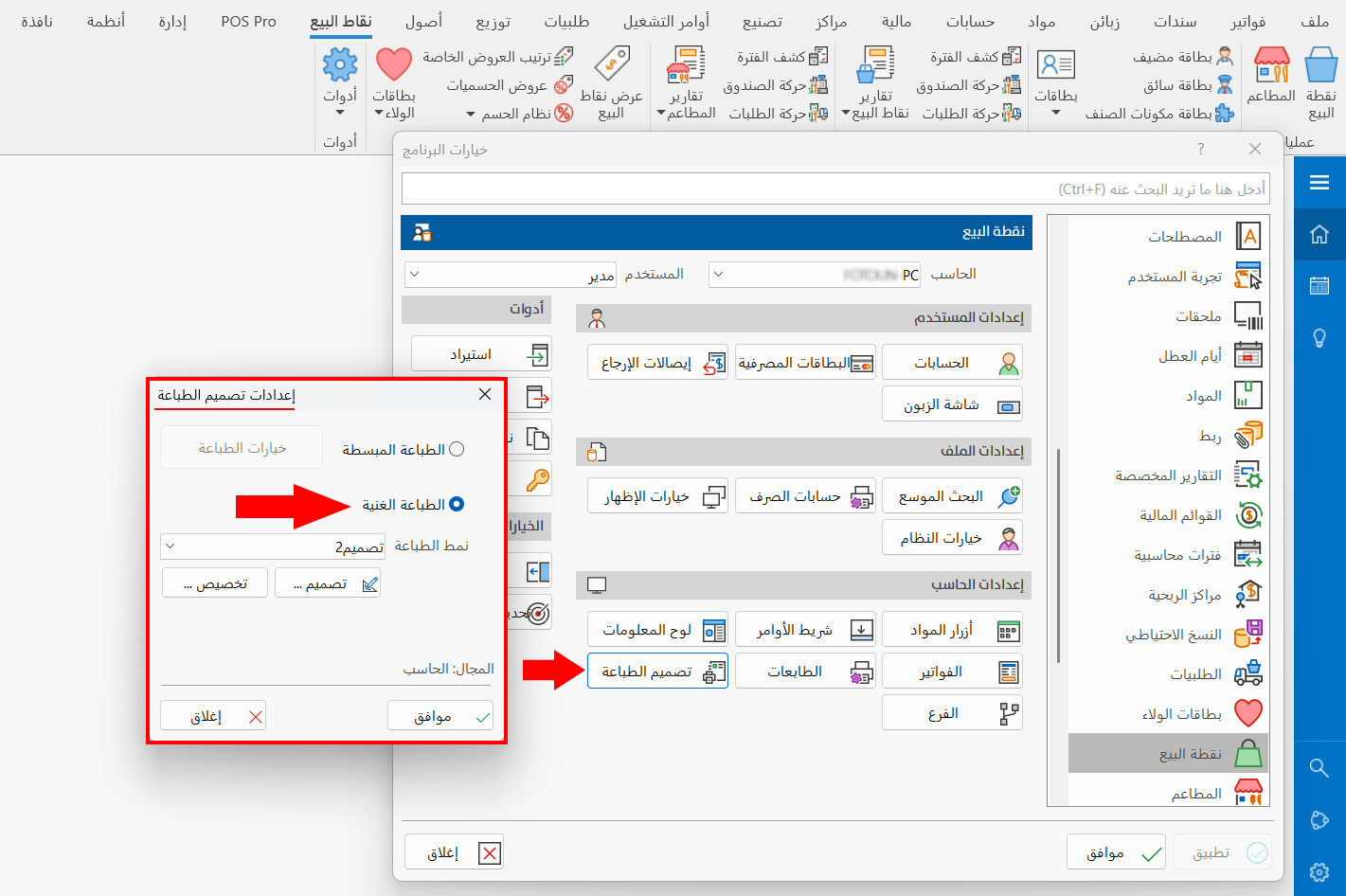
You can start adjusting the settings by clicking "Customize"; the following window opens:
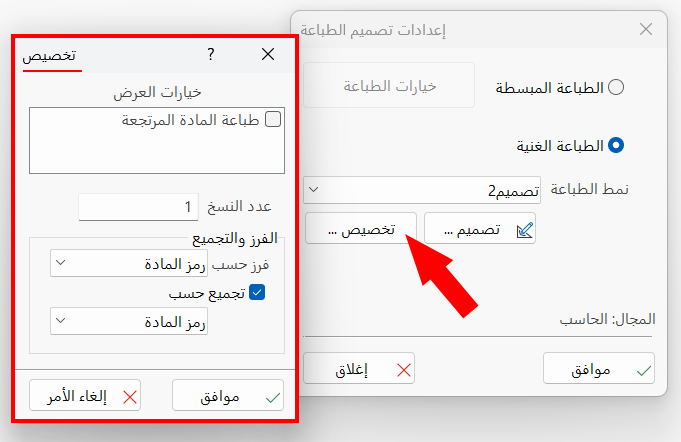
The window consists of a set of fields for setting the default settings of rich printing:
Display Options
The system lets you show the returned material in the invoice after it is printed, by enabling the "Print Returned Material" option.
Copies
Enter the default number of copies you want to print immediately after clicking the "Pay Order" or "Pay cash" command, or when clicking the "Print Order" command if you have enabled the "Stop instant print" option in the System Options window.
Group and Sort
The system lets you set the material field by which the invoice rows are sorted or grouped, that is, the invoice rows are arranged by that field: the invoice is not printed in the same order in which you entered it in the point of sale interface, but the rows are sorted according to the option set in:
-
Sort by
-
Group by
Click the arrow in the field of the option, then choose from the drop-down list the material field by which to sort or group.