Print Design
Used to adjust the design settings of simple and rich printing, and to create new print design forms that you can use at the point of sale.
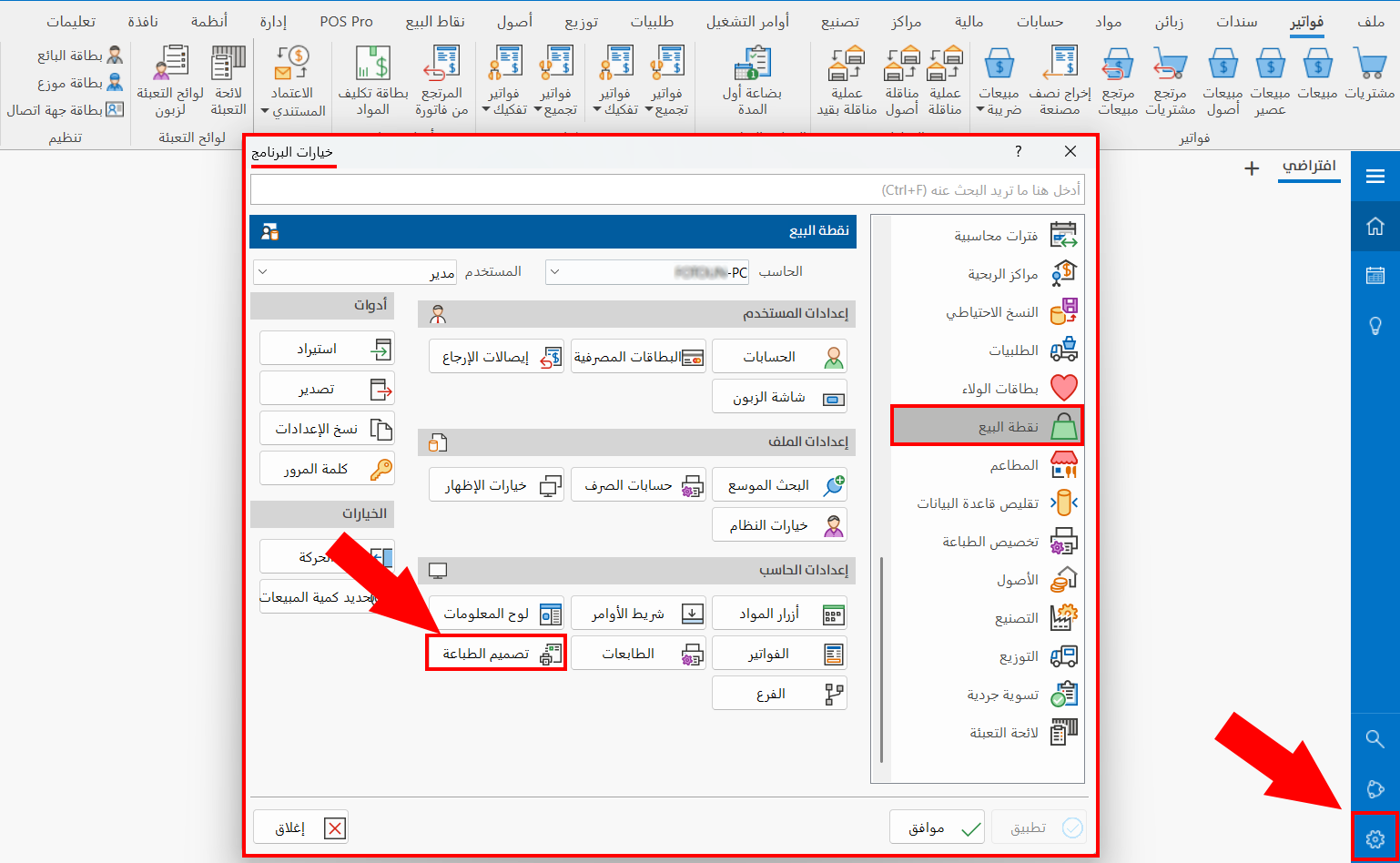
You can reach the "Print Design" button on the Point of Sale tab of the Program Options window.
After you click the button, the "Print Design Settings" window opens as follows:
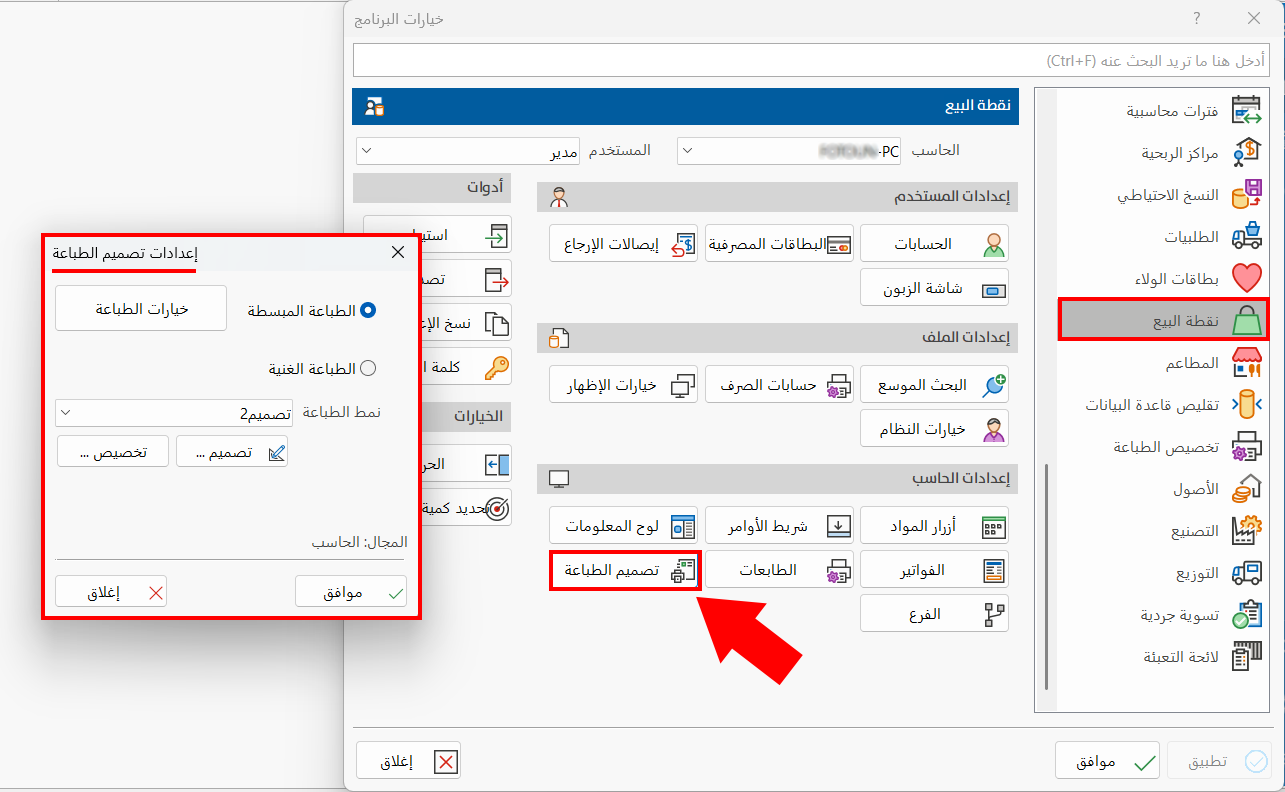
Print Design Settings
You can adjust the print settings of two printing methods available at the point of sale:
Simple Printing
The method enabled by default: you can set the options of simple printing directly in the window that opens when you click the "Printing Options" button, as follows:
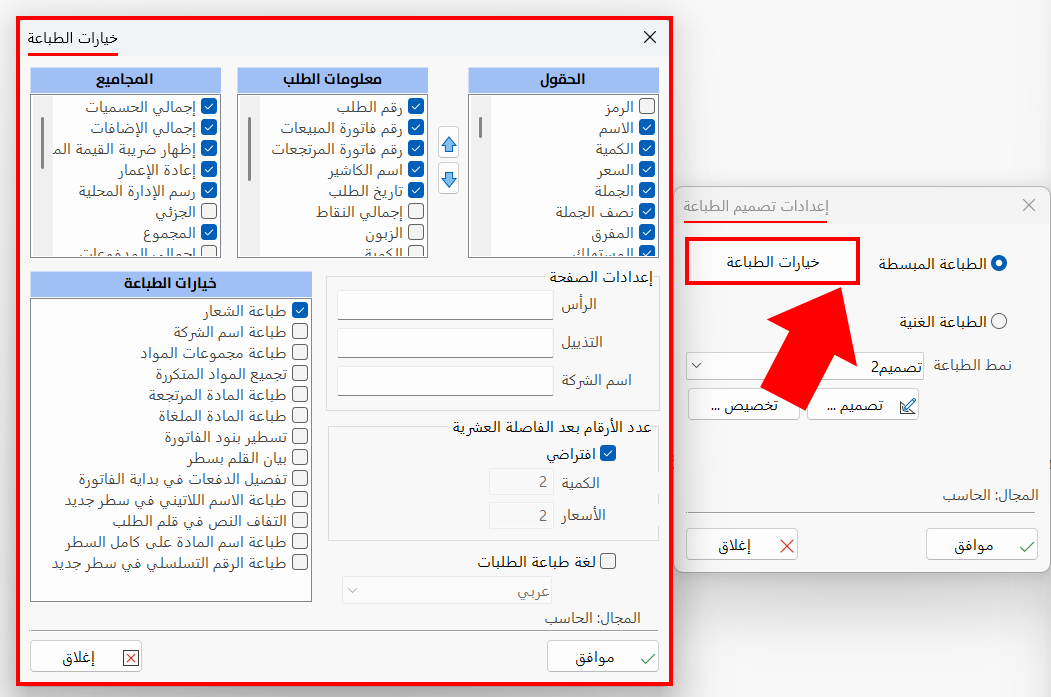
You can set the bill fields that appear by default when the invoice is printed, as well as the order information and the totals.
The window is also used to set the printing options (print the logo, print the company name...), adjust the page setup (header, footer...), set the digits after the decimal point, and set the default language for printing orders.
Rich Printing
You can control print designs in more detail, and create new print forms, after enabling the "Rich Printing" option.
Enable the "Rich Printing" option by clicking the check box next to it.
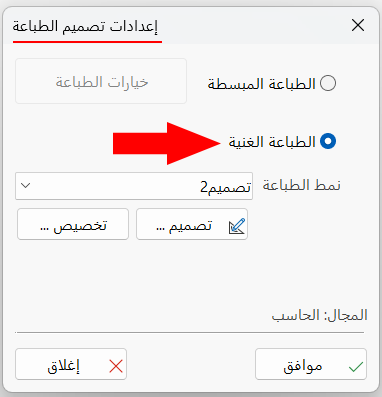
Printing Form
Choose the default printing form of the point of sale by clicking the arrow in the field: a list of the forms you saved in the design interface opens (the interface that appears when you click the "Design" button below).
Design
Creates a new design to use later for printing point of sale invoices: after you click "Design", the program moves to the following interface:
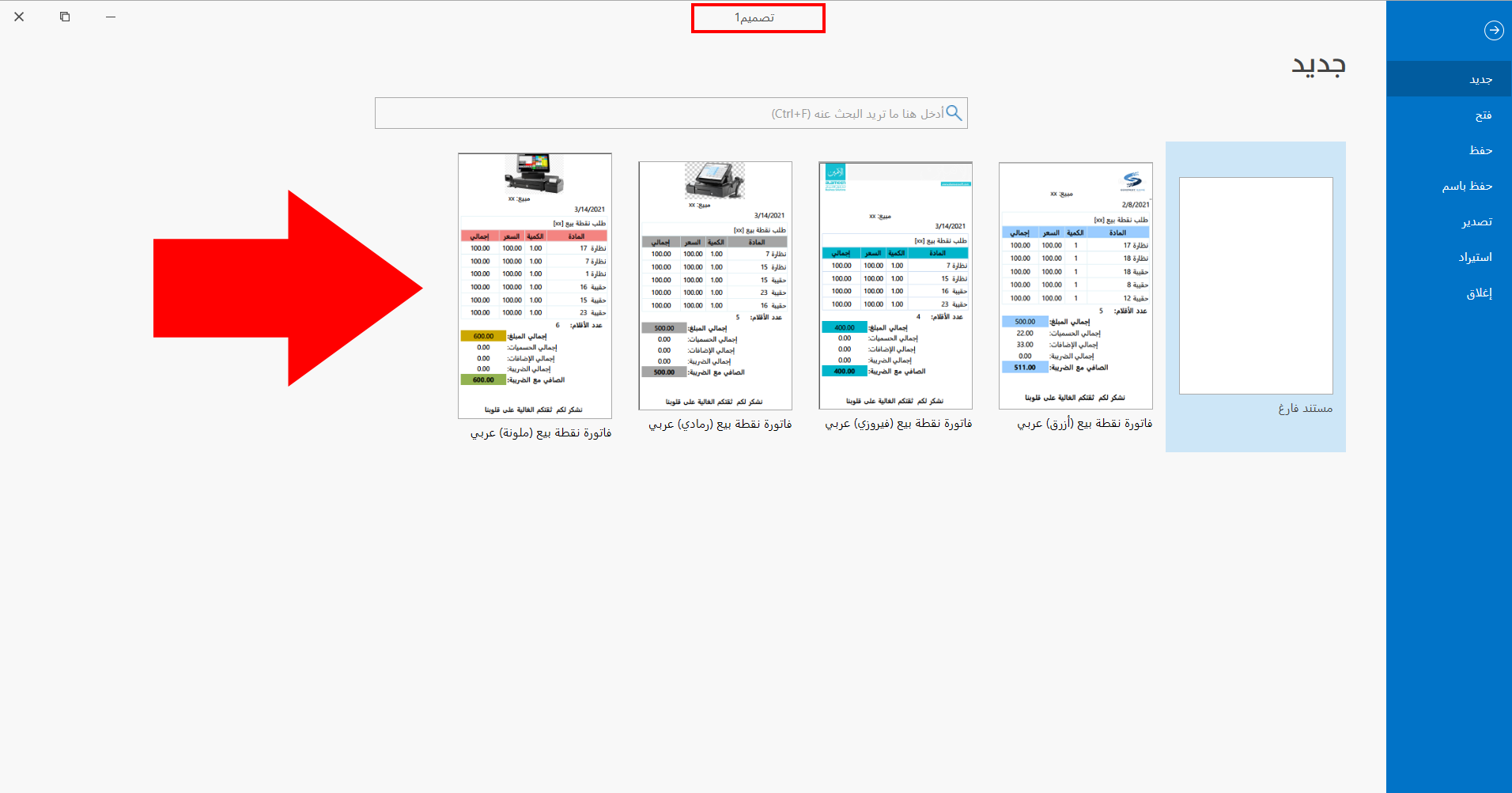
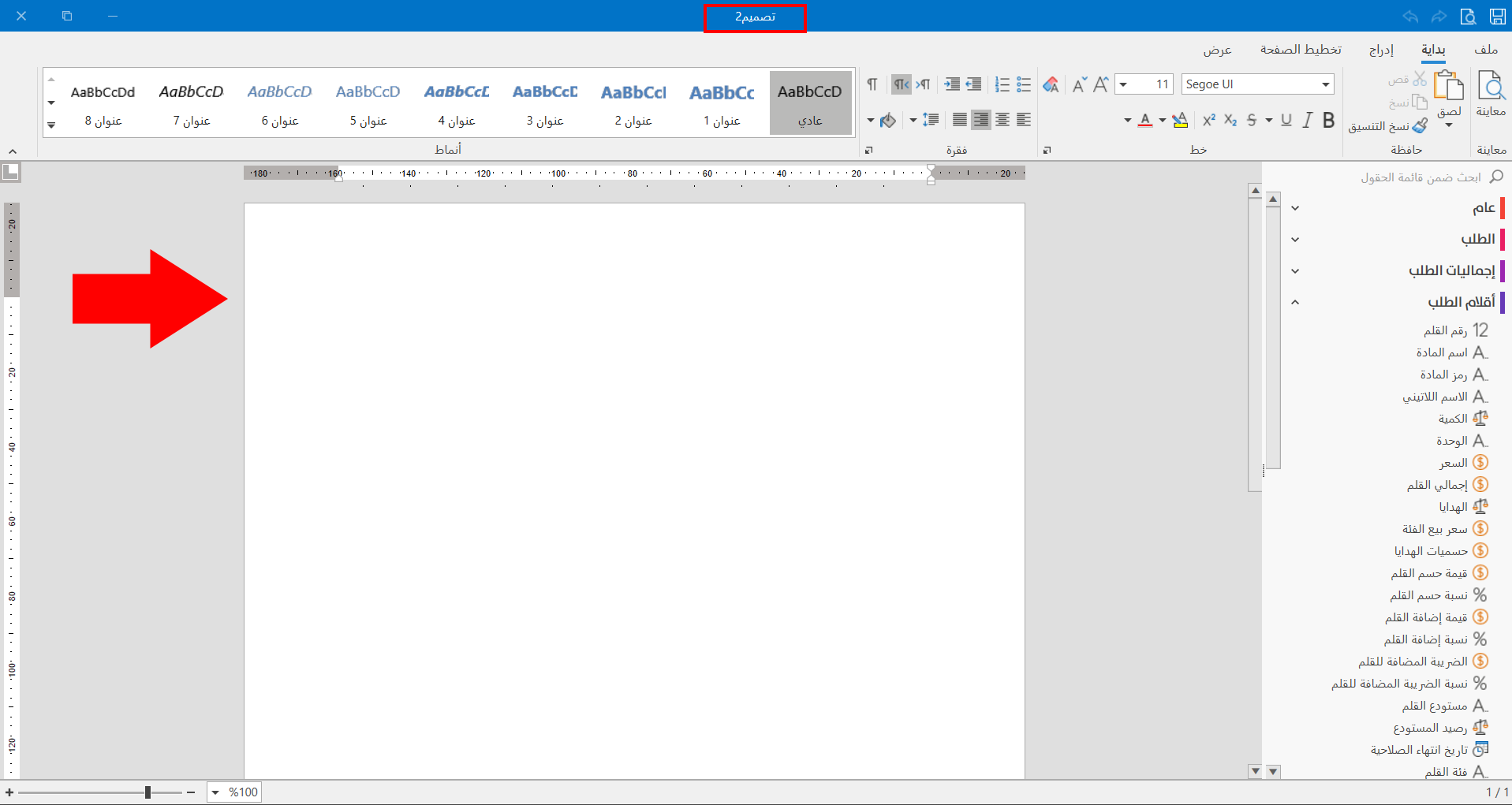
The interface contains "Blank document" and a set of ready-made designs. To create a print design manually, click "Blank document": the program moves to the design interface, as follows:
If you want to use the ready-made designs, click the design you want; the following window opens:
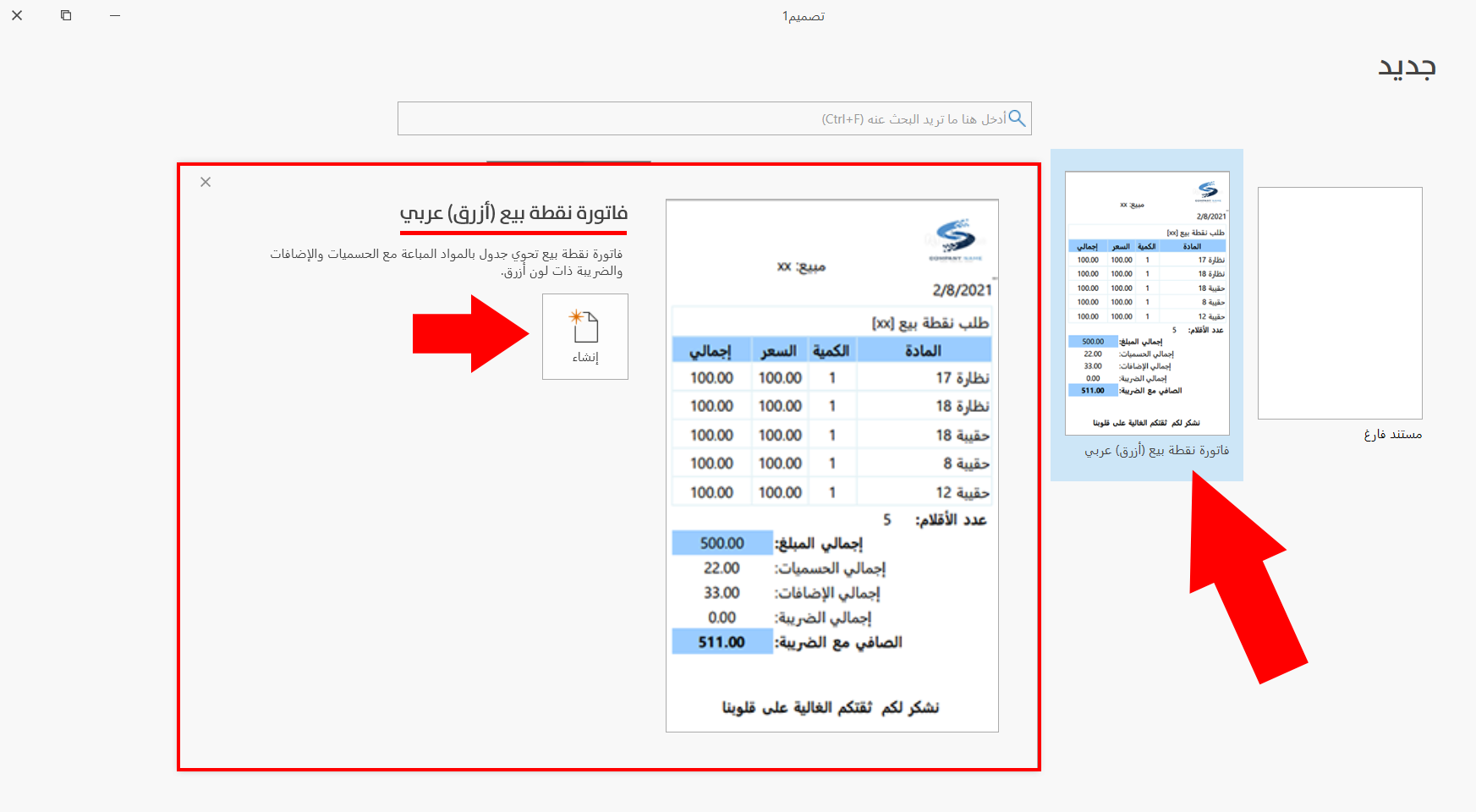
Click "Create" in the window: the program moves to the design interface, where you can save or modify it.
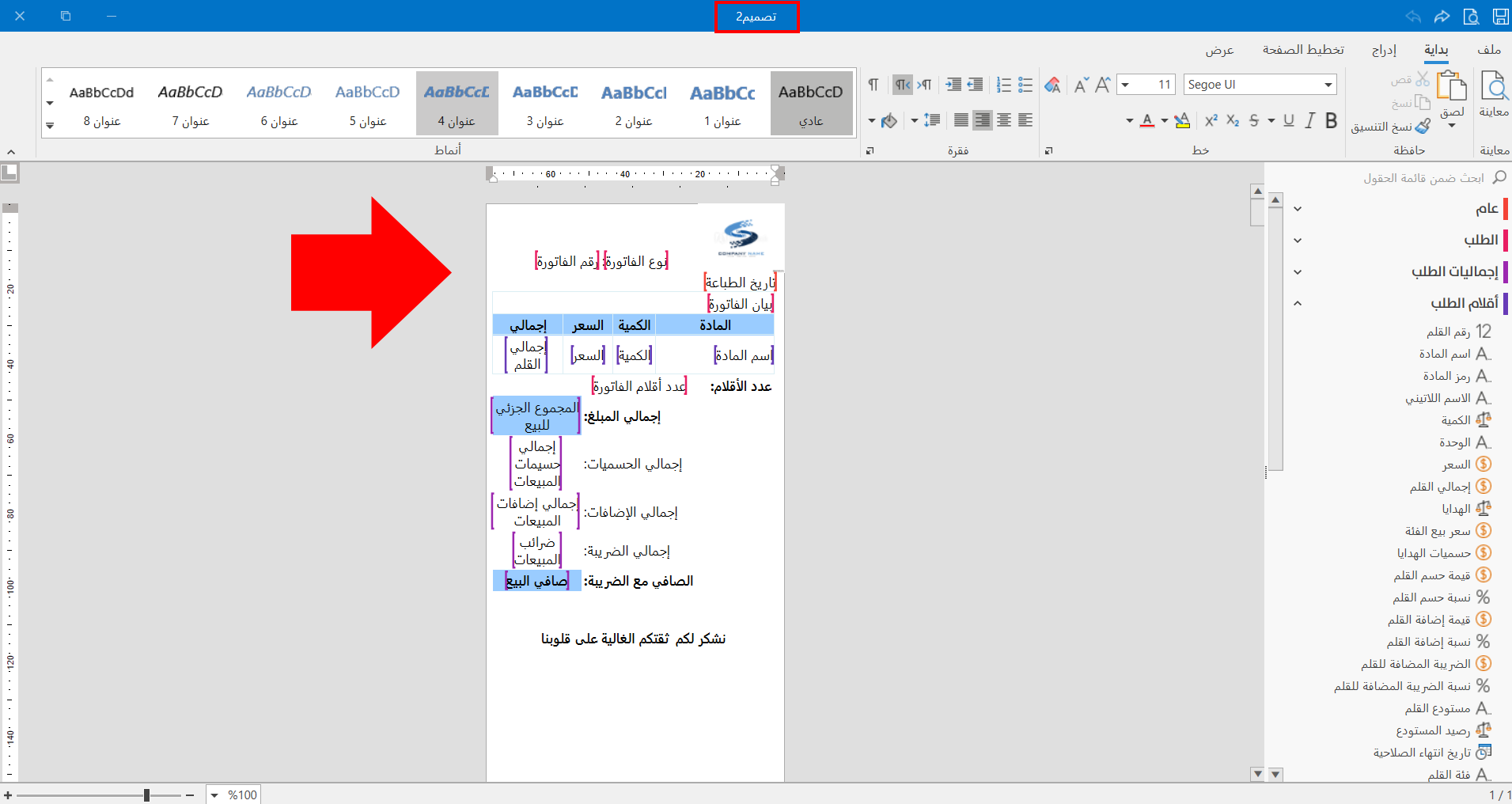
After creating the new design or modifying a ready-made one, click "Save" or "Save As" on the "File" tab of the main ribbon of the design interface.
After the design is saved, it appears among the options of the drop-down list of the "Printing Form" field.
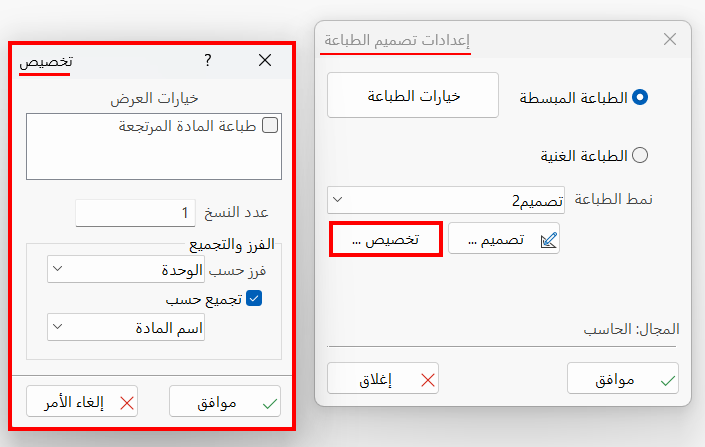
Customize
Sets the default number of copies of the invoice, and the default sort and group style.