Commands Bar
This option defines a new group of buttons or modifies an existing one; after defining the group, you can add command buttons.
After you click the Commands Bar option on the Point of Sale tab of the Program Options window, the following window opens:
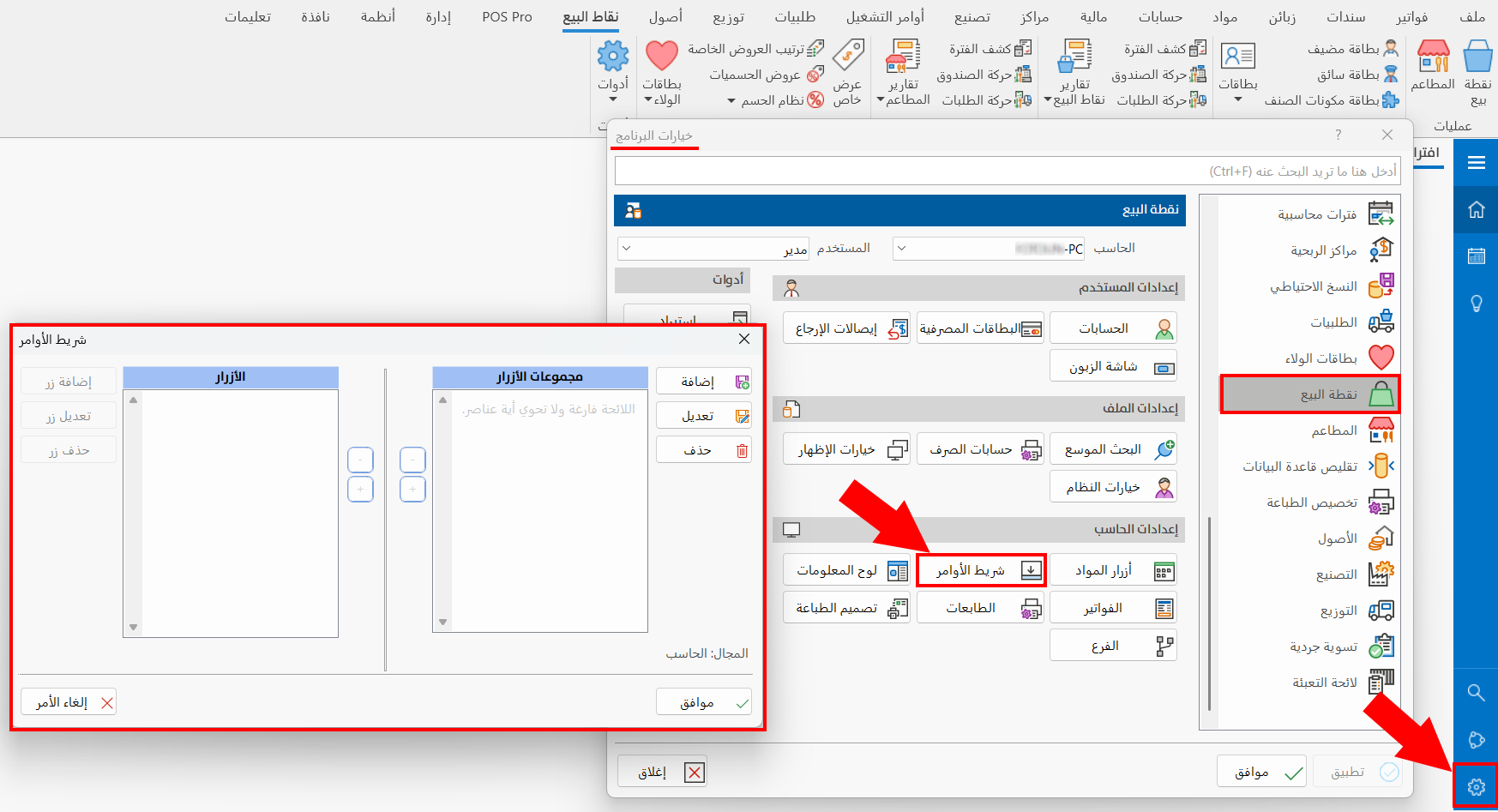
To add command buttons, follow these steps:
Buttons Group
To add a new group, click the "Add" button next to the "Buttons Groups" table: the Set Commands Group window appears so you can enter the name of the group.
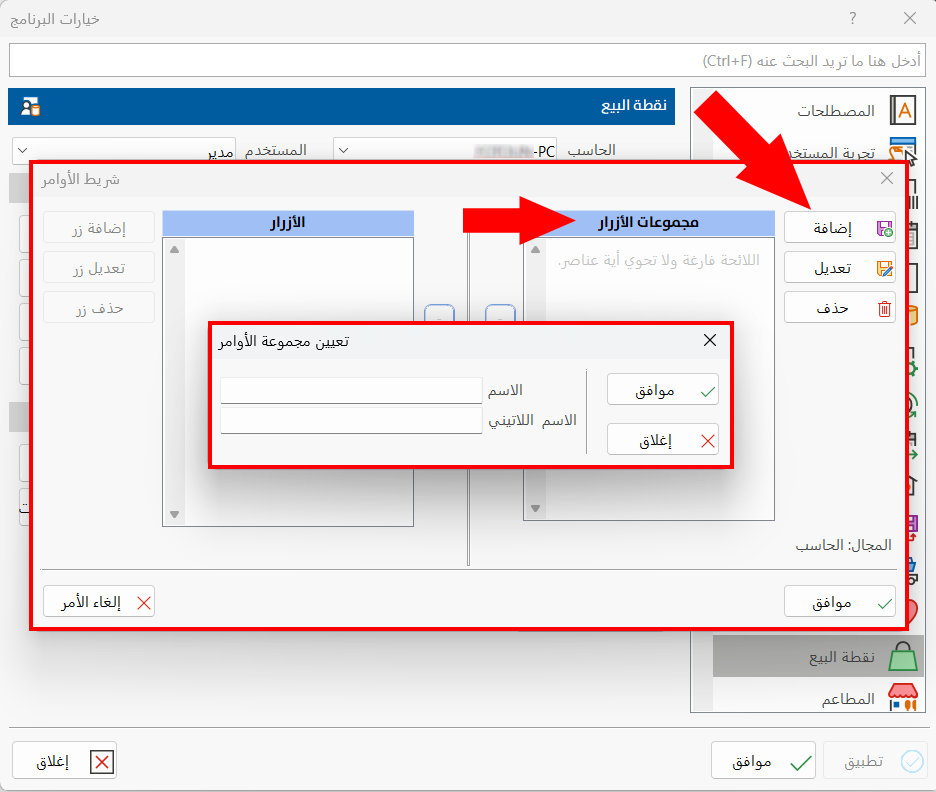
To modify a group added earlier, click "Modify": the Set Commands Group window opens so you can rename the group.
To delete a group added earlier, click "Delete": a message asks you to confirm the deletion; click "Yes" to delete, or "No" to go back.
Buttons
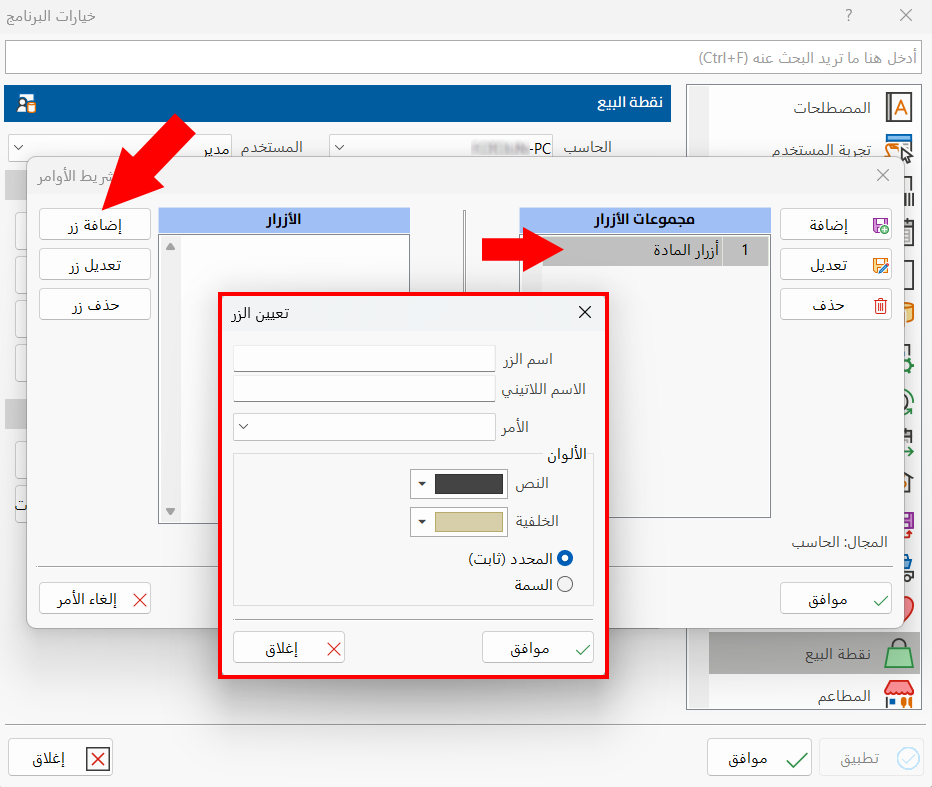
After adding the group, click it in the "Buttons Groups" table, then click "Add Button" next to the "Buttons" table; the following window appears:
Select Button
The window contains a number of fields needed to add a command button to the point of sale interface:
Button Name
By default, the program names the button after the command you choose in the "Command" field; you can enter a new name in this field.
Latin Name
Enter the name of the button in a different language.
Command
To set the button, click the "Command" field and choose the command from the drop-down list.
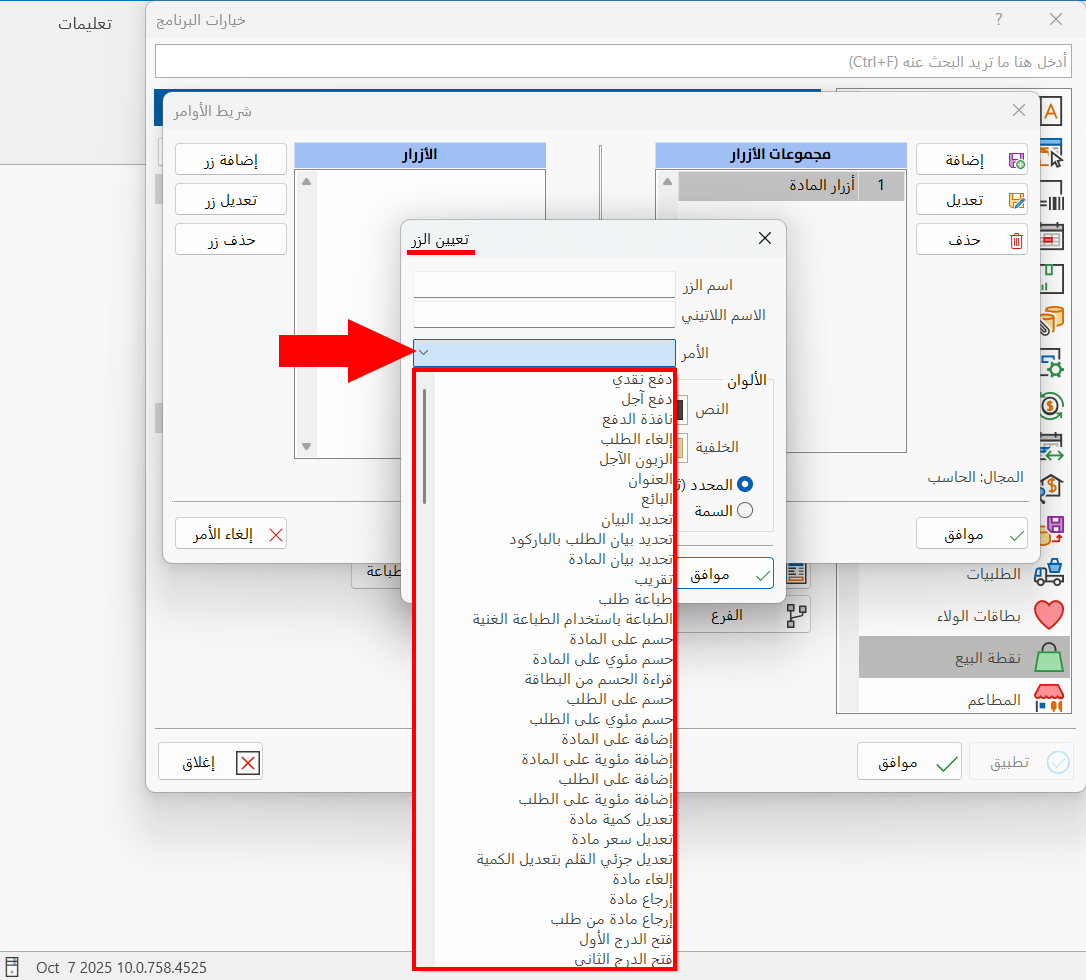
Here are some of the available buttons and what they do:
_ Open cash drawer 1/Open cash drawer 2: clicking it opens the cashier's drawer defined in Options - Peripherals.
_ Printer on/off: clicking it stops or starts printing invoices.
_ Print Voucher: clicking it prints the order's invoice on the roll printer.
_ Print materials groups: clicking it prints the materials groups in the invoice.
_ Special scale reading: when you click it after entering special barcodes, the program reads these codes.
_ Switch to special form: clicking it moves to the special invoice form set in the point of sale invoices and vouchers options.
_ Transfer From: clicking it transfers the material from a warehouse you set. By default, when a material is reserved, it is transferred from the shop's warehouse set in the warehouse output invoices forms (see the standard invoices forms).
_ Transfer To: clicking it transfers the material to a warehouse you set. By default, when a material is reserved, it is transferred to the reservation warehouse set in the warehouse input invoices forms (see the standard invoices forms).
_ Pay Credit: click it to generate a credit invoice for the order; a window asks you to set the account that will be linked to this invoice.
_ Pay cash: click it to generate a cash invoice for the order.
_ Pay cash currency # 1- 5: when you enable paying the order in more than one currency and set the currencies, you can assign buttons to each currency. Note that the currency number is the same one set in the restaurants system options.
_ Pay banknote # 1- 10: click here to pay the invoice with the entered banknotes.
_ Enter Material Quantity: enter the quantity, click the button, then click the button of the material whose quantity you want to enter.
_ Modify Material Quantity: enter the quantity, click the button, then select the material whose quantity you want to modify.
_ Enter Material Price: enter the price, click the button, then click the button of the material whose price you want to enter.
_ Modify material price: enter the price, click the button, then select the material whose price you want to modify.
_ Enter Cost Price: click the button, then click the material's button, to calculate the material at its cost price.
_ Enter Wholesale Price: click the button, then click the material's button, to calculate the material at its wholesale price.
_ Enter Semi Wholesale Price: click the button, then click the material's button, to calculate the material at its semi wholesale price.
_ Enter Export Price: click the button, then click the material's button, to calculate the material at its export price.
_ Enter Distributor Price: click the button, then click the material's button, to calculate the material at its distributor price.
_ Enter Retail Price: click the button, then click the material's button, to calculate the material at its retail price.
_ Enter Consumer Price: click the button, then click the material's button, to calculate the material at its consumer price.
_ Enter Last Purchase Price: click the button, then click the material's button, to calculate the material at its last purchase price.
_ Enter customer's last sale price: after setting the customer, click the customer's last sale price.
_ Enter customer card price: after setting the customer, click the customer card price.
Colors
You can choose custom colors for the button from the set of colors in the "Select Button" window, by choosing a color for the text and for the background, then clicking "OK".
You can modify or delete a button added earlier with the buttons next to the "Buttons" table in the Commands Bar window.
Click "OK" in all windows to save the settings.
To add buttons to the same group, or to add a new group of buttons directly from the point of sale interface, right-click the name of a group and choose "Add Command" or "Add Group" from the menu.
To add commands this way, the interface must have two or more groups.