POS Options
The point of sale options let you set the default settings under which the current point of sale works, such as assigning materials buttons or customizing the command buttons shown on the point's screen, as well as setting the accounts and invoices forms, printers, print designs, and more options that help you customize the point of sale.
If you have more than one point of sale, you can set the options of one of them and then copy them, with the customized buttons, to the other points.
The point of sale system of alameen ERP supports several salesmen on a single point of sale, handles paying invoices in more than one currency and payment type, and works with various peripherals such as printers, cash drawers, scales, and customer displays.
Reaching the POS Options
To set the point of sale options, after logging in, use the Program Options window, which you can reach in more than one way:
-
The "File" tab on the program's main ribbon, then click "Program Options".
-
From the program's main interface, click the "Program Options" window icon.
-
The shortcut Shift + F3 .
After the Program Options window appears, click the "Point of Sale" tab of the window, as follows:
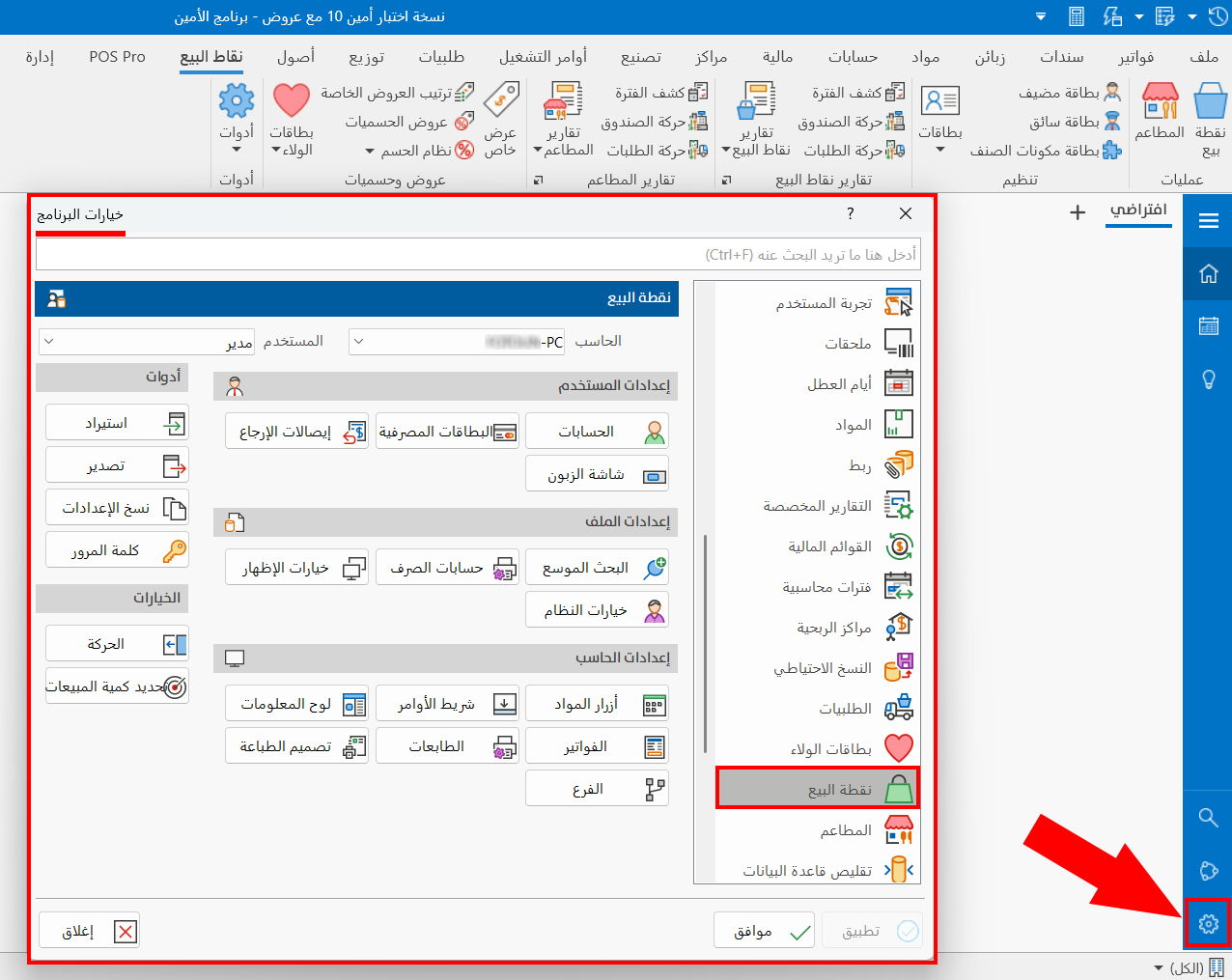
The "Point of Sale" Tab of the Program Options Window
The tab sets the options suited to working in the point of sale interface. The options are:
User Settings
Accounts: sets the default accounts and the currencies you will use at the point of sale (a mandatory option for activating the point of sale system).
Bank Cards: enters the bank cards and the drawer reset account.
Return Vouchers: chooses the form of the return voucher.
Customer Screen: adjusts and activates the customer screen settings.
File Settings
Extended Search: activates extended search and sets the grouping fields and the material information.
Payment Accounts: enables customizing the payment accounts in return vouchers and enters the accounts.
Display Options: chooses the display fields of the interface and customizes the colors, and sets the theme applied to the elements.
System Options: enables and disables the options related to the system, and sets some options related to returns and rounding.
Computer Settings
Materials Buttons: adds buttons groups and materials buttons.
Commands Bar: adds buttons groups and commands bar buttons.
Dashboard: adds and modifies the fields of the dashboard.
Invoices: sets the default invoices form, the special forms, and the reservation options (a mandatory option for activating the point of sale system).
Printers: sets the printers and adjusts the print settings.
Print Design: sets the print design form and designs a new form.
Branch: sets the branch.
Tools
Import: imports the system settings from the computer.
Export: exports the system settings to the computer.
Copy Settings: copies the system settings to another user or computer.
Password: sets the password required by blocked commands.
Extra Options
Motion Effects: chooses the motion style between materials buttons, the messages board, and the dashboard.
Determine Sales Quantity: sets the maximum sales quantity allowed in an order.
The "Accounts" and "Invoices" options must be set before you can open the point of sale interface.