Reset Drawer
An accounting operation that closes the cash account at the end of the day or shift at the point of sale. For example, at the end of a cashier's shift, the cashier must hand the drawer over to the next employee, or end the day, by recording the amount found in the drawer, using the "Reset Drawer" tool.
When you deselect the "Generate bills directly after sale" option, you cannot reset the drawer, because there are orders whose bills have not been generated. In this case, you can generate the bills manually with the "Generate bills for orders without bills" tool, then reset the drawer.
Reaching Reset Drawer
You can reach the "Reset Drawer" tool in the point of sale interface - Reports and Tools button.
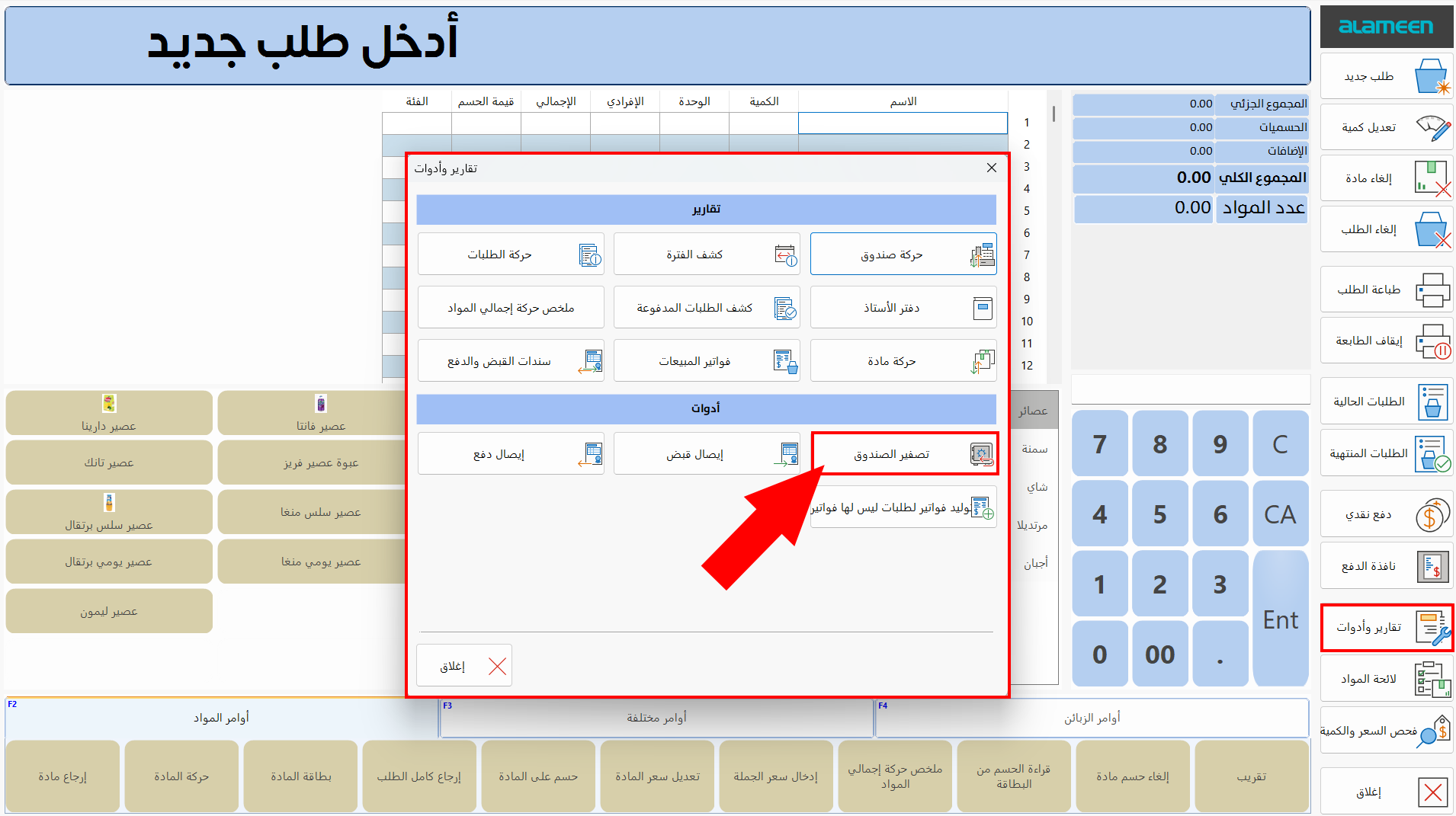
After you click the "Reset Drawer" tool, the following window opens:
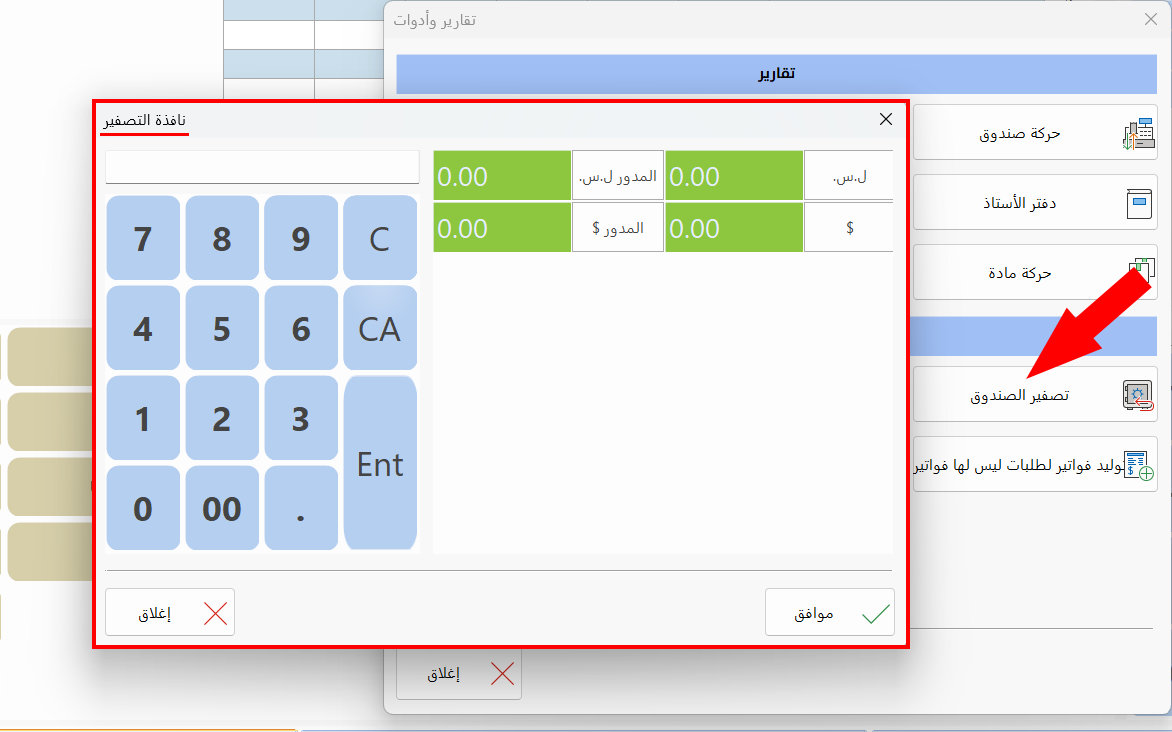
Contents of the Reset Window
The window contains the buttons needed to reset the drawer. They are used as follows:
Numbers Board
Enter the amount available in the drawer, after counting it, with the numbers board.
Amount Entry Buttons
The window shows all the currencies you show in the point of sale system; each currency is labeled with its symbol on its button for easy use, for example: $ for the US dollar, SYP for the Syrian pound. Next to each currency button is a "Float Cash" button for that currency.
Float cash is the amount of money the current employee will leave in the drawer, to be used in the next shift or the next day.
To record the amount in the drawer, enter the amount with the numbers board, then click the button of the currency.
If you are a user with the permission, you can show new currencies and use them at the point of sale from the Program Options window - Point of Sale tab - "Accounts" option: the Default Accounts window opens, with all the defined currencies in the currency table.
Click in the "Show in Payment Screen" field on the row of the currency you want to show in the payment screen, and choose "Show".
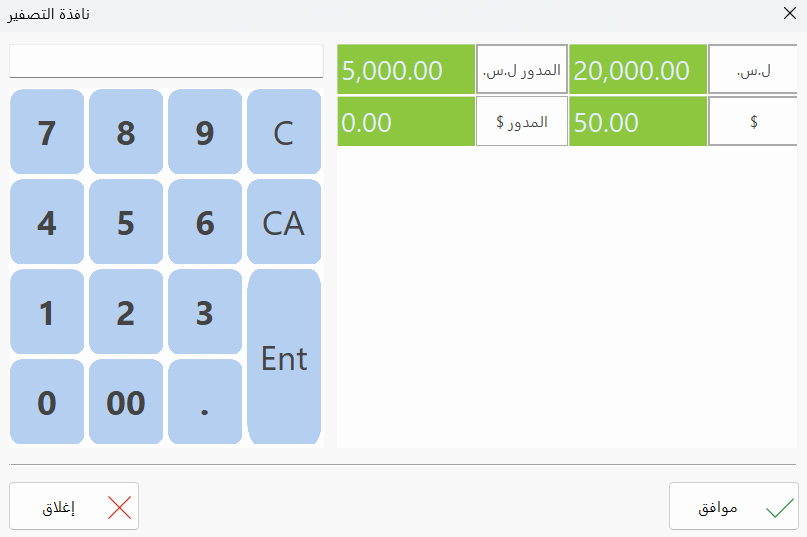
For example, if the amount is 20000 Syrian pounds and 50 US dollars, with 5000 Syrian pounds of float cash, enter 2000 and click "SYP", then enter 50 and click "$", then enter 5000 and click "Float Cash SYP". The values appear in the window as follows:
OK
After entering the actual amounts found in the drawer, click "OK" to reset the drawer: the result of the reset appears in the "Reports and Tools" window.
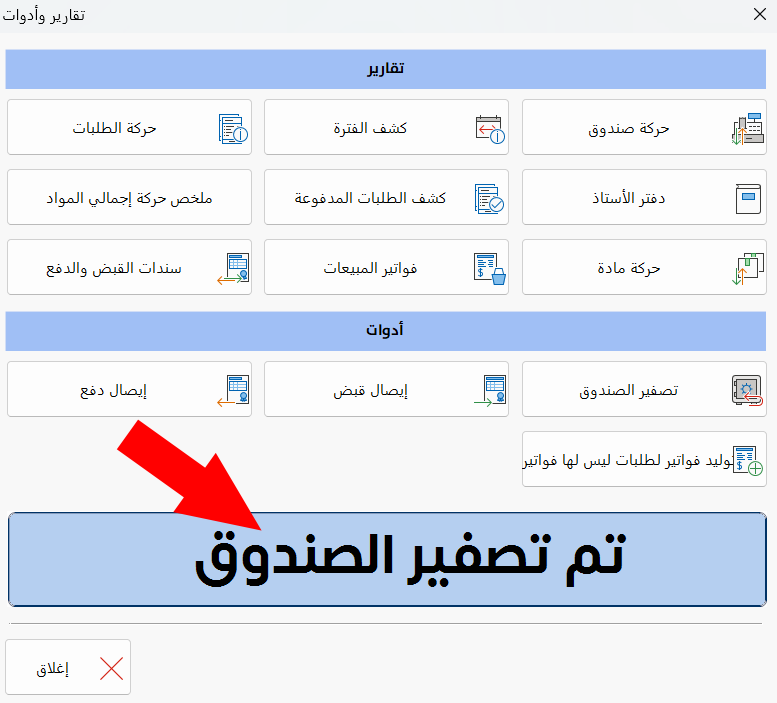
When there are currency differences, a warning message asks you to confirm the drawer reset after you click "OK".
Close
Click "Close" to abandon the drawer reset.
A journal entry is generated on the accounts set in the default accounts window for each of: the cash account, the drawer reset account, and the shortage settlement and increase settlement accounts when there are currency differences.
Set the Reset Drawer Options
If you are a user with the permission, the point of sale system provides a set of options for controlling the reset drawer tool, in the System Options window.
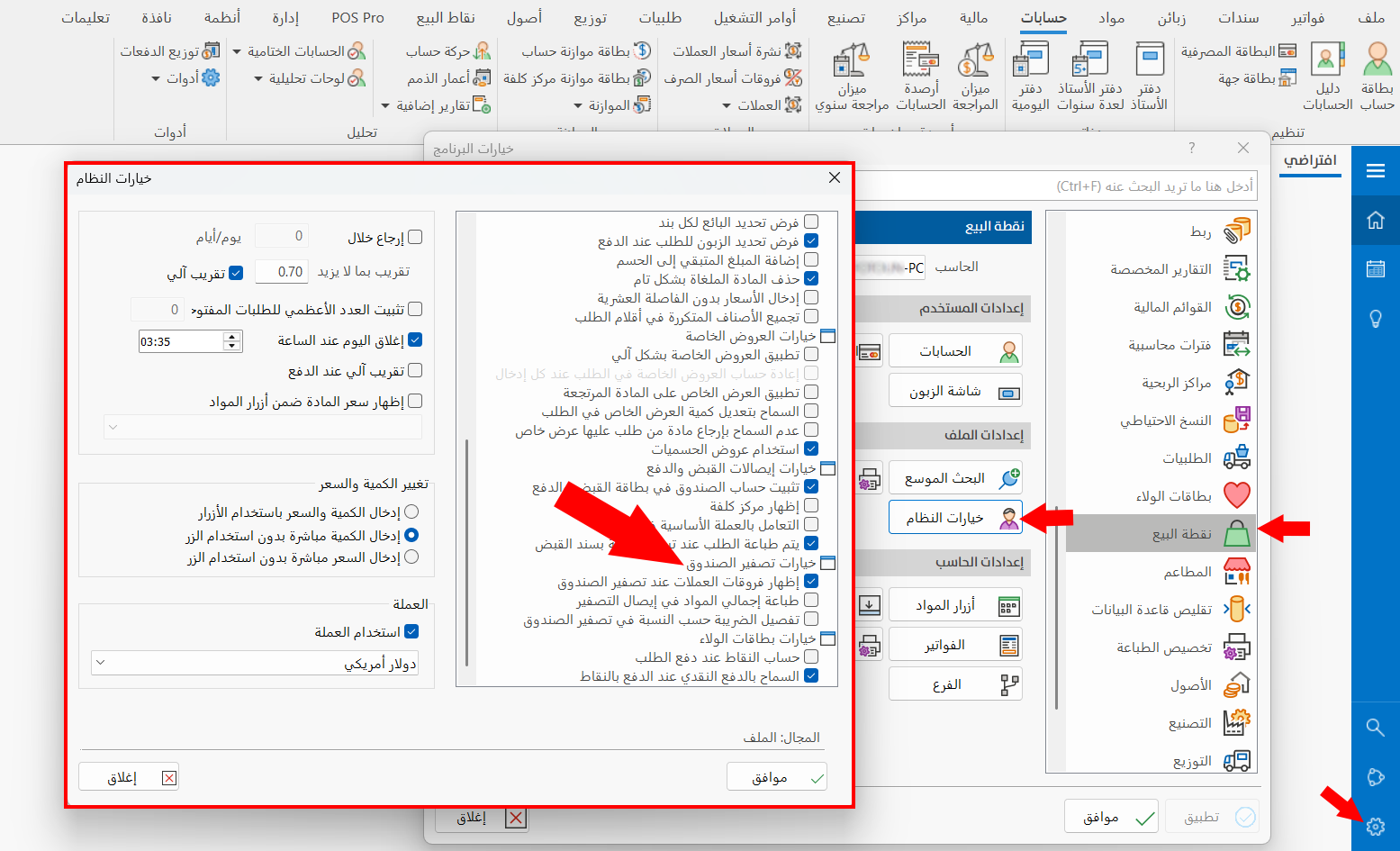
Click the check box next to the option you want to apply, then click "OK" in the System Options window and the Program Options window.