Materials List
The materials list shows all the materials defined in the program, so you can choose the material you want to add to the order at the point of sale.
Reaching the Materials List
The "Materials List" button appears by default in the basic commands menu of the point of sale interface.
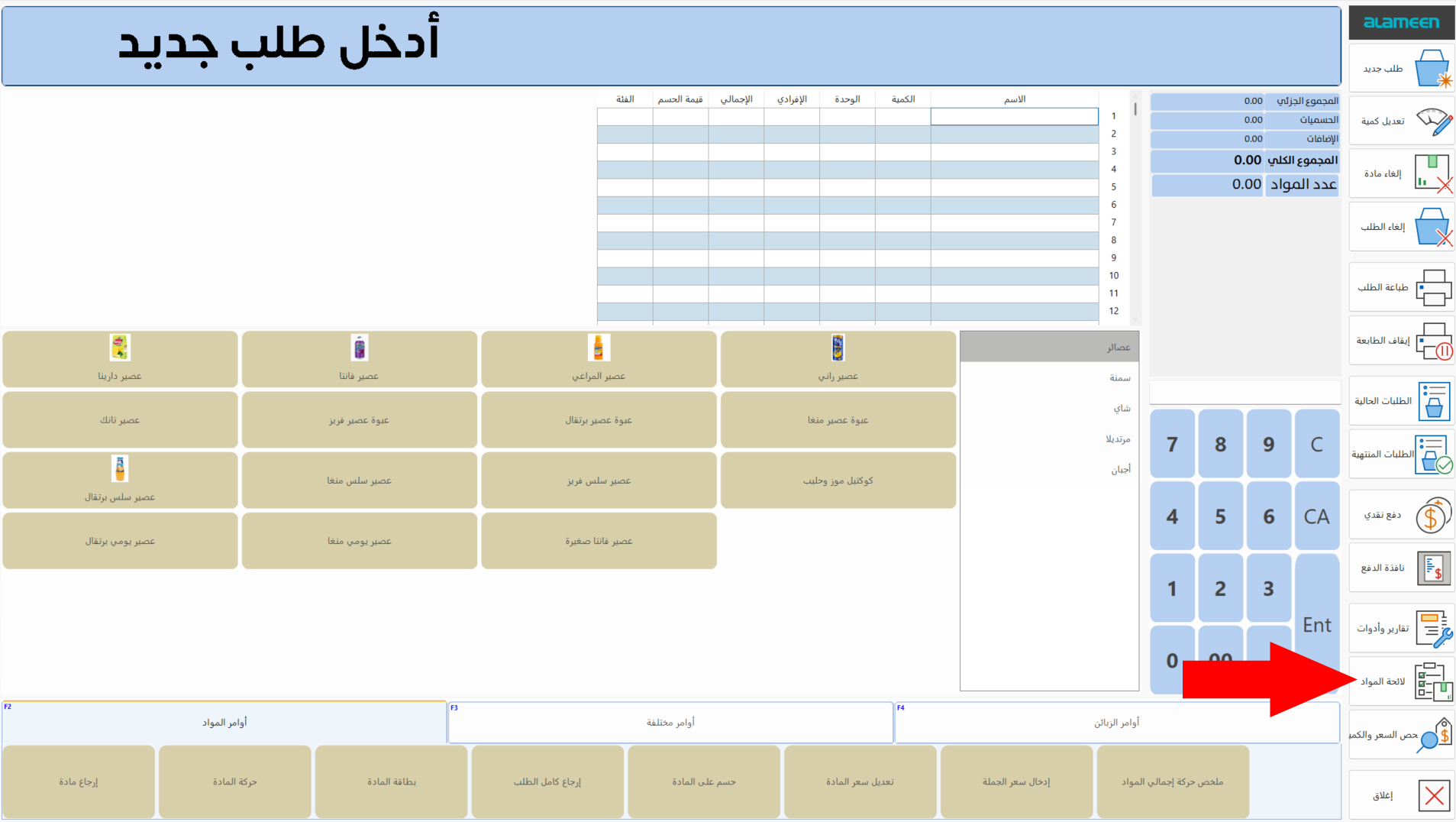
After you click the button, the "Select Material" window opens as follows:
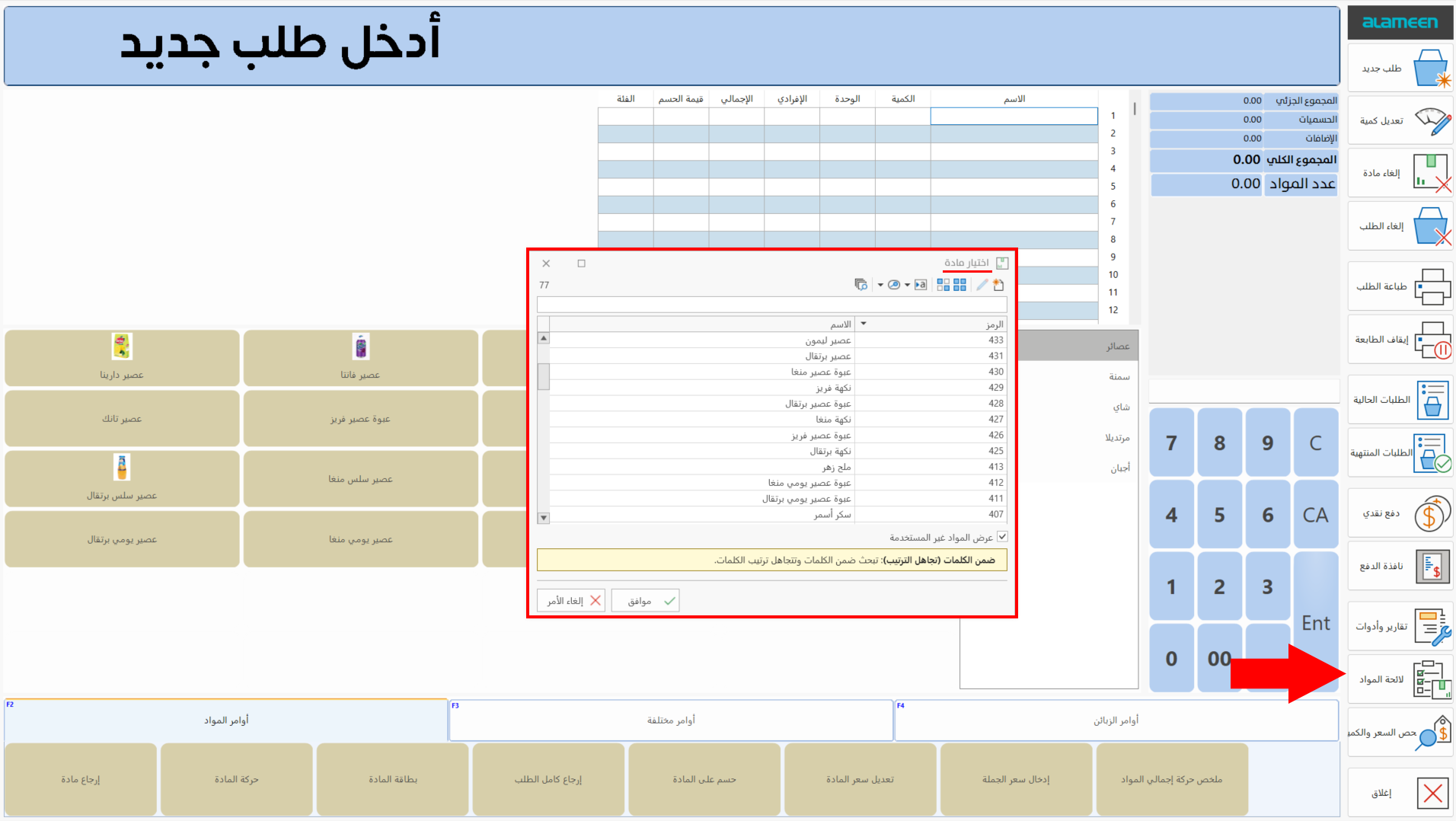
The contents of the window appear if you are a user with the permission.
Add the Material to the Order
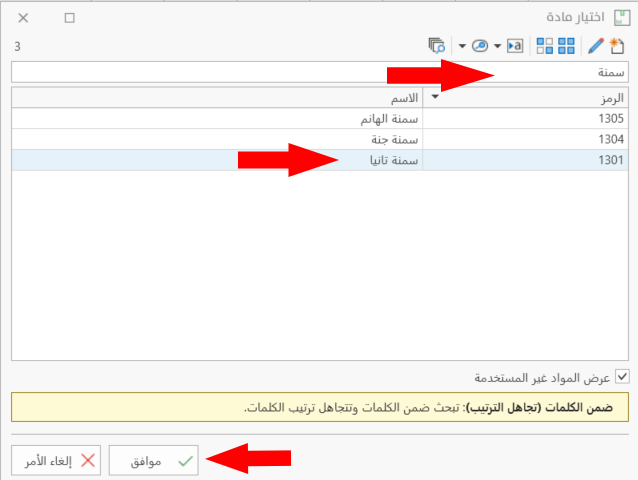
When the Select Material window appears, click the name of the material you want to add, or look it up with the search field, then click "OK" in the window.
The material is listed in the material table (the invoice) with a quantity of (1) and the default price set in the material card.
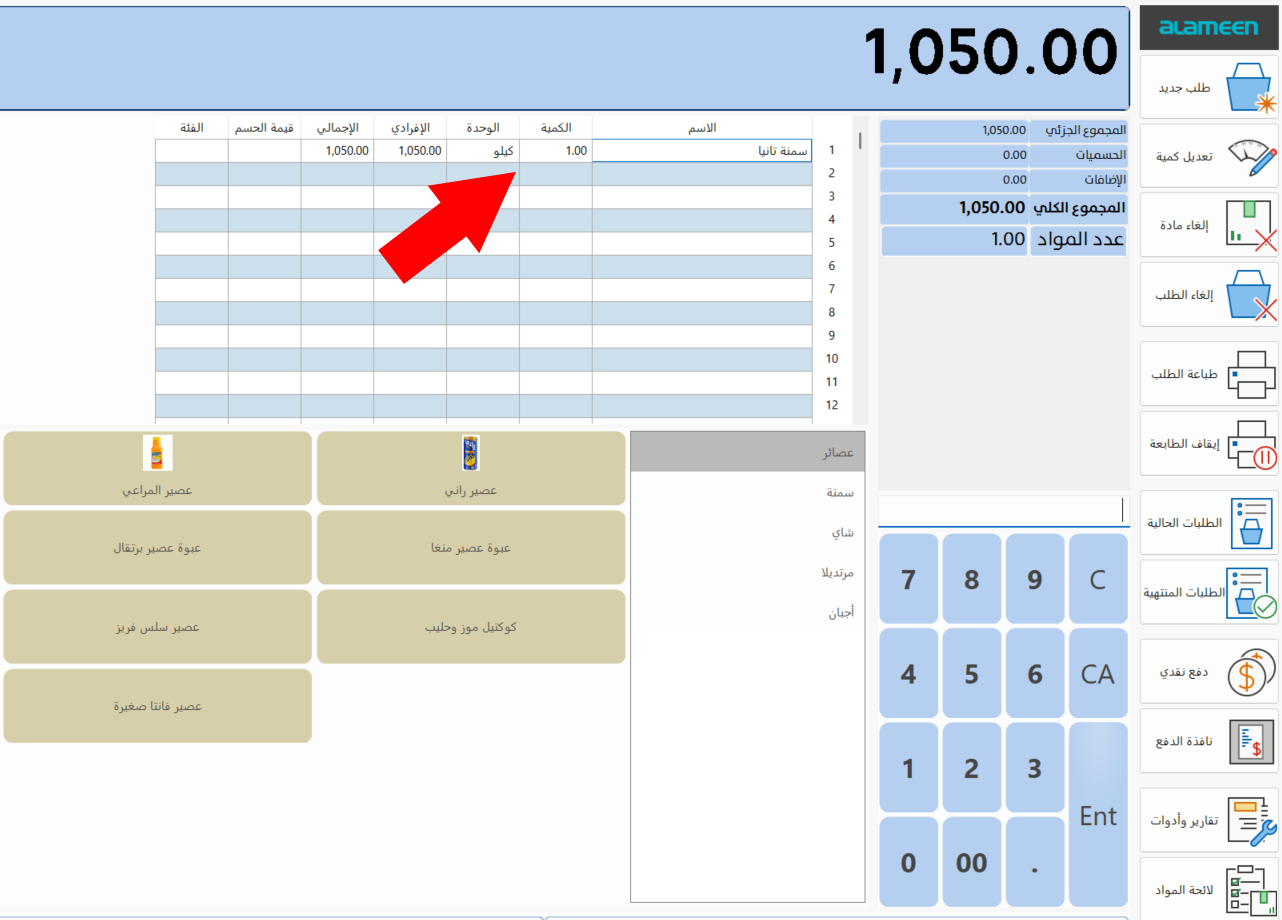
To modify the quantity, enter the quantity with the numbers board, then click "Modify Quantity".
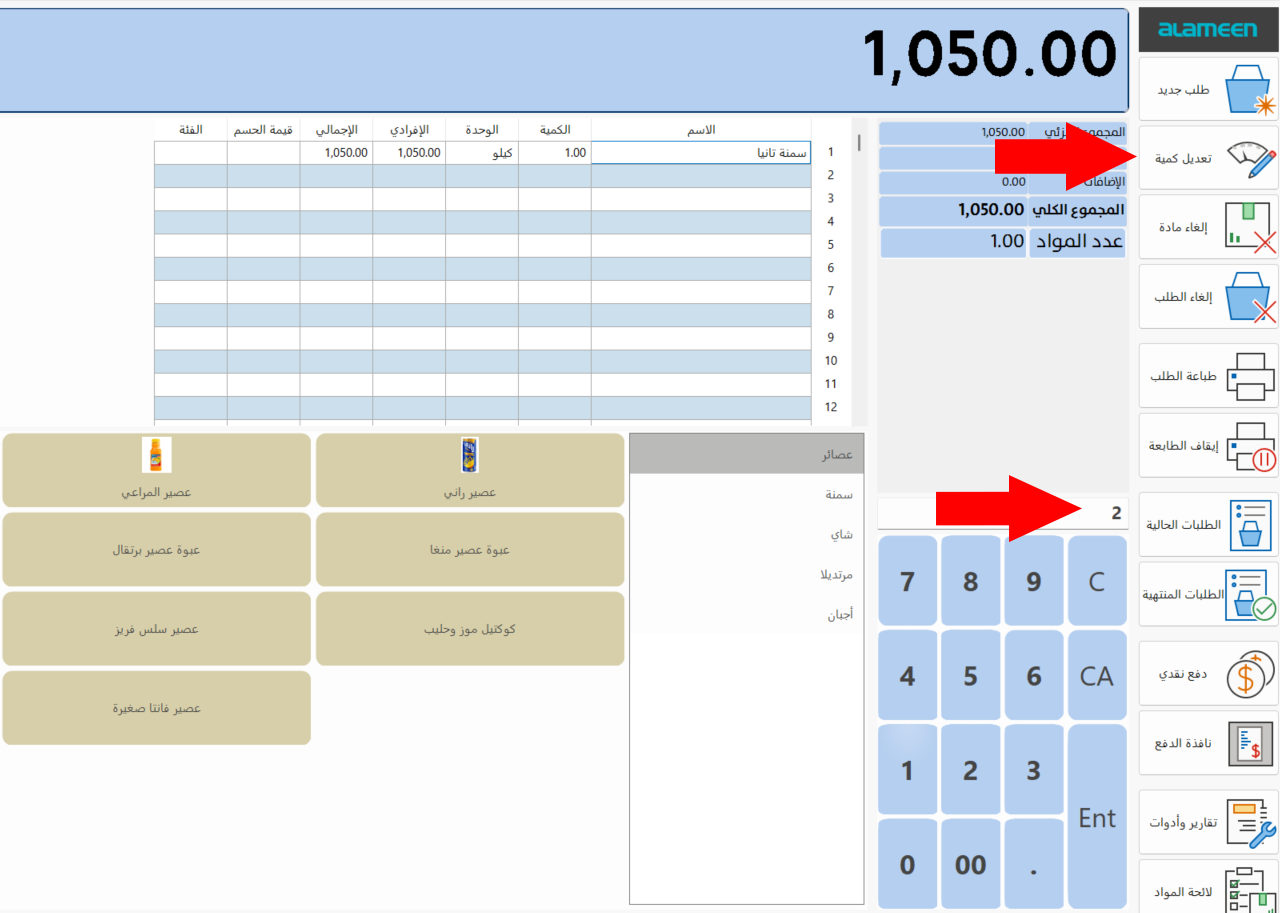
To modify the price, enter the new price with the numbers board, then click "Modify Material Price", after adding it to the commands bar.
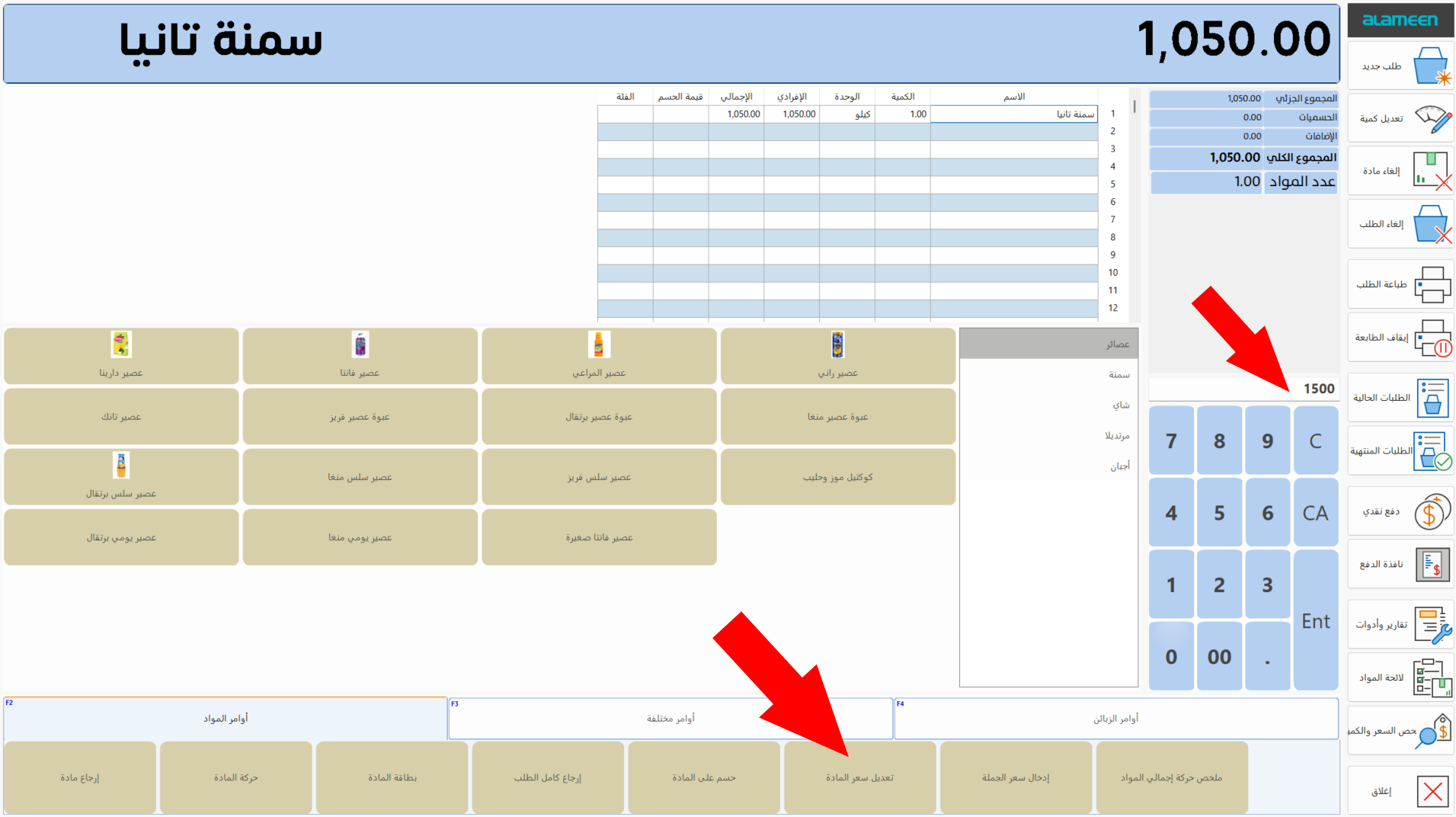
You can add the "Modify Material Price" button by right-clicking the name of the commands group and choosing "Add Command" from the menu that opens.