Finished Orders
You can view a list of the orders entered by a particular user of the system on a particular date: if you are a user with the permission, you can reach a list of the orders finished during a certain time by a certain user in the point of sale interface, through the Finished Orders window.
You can reach the Finished Orders window from the basic commands menu in the point of sale interface.
Once requested, it appears as follows:
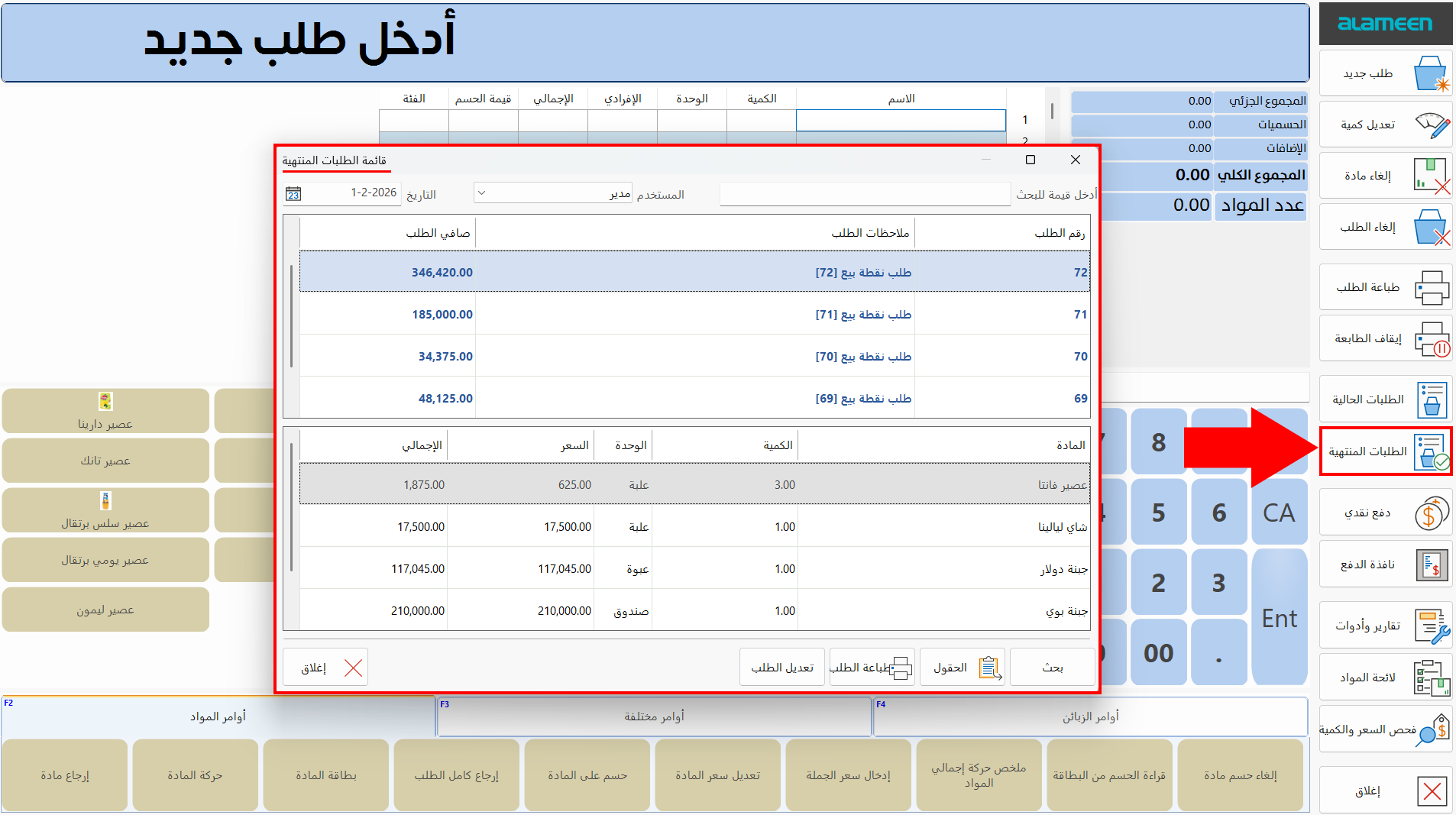
The window consists of the following:
Date
When you open the window, the field shows today's date by default, so the system shows today's finished orders.
You can change the date and enter the date whose finished orders you want to see.
If you are a user with the permission, you can control the hour at which the day ends, in the System Options window - Point of Sale tab - Program Options window.
User
The field shows the name of the user you logged in to the file with, so by default the system shows the finished orders you made on the date set in the Date field.
If you are a user with the permission, you can see the finished orders made by another user by clicking the arrow in the field and choosing the user name from the drop-down list.
Search Field
You can use the search field to find a particular value, by entering the number in the field: the results appear in the tables immediately.
The search covers the data in the orders table and the order details table, for the set date and user.
Orders Table
The table shows all the orders added by the user in the "User" field, on the date set in the Date field.
You can control which fields of the table are shown with the "Fields" button in the window, by selecting what you want in the "Orders Table" list.
Order Details Table
The table shows the details of the order selected in the orders table above.
You can control which fields of the table are shown with the "Fields" button in the window, by selecting what you want in the "Details Table" list.
Control Buttons
The window contains a set of buttons that help you control its contents:
Search
Click the Search button to find the value you entered in the search field.
Fields
The button opens a window in which you select the fields you want to list in the orders table and the order details table.
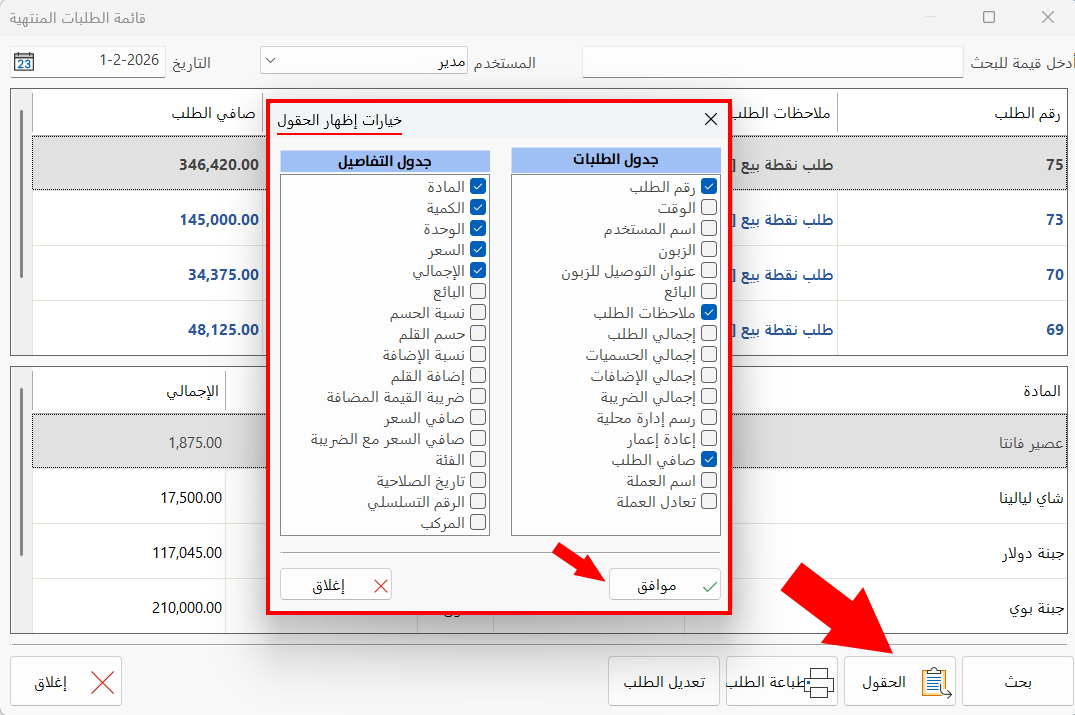
Click the check box next to each field you want until it fills with blue, then click "OK".
Print Order
You can print the order selected in the orders table by clicking "Print Order": the "Print" window opens according to the default print options.
Modify Order
Modifies the order selected in the orders table: after you click it, the order rows are listed in the material table of the point of sale interface, so you can start modifying the quantity, price, or payment type.
Close
Closes the Finished Orders window.