Current Orders
The program lets you open more than one order at the same time, and view the list of open (current) orders in the point of sale interface.
You may deal with more than one customer at the same time and need to move between orders, so you can add orders in stages and move between them easily.
You can control the number of open orders by enabling the "Set the maximum number of open orders" option and entering the maximum number of orders, in the System Options window that opens from the System Options button - Point of Sale tab - Program Options window.
Add a New Order
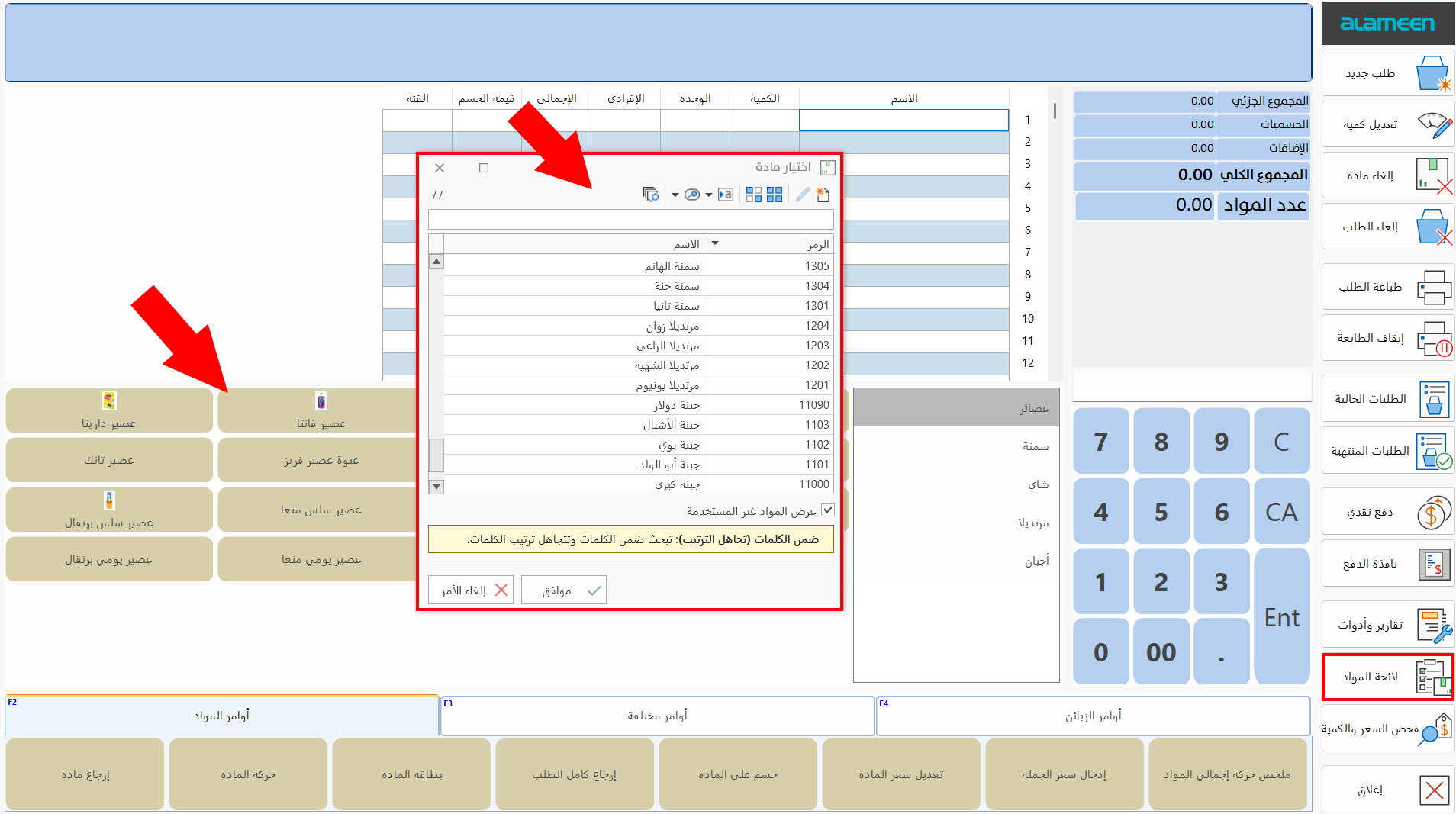
By default, the point of sale interface is ready for adding a new order: you can add the order by clicking the buttons of the materials, or open the materials list to choose the material you want to sell in this order.
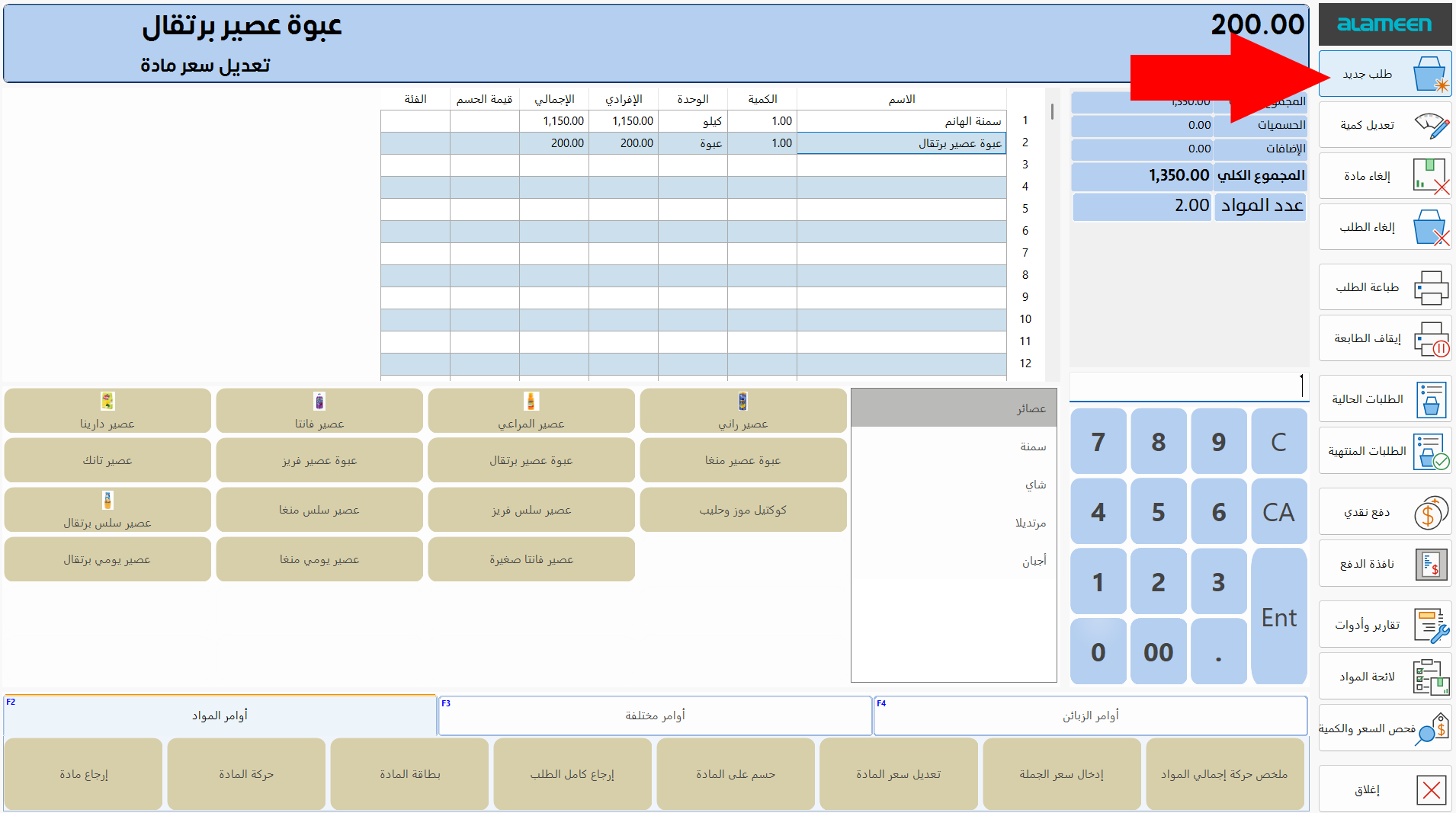
When you need to add a new order for a different customer, you can leave this order open and open a new order with the "New Order" button in the basic commands menu.
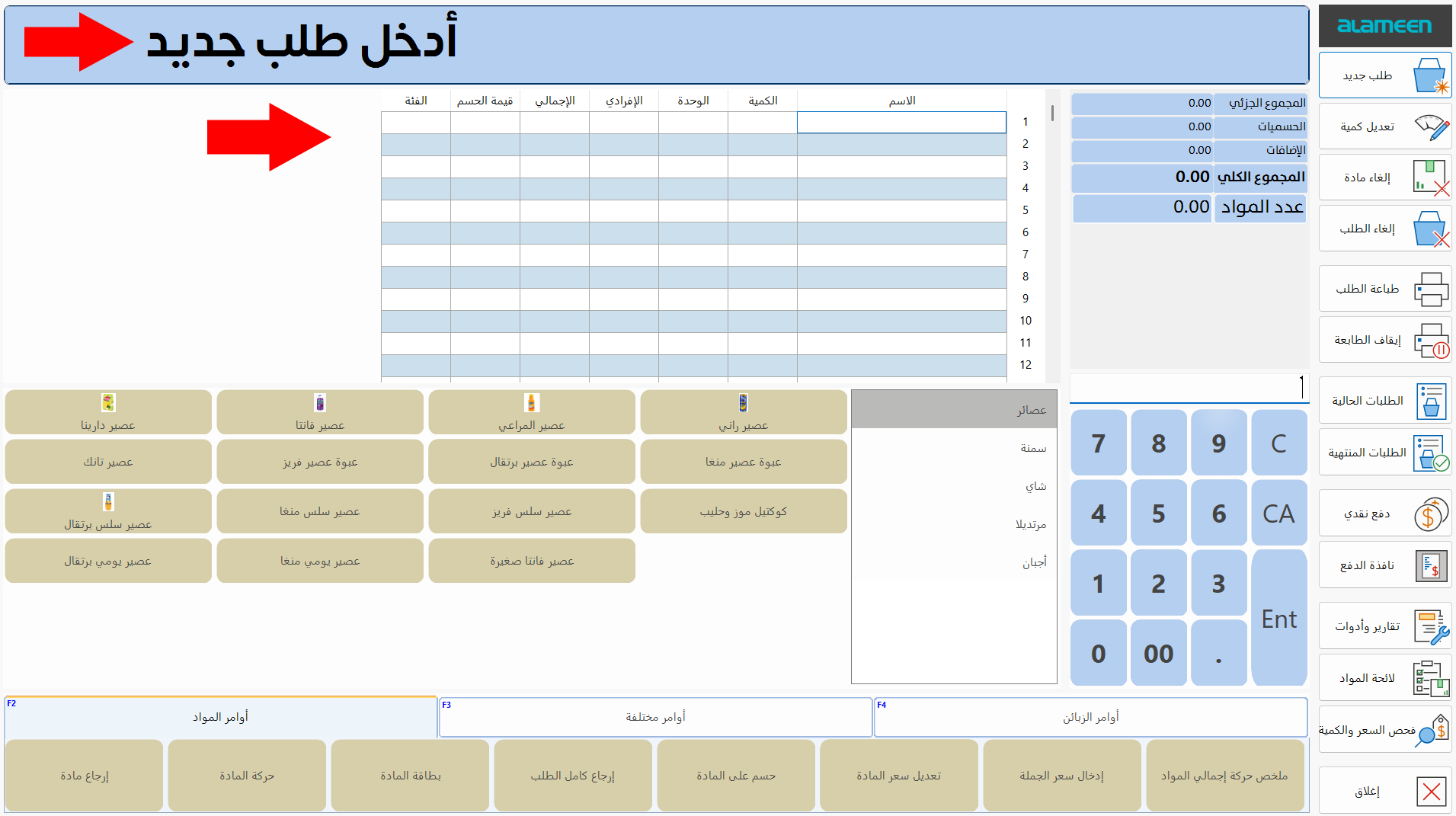
After you click "New Order", the interface moves to a new order immediately.
View the Current Orders
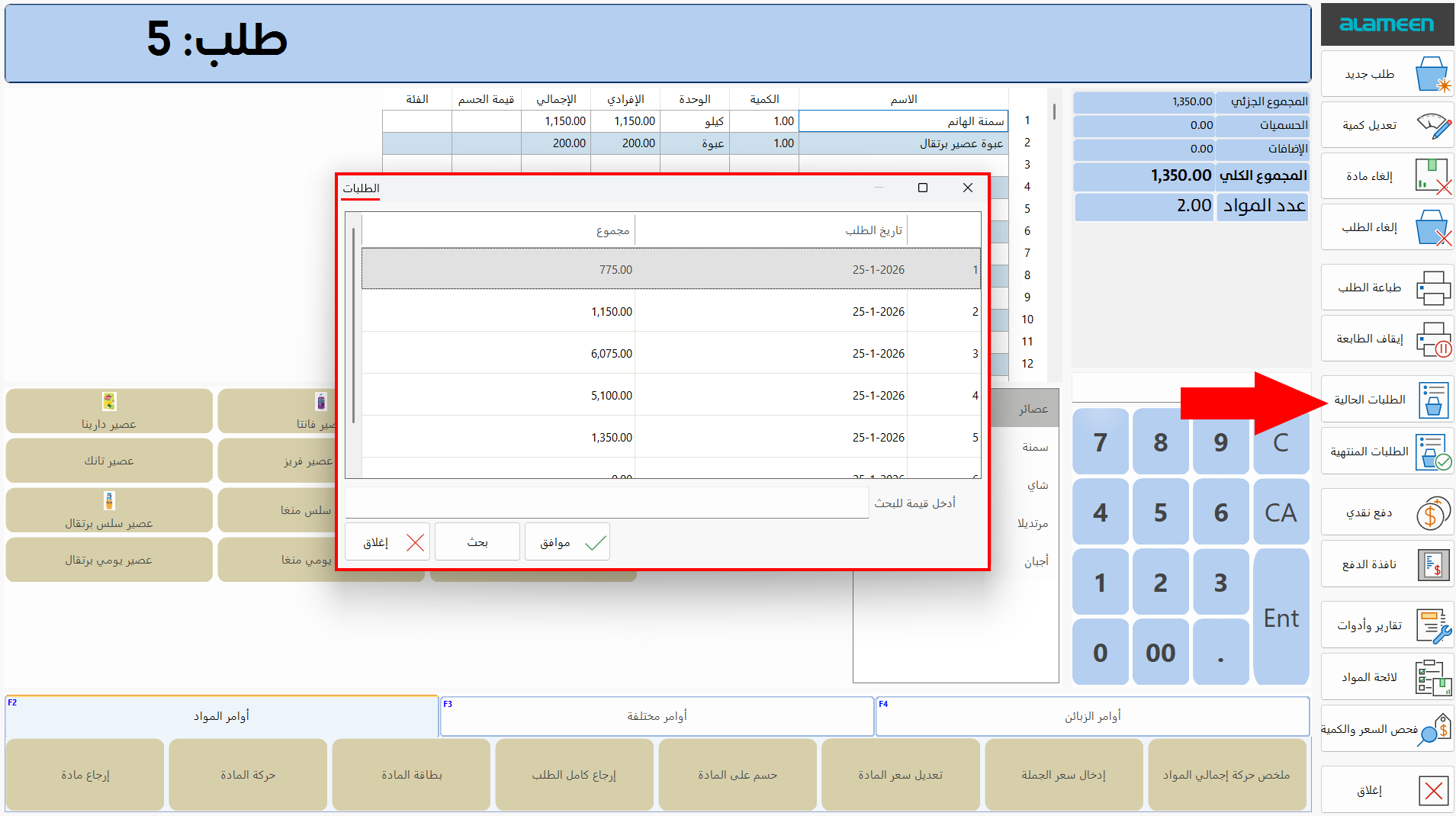
The program lets you view all the open orders in the orders window that opens with the "Current Orders" button in the basic commands menu.
Contents of the Current Orders Window
The window contains a table of all the open orders and some buttons for moving between orders. They are used as follows:
Orders Table
The table lists the data of the open orders that you have not paid or cancelled. The table contains two fields:
- Order Date
The orders are sorted from oldest to newest.
- Sum
The total value of the order.
You can re-sort the orders in the table by the Sum field by clicking the word "Sum" in the table header.
Click the order you want to move to, then click "OK" in the window.
Search Field
Enter the value you want to find in one of the current orders: you can search for the order number or the order sum in the field, then click "Search" in the window.
OK Button
Moves to the order selected in the orders table.
Search Button
Searches for the value you entered in the search field of the window.
Close Button
Closes the window and returns to the current order.
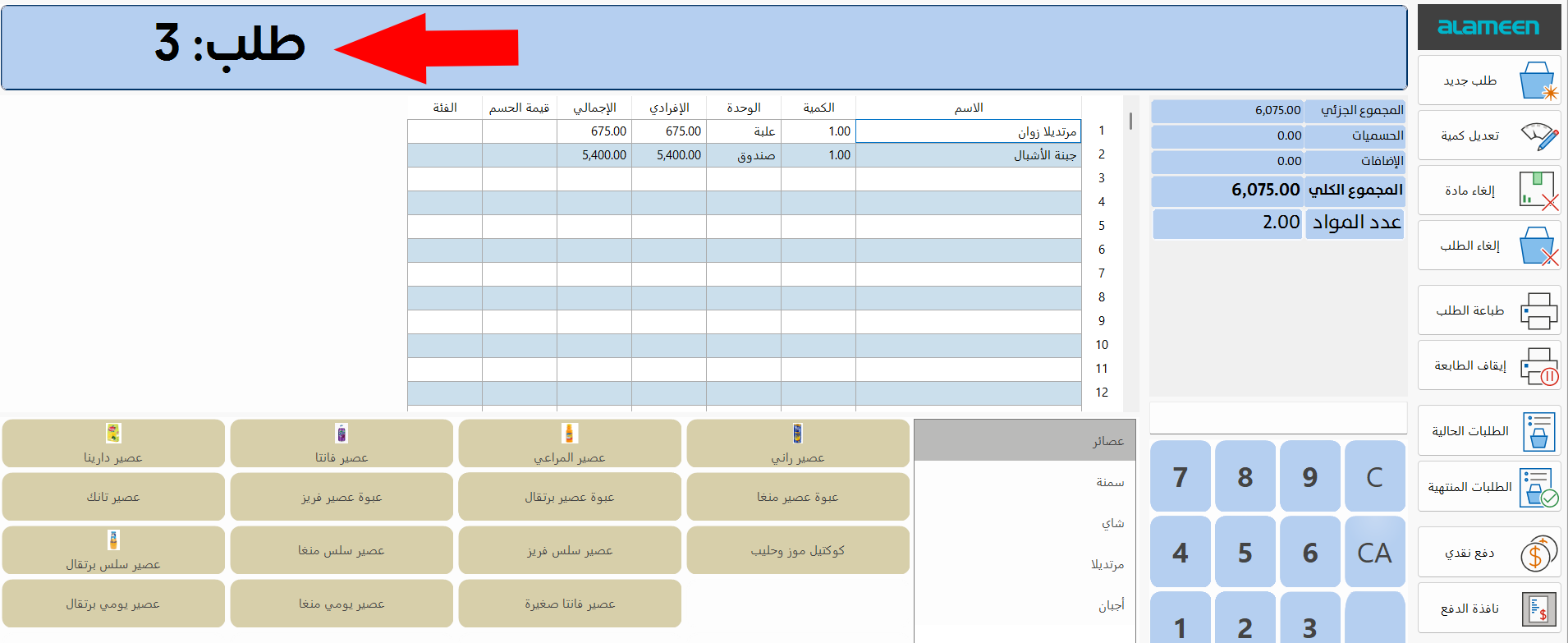
The number of the current order appears on the messages board at the top of the point of sale interface.
You must finish all the open orders before leaving the point of sale interface.