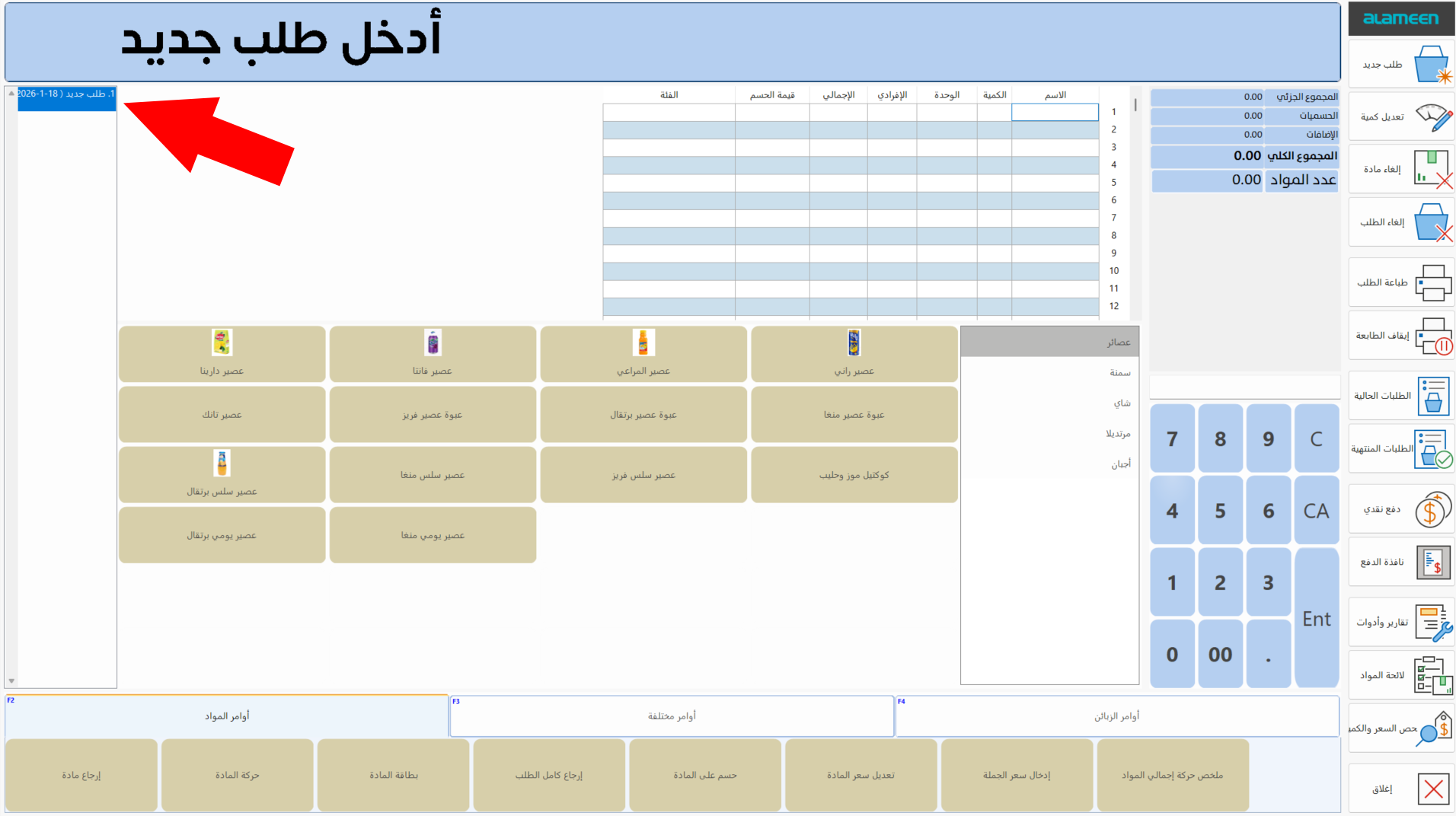
Point of Sale Interface
The point of sale interface is used to enter, modify, and print orders, and to carry out many of the commands and procedures needed to follow up the work of the point. The interface contains a number of default tools and commands, and you can add the buttons you need (taking user permissions into account).
Reaching the Point of Sale Interface
The point of sale interface appears directly after you log in to the file by typing the user name and password.
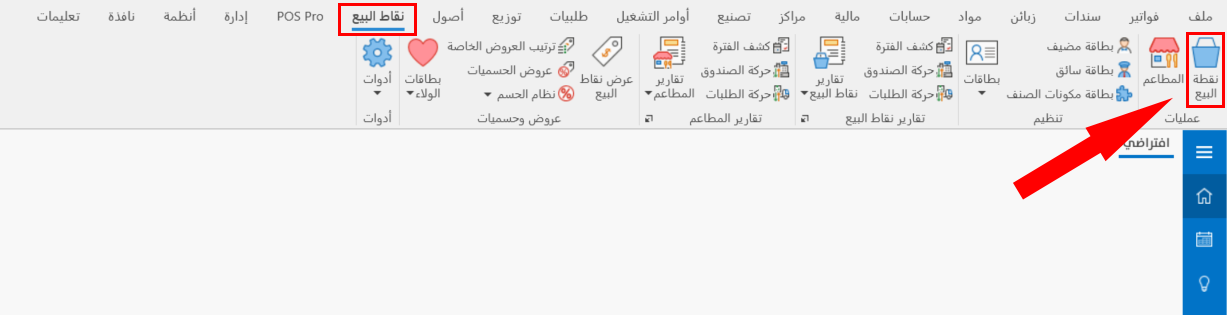
If you are a user with full permissions, you can reach the point of sale interface from the main ribbon - POS tab - Operations group.
After you click the "Point of Sale" button, the program moves directly to the point of sale interface.
Contents of the Point of Sale Interface
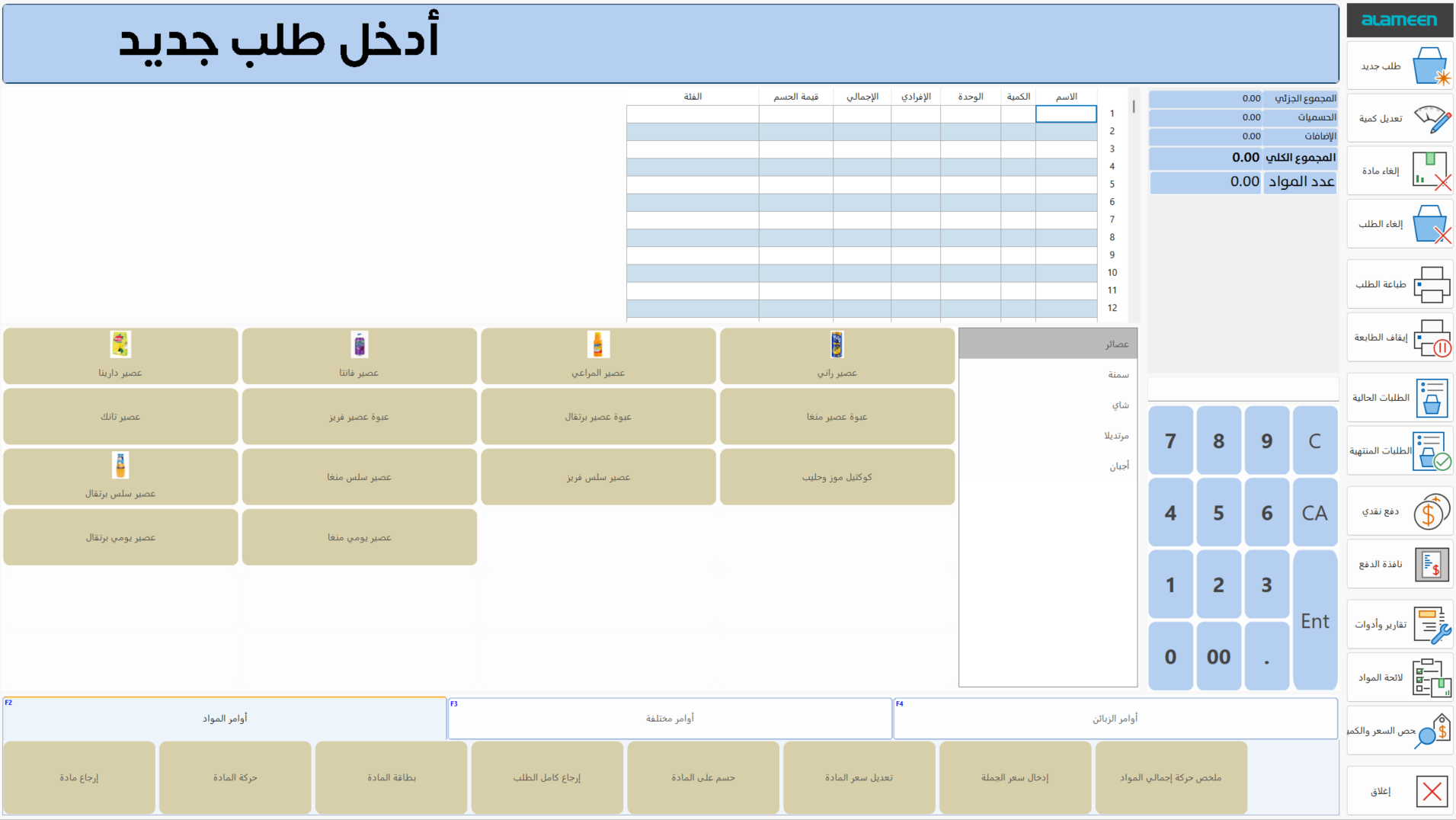
The point of sale interface is divided into a set of sections that differ in their components, properties, and use:
Messages Board
The messages board is the top bar of the interface, where alerts and errors appear while you use the commands of the point of sale interface, such as: no materials for this order (when requesting the payment screen with no materials in the materials table), or all open orders must be finished (when leaving the interface).
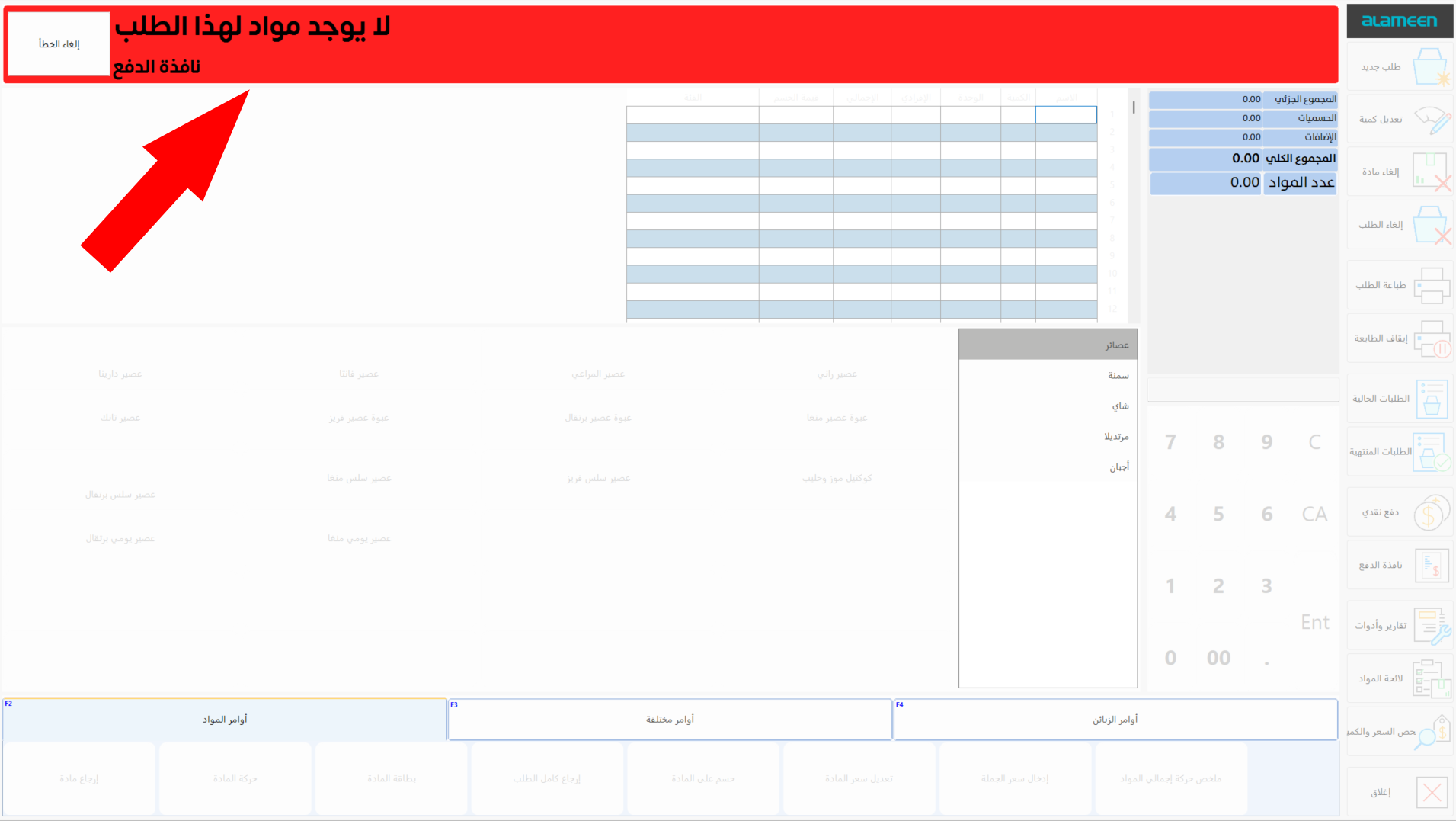
You can set how the messages move on the board with the Motion Effects option in the Program Options window - Point of Sale tab.
Material Table
The material table appears by default in the interface: its fields show the data of the materials you add to the current order.
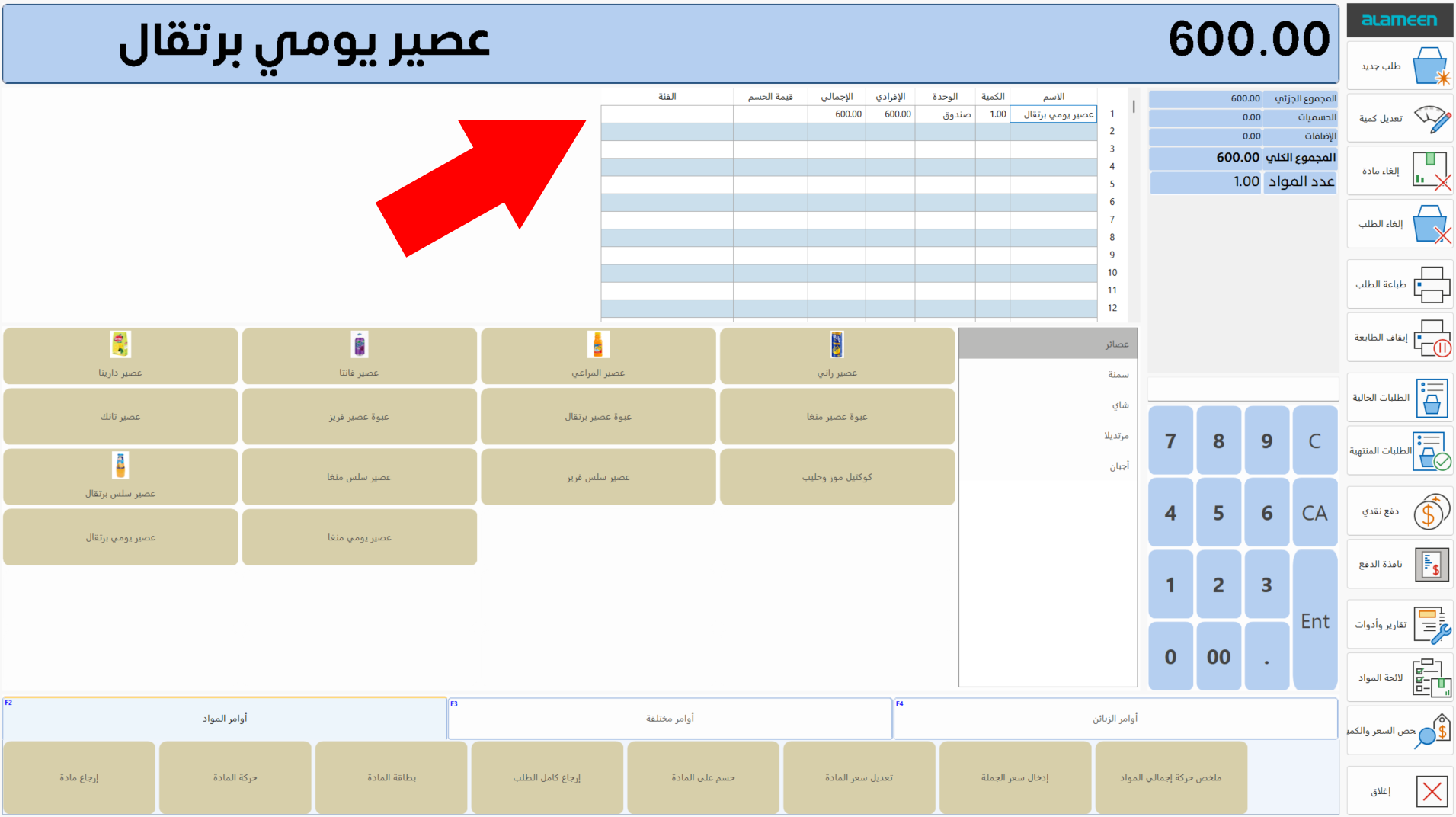
You can add new fields to the material table from the Program Options window - Point of Sale tab - Display Options button: add a field from the list of display fields by clicking the check box next to the field name until it turns blue.
Materials Buttons Groups List
The list contains the groups of buttons you add to the interface with the Materials Buttons option on the Point of Sale tab - Program Options window. It helps you organize the materials buttons and move between them easily.
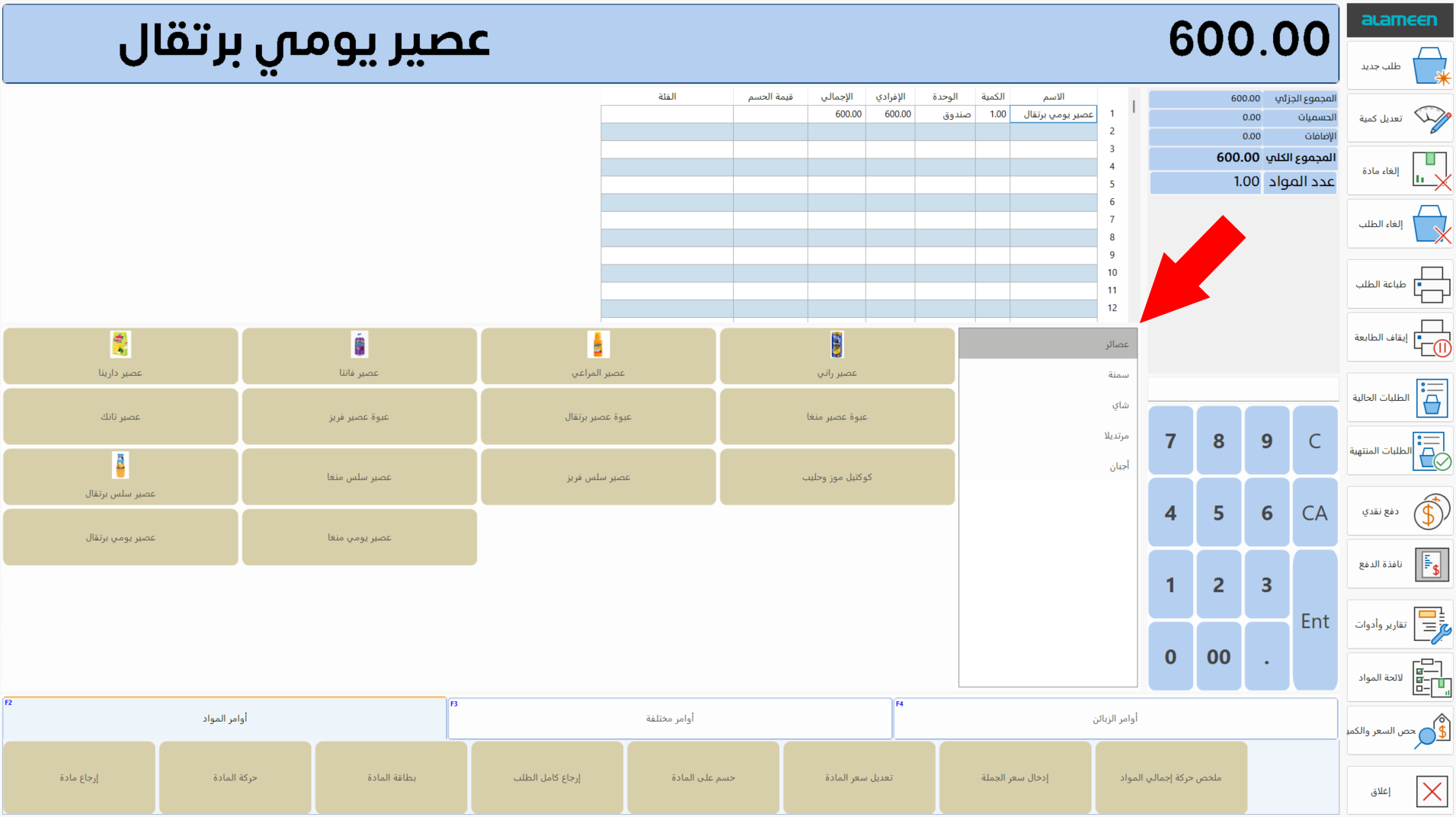
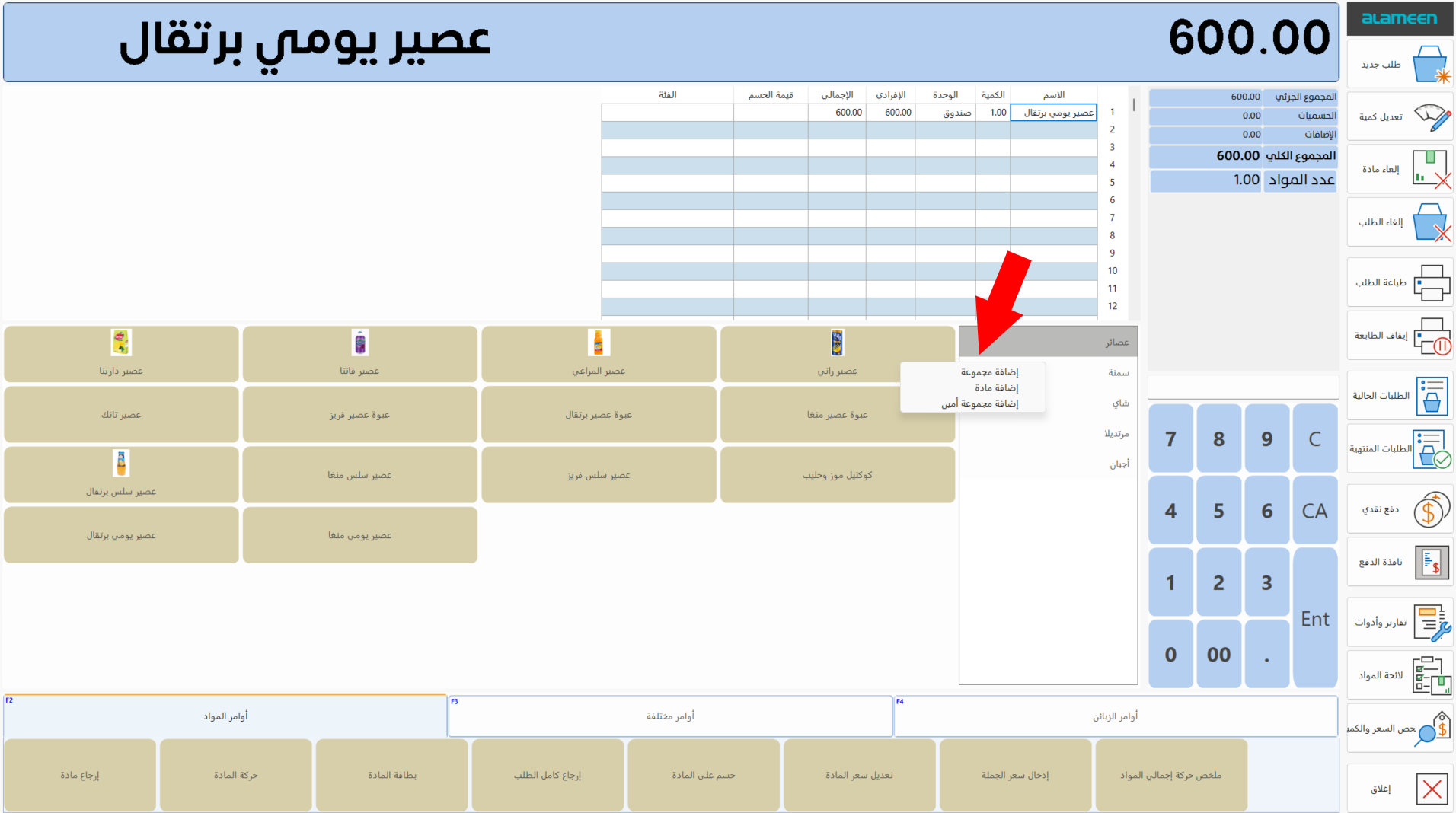
You can add a new group, or buttons for materials, directly from the materials buttons groups list, by right-clicking in the list and choosing the command you want.
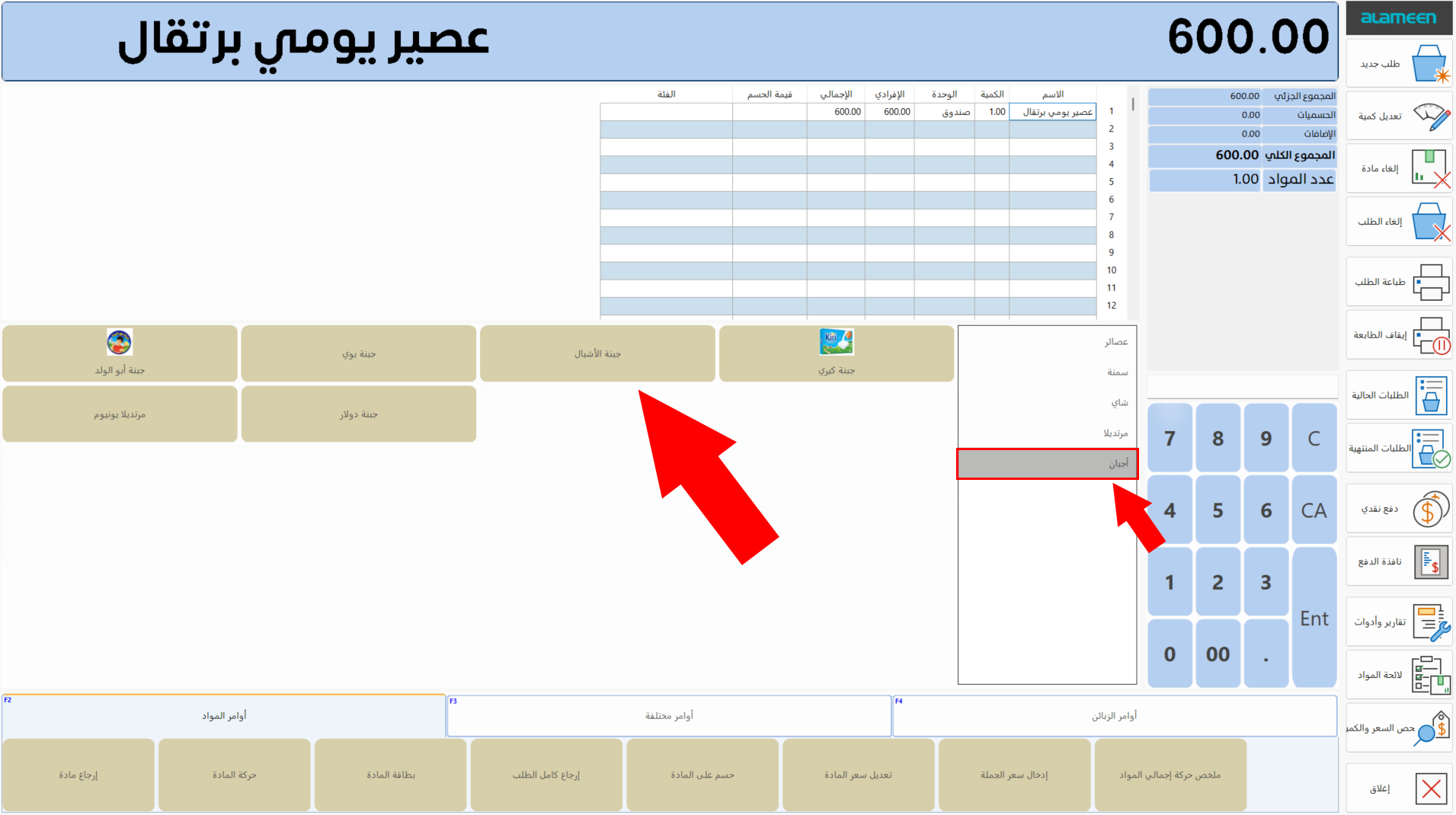
Buttons Board
The buttons board shows all the material buttons in the materials buttons group you are on: you can add a material to the order by clicking its button.
Right-click a button to open a menu with the following options: Set Text (to rename the button), Set Background Color (to change the button's background color), Set Text Color (to choose a new color for the button's text).
You can control the number of columns and rows of the board from the Program Options window - Point of Sale tab - Display Options.
You can also control the position and size of the material picture on the button, and modify the button's text and background colors, from the Program Options window - Point of Sale tab - Materials Buttons - Modify Button.
You can add new material buttons from Materials Buttons - Point of Sale tab - Program Options window, or by right-clicking in the materials buttons groups list and choosing "Add Material".
Basic Commands Menu
By default, the point of sale interface includes a set of commands ready for use, which appear on the side of the interface as follows:
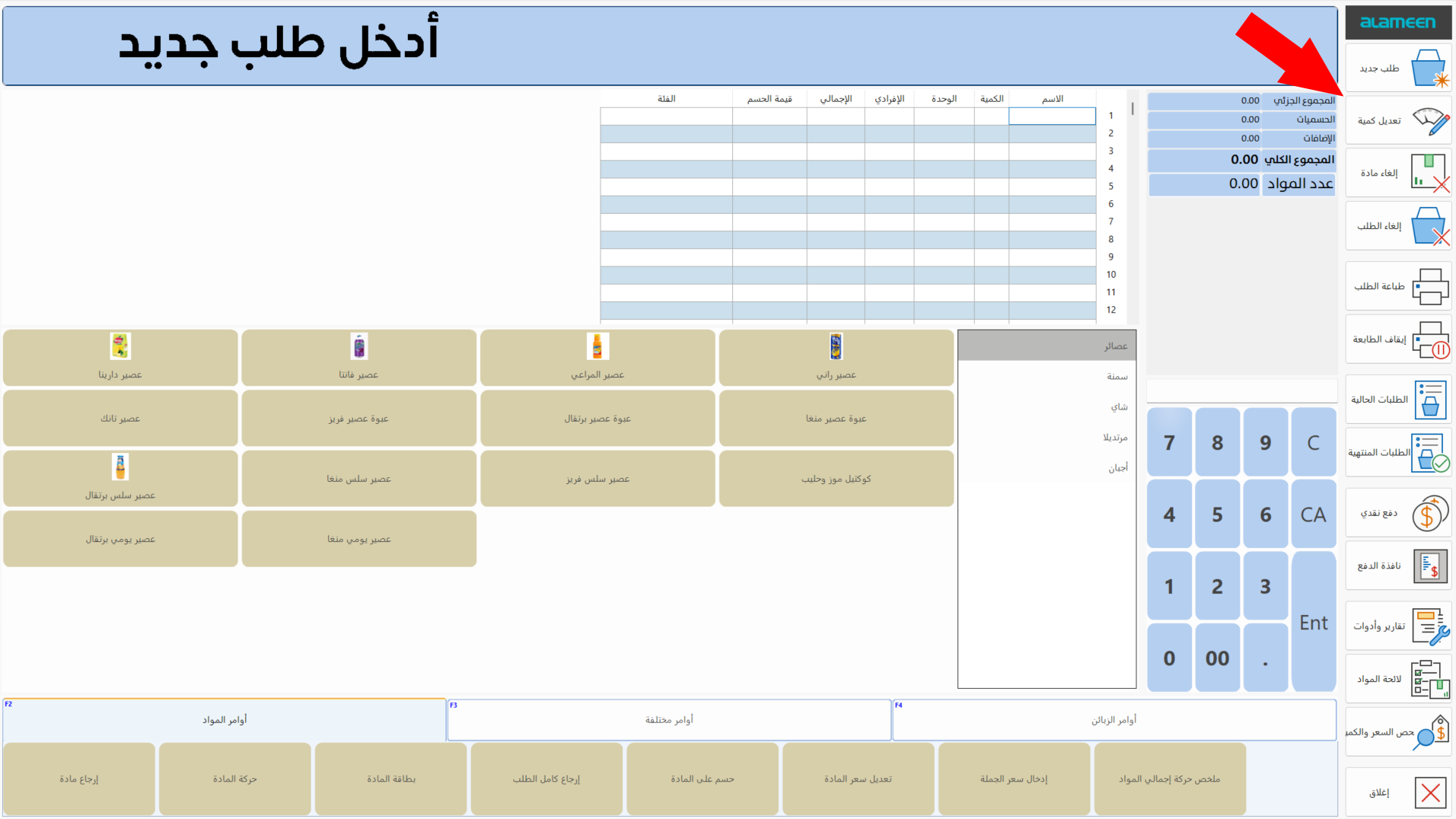
You can add other commands to the commands bar at the bottom of the interface.
Commands Bar
The commands bar appears at the bottom of the interface and shows the groups of commands and buttons you add from the Program Options window - Point of Sale tab - Commands Bar option.
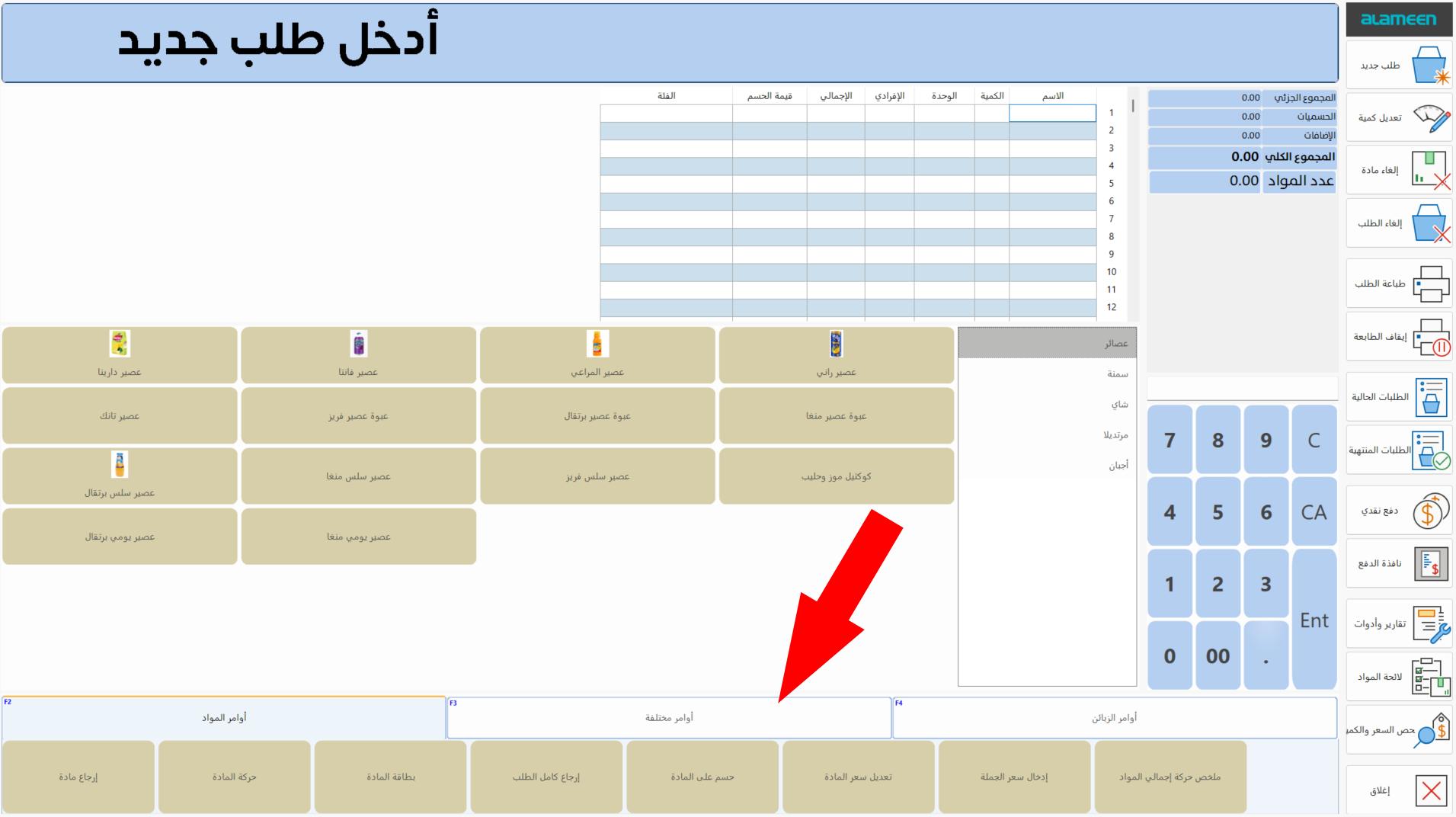
Right-click a button to open a menu with the following options: Set Text (to rename the button), Set Background Color (to change the button's background color), Set Text Color (to choose a new color for the button's text).
You can move between the groups of command buttons with the keys (F2, F3, F4...): each group has its own key, shown next to its name.
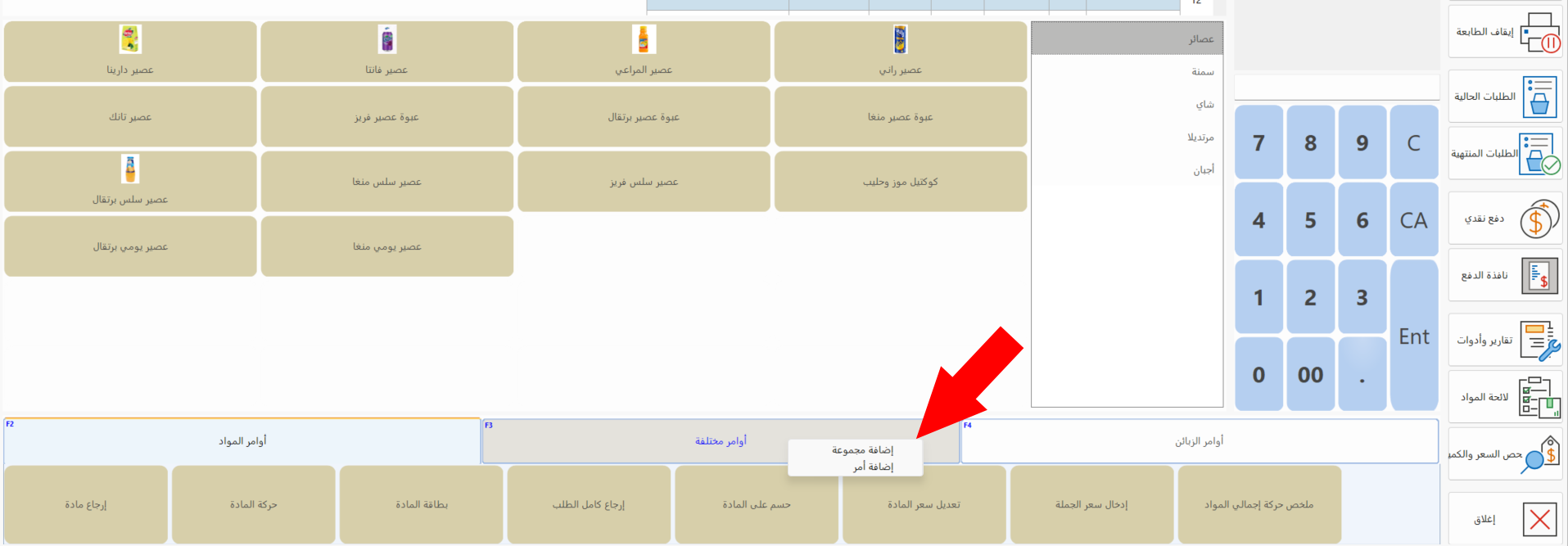
The program lets you add groups and commands from the point of sale interface, by right-clicking the name of a group and choosing what you want from the menu that opens.
Dashboard
The dashboard is the part of the point of sale interface that shows the totals of the invoice (order), as shown in the image:
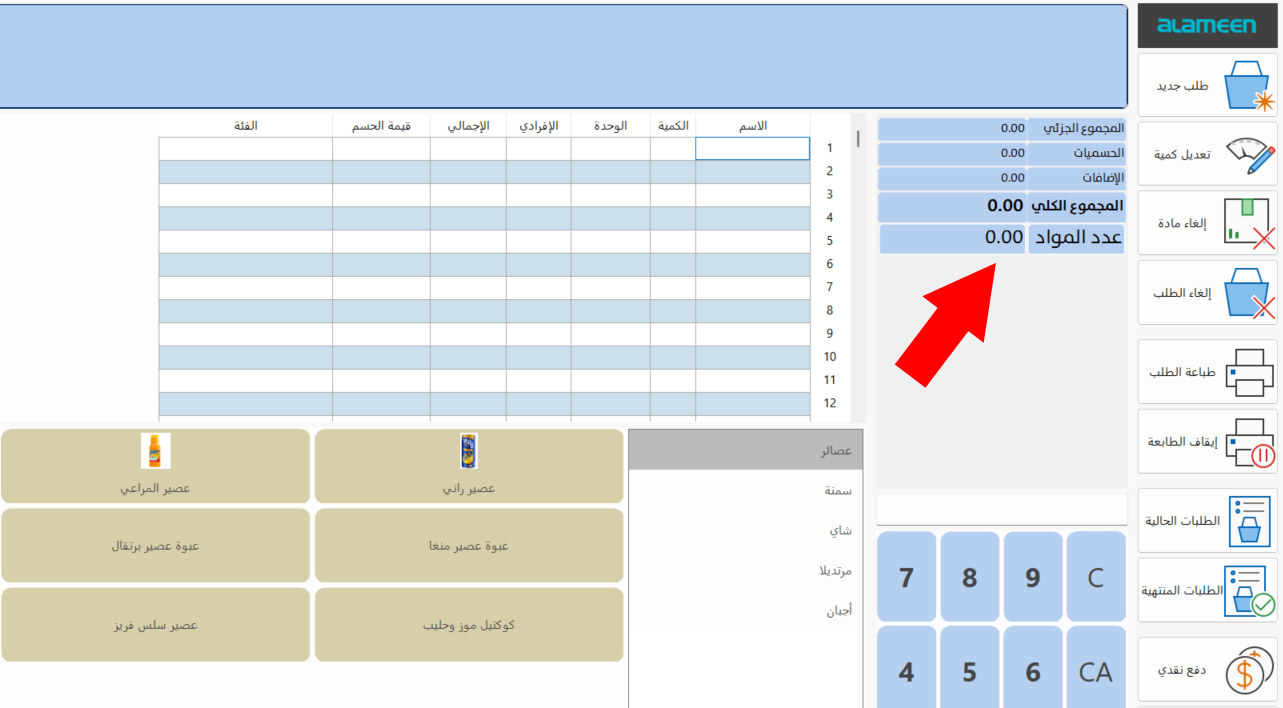
You can modify the contents of the dashboard by adding a new dashboard or modifying a default one in the interface, with the "Dashboard" button on the Point of Sale tab - Program Options window.
Numbers Board
The numbers of the board serve many commands of the point of sale interface, such as modifying the quantity of materials, modifying the material price, a discount on a material...
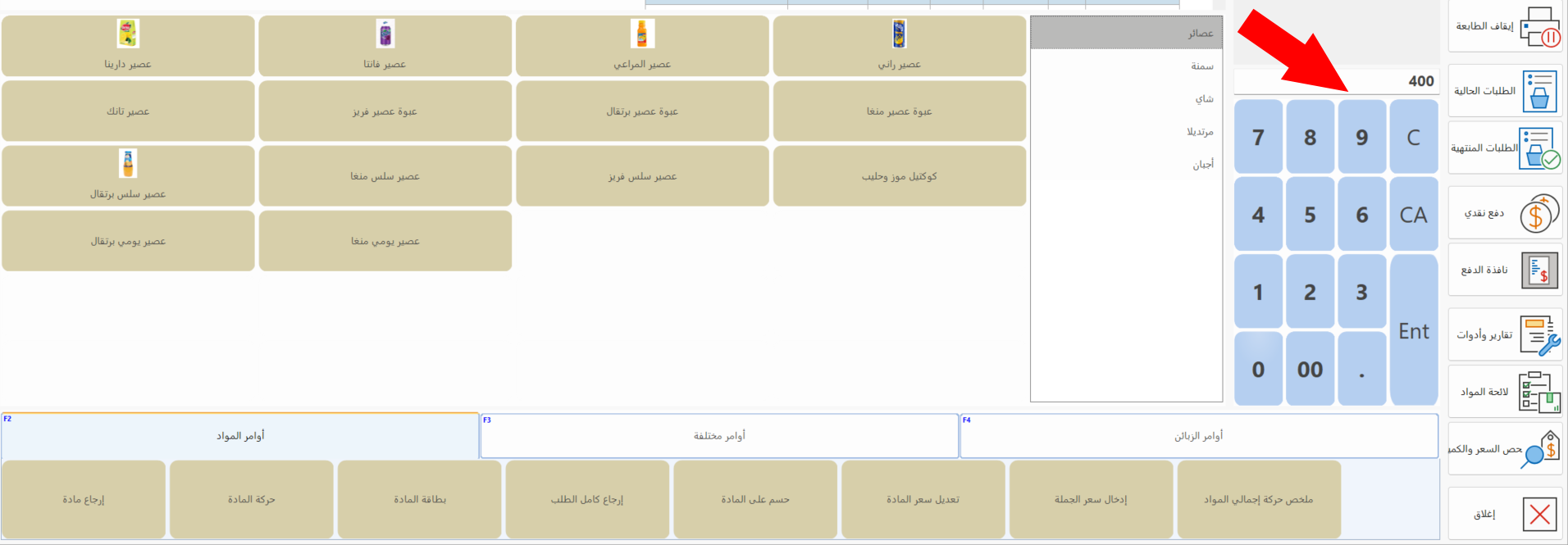
Click the number first, then click the command.
You can add the orders list to the interface from the display options in Program Options.