Assembly and Disassembly without Stages
To create an assembly and disassembly without stages invoice form, click the dialog box launcher in the "Assembly and Disassembly" group on the "Invoices" tab.
Or from the Management tab on the program's main ribbon - "Forms Management" button.
After opening the Forms Management window and clicking the "Assembly and Disassembly" tab, the window shows a set of buttons you can use to create new forms.
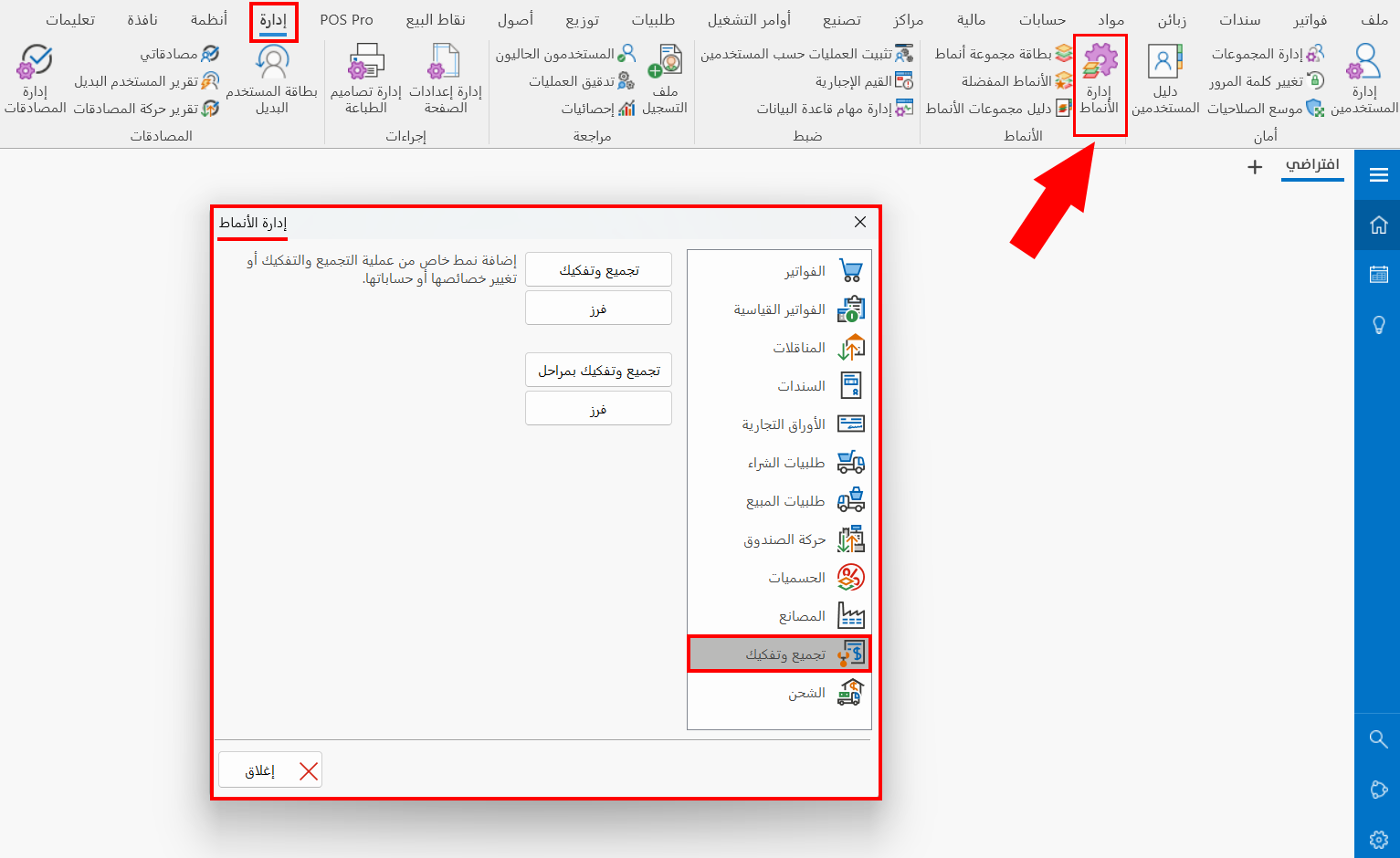
To create an assembly or disassembly without stages invoice form, click the "Assembly and Disassembly" button.
The following window opens:
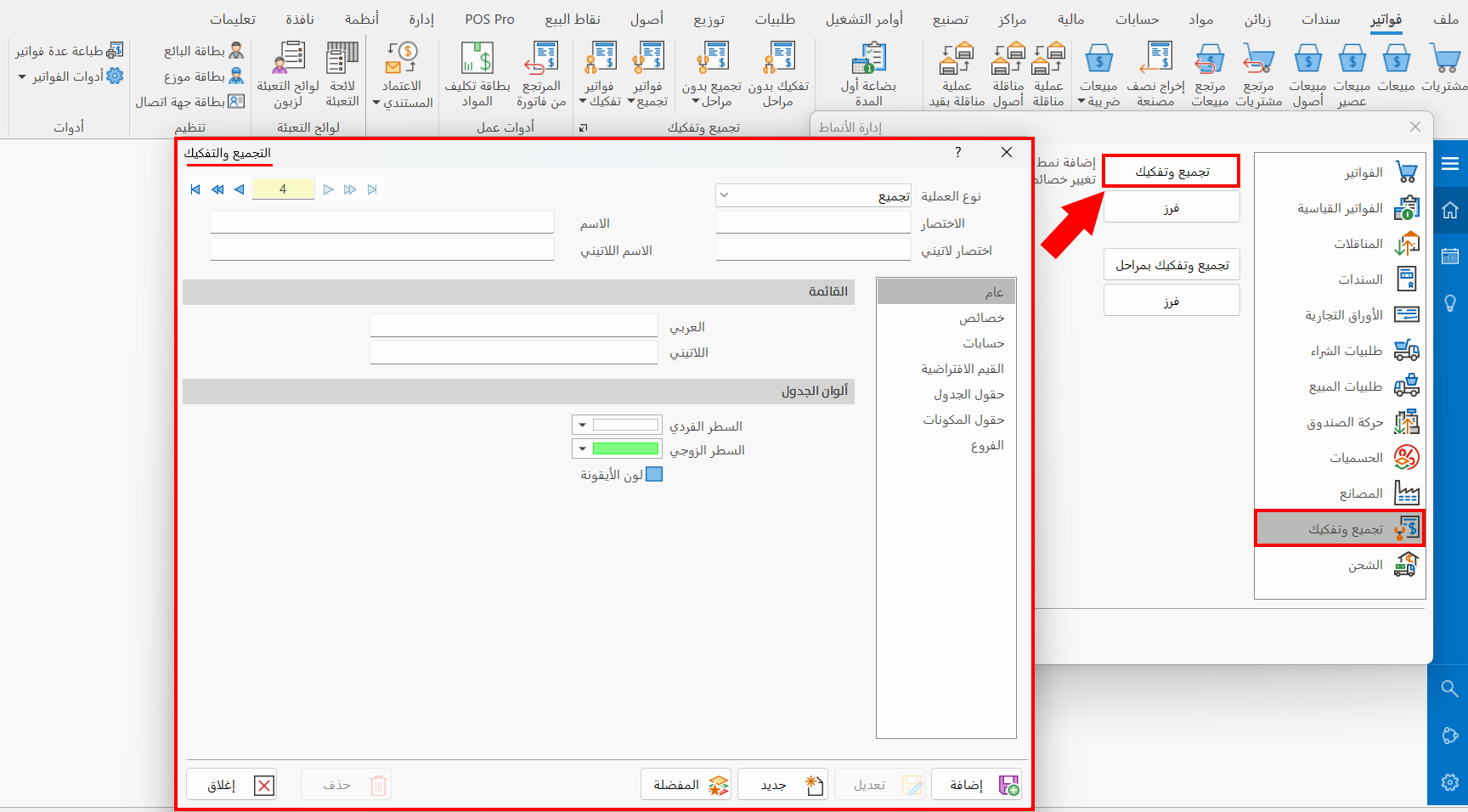
Main Fields
To create an assembly and disassembly without stages invoice form, fill in the following fields:
Serial Number and Navigation Buttons
Please see Serial Number and Navigation Buttons.
Operation Type
Set the type of operation you want to create a form for, by choosing it from the drop-down list after clicking the field. The list contains two options:
-
Assembly (the default type in the window)
-
Disassembly
Name
Enter the name of the invoice you want to create a new form for. (Mandatory field.)
Latin Name
You can enter the name of the invoice in a different language.
Abbreviation
Enter the short name of the invoice. (Mandatory field.)
Latin Abbr
You can enter an abbreviation of the Latin name.
Tabs
The contents of the assembly and disassembly forms window change with the tab, as follows:
General Tab
The tab contains the following fields:
Menu
You can make the form you create appear in a drop-down menu that you name yourself, instead of placing it as a separate button on the main ribbon of the program.
- Arabic
Enter the menu name in Arabic.
- Latin
Enter the menu name in another language.
For example, after creating a form named "Assembly" and entering "Assembly and Disassembly" in the Menu field, the new form appears in the drop-down menu of "Assembly and Disassembly".

To add more than one form to the same menu, enter the menu name exactly as it is in these fields.
Table Colors
You can customize the colors of the invoice table by choosing a color for each of the following:
-
Odd Row
-
Even Row
Click the arrow in the default color bar to open the color palette, then click the color you want or create a new shade.
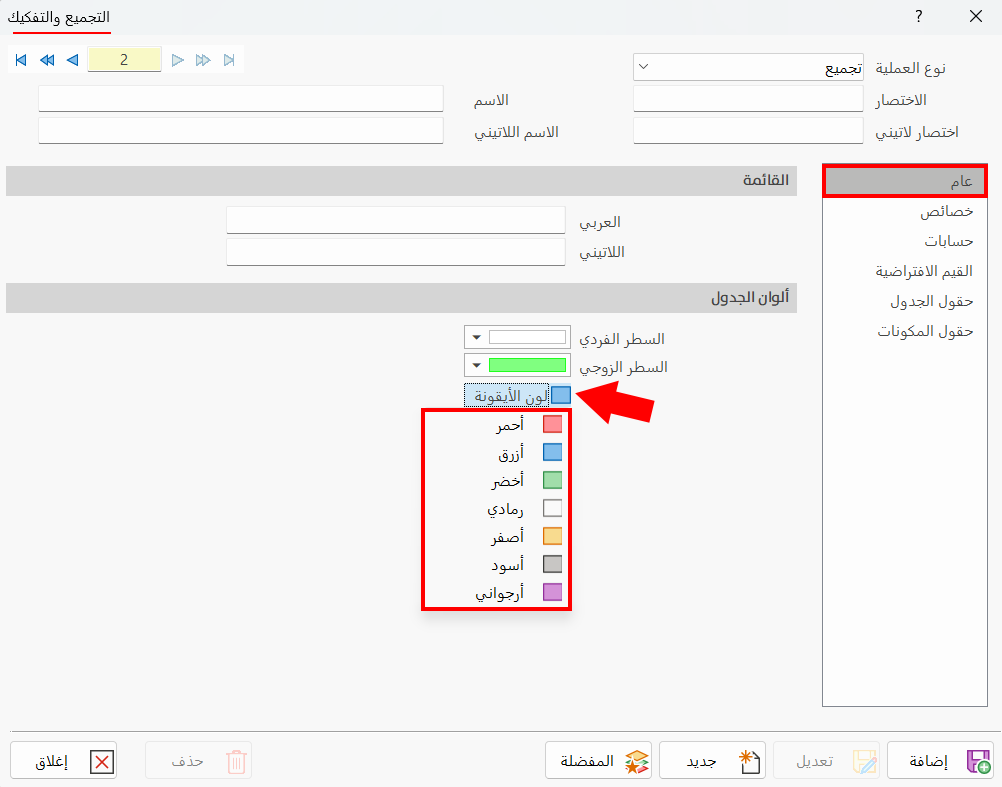
You can also choose the icon color (the color of the button on the main ribbon of the program).
The default icon color of an assembly and disassembly without stages invoice is blue: clicking the blue color box opens a list of colors you can assign to the button of the form you are adding.
Properties Tab
This tab contains a set of options that you set according to the purpose of the form you are creating.
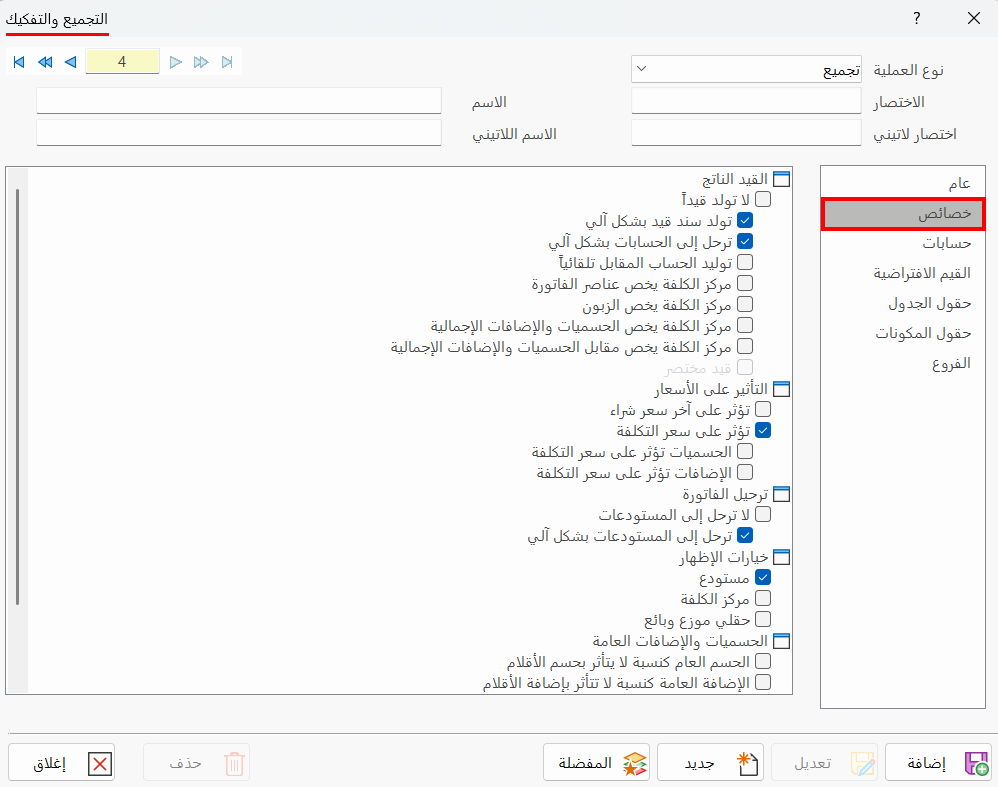
Click the check box next to the option. When the box turns blue, the option is enabled and applied to the form.
By default, the program selects the following options in assembly and disassembly forms:
-
Generate journal entry automatically
-
Post to accounts automatically
-
Affects cost price
-
Post to warehouses automatically
-
Display options "Warehouse"
-
Print receipt
-
Allow adding expired expiry dates
Accounts Tab
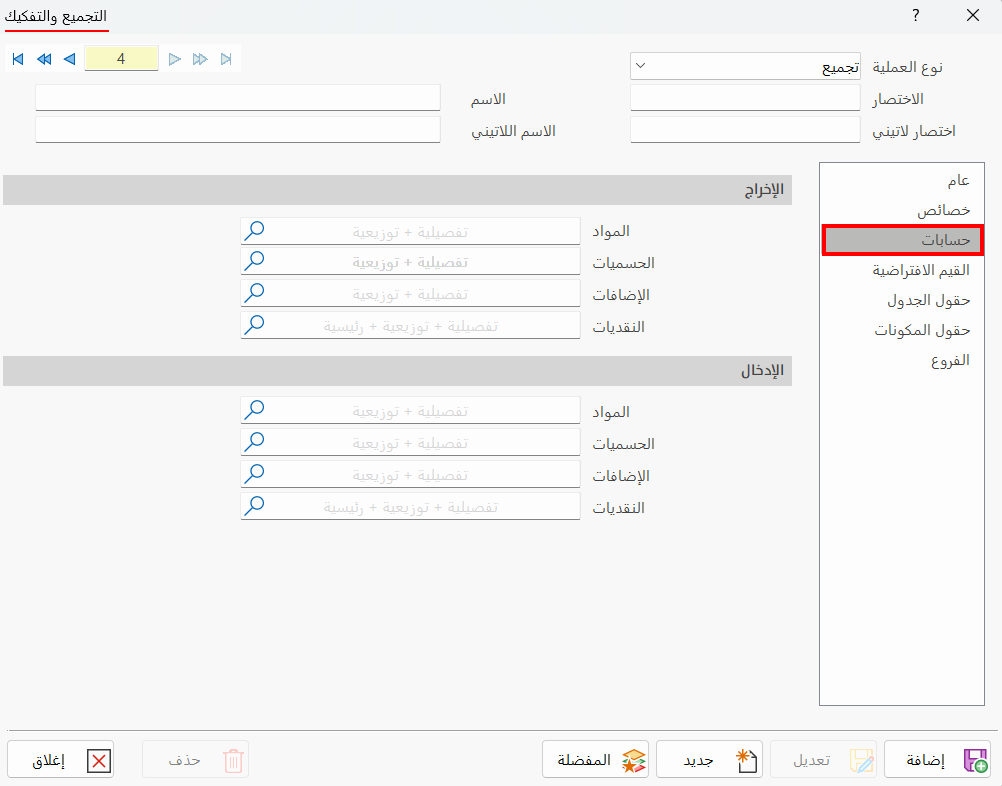
You must set the default input and output accounts of the new invoice form. (Mandatory fields if the inventory is perpetual.)
So you must set two groups of accounts, the first used in output entries and the second in input entries, by adding an account for each of the following:
-
Materials
-
Discounts
-
Extras
-
Cash
Default Values
The tab contains a set of fields for setting the accounts and the default currency of the form, as follows:
-
Output warehouse
-
Output cost center
-
Output default price
-
Input warehouse
-
Input cost center
-
Input default price
-
Default currency
-
Distributor commission
-
Salesman commission
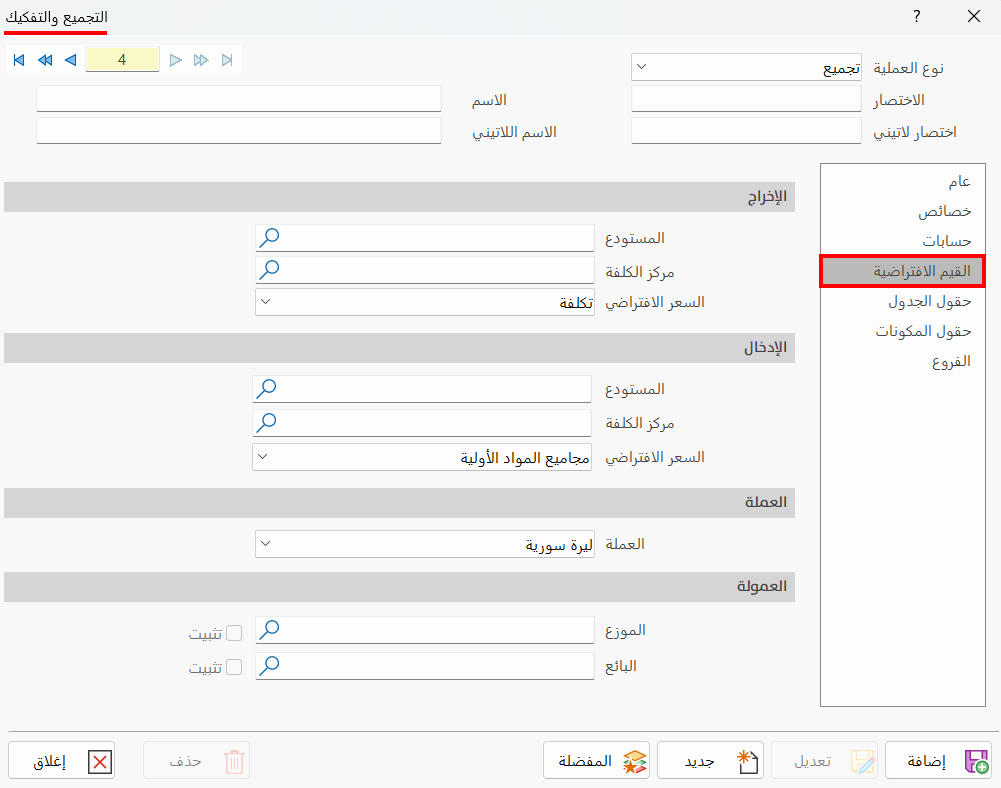
Table Fields
Set the fields you want to show in the invoice table by clicking the check box next to each field: when it turns blue, the field will appear in the table.
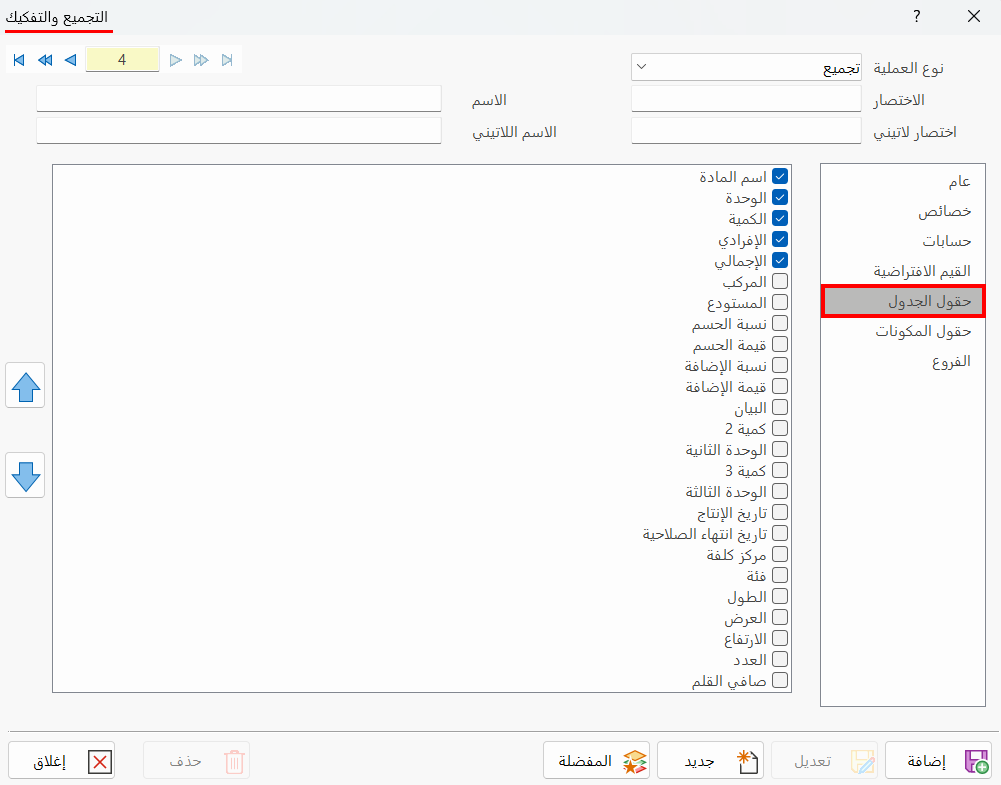
You can arrange the positions of the fields in the invoice table with the arrows in this window.
There are fields you must add when you apply certain procedures or operations, such as the "Expiry Date" field, which you must add when you apply the expiry date system.
Components Fields
Set the fields of the components table you want to show in the "Material Components" window: after entering the material in an assembly or disassembly invoice, you can see its components in detail.
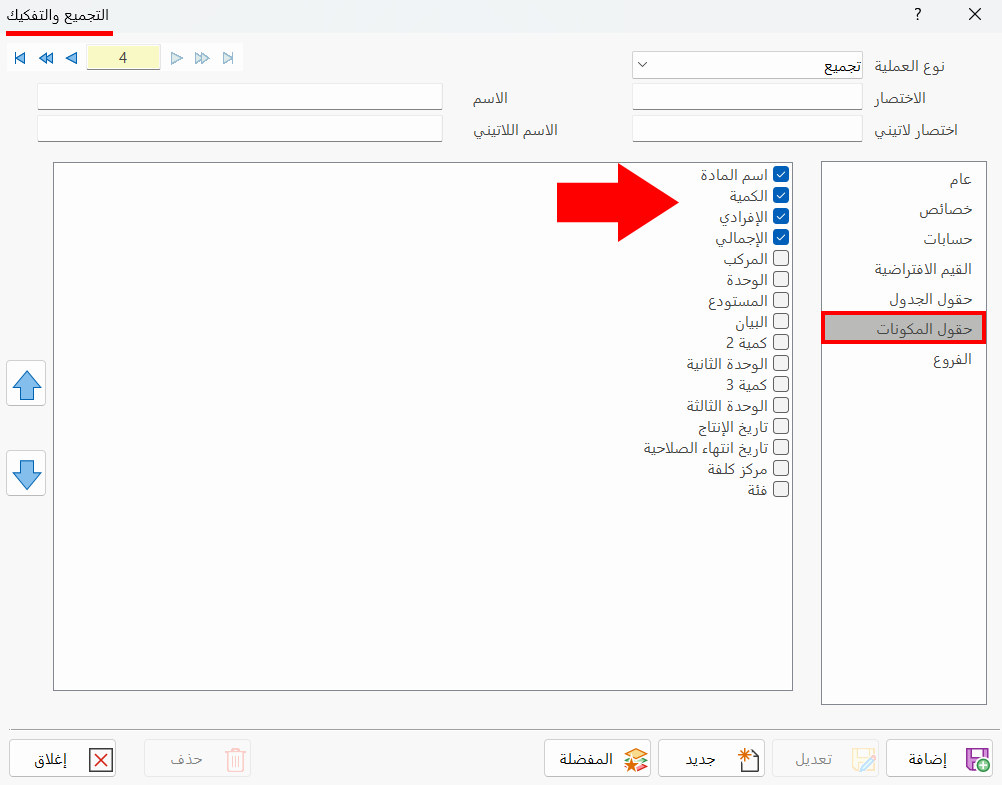
To show the "Material Components" window, press F6 after selecting the material in the table of the assembly or disassembly invoice.
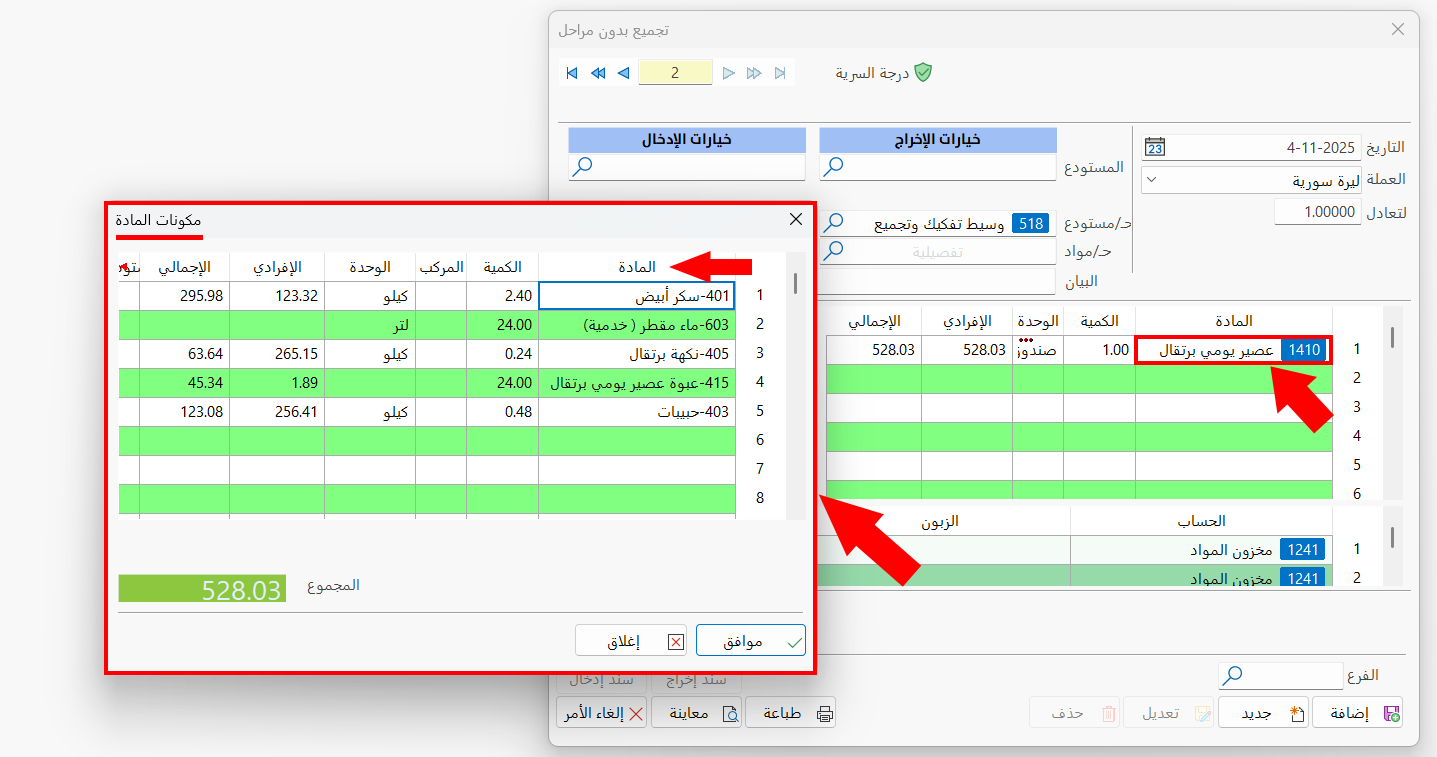
Branches
This tab appears in the assembly and disassembly forms management window after the "branches system" is enabled.
Select the branch in which this form is used. The tab lists all the branches defined with the "Branch" card.
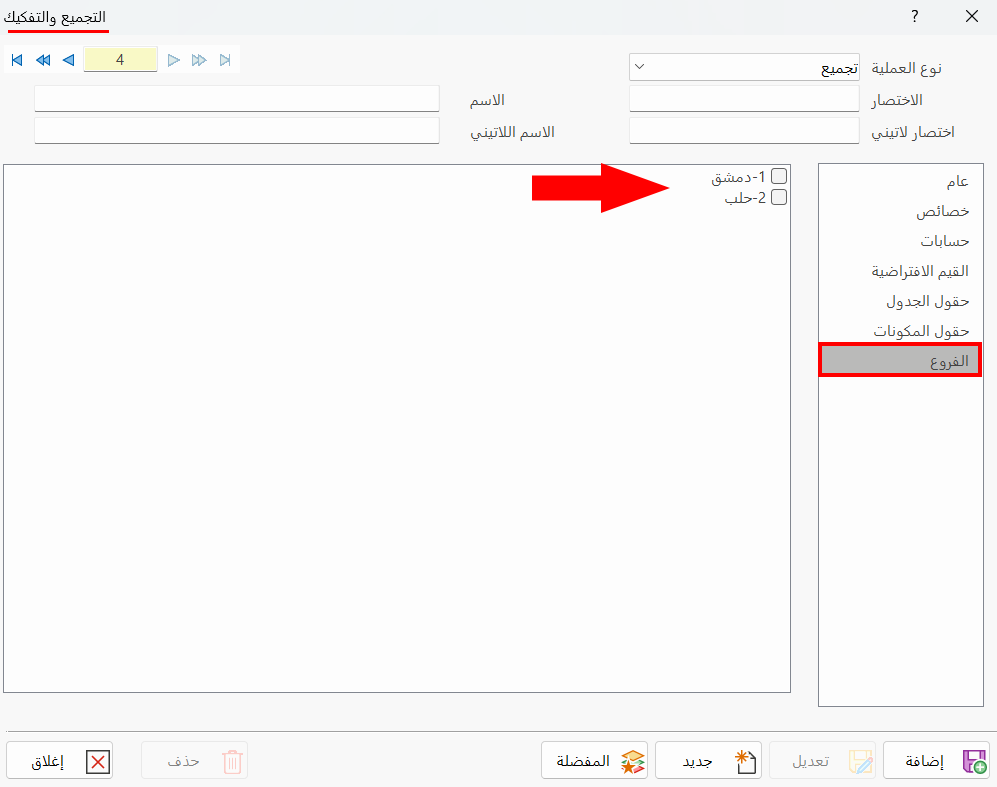
If your organization has several branches, you can enable the branches system in the Program Options window - "Save" tab - "Systems" group.
Favorite
After creating a number of forms, you can choose your favorite forms so they always appear on the program's main ribbon, and group the forms that are not favorites.
After you click "Favorite", the following window opens:
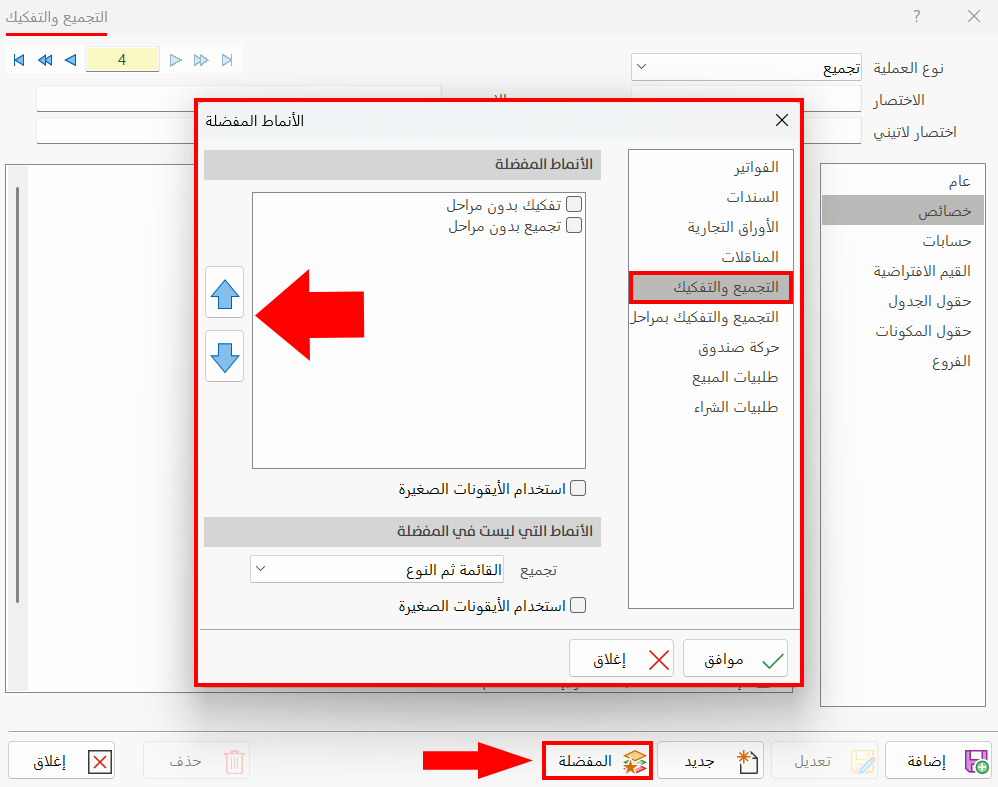
The favorite forms window contains a number of tabs, including the "Assembly and Disassembly" tab, which shows the forms you have added directly in the window.
Favorite Forms
Select the favorite forms to pin them to the main ribbon at their default size, by clicking the check box next to the form.
You can arrange the order in which they appear with the arrows next to the fields.
To pin the favorite forms with small icons, enable the "Use small icons" option; they then look like this:
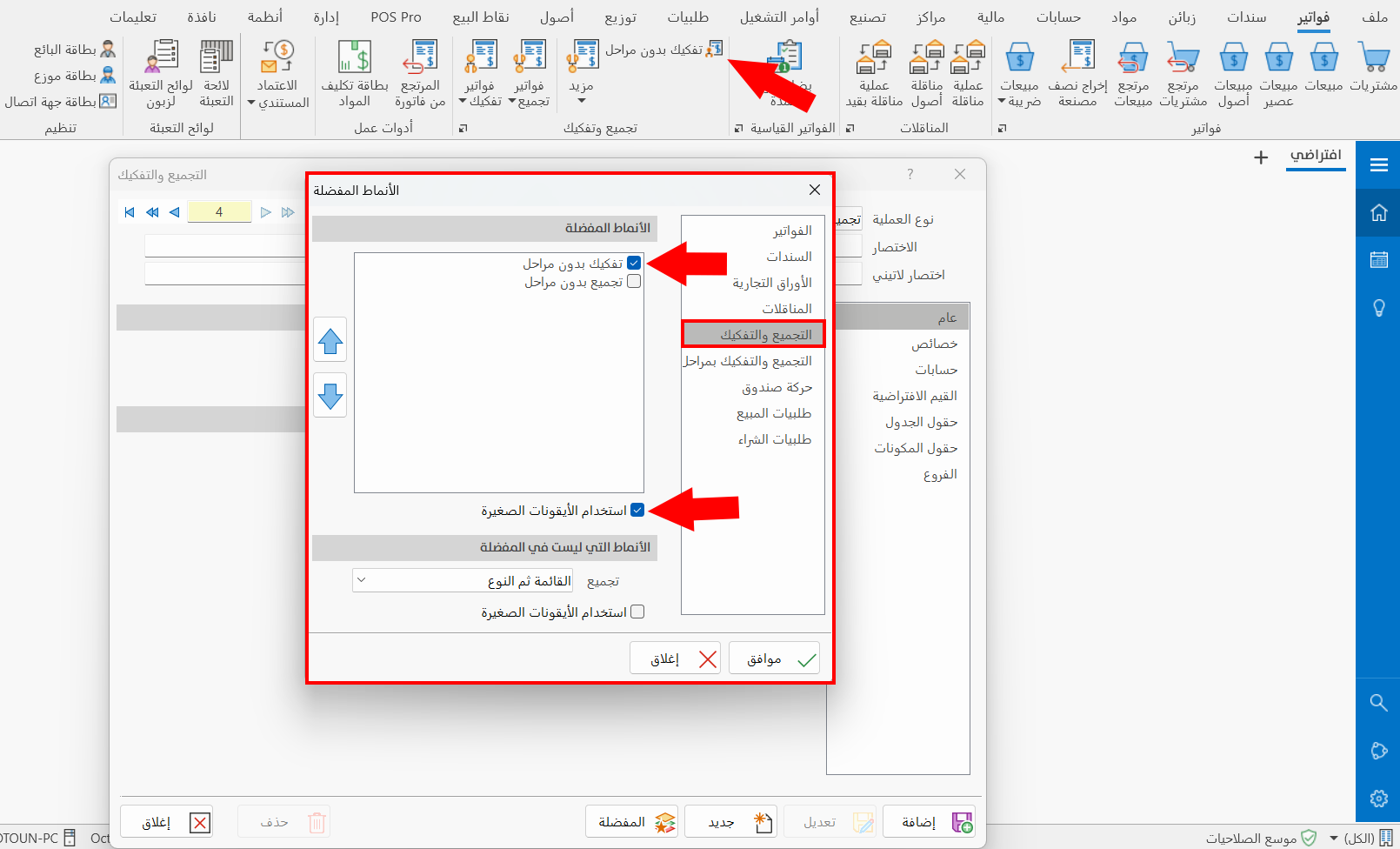
Standard Commands
Please see Standard Commands.