Assembled Material - Material Card
An assembled material contains a number of component materials, so you must add a new card for this assembled material to be able to use it in assembly and disassembly operations.
Add an Assembled Material Card
Open a material card from the Materials tab on the program's main ribbon; it appears as follows:
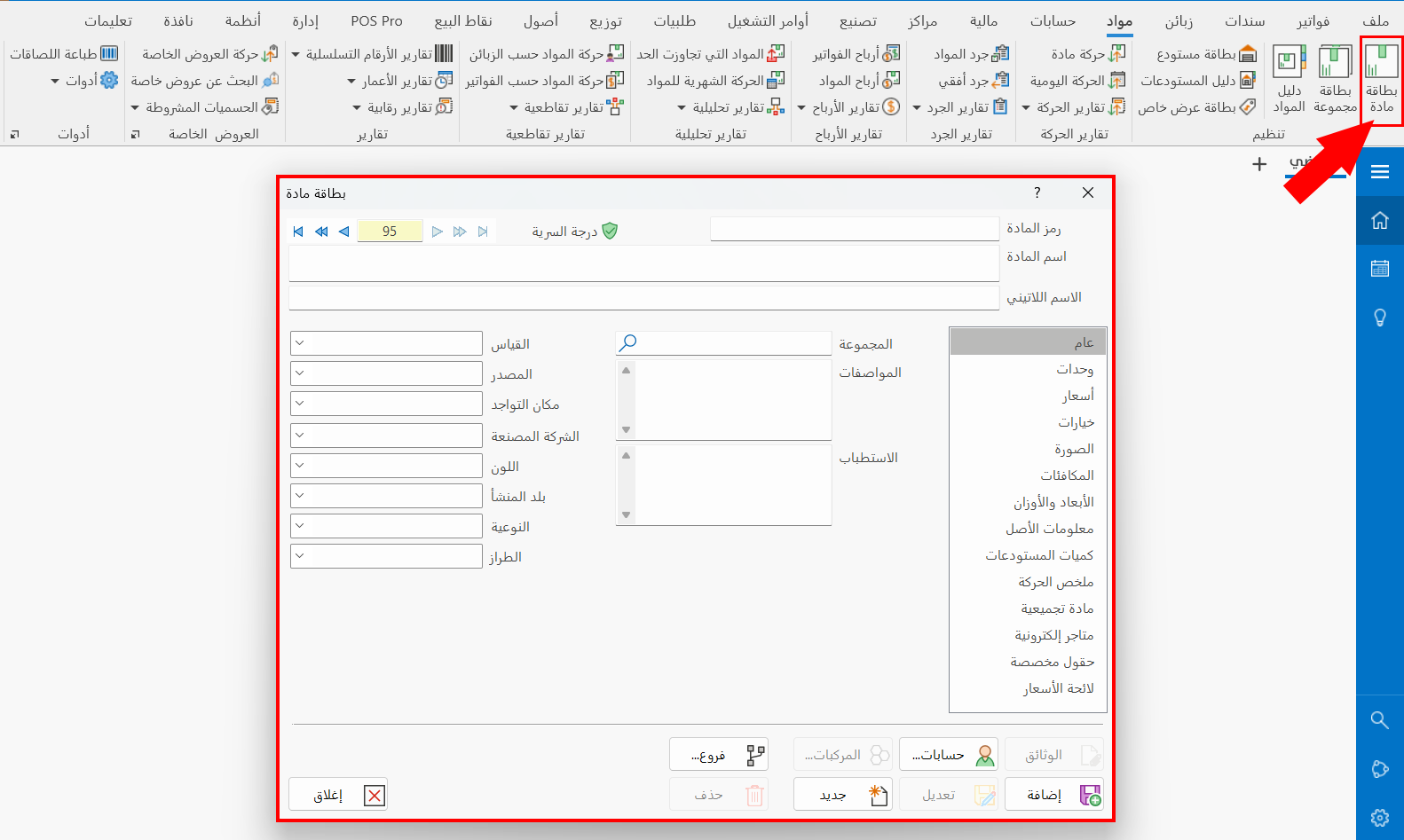
To add an assembled material card, follow these steps:
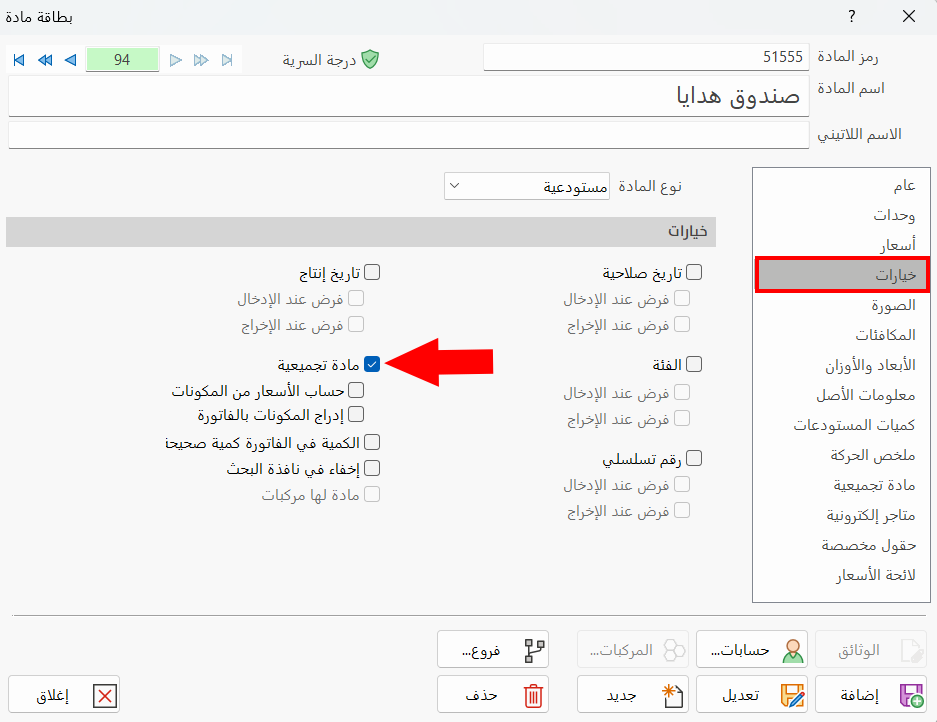
Enable the Assembled Material Option
You cannot add the components of this material before enabling the "Assembled Material" option, because the material components table appears in the card only after this option is enabled.
So go to the "Options" tab of the material card and enable the option, as follows:
Add the Components of the Assembled Material
You can add the components of the material in the table on the "Assembled Material" tab.
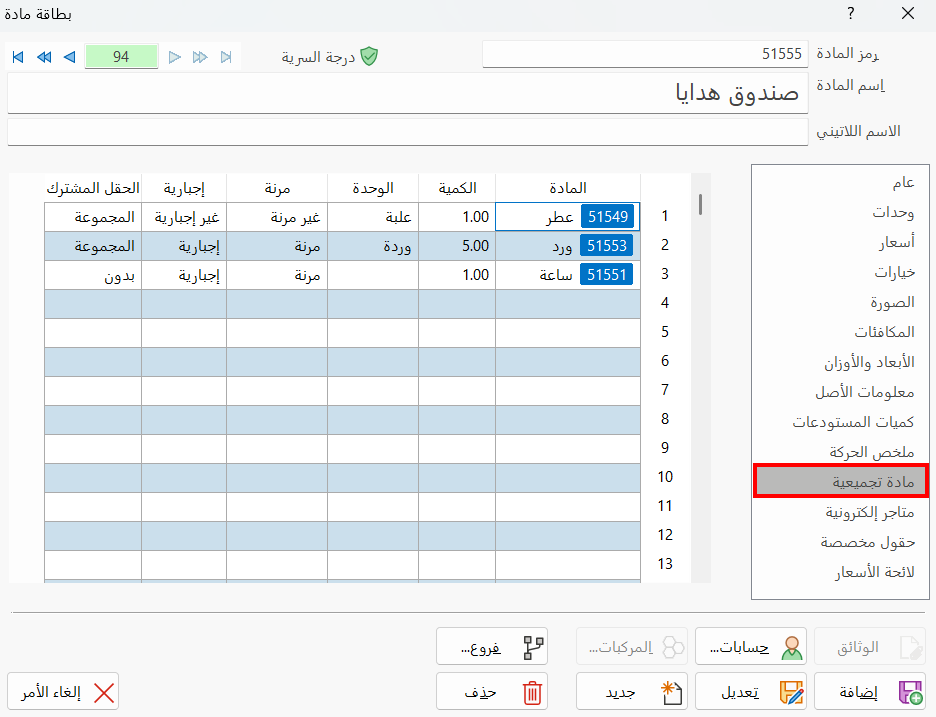
The table of components of the assembled material consists of the following fields:
Material
Enter the name or code of the material that will become one of the components of the assembled material you are defining a card for.
Qty
Set the quantity of this material needed to produce the assembled material.
Unit
The default unit appears automatically after you enter the material in the table. You can change the unit of the material needed to produce the assembled material by typing it directly in the field.
Flexible
You can prevent or allow modifying the quantity of the material set in the "Qty" field when adding an assembly or disassembly invoice.
Double-click the "Flexible" field with the left mouse button to open a list with the following options:
- Flexible
Allows modifying the quantity. (The default option.)
- Not flexible
Prevents modifying the quantity.
Required
Set whether the material must be among the components of the assembled material, by double-clicking the field with the left mouse button and choosing one of the following:
- Required
Prevents changing the material and makes it a basic material of the assembled material.
- Not required
Allows changing or deleting the material. (The default option.)
Shared Field
You can choose the shared field to use when you need to change one of the component materials of the assembled material.
If this component material is not available in the warehouse, you can set the field from which a material can be chosen to take its place.
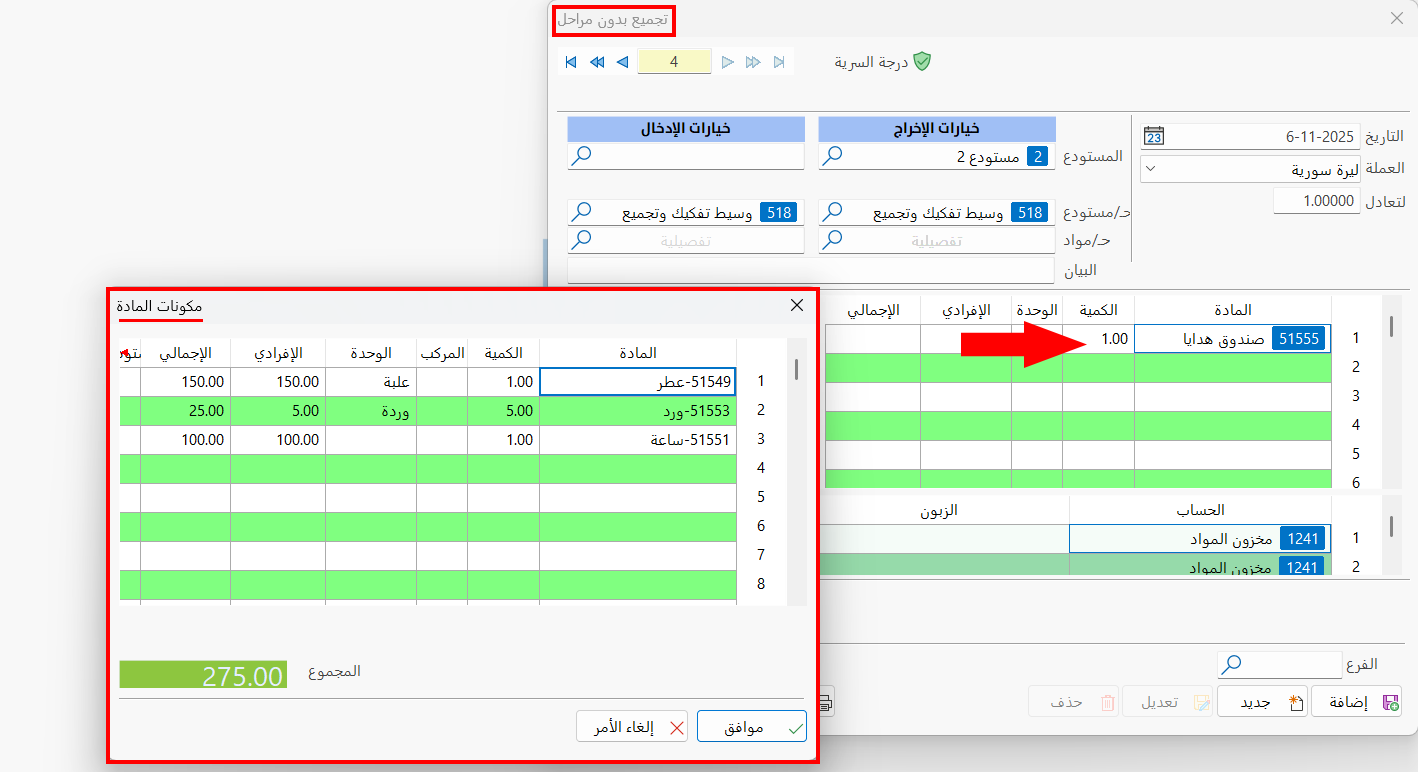
To modify the quantity or change a component material while adding an assembly or disassembly invoice, enter the assembled material in the invoice table, then press F6; the "Material Components" list opens.
To save the card, click "Add".