Showing Charts on the Desktop
This tool lets you dock charts (such as the chart of accounts, the chart of materials...) on the desktop of alameen ERP 10, so you can reach them quickly and organize them flexibly without taking up much of the screen.
How to Drag a Chart
After opening the chart, press the left mouse button on the chart's header and drag it to the place where you want to dock it.
Dock a Chart on the Desktop
After you drag the chart as described above, blue rectangles appear on the edges of the desktop. Each rectangle is made of two parts of different sizes, one narrower than the other, and the part you choose determines where the chart is docked.
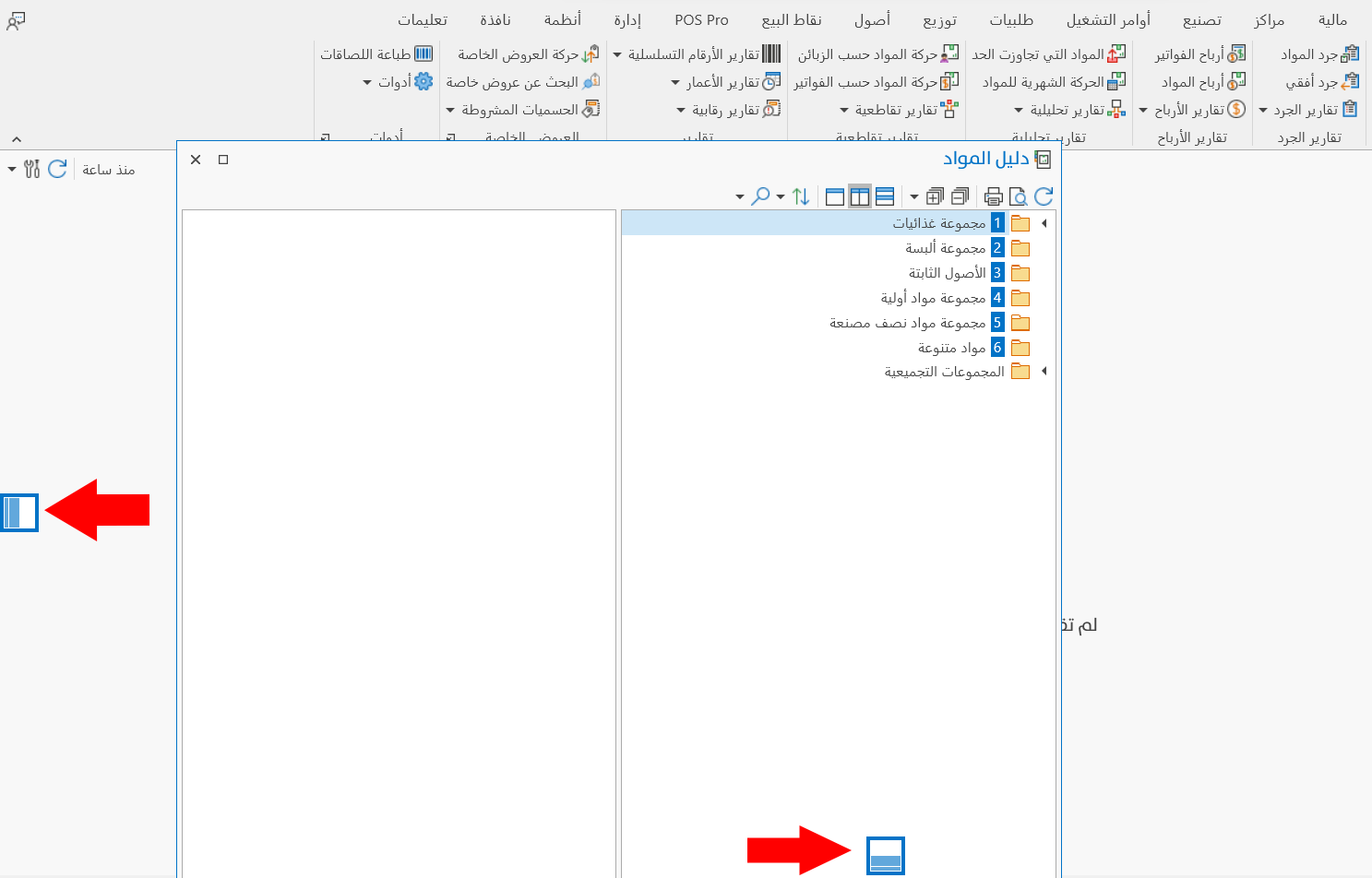
For example, when you drag the chart of materials to the left side of the desktop and pass over the blue rectangle, drop the chart over the wider part when it becomes active (it turns blue). The chart is then docked on the left part of the screen, as follows:
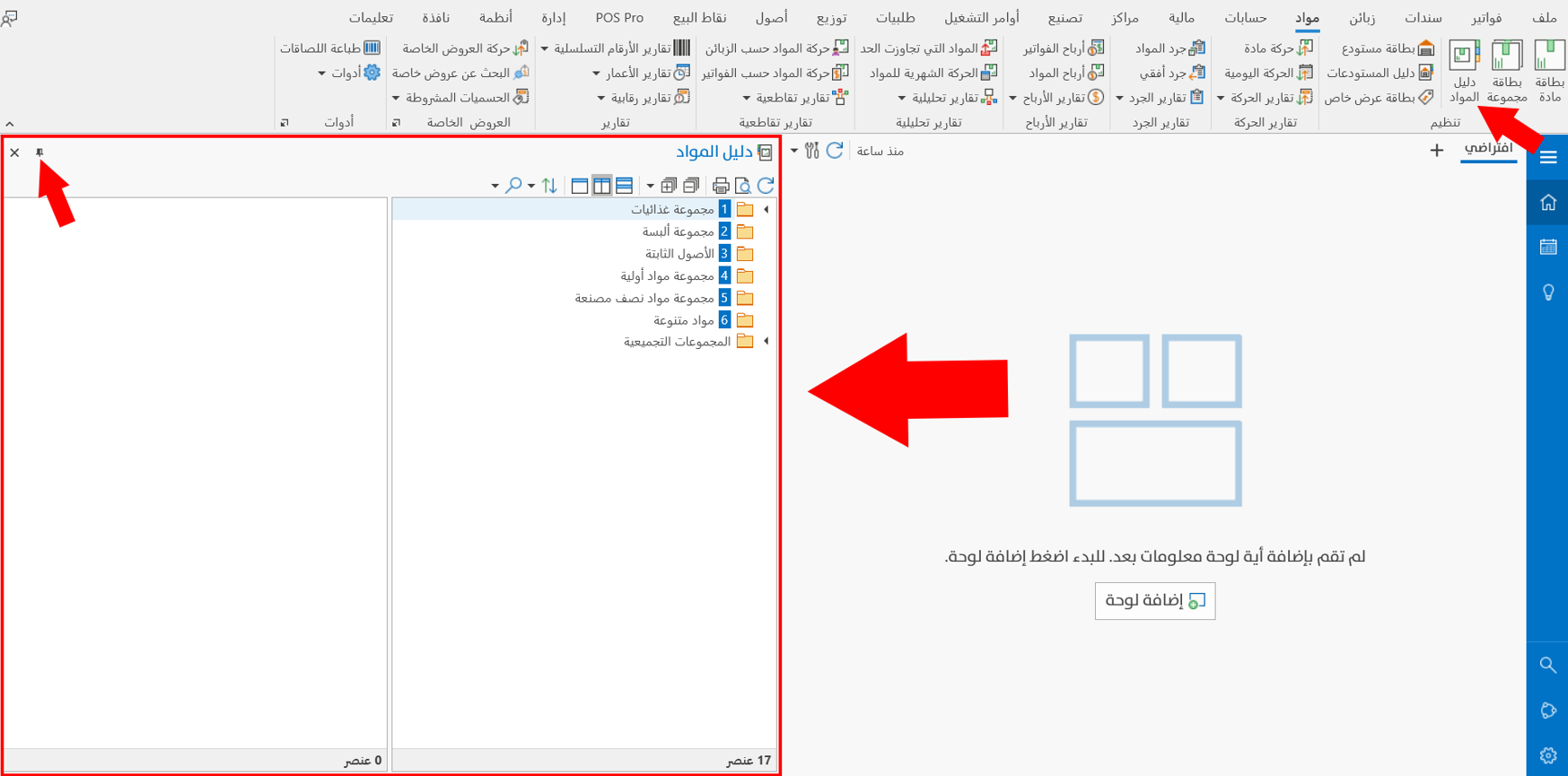
After it is docked, a new button appears in the chart, the "Auto Hide" button, with which you can pin the chart as a tab on the edge of the screen.
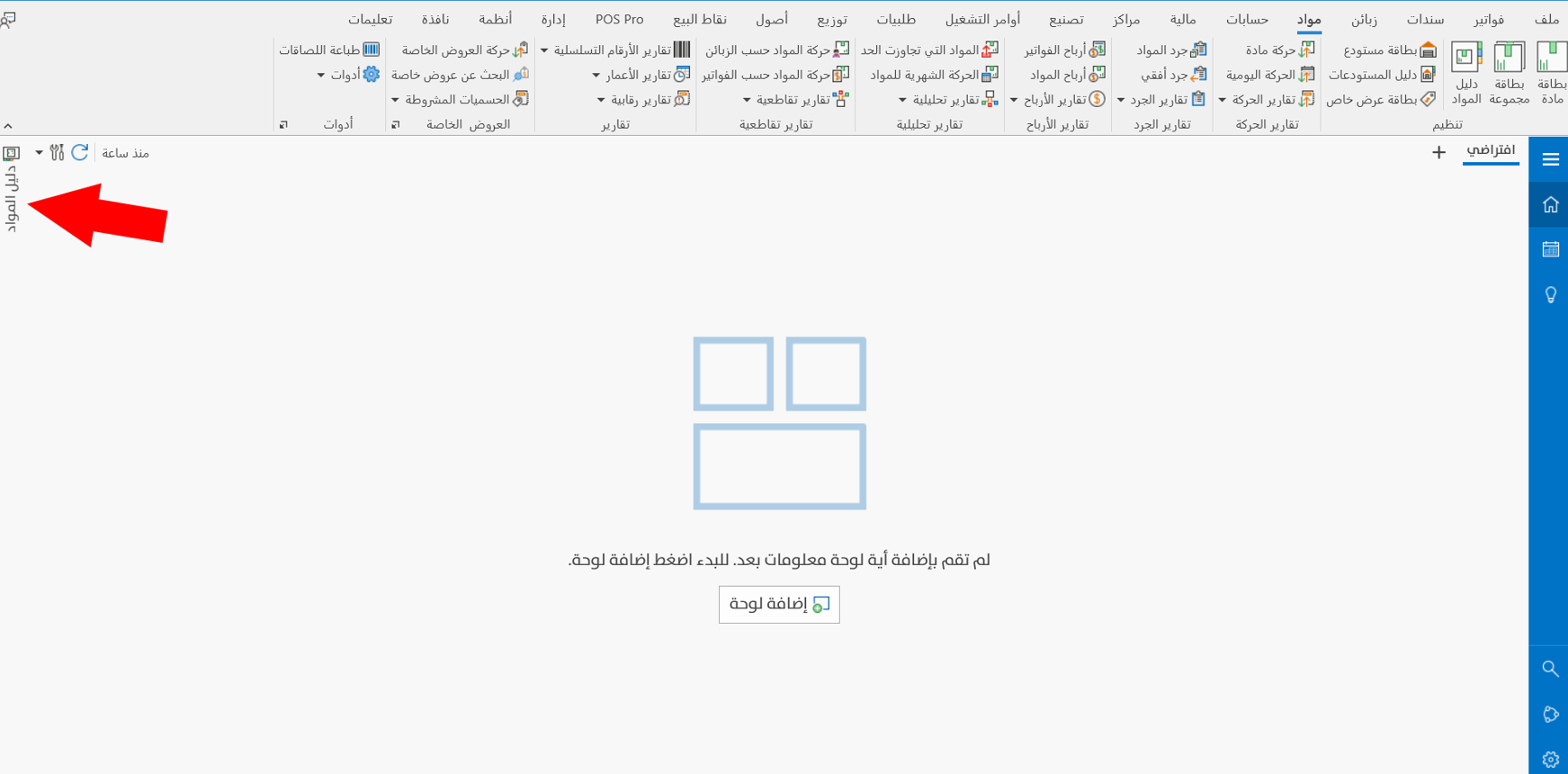
When you want to view the chart, just move the mouse pointer over the chart's tab.
If you choose the narrower part of the rectangle while dragging the chart, the chart is pinned directly as a tab on the edge of the screen.
Dock More Than One Chart
If the program's desktop has more than one chart, you can move the charts one by one, holding each chart by its header and dragging it to the position you want within the blue rectangles that appear on the screen.
When the mouse pointer passes over another chart while moving, the program shows a "docking guide" with four ends and a center. The guide appears when you start moving the chart, and looks like this:
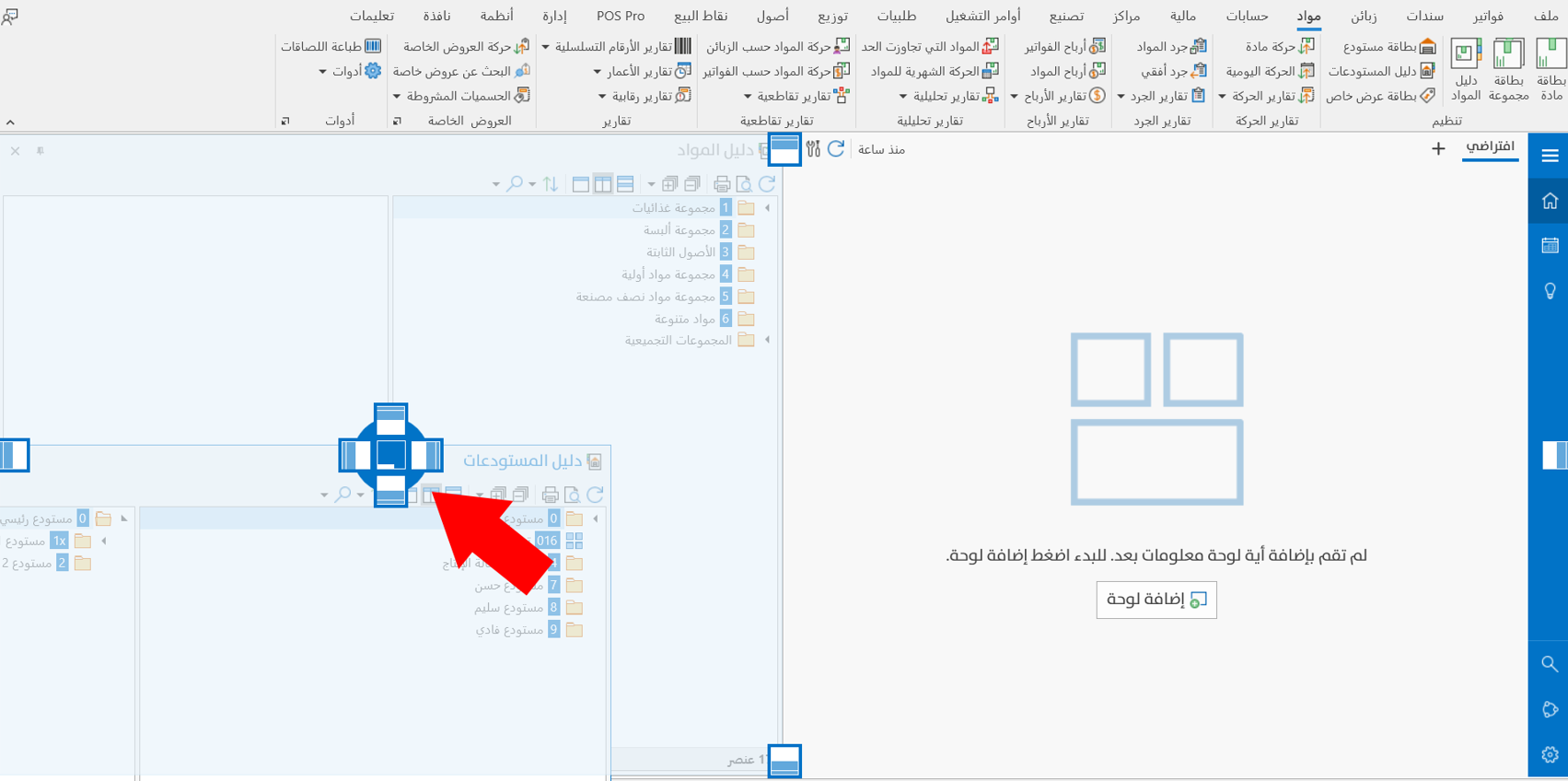
With this guide, you can arrange the charts in several layouts, such as:
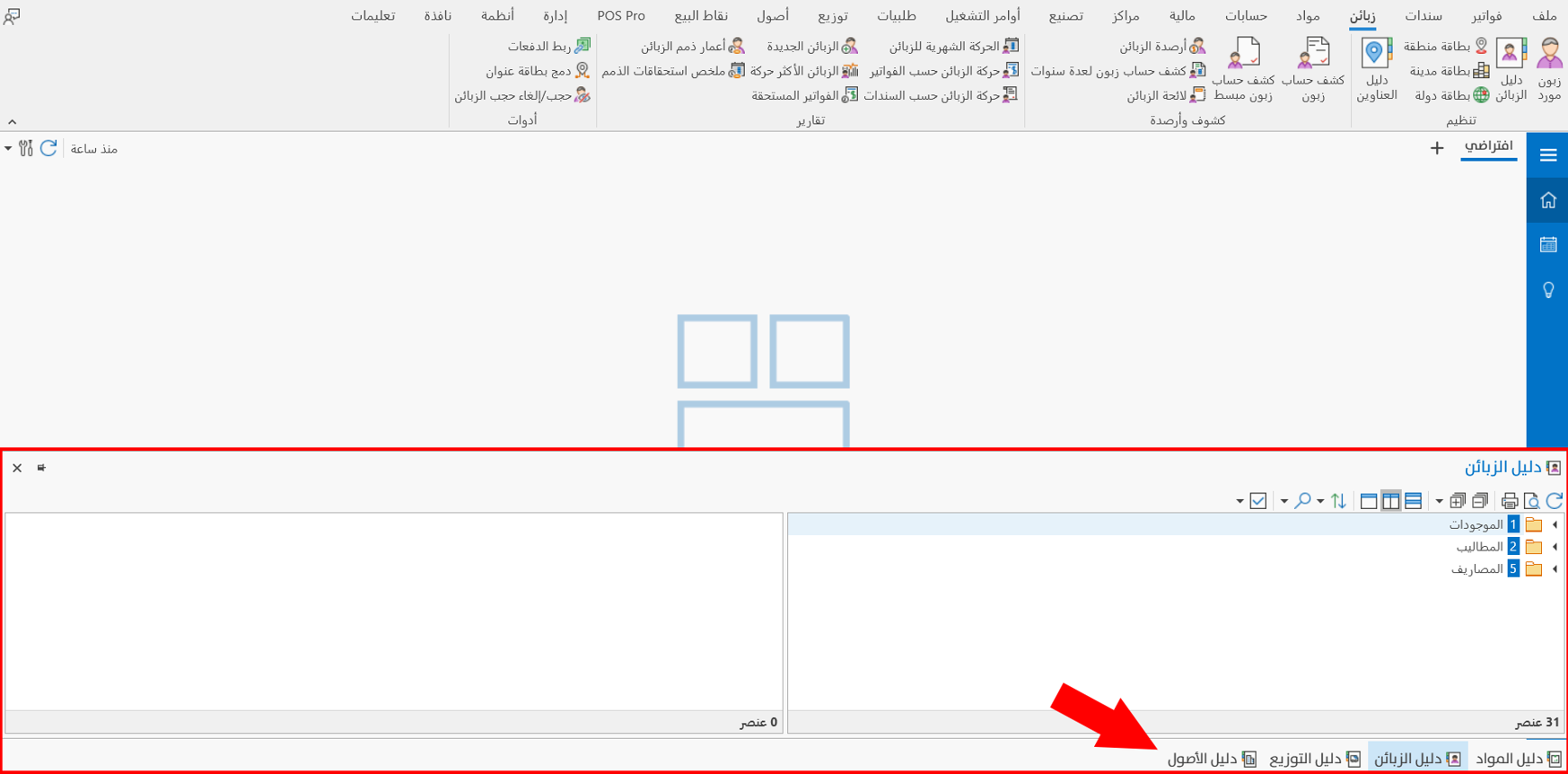
Tabs on the Bottom Edge
Drop all the charts in the center of the docking guide after dragging them by their headers. When the chart gets close to the center of the docking guide, the color of the center changes to show that the chart can be dropped there.
When you drag more than one chart to the center, all the charts are placed in one frame, as follows:
Arranged on a Horizontal Line
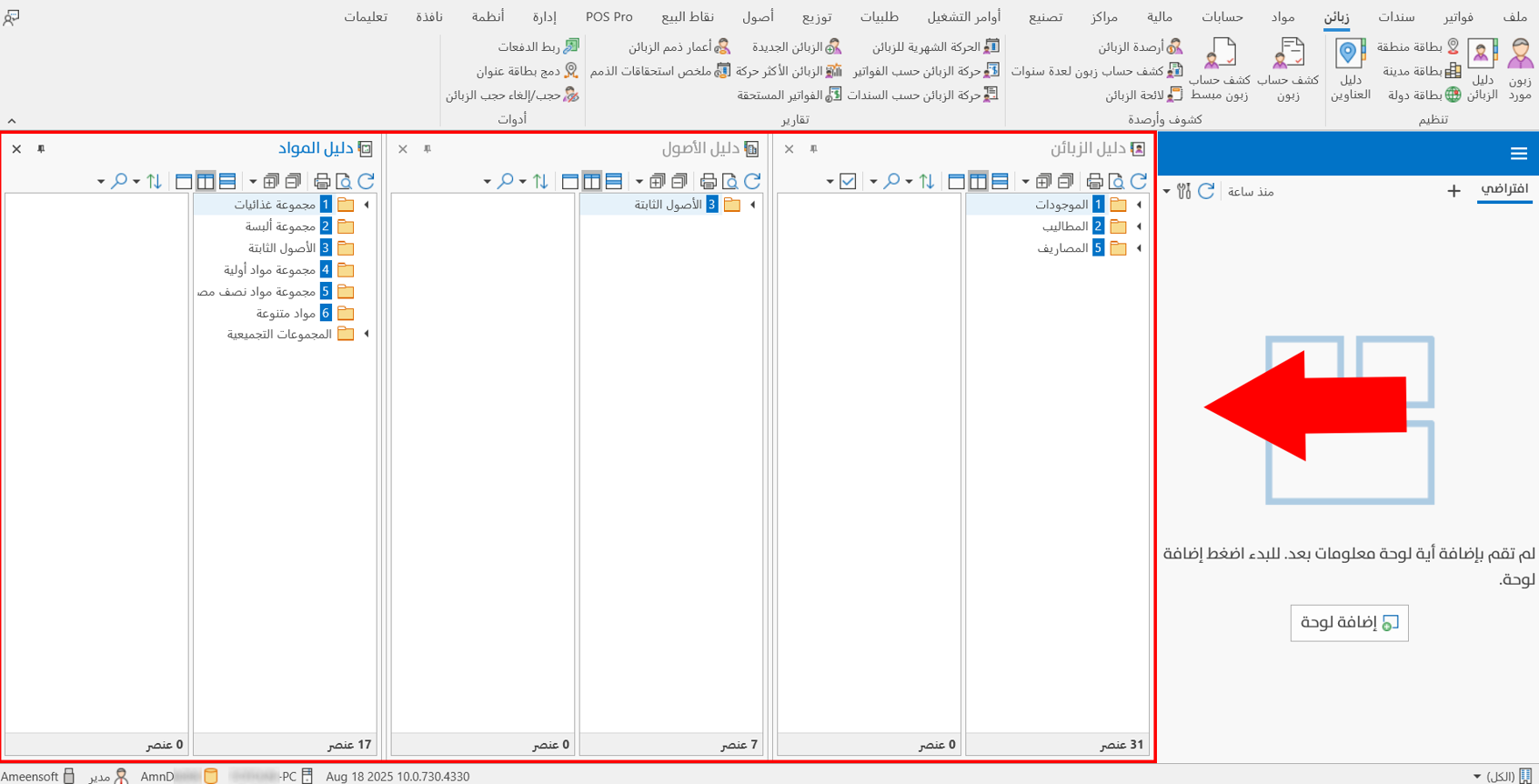
Drag all the charts to the right or left side of the docking guide; the charts then look like this:
Arranged on a Vertical Line
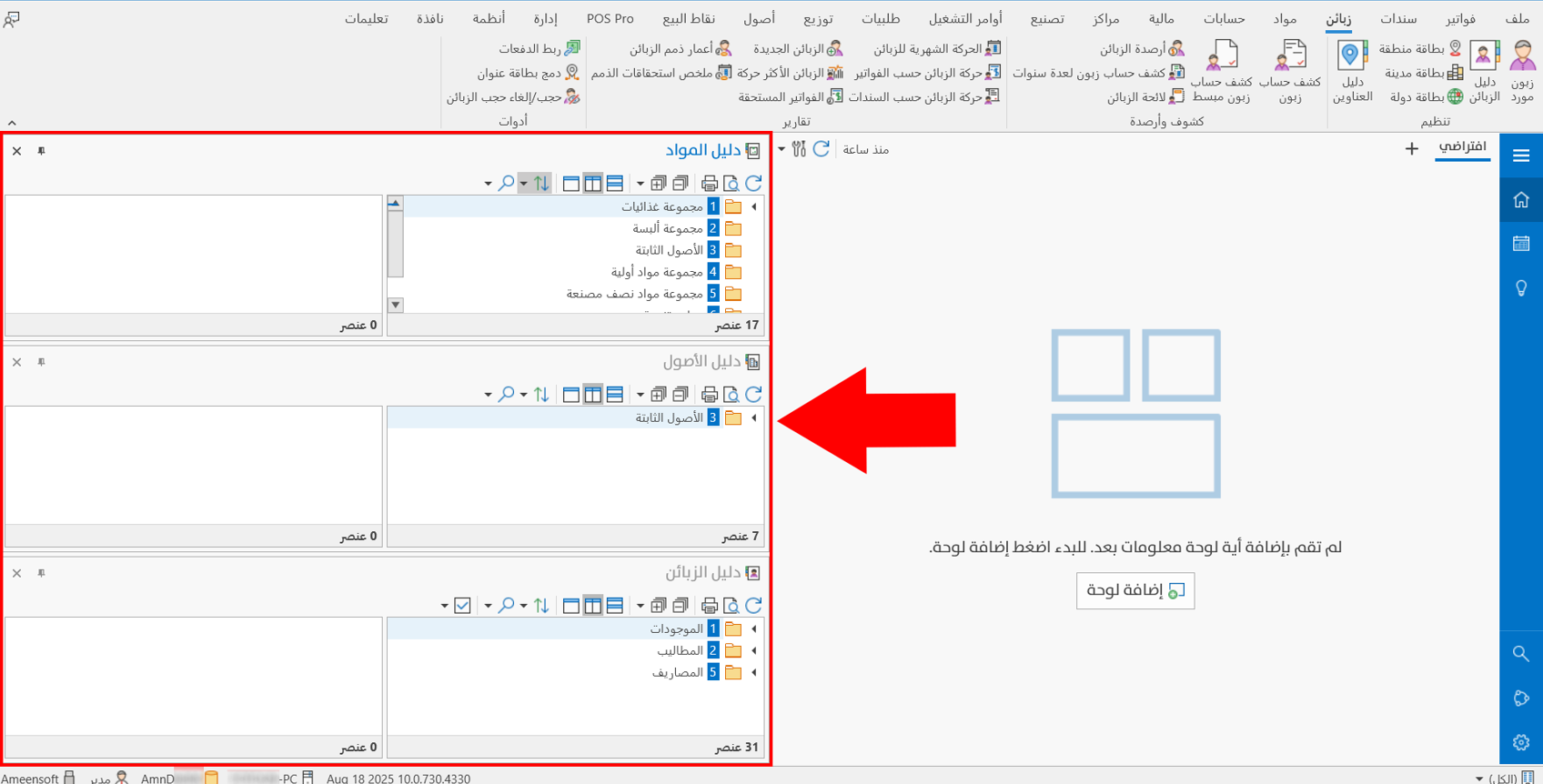
Drag the charts to the top or bottom part of the docking guide, and they are arranged on a vertical line, as follows:
Note: you can pin all the charts as tabs on the desktop with the "Auto Hide" button of each chart, so they look like this:
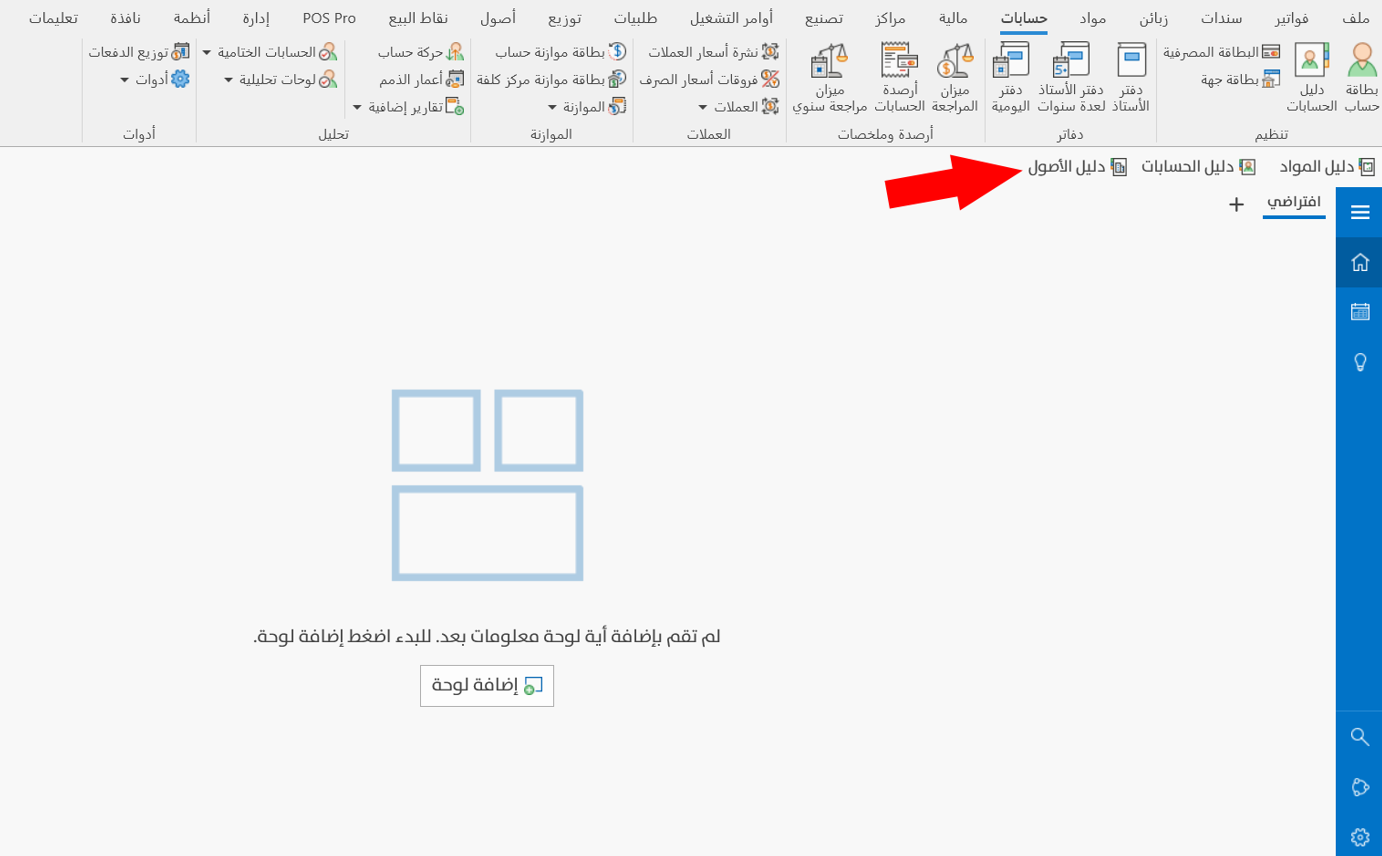
You can move between the charts easily by clicking the name of the chart, and you can take any chart out by dragging it outside the frame.