Chart Toolbar
The charts of alameen ERP include a set of tools on the chart's main toolbar:
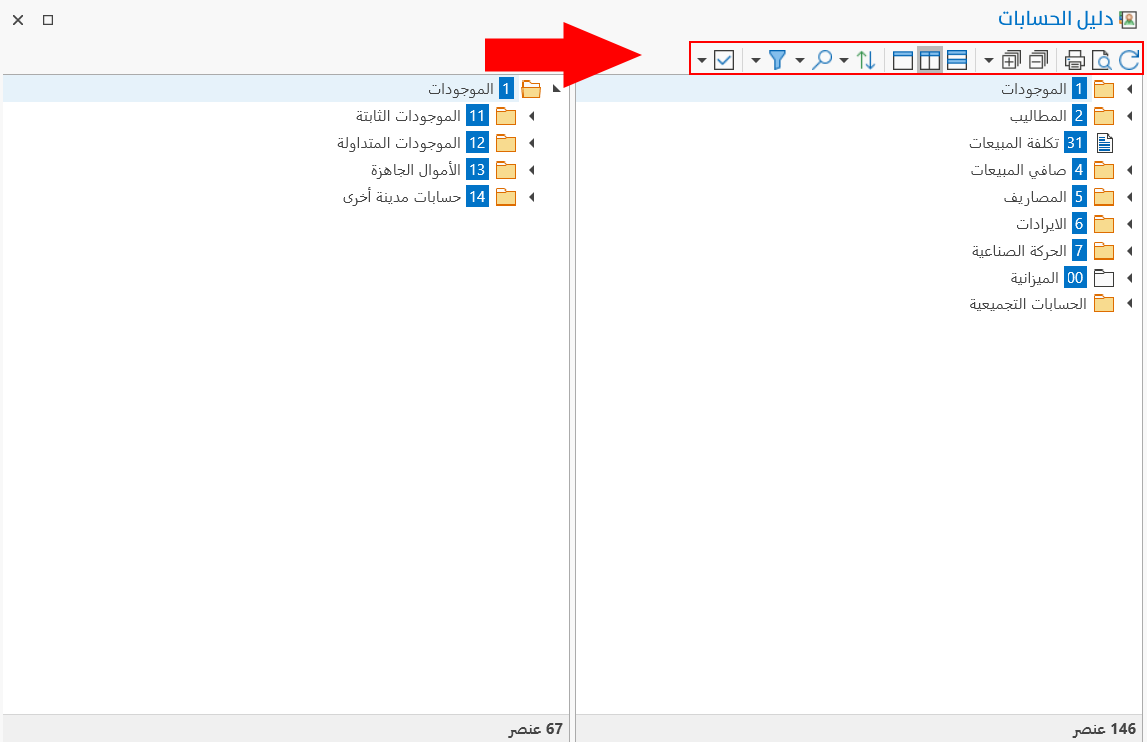
Refresh
Refreshes the chart after an operation.
Print Preview
Previews the chart before printing it: the chart data is shown in a detailed report, in which you can modify the fields or use the report tools before printing the chart.
Print
You can print the chart directly with the Print button: the print window appears so you can choose the printer and print.
Collapse All
Use Collapse All after expanding one or more of the main and sub rows of the chart: it collapses them all again with one click.
Expand All
Expands all the rows of the chart when you click the button directly. You can also expand to a particular level you choose, by clicking the arrow next to Expand All and choosing the level from the drop-down list.
When a row (account, group, branch, cost center...) is expanded, the folder icon of the row changes to look like an open folder.
Vertical Layout
The chart consists of two parts: the main chart and the sub chart.
The main chart contains all the items, and you can expand them to show all the levels. For example, in the chart of materials, the names of the groups appear, and expanding them shows the materials of each group.
The sub chart shows the main item you select and the levels linked to it. For example, when you click the Cheese group with the left mouse button in the main part of the chart of materials, the sub chart shows the Cheese group and all the materials that belong to it.
Vertical Layout places these two parts vertically (the main chart at the top, the sub chart at the bottom).
Horizontal Layout
Horizontal Layout, the default layout of the program's charts, places the two parts of the chart side by side horizontally.
Main Directory Only
When you enable this tool, the sub part of the chart is removed and only the main part remains.
You can bring back the sub part by disabling the tool.
Sort
The program can sort the chart in more than one way: when you click the arrow next to the Sort tool, the following list opens:
Sort by Code Ascending
Sort by Code Descending
Sort by Name Ascending
Sort by Name Descending
To undo the sorting, use the Clear Sorting option in the same list.
Search
You can search instantly and quickly for any item of the chart: after clicking the search icon or the shortcut (Ctrl + F), type what you want in the search box that appears in the chart. As soon as you type the first letter, results appear, and they update as you type more letters.
The condition applied is (contains): the search results show all the words that contain the sequence of letters you type in the search field.
You can narrow the search in the chart of accounts with the Filter tool.
Filter
This tool is available only in the chart of accounts: you can filter the chart with the options in the drop-down list of the arrow next to the tool.
Options
This tool appears in the chart of accounts and contains the (Final Accounts) option: clicking it shows the final account of all the accounts of the chart.