Chart of Accounts
This chart manages the tree of accounts in the program: adding new accounts, modifying the specifications of existing accounts, deleting them, or changing the type of any account when needed.
The Chart Window
When you create a new file and choose a creation template, most templates come with a suitable chart of accounts. You can later add, modify, and delete accounts in this chart to suit the needs of your organization, and you can also build your own chart of accounts from scratch (by choosing an empty chart of accounts).
How Do I Reach the Chart?
You can view the chart of accounts from the Accounts tab on the main ribbon - "Settings".
It appears as follows:
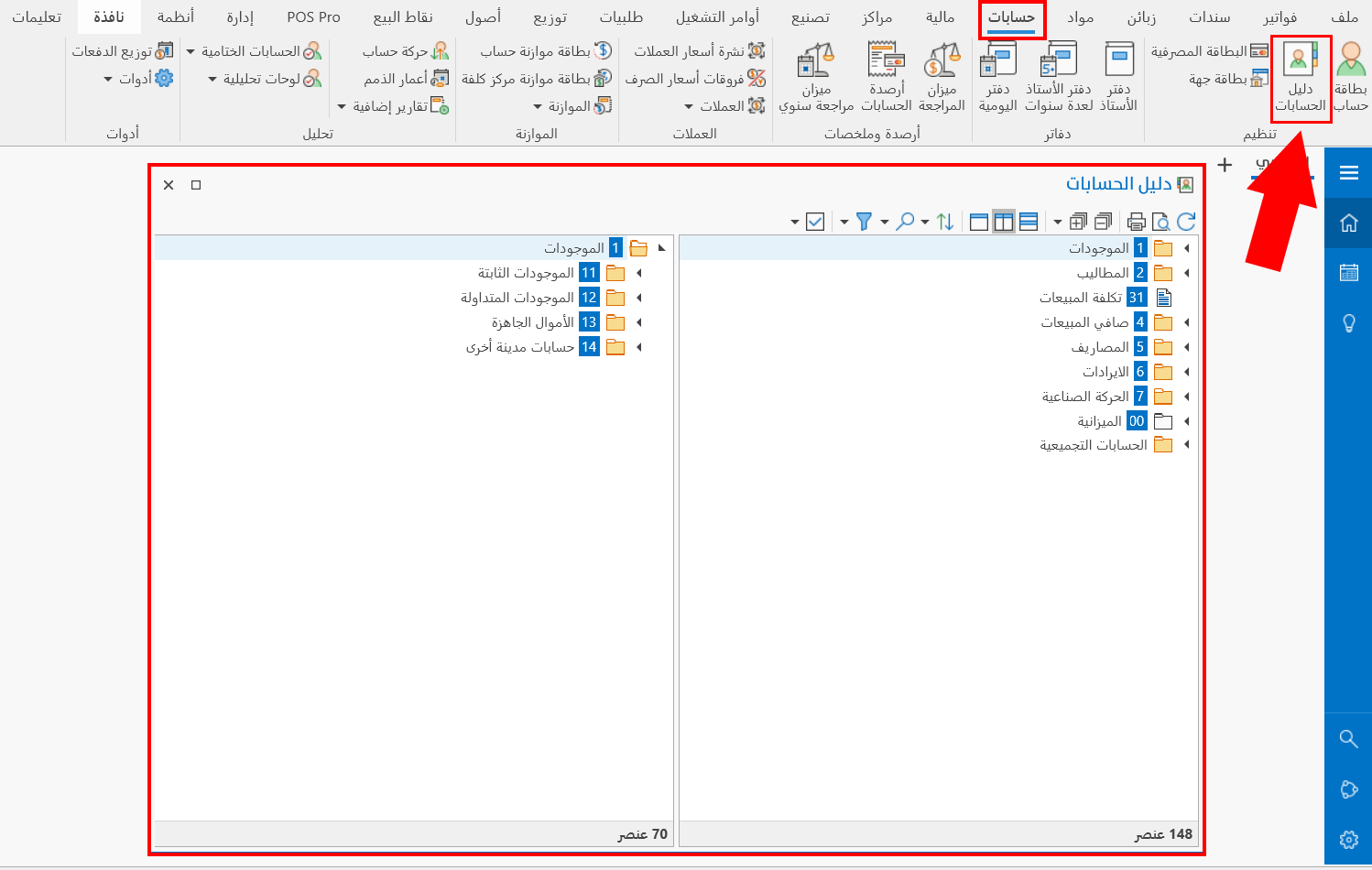
The Accounts List
This list contains the defined accounts and shows the types of the accounts and how they relate to each other. Each account appears on a row made up of the account code and the account name, preceded by an icon that shows the account type. The child accounts of an account are placed directly after it; you can show them by clicking the arrow next to the name of the parent account. Child accounts are indented a little from the main account.
The icon next to an account depends on its type, as follows:
Final account: a white folder.
Main (aggregate) account: a yellow folder.
Sub (detailed) account: a white document if it is empty; if it has operations or is linked to a material, the document appears as if it contains writing; when the account is linked to one customer, a picture of a person appears; and if it is linked to two or more customers, the icon shows two people.
Main Account
An account that has accounts branching from it, even if it branches from another account itself.
Sub Account
An account that has no accounts branching from it.
Operations in the Chart
Please see Chart Operations.
The Chart Toolbar
Please see Chart Toolbar.