Maintenance Workshop Card
Defines the internal or external maintenance workshops that work in the company, and sets the default accounts and options of the workshop. It also links the card to the alameenWorkshop app installed on the workshop's smart device.
You can open the card from the main ribbon - Systems tab - Workshops group - the drop-down list of the Cards button.
Once requested, it appears as follows:
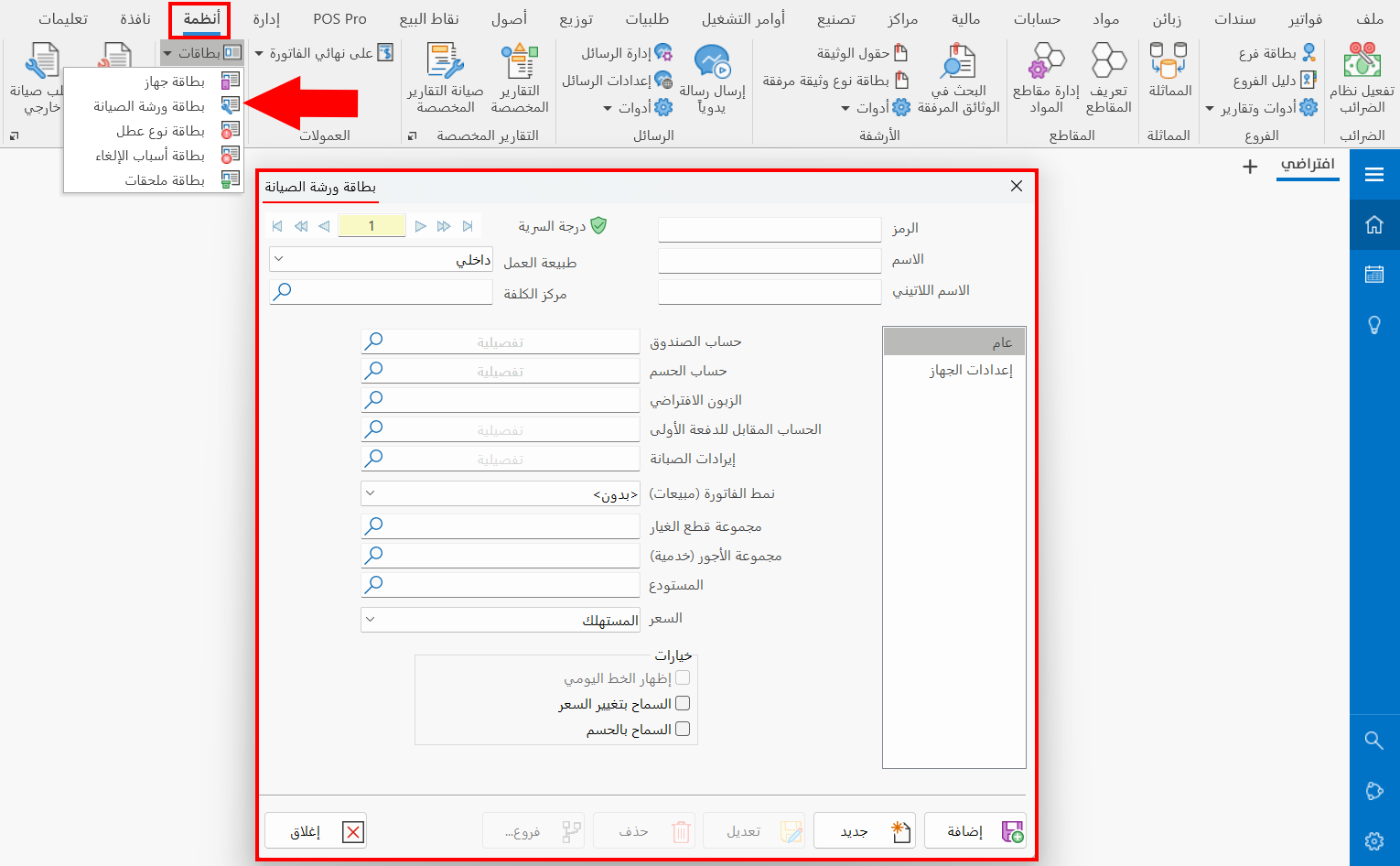
Main Fields
The maintenance workshop card consists of a set of main fields for defining the workshop:
Serial Number and Navigation Buttons
Please see Serial Number and Navigation Buttons.
Security Level
Please see Security Level.
Code
Set in this field the code of the workshop you are defining a card for (mandatory field).
Name
Enter the name of the workshop you are defining, so you can use it in maintenance orders, for example: Washing Machine Maintenance, Engine Maintenance (mandatory field).
Latin Name
You can enter the name of the workshop in a different language.
Nature of Work
Choose the nature of work of the workshop you are defining by clicking the arrow in the field and choosing the suitable nature of work:
- Internal
The default option in the card: the workshop works only within the company and does not go on field visits.
- Outside
The workshop works outside the company and relies on visiting customers in the field. When the workshop's nature of work is "Outside", you must enter the settings of the device connected to the alameenWorkshop app on the "Device Settings" tab of the workshop card.
Cost Center
Enter the name/code of the cost center linked to the current workshop, or press the (*) key on the keyboard and choose the cost center from the window that opens (mandatory field).
Tabs
The maintenance workshop card window consists of the following tabs:
General
The "General" tab appears by default when you open the card. It contains all the fields needed to enter the workshop's accounts and set the options allowed for it:
Cash Account
Enter the name/code of the default cash account you use in the movements of the current workshop, such as the down payment and the returned amount.
Discount Account
Enter the name/code of the account of the discount given when you allow the workshop to give the customer a discount when handing over the device after the maintenance is finished.
Default Customer
Set the account of the default customer with which the sales invoice is generated when the maintenance order is "Cash", by entering their name/code in the field.
Down Payment Contra Account
Set the account to which the amount you receive from the customer as a down payment in the maintenance order is added, by entering its name/code in the field.
Maintenance Revenue
Enter the name/code of the account to which maintenance revenues are added. For example, when you receive a down payment of "100" from the customer and, after the maintenance has started, the customer decides to cancel the order: if you return only "75" to the customer, the remaining "25" goes to the "Maintenance Revenue" account.
Bill Form (Sales)
Set the sales invoice form from the defined forms, by clicking the arrow in the field and choosing the suitable form from the drop-down list. This is the invoice generated with the spare parts and fees after the device is handed over to the customer.
Spare Parts Group
Enter the name of the group to which the materials used in the spare parts table of maintenance orders belong. This helps you show only the materials of this group in the "Select Material" window.
Fees Group (Service)
Enter the name of the group to which the materials used in the fees table of maintenance orders belong. This helps you show only the materials of this group in the "Select Material" window.
Warehouse
Set the default warehouse in which input and output operations are carried out: invoices are generated in the name of this warehouse by default. Enter the name/code of the warehouse in the field, or press the (*) key on the keyboard and choose the warehouse from the window that opens.
You can add the "Warehouse" field to the invoice from the Table Fields tab of the Forms Management window for the sales invoice form.
Price
Click the arrow in the field to choose the price of the spare parts used in maintenance orders: consumer, wholesale, semi wholesale...
Show Daily Route
Available when the nature of work is "Outside": it tracks the workshop's route through the alameenWorkshop app installed on the mobile device whose data you add on the "Device Settings" tab of the workshop card.
Allow Modifying Price
You can allow the workshop to change the value of spare parts and fees before the maintenance is finished in the maintenance order window, by clicking the check box next to the field until it turns blue. The workshop can then modify the prices of parts and fees.
Allow Discount
You can allow the workshop to give the customer a discount before the maintenance is finished in the maintenance order window: once enabled, the "Discount" field is available in the order window.
Device Settings Tab
The fields of this tab add the data of the smart device on which the alameenWorkshop app is installed, to ensure synchronization and show the workshop's daily route. The required fields are:
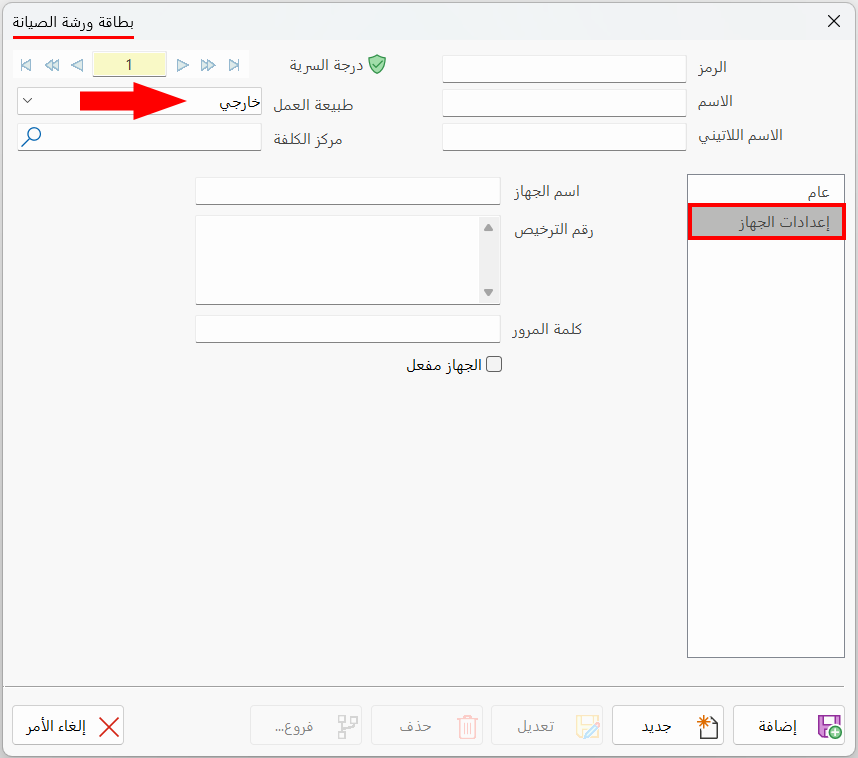
Device Name
Enter the name of the smart device in the field.
License No
Add the license number manually in the field.
Password
Set the password the representative uses to log in to the alameenWorkshop app; you can change it at any time.
All the fields of the tab are mandatory when the workshop's nature of work is "Outside".
Device Is Active
The smart device stays "inactive" until you enable the "Device is active" option. Once enabled, it is ready to synchronize maintenance orders and add new orders with the alameenWorkshop app.
Standard Commands
Please see Standard Commands.