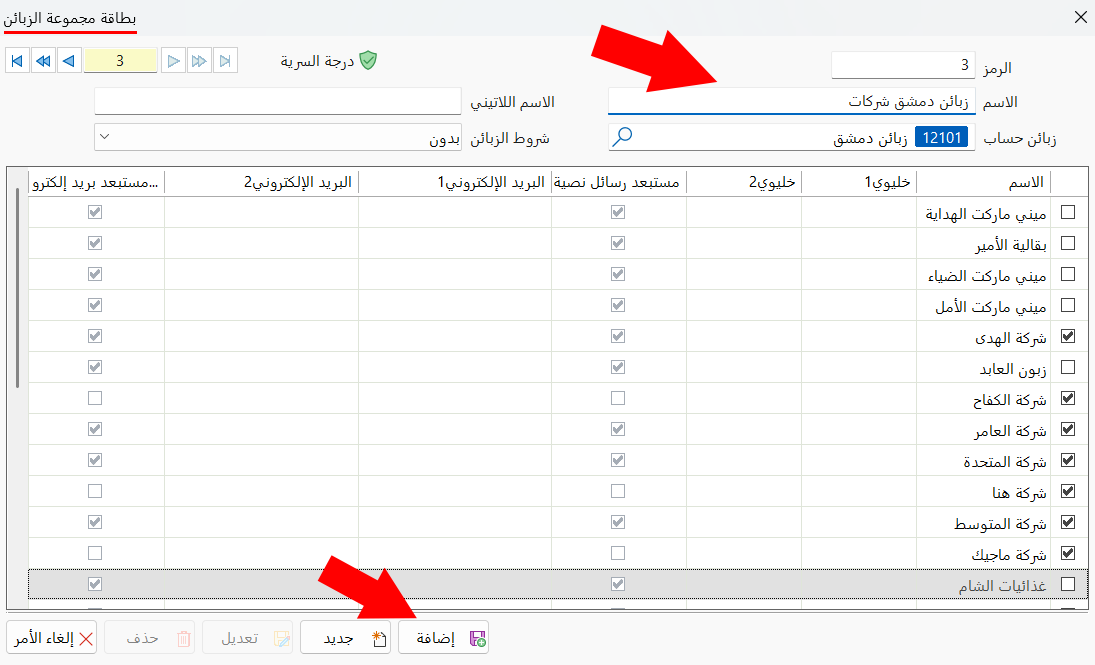
Customers Group Card
The customers group card is used in the messages system to send a common message to all the customers you set in a particular customers group card. You can use customers group cards to send:
You can reach the customers group card from the main ribbon - Systems tab - Messages group - the drop-down list of the Tools button.
Once requested, the window appears as follows:
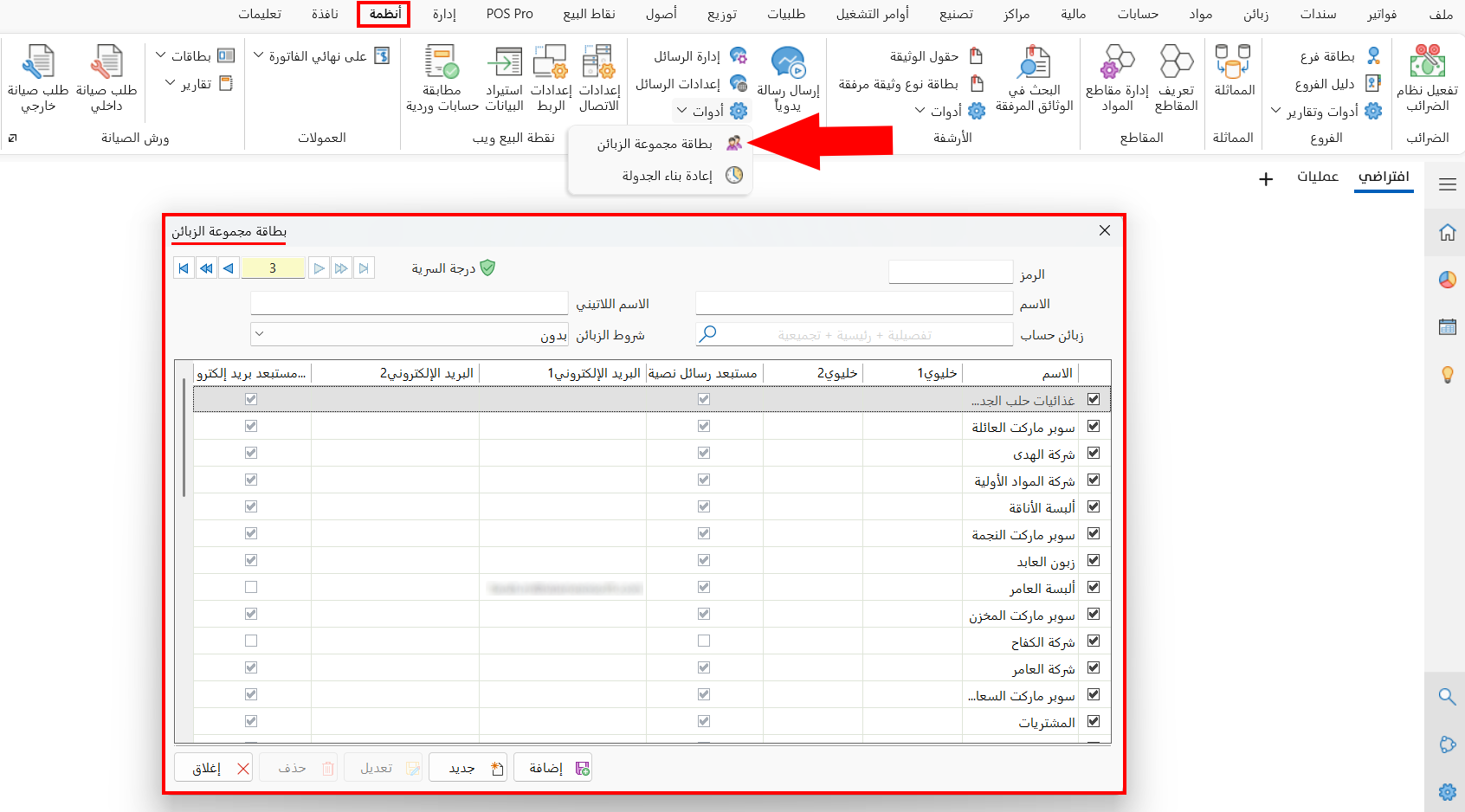
The card window contains a table of all the customers defined with customer/supplier cards, as well as fields that help you reach the customers you want, and control buttons for saving or modifying the card. They are used as follows:
Serial Number and Navigation Buttons
Please see Serial Number and Navigation Buttons.
Security Level
Please see Security Level.
Code
Enter the code of the current customers group card. You cannot repeat the code in another card: when you try to add a card with a code already in use, an error message appears and the card is not saved until you change the code.
Name
Enter the name of the customers group card you want to add; you cannot enter a name already used in another customers group card. (Mandatory field.)
When you try to enter a name already in use, an error message tells you that the name is duplicated and you must enter a different name.
Latin Name
You can enter a name for the card in a different language.
Account Clients
Enter the name/code of the account whose linked customers you want to reach, or use the search icon in the field to choose the account from the window that opens.
The customers table is updated as soon as you choose the account.
Customers Terms
You can choose one of the customer terms defined earlier to apply it and show the customers in the customers table accordingly: clicking the arrow in the field opens a list of all the defined customer terms.
The customers table is updated as soon as you choose the customer term.
Customers Table
By default, the table shows all the customers; when you choose the customers of a particular account, or one of the customer terms, the customers are listed in the table according to the account or the term.
The table contains a column of check boxes, one next to each customer. By default, all the customers in the table are selected, which means all the customers will be added to the current card.
Click the check box next to a customer's name to deselect them so they are not added to the current card: when the √ mark disappears from the box, the customer is deselected.
The table contains the customers' information: name, mobile 1, mobile 2, e-mail 1, e-mail 2, and excluded from e-mail, according to the customer's information in their card.
Make sure you have entered the customer's contact data (mobile, e-mail) and enabled the sending options (send SMS, send WhatsApp message, send e-mail) in the customer card before sending messages.
Standard Commands
Please see Standard Commands.
To add a new customers group card, follow these steps:
-
Open the customers group card
-
Enter the code and name of the card
-
Choose a customer term, or enter account clients
-
Check the customers selected in the customers table
-
Click "Add"