Branch Card
The program lets you work with an unlimited number of company branches, and use this feature to organize work when the company has many branches and departments in one city or several cities.
Each branch is independent in its accounts, invoices, materials, groups, and cost centers, while still belonging to the parent company.
Note: the first branch defined is the company's main branch, so it gets full permissions; you cannot delete it or define a branch under it.
You can reach the card from the Systems tab on the main ribbon - "Branches" group.
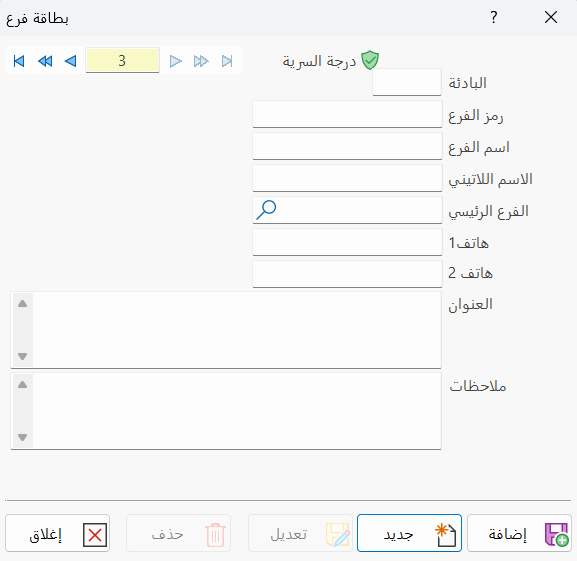
Once requested, it appears as follows:
Main Fields
The branch card consists of several fields for adding all the information needed to define the branch in alameen ERP:
Card Number and Navigation Buttons
Please see Serial Number and Navigation Buttons.
Security Level
Please see Security Level.
Prefix
Put the prefix of the branch, or the number of the branch you want to define a card for (this field is mandatory).
Branch Code
Set in this field the code of the branch you want to define a card for (this field is mandatory).
Branch Name
Enter the name of the branch you want to define a card for (this field is mandatory).
Latin Name
Enter the Latin name of the branch you are defining: this name appears in the program's English interface instead of the name recorded in the previous field.
Main Branch
You can use this field in the branches defined after the main branch: you can make each branch (except the main branch) include a number of branches, by setting the parent branch in this field.
You will later have to set the permissions given to the child branches in the Branches Permissions window. (Systems tab > Branches > Tools and Reports)
Phone (1, 2)
Set the first and second phone numbers of the branch you want to define a card for.
Address
Set the address of the branch you are defining a card for.
Notes
Enter notes and additional information about the branch you are defining that are not covered by the previous fields.
Standard Commands
Please see Standard Commands.