Vouchers Card
The card records receipt and payment vouchers in the restaurant: you can add a receipt or payment voucher (if you are a user with the permission) outside the restaurant interface.
You can reach the card from the main ribbon - POS tab - Settings group - the drop-down list of the Cards button.
Once requested, the window appears as follows:
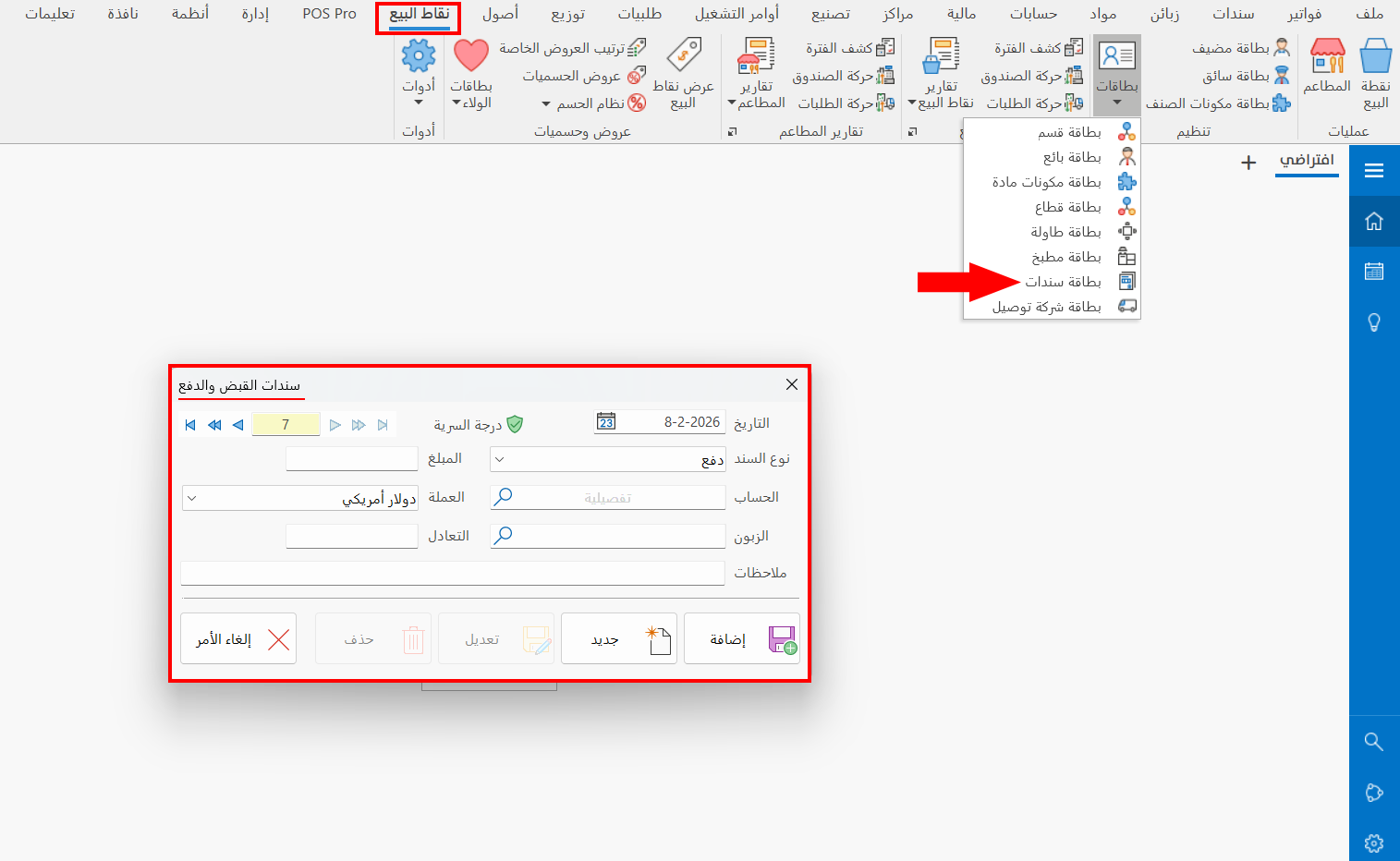
Main Fields
The vouchers card consists of several fields for adding receipt and payment vouchers:
Serial Number and Navigation Buttons
Please see Serial Number and Navigation Buttons.
Security Level
Please see Security Level.
Date
The current date appears in the field automatically. You can keep it, or change it to the actual time the entry was issued using the calendar in the field or by typing it.
Voucher Type
Set the type of voucher you want to add by clicking the arrow in the field and choosing "Payment" or "Receipt" from the drop-down list.
Account
Set the account that will move after the voucher is added, by typing its name/code, or by using the search icon in the field and selecting it in the "Select Account" window that opens (this field is mandatory).
If the account is linked to a customer, the customer's name is listed directly in the Customer field; if it is linked to more than one customer, you must set the customer in the Customer field below.
The entry is generated with the account you enter here as one of its sides; the other side is the account you set as the default cash account.
Set the default cash account in the Default Accounts window that opens from the account option - Restaurants tab - Program Options window.
Customer
Enter the name/code of the customer you are dealing with in the current voucher: when you enter in the previous Account field an account linked to more than one customer, you must set the customer in this field. You can use the search icon in the field, which opens the "Select Customer" window with all the customers linked to the account added in the "Account" field.
Amount
Type the value of the voucher you want to receive or pay (this field is mandatory).
Currency
Choose the currency of the amount in which you record the current voucher. By default, the system uses the basic currency; you can change it by clicking the arrow in the field and choosing the correct currency from the drop-down list.
Parity
The field shows the exchange rate of the currency you chose in the "Currency" field (the exchange rate of the chosen currency against the basic currency).
Set the parity of the currency against the main currency in the "Currency Exchange Rates" window to save it, so that it is filled in automatically in the "Parity" field whenever you select this currency in the "Currency" field.
Notes
Enter in the field a short description of the voucher, or important additional information.
Standard Commands
Please see Standard Commands.
You can add receipt and payment vouchers in the restaurant interface with the Receipt and Payment Vouchers tool in the "Reports and Tools" window.