POS Special Offer Card
The point of sale system lets you define many offers to use at the point of sale, and assign the offers to users and devices, if you are a user with the permission.
You can reach the "POS Special Offer" card from the main ribbon - POS tab - Offers and Discounts group.
When requested, the card window opens as follows:
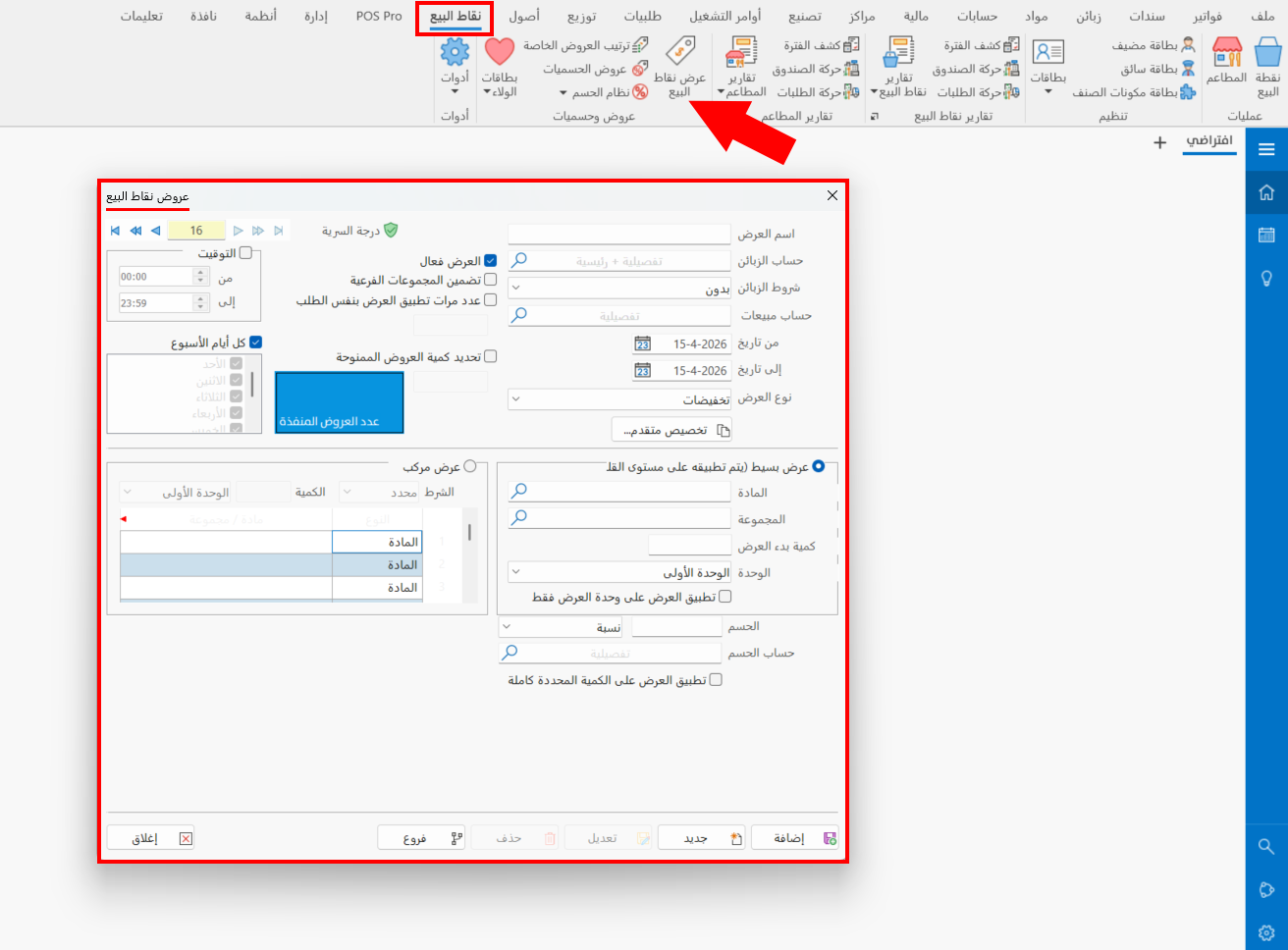
The window consists of a set of fields and options that help you add and activate the right offer. They are used as follows:
Main Fields
The POS special offer card contains a set of main fields that do not change with the "Offer Type":
Offer Name
Enter the name of the POS offer you are defining a new card for; you can choose the suitable language for the offer. This field is mandatory.
Customer Account
You can set the customer account to which the offer is applied directly in the point of sale interface (when it meets the offer condition): enter the name/code of the account, or click the search icon in the field and click the account in the "Select Account" window that opens.
Customers Terms
The field opens a list of all the customer terms you saved earlier, so you can assign the offer to customers who meet a certain condition.
Sales Account
Enter the name/code of the account that moves when the offer you are defining is used, or look it up with the search icon in the field, which opens the "Select Account" window for choosing the account.
From
Set the start date of the current offer's validity by typing it, or with the calendar icon in the field.
To
Set the end date of the current offer's validity by typing it, or with the calendar icon in the field.
Active Offer
Selected by default: the offer is applied directly according to the date, time, and offer condition. You can deactivate the offer temporarily and reactivate it whenever you want.
Include Sub Groups
Enable this option to apply the offer to the sub groups of the main group you set in the "Group" field of a common offer, or the "Type" field of a mixed offer.
When the offer is deactivated, it does not appear in the "Sort Special Offers" window, even if its validity period is still running.
Number of Times the Offer Applies in the Same Order
You can control how many times the offer may be applied in a single order by enabling the option, then entering the number in the field below it.
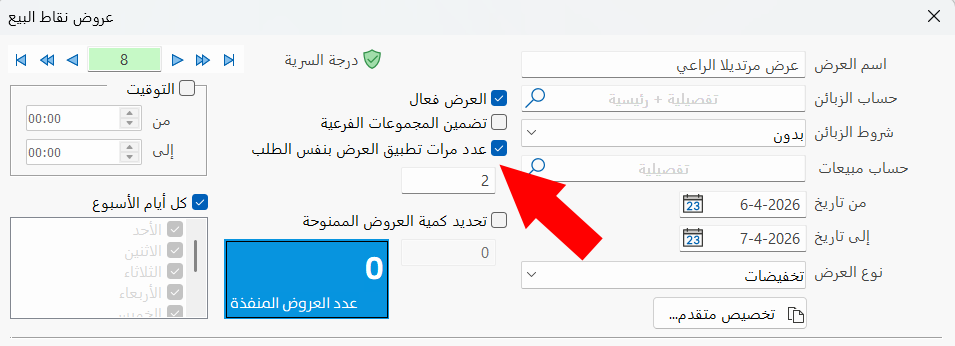
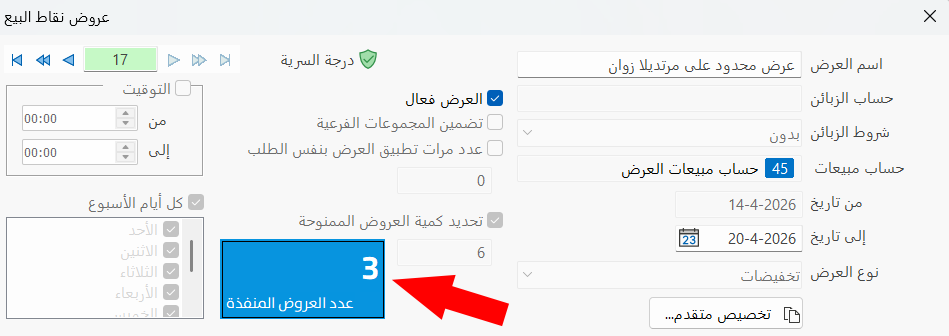
Set Granted Offers Quantity
You can use this option when the quantity of the offer is limited: enable the option and enter the available quantity of the offer in the field below it. Note that you can never modify the offer card after setting the quantity and saving the card.
After the offer is used in orders, the number of offers carried out appears in the blue box shown in the image.
Timing
Set the hours of the day during which the offer is active by enabling the "Timing" option, then entering the hour the offer becomes available in the "From" field, and the hour it stops being available in the "To" field.
All Week Days
Control the days of the week on which the offer is active: the window uses "All week days" by default. To choose the days of the offer, disable the "All week days" option; the list of the days of the week becomes available.
All the days of the week appear enabled by default (the check boxes next to the days are colored blue); click the check box next to each day on which you do not want the offer to apply.
Advanced Custom
You can choose the devices or file users you allow to use the offer (if you are a user with the permission): after you click the "Advanced Custom" button, a window opens showing "All Devices" and "All Users".
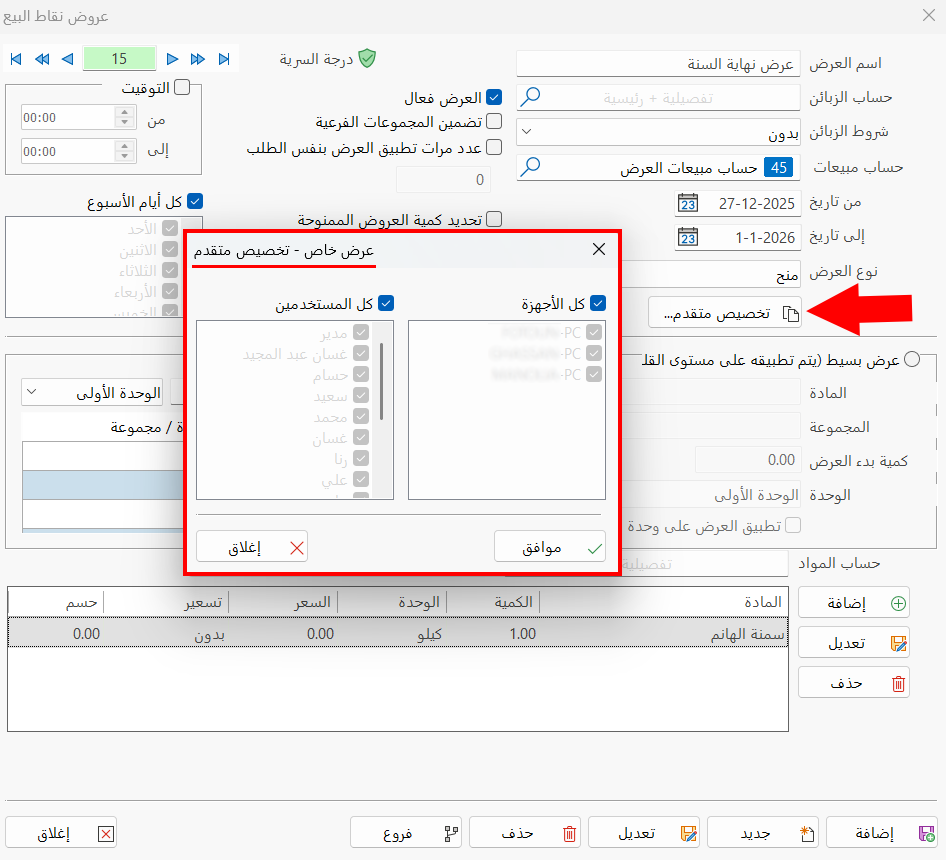
By default, the window enables the offer for all devices and users. To exclude a user, click the check box next to "All Users" so that the list of users becomes available, then click the check box next to the user's name; when the check box is empty and you click "OK" in the window, the user is excluded and prevented from applying the offer.
Offer Type
By default, the window uses the "Price-off" offer type; you can change it to the "Grant materials" offer type from the drop-down list of the field. The difference between them is as follows:
- Price-off
The default offer type: a value or percentage is deducted from the order value when the offer condition is met.
- Grant materials
Gives one or more additional materials with the order when the offer condition is met.
The offer type you choose affects the contents of the window: the last part of the card window, which sets the value or materials the customer gets after meeting the offer condition, changes.
Common Offer
An offer applied to a particular material or group: when the order contains the material, or materials of the group set in the offer, materials are granted, or a percentage or value is deducted from the order total. It is the offer enabled by default.
To add a common offer (after choosing its type, Price-off or Grant materials), set the following:
Material
Enter the name/code of the material you want to apply the offer to, or click the search icon in the field and choose the material from the "Select Material" window that opens.
When you choose a particular material, the following "Group" field becomes unavailable.
Group
Enter the name/code of the group you want to apply the offer to, or click the search icon in the field and choose the group from the "Select Group" window that opens.
When you choose a particular material, the following "Group" field becomes unavailable.
Offer Start Qty
The quantity of materials in the order that meets the offer condition: when a single order contains the quantity you set in this field, the customer gets the offer (a percentage or value deducted, or materials granted). This field is mandatory for saving the offer.
Unit
Choose the unit of the materials to which the offer is applied: the field opens a list of the material's first, second, and third units.
Apply the Offer to the Offer Unit Only
Enable this option to apply the offer only to the unit of the material you choose in the previous "Unit" field.
Mixed Offer
The offer condition contains more than one material or group, so that a value or percentage is deducted, or additional materials are granted, for the order that meets this condition.
To use this offer, click the check box next to "Mixed Offer"; when the check box turns blue, you can start adding the offer, as follows:
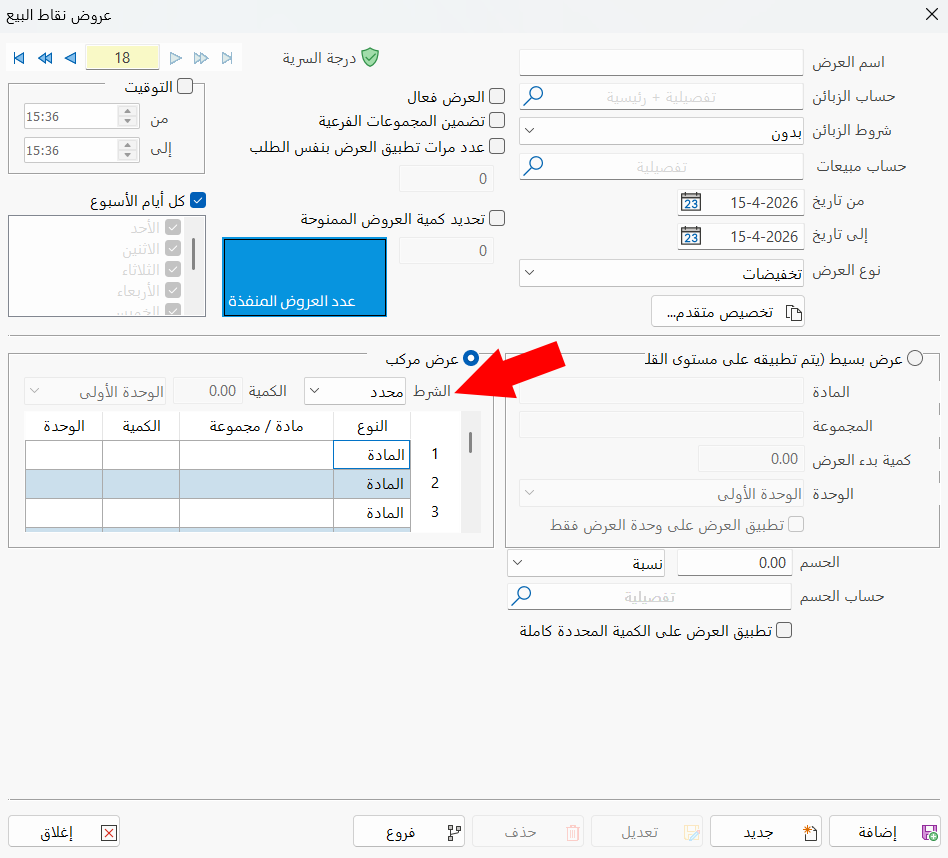
Condition
Choose the condition type from the drop-down list of the field, which contains:
- Specified
Requires the materials/groups, their quantities, and the units of the materials without which the condition is not met.
When you choose a "Specified" mixed offer, you must fill in the offer condition table with the type (group/material), the material/group name, the quantity, and the unit. When the order at the point of sale contains the materials/groups in the same quantity and unit, the offer (grant or price-off) is applied to the order.
For example: type "Material", material name "Abu Al-Walad Cheese", quantity "2", and unit "First"; and in a new row, material name "Kiri Cheese", quantity "3", and unit "First". When the order contains 2 Abu Al-Walad Cheese in the first unit and 3 Kiri Cheese in the first unit, the offer (grant or price-off) is applied to the order.
- Unspecified
Sets the offer condition without requiring quantities and units for the materials/groups.
When you choose an "Unspecified" mixed offer, you must fill in the offer condition table with the type (group/material) and the material/group name, without setting quantities for each of them; but you can set the total quantity of the materials in the "Qty" field, and the unit as well.
For example: type "Group", group name "Cheese"; and in a new row, type "Group", group name "Juice"; with "7" in the Qty field and the unit "First". When the order contains 3 cheese materials and 4 juice materials (that is, a total of "7" materials from the two groups), the offer (grant or price-off) is applied to the order.
Qty
The Qty field is available when the condition is "Unspecified", for entering the total quantity of the materials you enter in the offer condition table.
Unit
The field is available when the condition is "Unspecified", for choosing the unit of the materials you enter in the offer condition table.
Offer Condition Table
The contents of the table change with the condition type, as follows:
- When the condition type is Specified.
- When the condition type is Unspecified.
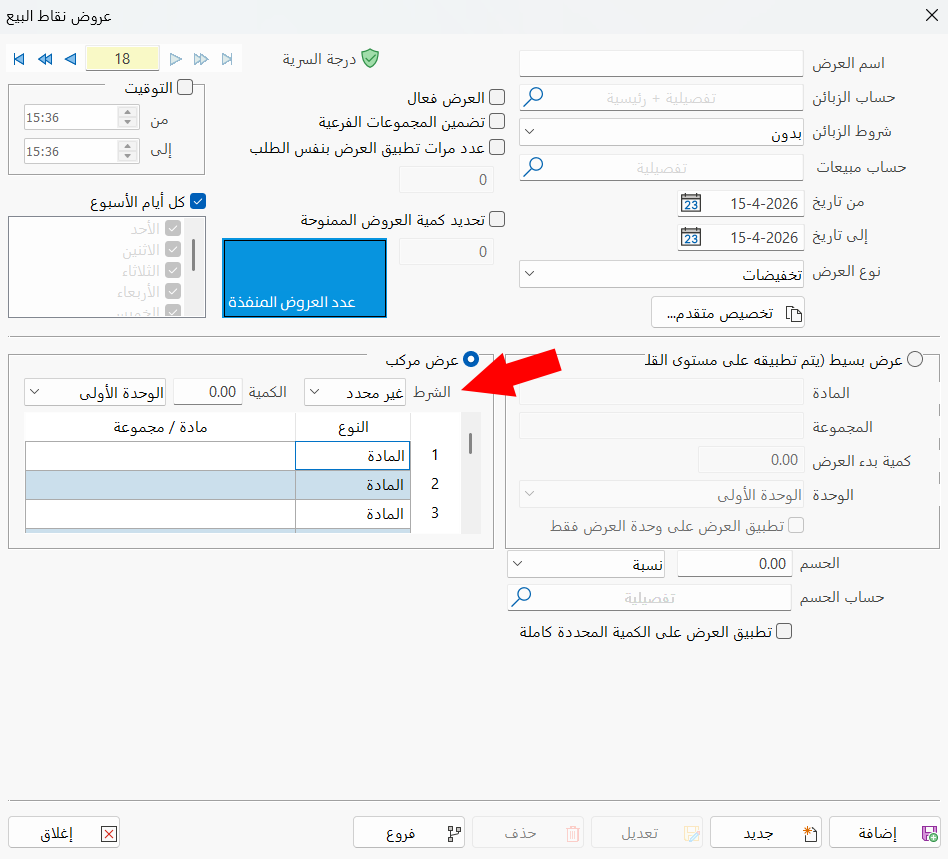
How to use the fields of the table is explained under "Condition" above.
Discount/ Materials
The contents of this part of the POS special offer card change with the offer type, as follows:
Price-off Offer Type
By default, the card uses the "Price-off" offer type, and provides fields for entering the value or percentage the customer gets when the offer condition is met in their order. The fields are used as follows:
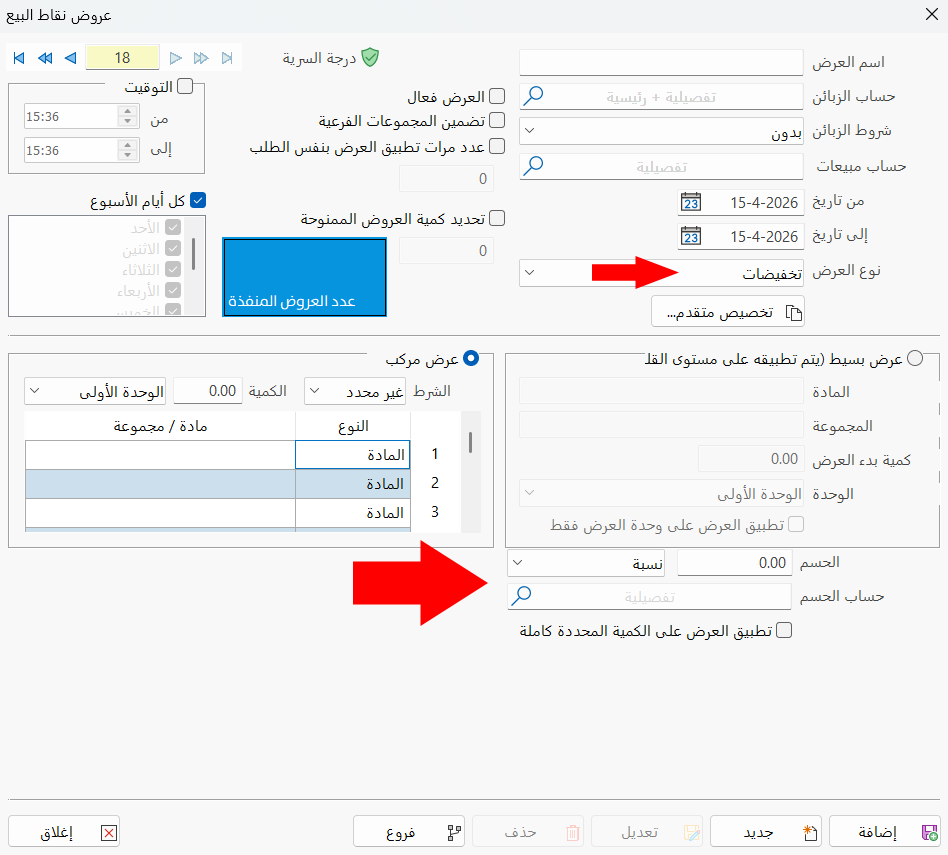
- Discount
Enter the number that matches your choice in the adjacent field: if you choose "Percentage", type the percentage deducted from the order value; if you choose "Value", enter the fixed value deducted from the total value of the order that meets the condition.
- Discount Type
Choose the type of discount you want to apply to the orders that meet the offer condition: the field opens a list that contains Percentage or Value.
After choosing the discount type, enter the suitable number in the adjacent "Discount" field.
Grant Materials Offer Type
The contents of the POS special offer card change when you choose the "Grant materials" offer type, as follows:
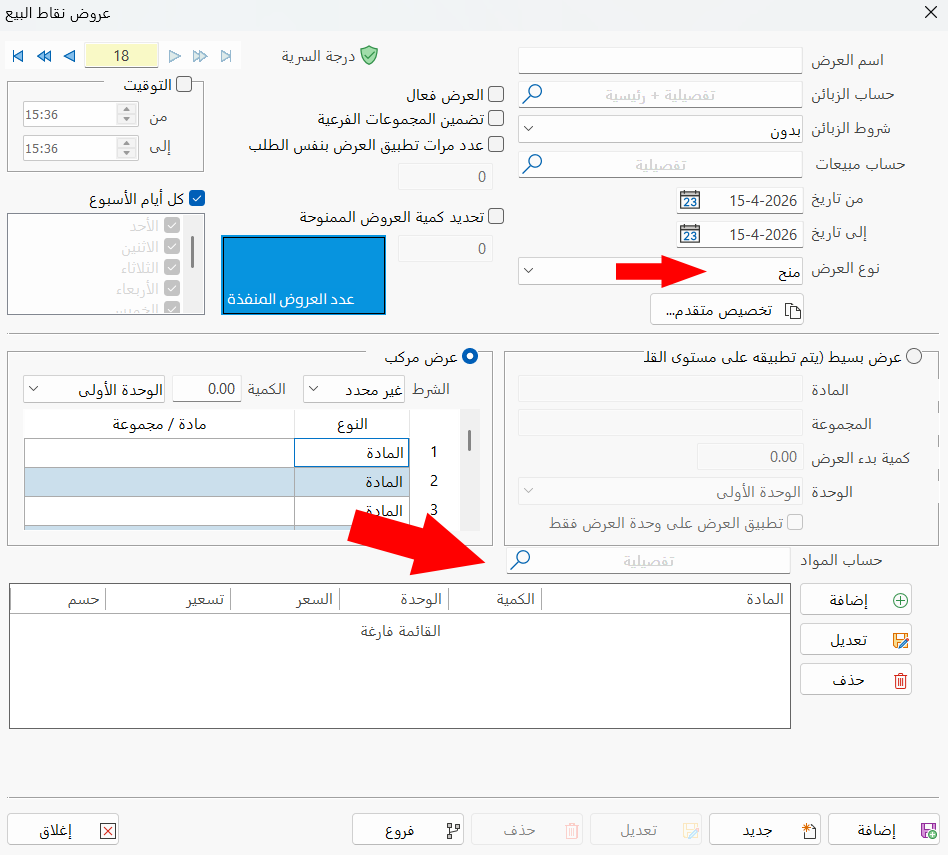
- Add
Click this button to add the material you want to grant to the order that meets the offer condition. After you click the button, the "Offer Material" window opens as follows:
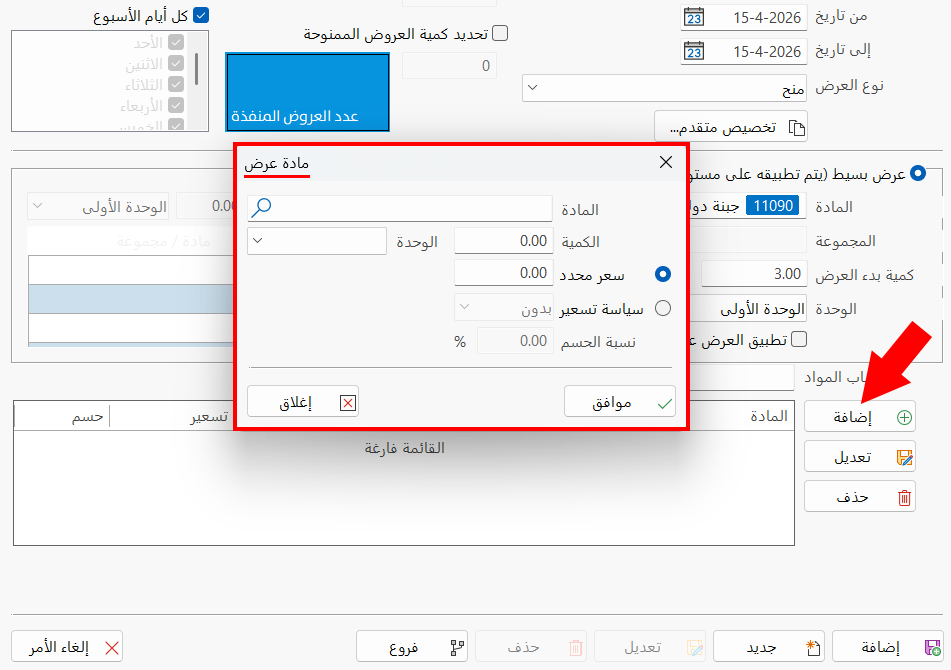
Enter the name/code of the material in the "Material" field, then set the granted quantity and its unit. You can grant it at a price different from its sale price (enter the price in the "Specified Price" field, or leave the field at 0 to grant it free), and you can apply a specific pricing policy to it by enabling the "Price Policy" option and choosing the suitable policy from the list. Note that you can choose either "Specified Price" or "Price Policy".
After you click "OK" in the "Offer Material" window, the material is listed in the materials table.
- Modify
You can modify the materials you want to grant, which are the materials in the materials table: after you click the material's row in the materials table and click "Modify", the "Offer Material" window opens so you can modify the fields you want.
- Delete
You can delete the materials you want to grant in the offer, which are the materials in the materials table: after you click the material's row in the materials table and click "Delete", a message asks you to confirm deleting the material; click "Cancel" to go back, or "Delete" to confirm deleting the material.
- Materials Table
The table shows all the materials added with the "Add" button, which are the materials granted to the order that meets the offer conditions.
Examples of Adding POS Special Offers
The following are practical examples of adding POS special offers in all cases:
Common Price-off Offer
After entering the main fields of the window (offer name, customer account, sales account, timing, all week days), making sure the "Active Offer" option is enabled, and choosing the "Price-off" offer type, the common offer is enabled by default in the window. We started entering the offer condition as follows:
Material name: Abu Al-Walad Cheese, Offer Start Qty: 3, Unit: First.
Then we set the price-off to apply to the order that meets the condition, a discount of 2%.
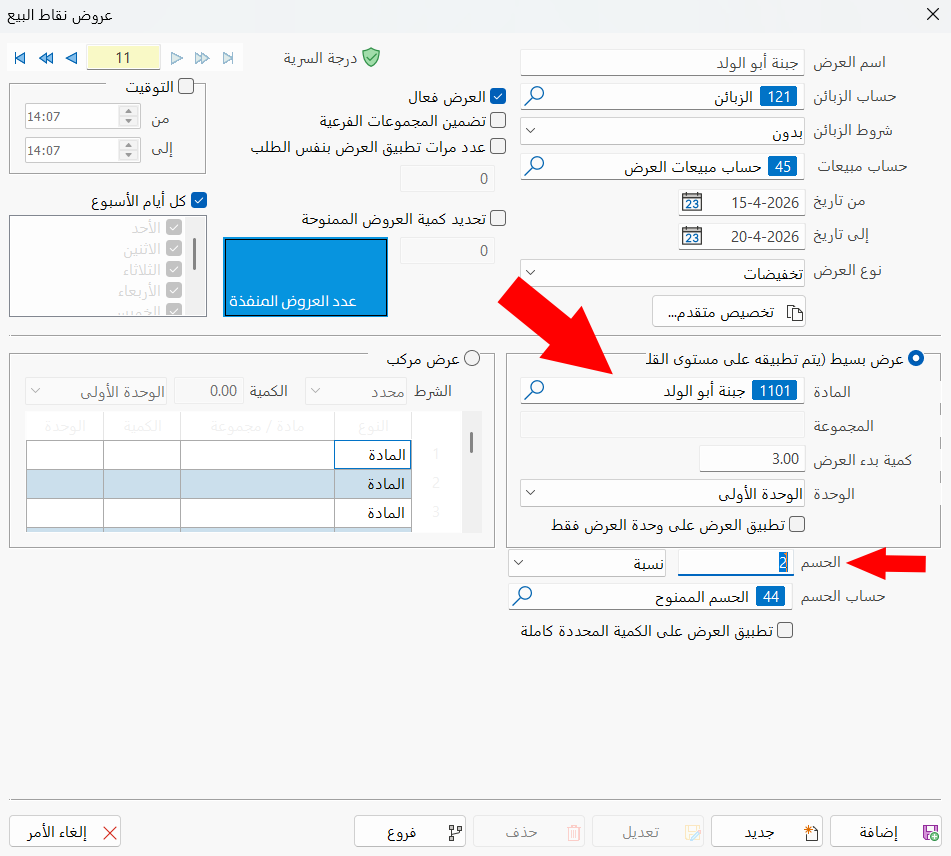
So when the order at the point of sale contains 3 or more cans (the first unit) of Abu Al-Walad Cheese, 2% is deducted from the item total.
Mixed Price-off Offer
You can add a mixed price-off offer in one of two cases, as follows:
Mixed Price-off Offer (Specified)
After entering the main fields of the window (offer name, customer account, sales account, timing, all week days), making sure the "Active Offer" option is enabled, choosing the "Price-off" offer type, and enabling the mixed offer, the default value of the Condition field is "Specified". We started entering the offer condition as follows:
First row: type "Group", group name "Cheese", quantity "2", unit "First".
Second row: type "Material", material name "Almarai Juice", quantity "1", unit "First".
Third row: type "Material", material name "Al-Naseem Tea", quantity "1", unit "First".
Then we set the price-off to apply to the order that meets the condition, a discount value of 100.
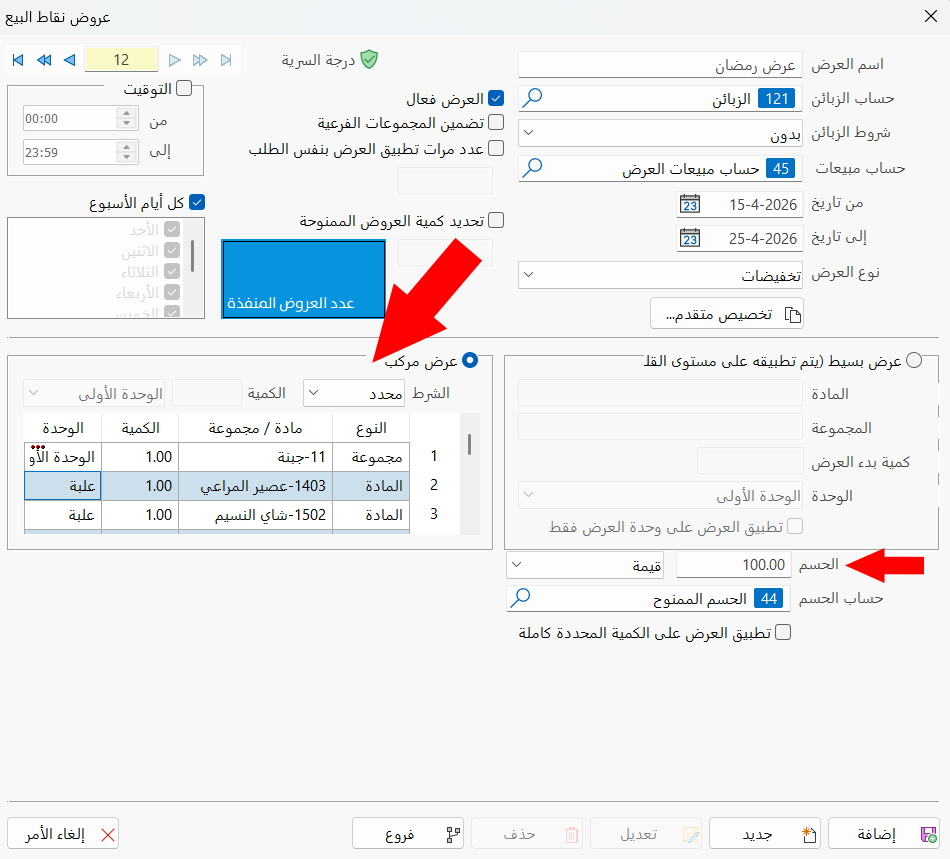
So when the order at the point of sale contains two or more materials (first unit) from the Cheese group, a can (first unit) of Almarai Juice, and a can of Al-Naseem Tea, 100 is deducted from the order total.
Mixed Price-off Offer (Unspecified)
After entering the main fields of the window (offer name, customer account, sales account, timing, all week days), making sure the "Active Offer" option is enabled, choosing the "Price-off" offer type, enabling the mixed offer, and choosing "Unspecified" in the Condition field, we started entering the offer condition as follows:
First row: type "Group", group name "Cheese".
Second row: type "Group", group name "Juice".
Qty field: 6.
Unit: First.
Then we set the price-off to apply to the order that meets the condition, a discount of 3%.
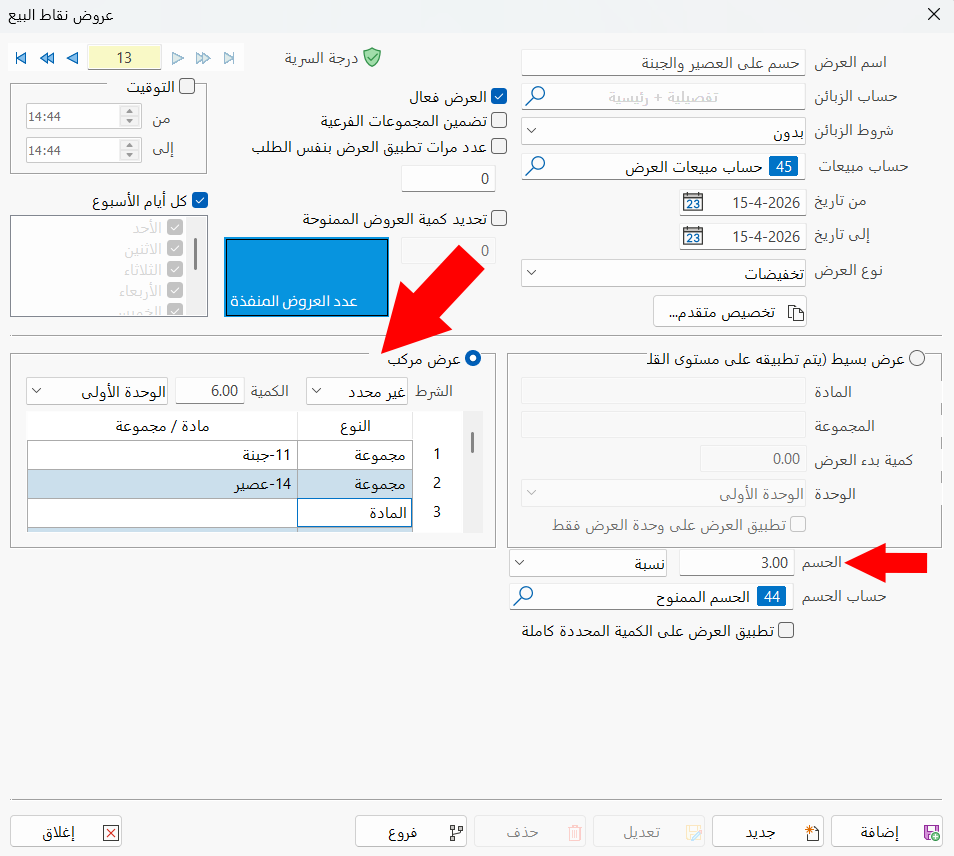
So when the order contains a quantity of "6" materials from the two groups or one of them, 3% is deducted from the order total.
Common Grant Materials Offer
After entering the main fields of the window (offer name, customer account, sales account, timing, all week days), making sure the "Active Offer" option is enabled, and choosing the "Grant materials" offer type, the common offer is enabled by default in the window. We started entering the offer condition as follows:
Material: Tania Ghee.
Offer Start Qty: 3.
Then we added the material "Al-Naseem Tea" with a quantity of "2" and a specified price of "0" in the "Offer Material" window that opens when you click "Add".
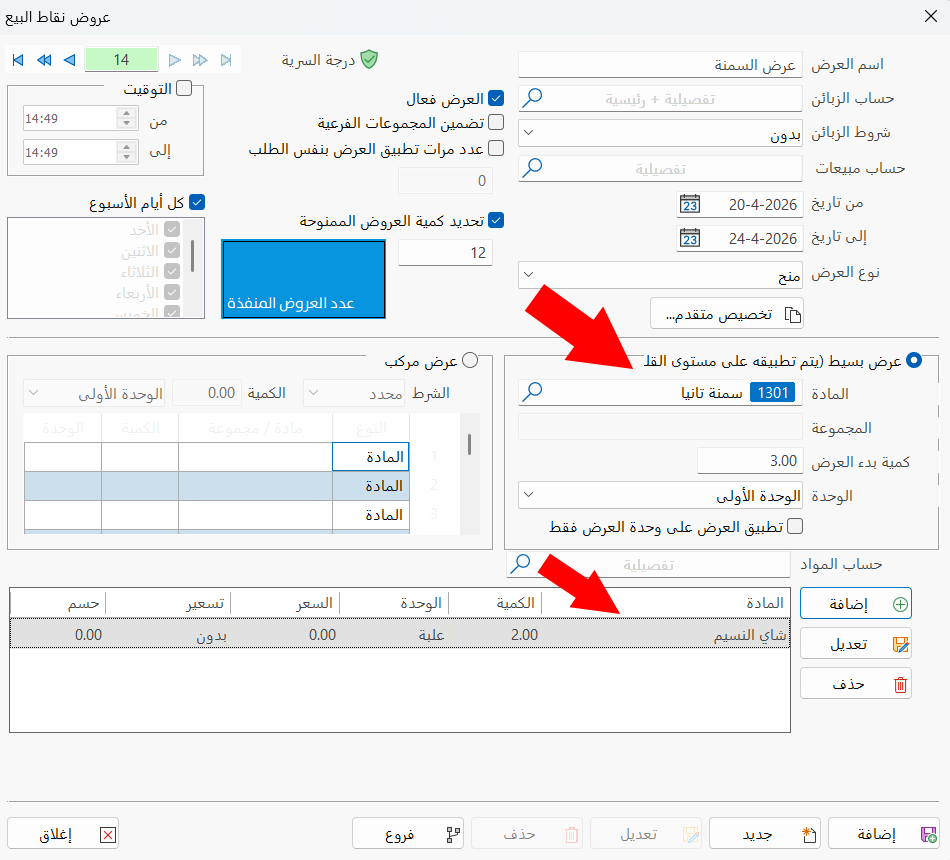
So when the order contains two cans of Tania Ghee, two cans of Al-Naseem Tea are granted free.
Mixed Grant Materials Offer
After entering the main fields of the window (offer name, customer account, sales account, timing, all week days), making sure the "Active Offer" option is enabled, choosing the "Grant materials" offer type, enabling the mixed offer, and choosing "Unspecified" in the Condition field, we started entering the offer condition as follows:
First row: type "Group", group name "Cheese".
Second row: type "Group", group name "Juice".
Qty field: 6.
Unit: First.
Then we added the material "Al-Hanem Ghee" with a quantity of "1" and a specified price of "0".
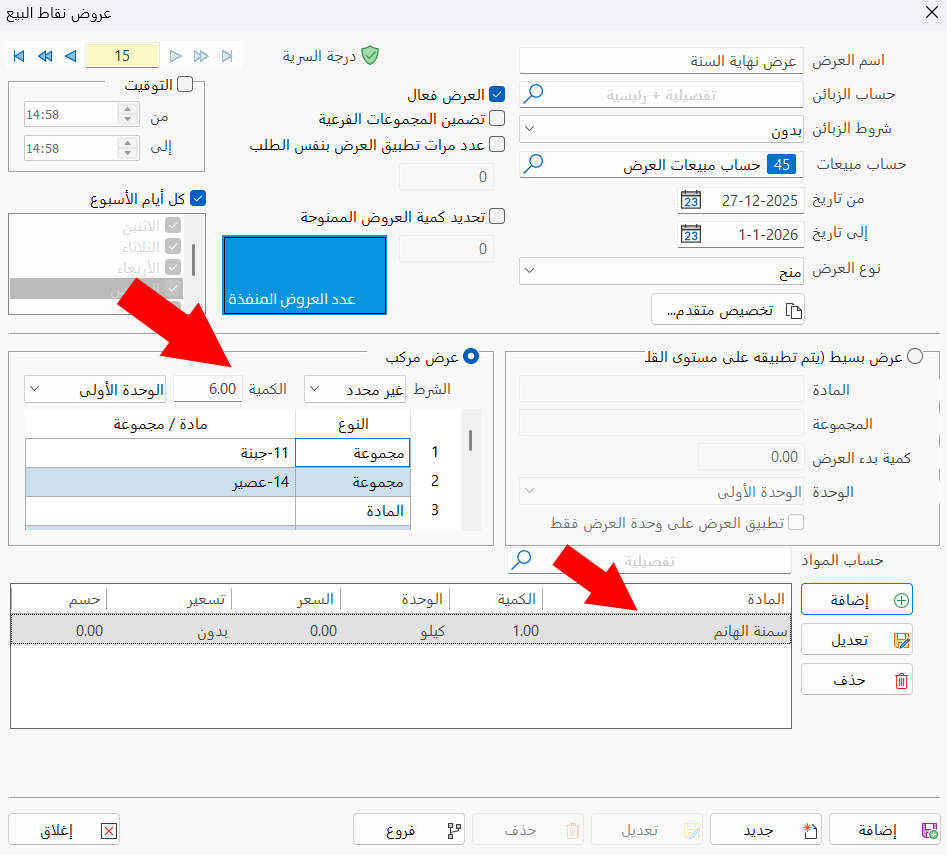
So when the order contains a quantity of "6" materials from the two groups or one of them, a can of Al-Hanem Ghee is granted free.