Loyalty Type Card
The loyalty type card sets the value of points and the grant condition from net sales, as well as the minimum and the redemption value of each point, when the charging method in the loyalty tier card is "From sales". You cannot use a loyalty card whose charging method is from sales without setting the type.
Define the loyalty type card after adding the loyalty tier card, because you will need to enter the tier in the loyalty type card.
Reaching the Card
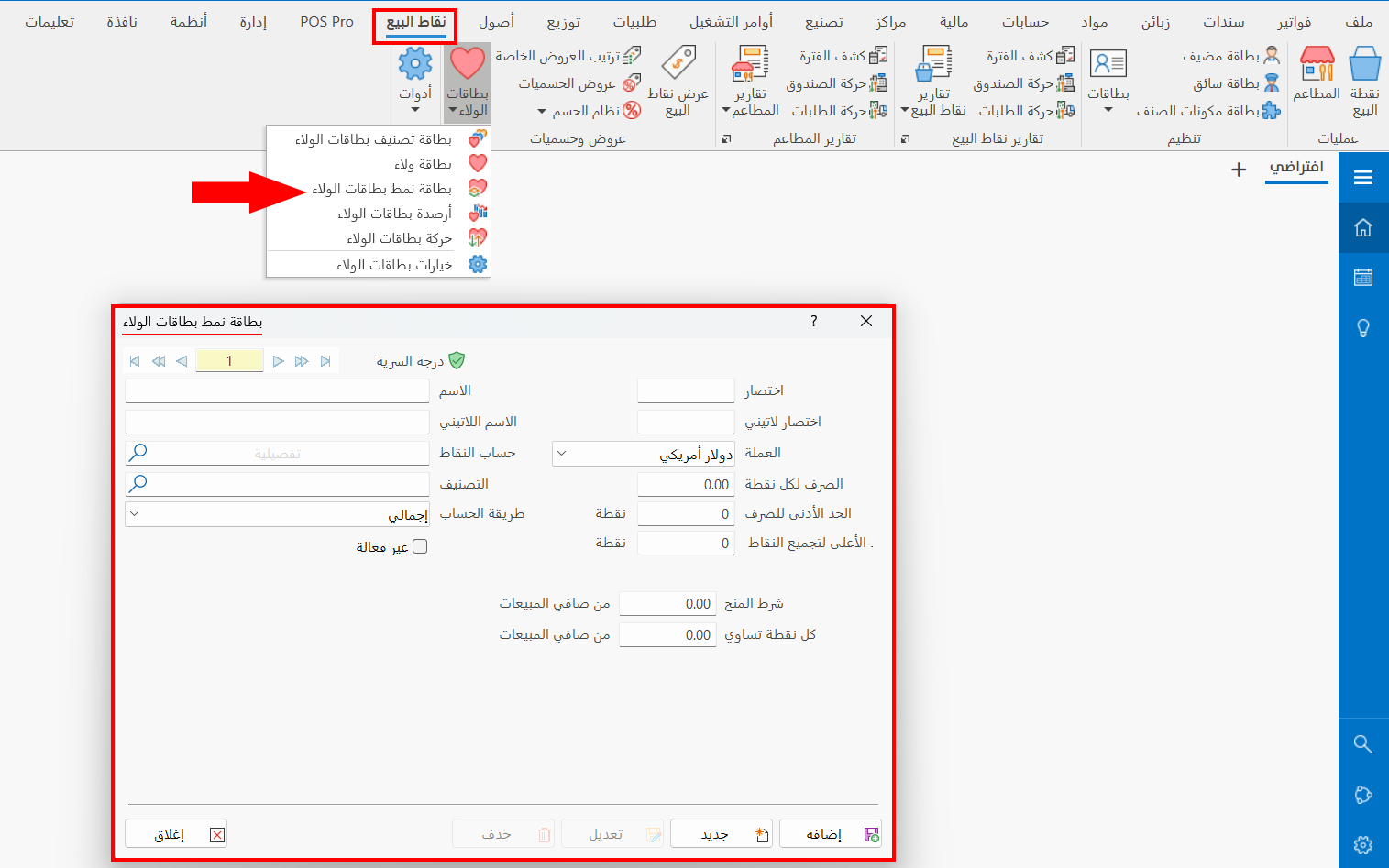
You can reach the loyalty type card from the main ribbon - POS tab - Offers and Discounts group - the drop-down list of the Loyalty Cards button.
After you click the button, the window appears as follows:
Contents of the Card Window
The loyalty type card window consists of the following fields:
Serial Number and Navigation Buttons
Please see Serial Number and Navigation Buttons.
Security Level
Please see Security Level.
Name
Enter the name of the loyalty card type you are adding (mandatory field).
Latin Name
You can enter the form name in another language.
Abbreviation
Enter the short name of the card (mandatory field).
Latin Abbr
You can enter an abbreviation of the Latin name.
Points Account
Set the account to which you want to charge the points; preferably the discounts account.
Enter the name/code of the account, or use the search icon in the field to select the account from the window that opens.
Tier
Enter the name of the tier you want to link to the current type; the charging method of the tier must be "From sales".
You can use the search icon in the field to choose the tier from the list that opens.
Currency
Choose the currency you want to use in the type from the drop-down list of the field; by default, the field uses the basic currency of the file.
Exchange for Each Point
Set the redemption value of one point of the invoice/order value: when the customer has collected a number of points on their loyalty card and wants to pay the invoice with them, each point is counted at the value you set in this field.
Minimum Limit to Redeem
The points balance on the loyalty card at which the customer can start using the card and redeeming points in orders and invoices.
Max Accumulated Points
The largest number of points customers are allowed to get and add to their loyalty cards.
Calculation Method
The contents of the window change to suit the calculation method. You can choose the calculation method from the drop-down list of the field, which contains the following options:
Total
With this calculation method, points are collected according to the total value of the invoice/order: the loyalty card holder gets points based on what you set in the following fields:
Grant Condition
Set the grant condition from net sales at which points start to be calculated: the minimum invoice value from which points are added to the card. For example, you can set the grant condition to 5000 of the order's net sales, so that points start to be calculated when the customer's invoice exceeds this value.
Each Point Is Equal To
Enter the amount of the invoice/order value that equals one point; points are then calculated by it once the order meets the grant condition.
By Materials Value
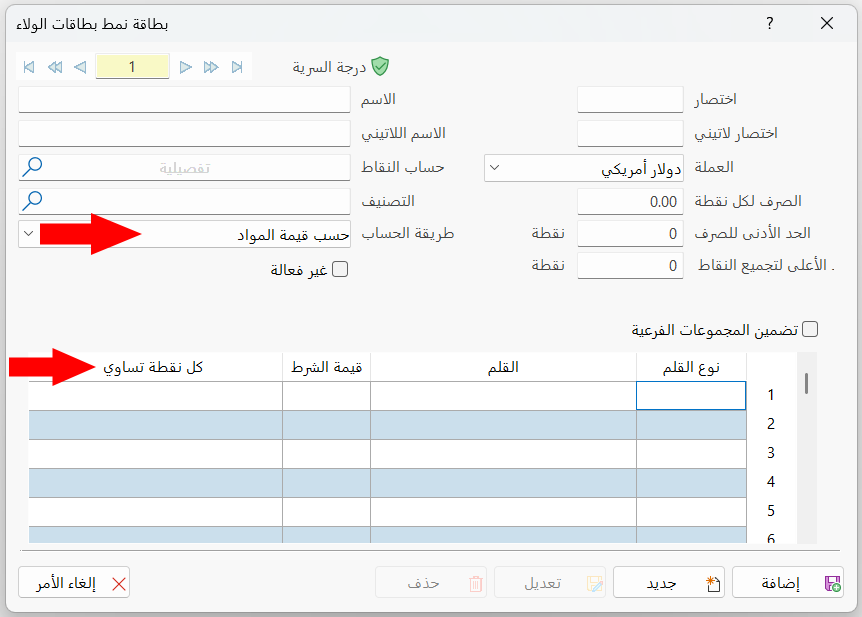
With this calculation method, points are collected according to the total value of each material in the invoice/order: the loyalty card holder gets points based on what you set in the fields of the following table:
Item Type
The field lets you choose a material or a group to apply the materials value condition to. To choose the type, double-click with the left mouse button: the item type list opens, containing: Material, Group.
Item
After setting the item type in the previous field, enter the name of the material/group you want to apply the condition to.
Condition Value
Enter the sales value of the material/group you want to apply the condition to.
Each Point Is Equal To
Enter the value of one point, according to which the card holder is given points.
You can choose more than one material/group to apply the condition to.
By Materials Quantity
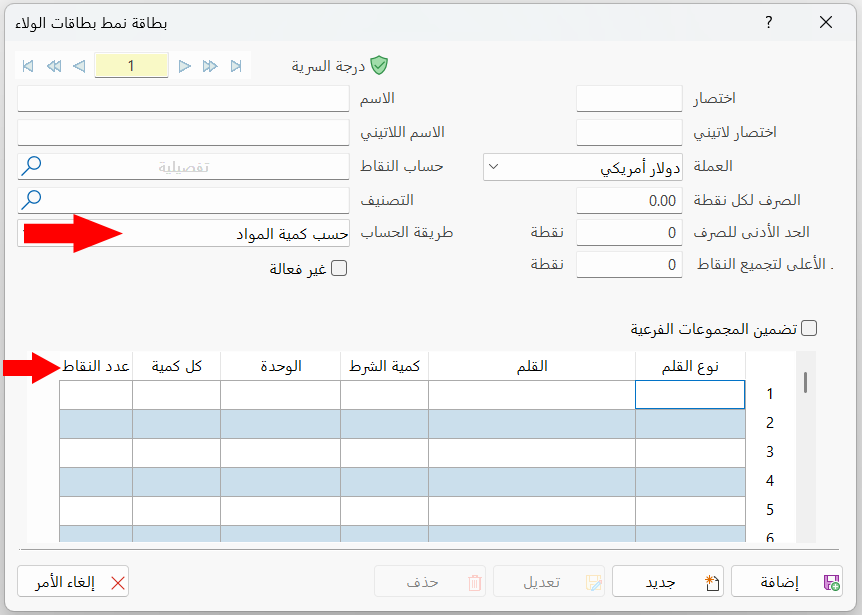
With this calculation method, points are collected according to the total quantity of each material in the invoice/order: the loyalty card holder gets points based on what you set in the fields of the following table:
Item Type
The field lets you choose a material or a group to apply the materials quantity condition to. To choose the type, double-click with the left mouse button: the item type list opens, containing: Material, Group.
Item
After setting the item type in the previous field, enter the name of the material/group you want to apply the condition to.
Condition Qty
Enter the quantity of the material/group you want to apply the condition to.
Unit
Set the unit of the item to which you want to apply the materials quantity condition.
Each Quantity Of
Set the quantity of the material that equals one of the points you give the card for meeting the item quantity condition.
Points Count
Enter the number of points you will give the card for the quantity set in the "Each Quantity of" field.
Inactive
Click the check box next to the option to deactivate the card and prevent its holder from using or charging it.
Standard Commands
Please see Standard Commands.