Loyalty Card
Loyalty cards build a long-term relationship between the company and the customer: the company rewards its customers for dealing with it continuously by giving them a loyalty card, that is, points given to the customer after each purchase to encourage repeat business.
Some restaurants also use them to set a certain meal allowance for the restaurant's staff: the loyalty cards are charged with monthly or yearly points that the employee can spend on free meals in the restaurant.
Stages of Adding a Loyalty Card
To reach the stage of giving a loyalty card to a customer or employee, follow these steps:
- First: add a loyalty tier card
This card sets how the loyalty card is charged; set the method that suits how the loyalty card will be used.
You can choose the "From sales" charging method to charge the card from what the customer buys at the point of sale or restaurant: points are given to the customer's loyalty card based on the quantity and type of their purchases (set the calculation method in the loyalty type card).
Or choose the "Automatic" charging method to give the points all at once in the loyalty tier card to be spent over a period (monthly or yearly), for example setting the number of points an employee can spend in the restaurant or point of sale during that period.
- Second: add a loyalty type card for the "From sales" charging method
When you choose the "From sales" charging method in the loyalty tier card, you must create a loyalty type card to set how points are calculated for this tier (total, by materials value, by materials quantity), and to set the limits for redeeming and granting points and the grant condition.
- Third: add the loyalty card
After adding loyalty tiers for the two charging methods "Automatic" and "From sales", and adding a loyalty type card for the "From sales" charging method, you can add a new loyalty card.
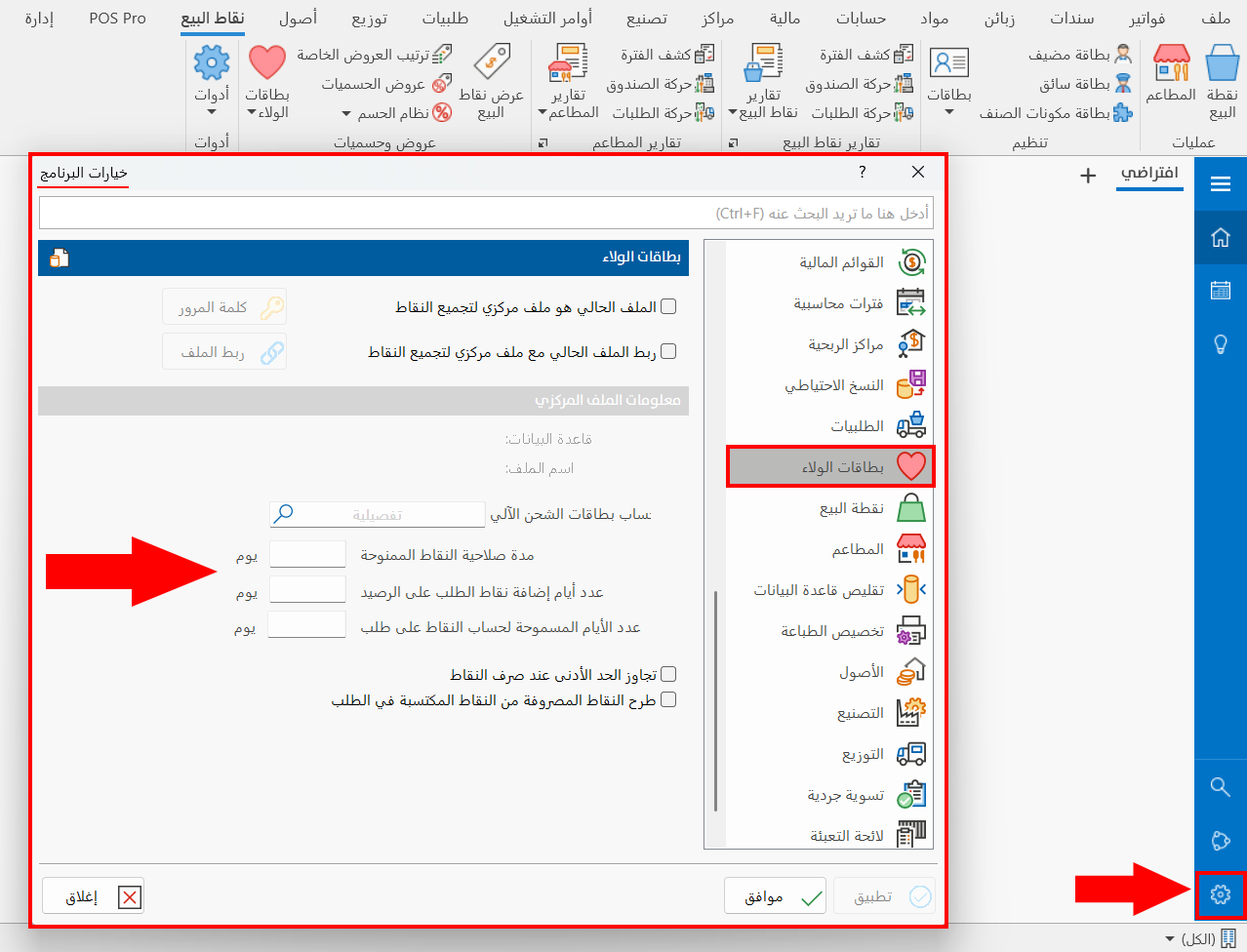
Make sure the "Use Loyalty cards" option is enabled in the Program Options window - Point of Sale/Restaurants tab - System Options button.
And add the auto charge cards account in the Program Options window - Loyalty Cards tab - Auto Charge Cards Account field.
Reaching the Loyalty Card
To add a new loyalty card, you can reach the loyalty card from the main ribbon - POS tab - Offers and Discounts group - the drop-down list of the Loyalty Cards button.
After you click the card's button, the window opens as follows:
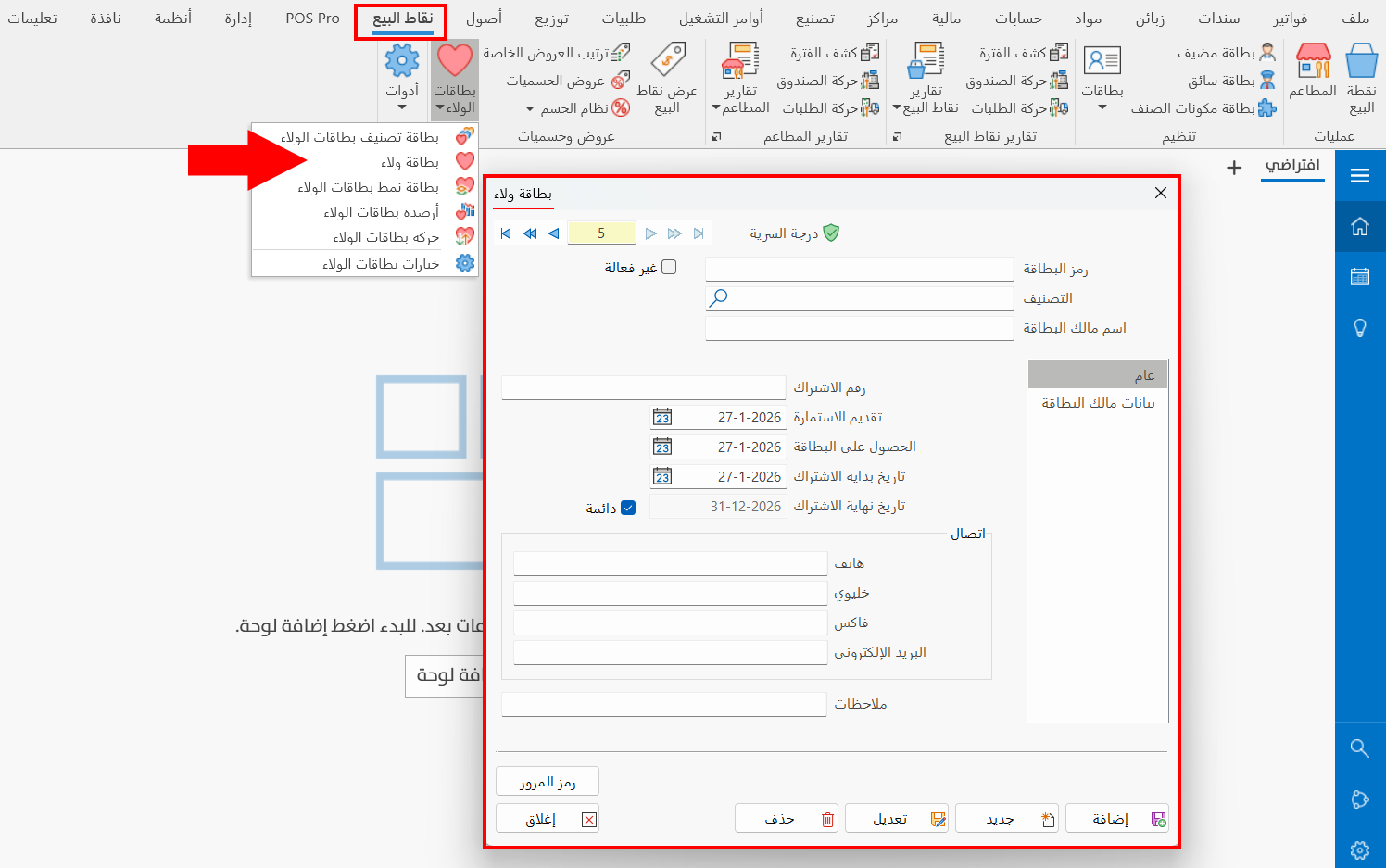
If you are a user with the permission, you can define a new loyalty card from the point of sale interface, after adding the "Loyalty Card" command to the commands bar.
Contents of the Loyalty Card
The card window consists of a set of main fields and tabs that you can use to define a new loyalty card:
Main Fields
The main fields always appear at the top of the card, for entering the card data:
Serial Number and Navigation Buttons
Please see Serial Number and Navigation Buttons.
Security Level
Please see Security Level.
Card Code
Set in this field the code of the loyalty card you are defining (this field is mandatory).
Remember the card code well, because you will be asked to enter it when you use the "Pay by Loyalty Card" and "Read Loyalty Card" commands in the point of sale or restaurant interface.

Tier
Enter the name of the tier you will use for the loyalty card you are defining, or click the search icon in the field to choose the tier from the window that opens, which contains all the tiers defined with the "Loyalty Tier Card".
When you use a tier that relies on the "From sales" charging method, make sure you have added a loyalty type card for it.
Cardholder Name
Type the name of the customer/employee to whom you are giving the loyalty card you are defining: it is better to set the name to make the card clearer.
Inactive
You can deactivate the card temporarily, without deleting it, by clicking the check box next to the option to enable it.
Tabs
The fields of the card are distributed over the following tabs:
General Tab
The tab contains fields for entering the card's information and validity:
Subscription No
Gives the card an organized subscription number that helps you see how many cards have been given so far (this field is mandatory).
Submission Date
Set the date on which it was decided to give the cardholder the current loyalty card. The program uses today's date by default; you can change the date by typing it or with the search icon in the field.
Card Acquisition Date
Set the date on which the card was given to its holder, which helps you set the validity end date more precisely. The program uses today's date by default; you can change the date by typing it, or with the search icon in the field.
Validity Start Date
Set the date on which the loyalty card becomes valid. The program uses today's date by default; you can change the date by typing it, or with the calendar icon in the field.
Validity End Date
This field is available after you disable the "Permanent" option, which is enabled by default. It sets the date on which the current loyalty card expires.
Permanent
This option is enabled by default in the card, so the loyalty card is valid permanently. You can disable it to set the validity end date and the time at which the card expires.
Contact
The card provides a set of fields for adding the contact data you want for the cardholder:
-
Phone
-
Mobile
-
Fax
-
E-mail
Notes
You can record additional information and details related to the cardholder.
Cardholder Info Tab
The card provides a set of fields for adding secondary information about the customer (the cardholder), including details of their residence and interests. You can type the data in the following fields:
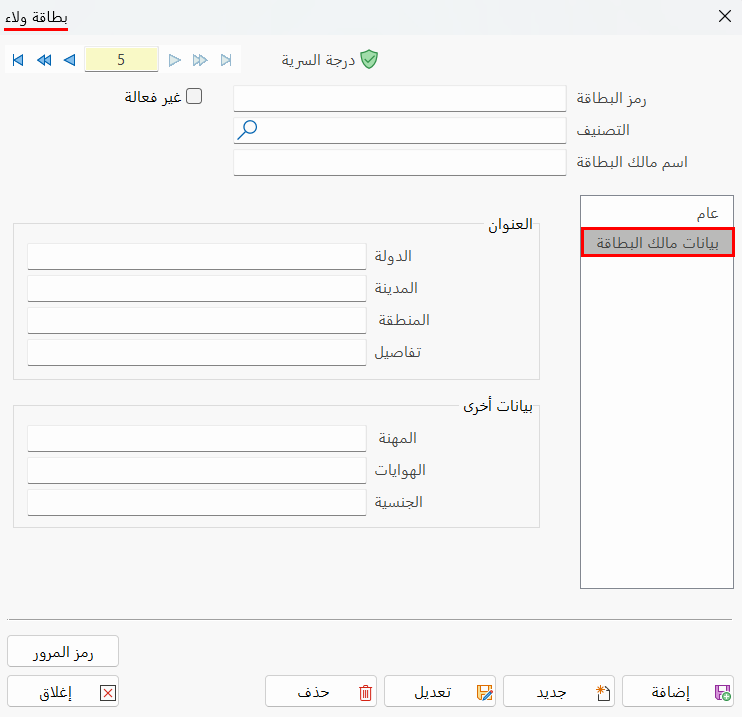
Address
You can write additional data about the address of the customer who holds the card in the following fields:
-
Country
-
City
-
Region
-
Details
Other Info
Add more information about the cardholder in the following fields:
-
Job
-
Hobbies
-
Nationality
Password
Set in this field the password of the loyalty card you are defining (this field is mandatory).
Remember the password well, because you will be asked to enter it when you use the "Pay by Loyalty Card" and "Read Loyalty Card" commands in the point of sale or restaurant interface.

Standard Commands
Please see Standard Commands.
Using a Loyalty Card at Points of Sale
After the card is defined and given to its holder, they can use it at the point of sale once you make sure of the following:
-
The Use Loyalty cards option is enabled.
-
The "Pay by Loyalty Card" command is added to the commands bar.
-
The "Read Loyalty Card" command is added to the commands bar, to check the card and see its balance.
Using a Loyalty Card in Restaurants
After the card is defined and given to its holder, they can use it in the restaurant once you make sure of the following:
-
The Use Loyalty cards option is enabled in the system options of the Restaurants tab - Program Options window.
-
The "Pay by Loyalty Card" command is added to the commands bar of the New Order window and the Modify Order window.
-
The "Read Loyalty Card" command is added, to check the card and see its balance.
Set the Loyalty Cards Options
You can control the loyalty cards options and set the validity of points on the Loyalty Cards tab of the Program Options window, for each of the following:
-
The validity period of the given points.
-
The number of days before an order's points are added to the balance.
-
The days allowed for calculating points on an order.