Department Card
The card defines the various departments of a point of sale: a point may contain a number of departments (foodstuffs, canned goods, detergents...).
You can open the department card from the POS tab on the main ribbon - "Settings" group - "Cards" button.
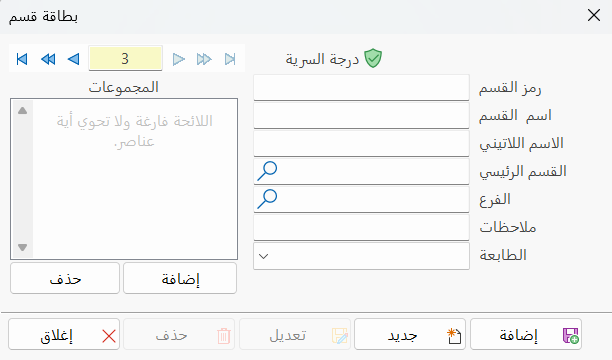
Once requested, it appears as follows:
Main Fields
The department card consists of several fields for adding all the information needed to define it as one of the departments in alameen ERP:
Card Number and Navigation Buttons
Please see Serial Number and Navigation Buttons.
Security Level
Please see Security Level.
Department Code
Each department has a distinct code: you can enter the code as numbers or as an abbreviation of the department (this field is mandatory).
Department Name
Type the name of the department you are defining a card for (this field is mandatory), for example: Foodstuffs Department.
Latin Name
You can enter the name of the department in another language.
Main Department
When you define a sub department, you must enter the main department that the department you are defining belongs to.
You can type the name or code of the department directly, or choose it from the department selection window that opens with the search icon in the field.
You must define a card for the main department before defining the sub department.
Branch
Enter the branch that the department you are defining belongs to, or look it up in the branch selection window that opens when you click the search icon in the field.
Notes
Enter additional information related to the department you are defining.
Printer
Set the printer to link to this department from the drop-down list, with the arrow in the field.
If the point of sale has several printers, you must enable the Multi Printers option in the Printers Settings window, which you can reach from the Program Options window - Point of Sale - Printers.
Groups
The list of groups is empty at first. You can add the groups that belong to the department you are defining with the "Add" button: the group selection window opens (it contains the groups defined earlier with group cards); search for the group, click it with the left mouse button, then click OK in the same window.
You can add more than one group, and you can delete a group from the list by clicking it with the left mouse button and then clicking "Delete".
Standard Commands
Please see Standard Commands.