Material Combinations
The combinations of a material are materials that share a name but differ in their properties. For example, if you want to define the material "Wool Sweater" in more than one color, you can avoid defining material cards for every color by adding combinations to the material named after all the available colors, so you get "Wool Sweater" in black, blue, red...
The material combinations window opens when you add the material to an invoice, so you can choose the combination of the material you want to use in the invoice.
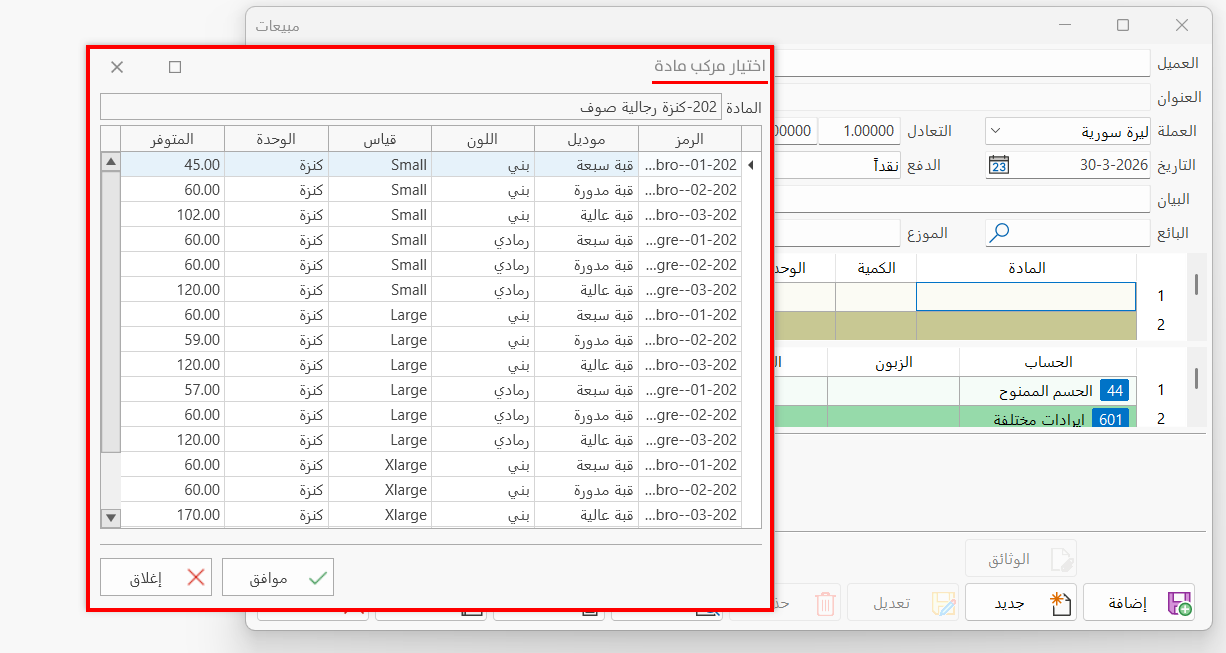
You can add combinations to a material by following these steps:
Enable the Material has Combinations Option
To define combinations for a material, you must first enable the "Material has Combinations" option on the material card - Options tab.
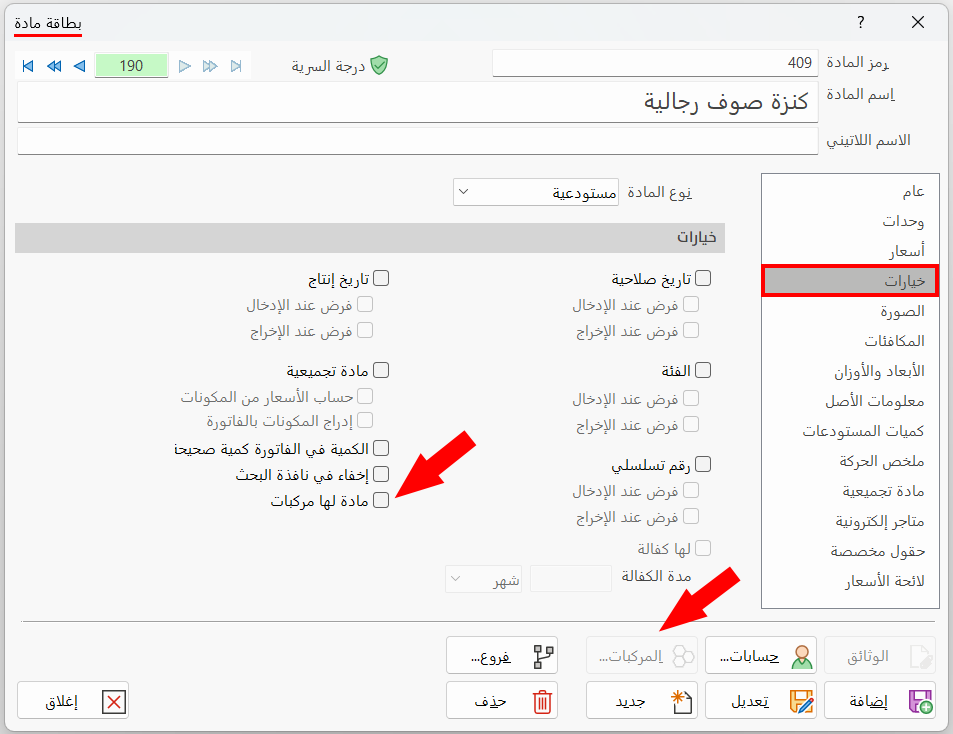
After you enable the option, the "Combinations" button in the material card becomes available.
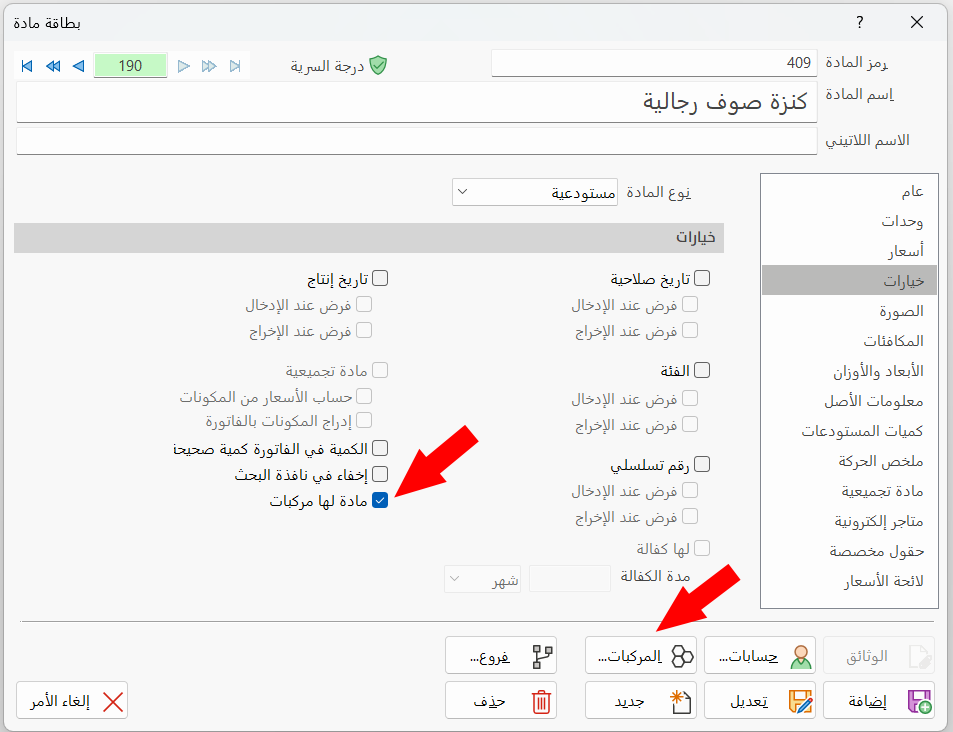
You must click "Modify" in the material card after enabling the option.
Define Material Combinations
You can start defining the combinations of the material with the "Combinations" button in the material card. After you click it, the following window opens:
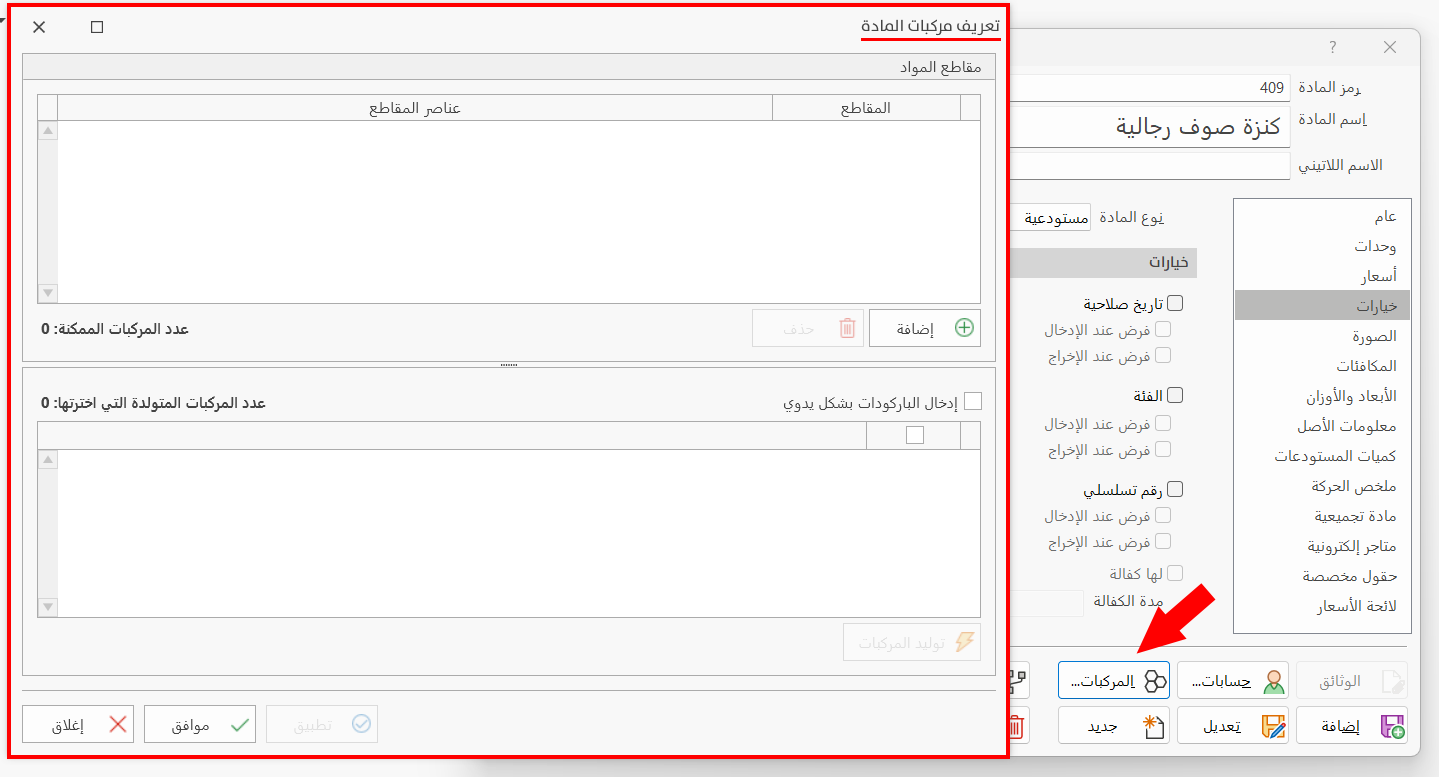
The "Define Material Combinations" window consists of the following:
Materials Segments Table
The table gathers the materials segments defined earlier and sets their elements: a material combination is made of several segments that you put together manually.
You can define materials segments from the main ribbon - Systems tab - Segments group - Define Segments.
To add one of the defined segments, click the "Add" button below the table; a row is added for choosing the segment and its elements.
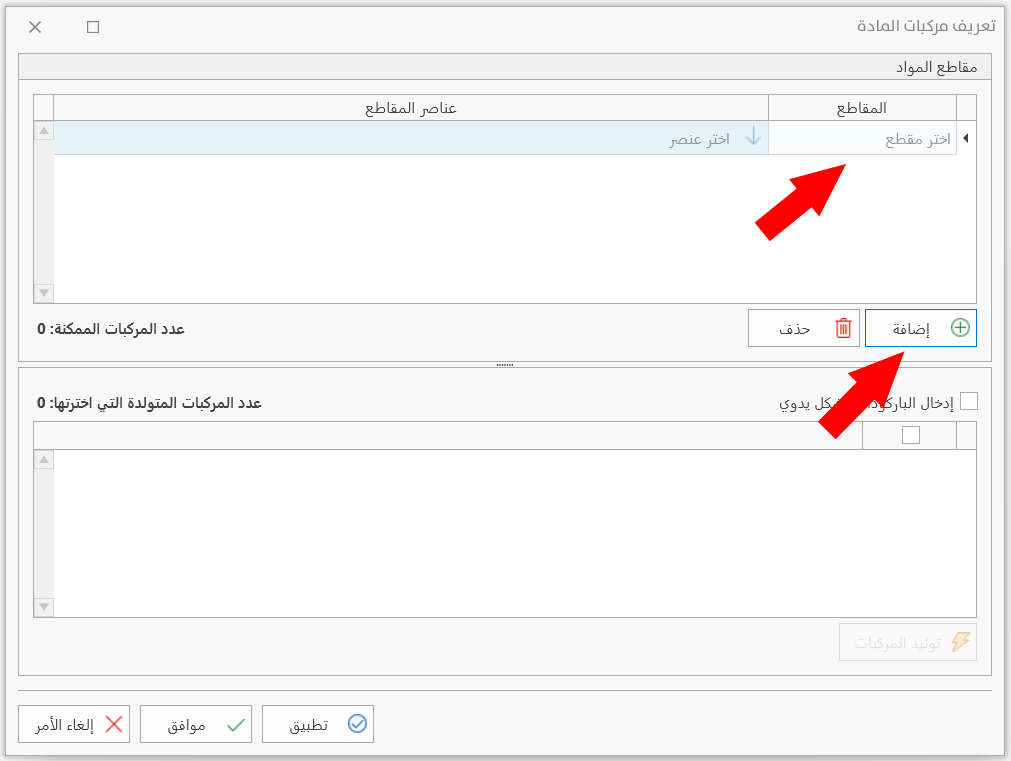
Choose the material segment you want from the drop-down list after clicking the "Segments" cell. After you choose it, you can set the elements of the segment by clicking the arrow in the "Select element" cell; you can add more than one element to the segment.
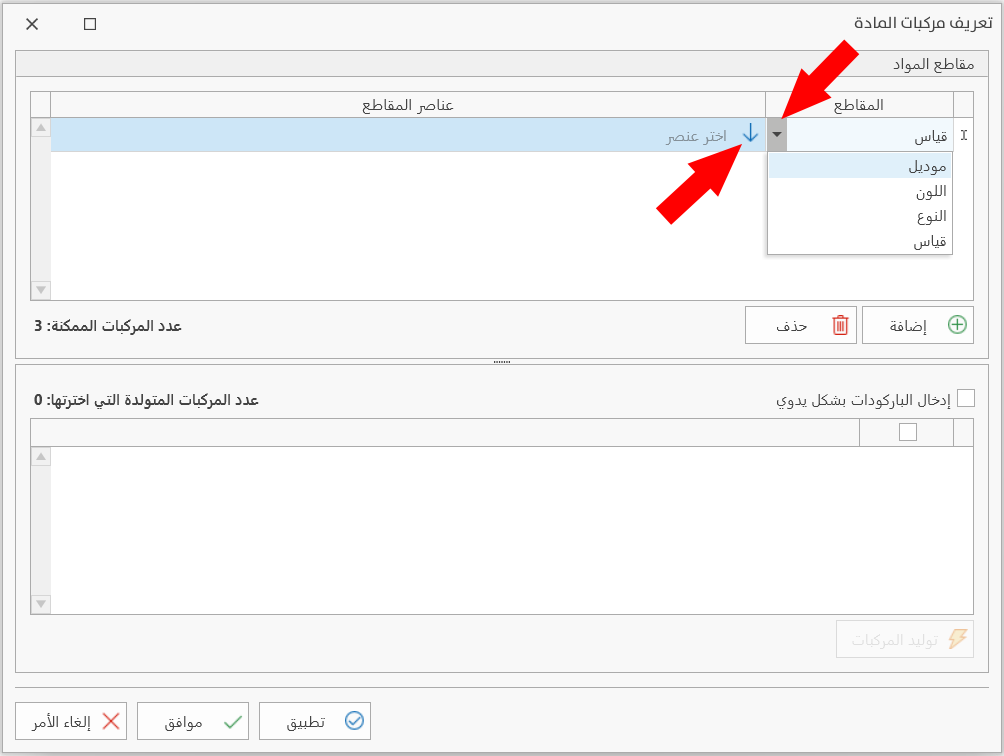
The table lets you modify the segments at any time: you can modify a segment and its elements, or delete the segment with the "Delete" button.
Generate Combinations
Generating combinations produces combinations that each contain a segment and only one element: when you choose a segment and add more than one element to it, a separate combination is produced for the segment with each of the added elements.
For example, when you add the "Color" segment with the elements "black, brown, gray, blue, red", the number of possible combinations is "5" (the number of possible combinations appears below the materials segments table), and combinations are generated for the material for each color (element) separately.
You generate the combinations by clicking the "Generate Combinations" button shown in the image.
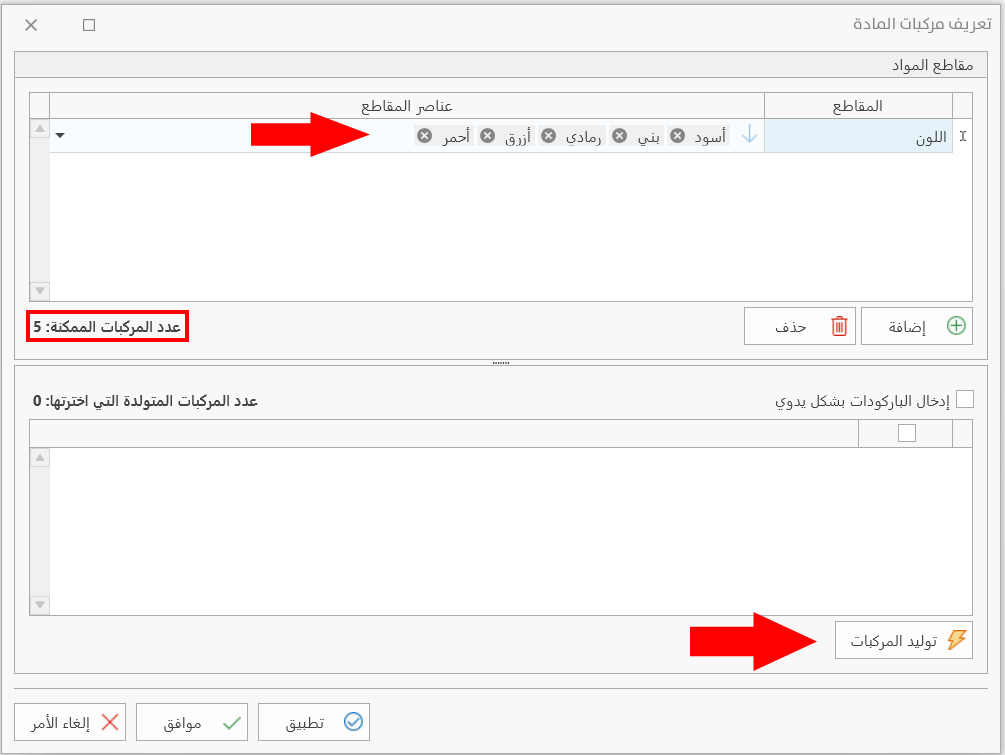
You cannot generate combinations when you add an empty row to the segments table.
After you click "Generate Combinations", the combinations of the material appear in the generated combinations table, so you can start choosing the ones you need.
Generated Combinations Table
After they are generated, the combinations are listed in the table so you can choose the ones you need: click the check box next to each combination you want to add to the combinations of the current material.
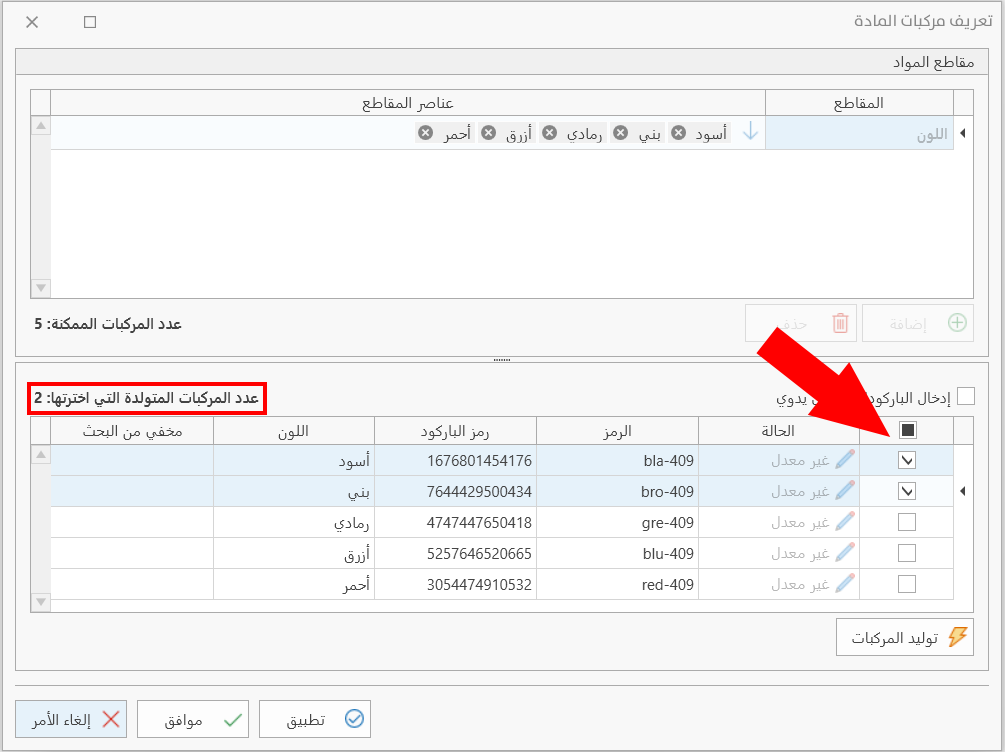
The table shows the information of each combination: status (not modified, modified), code, barcode, color, size...
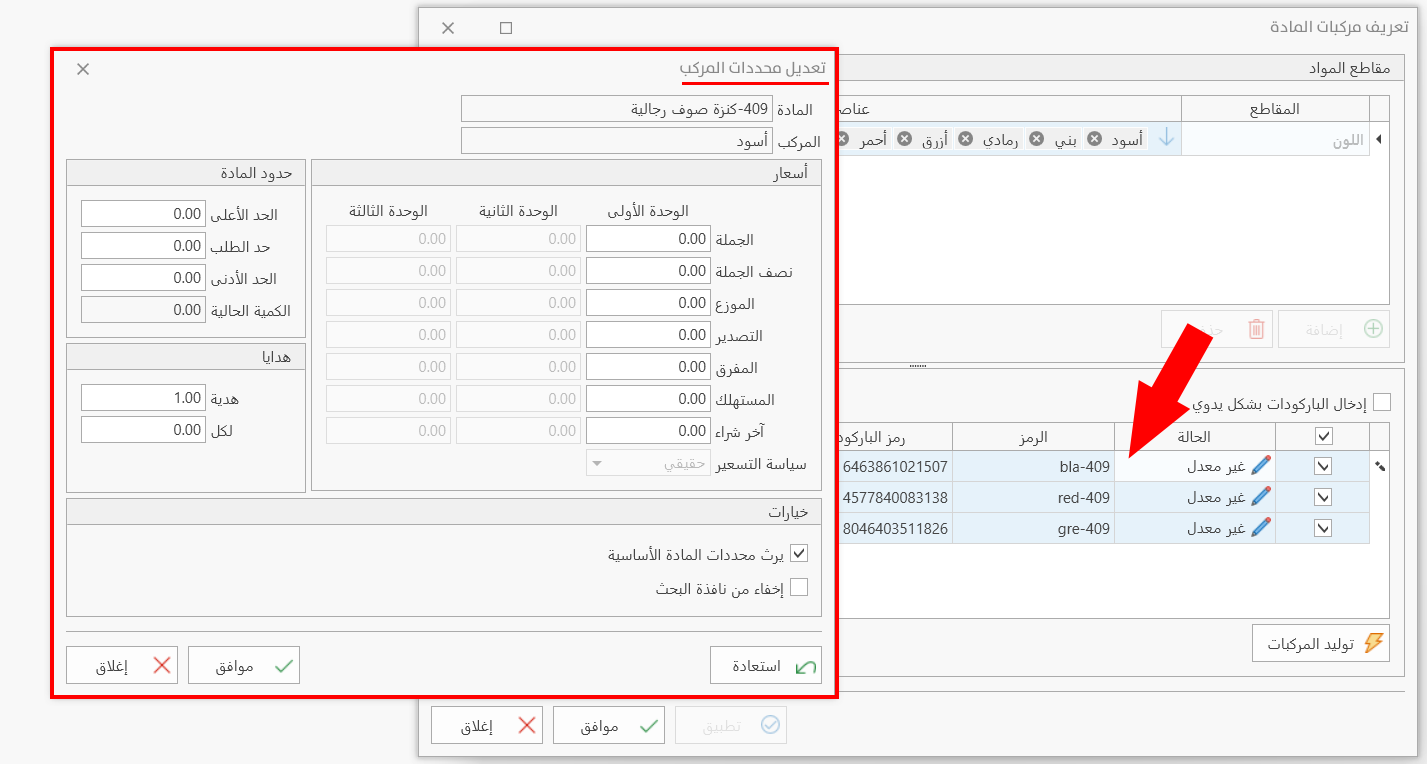
Clicking the status of a combination (after it has been applied and saved as a combination of the material) opens the "Modify Combination Data" window, where you modify the prices of the combination's units, the material limits, and the gifts.
Apply
You can make the selected combinations part of the combinations of the current material by clicking "Apply" in the "Define Material Combinations" window.
Insert Barcodes Manually
By default, the program adds a barcode to the generated combinations. You can modify it and enter a different barcode by enabling the "Insert barcodes manually" option and entering it in the "Barcode" cell of the combinations table.
Save the Material Combinations
After selecting the generated combinations you need, click "Apply".
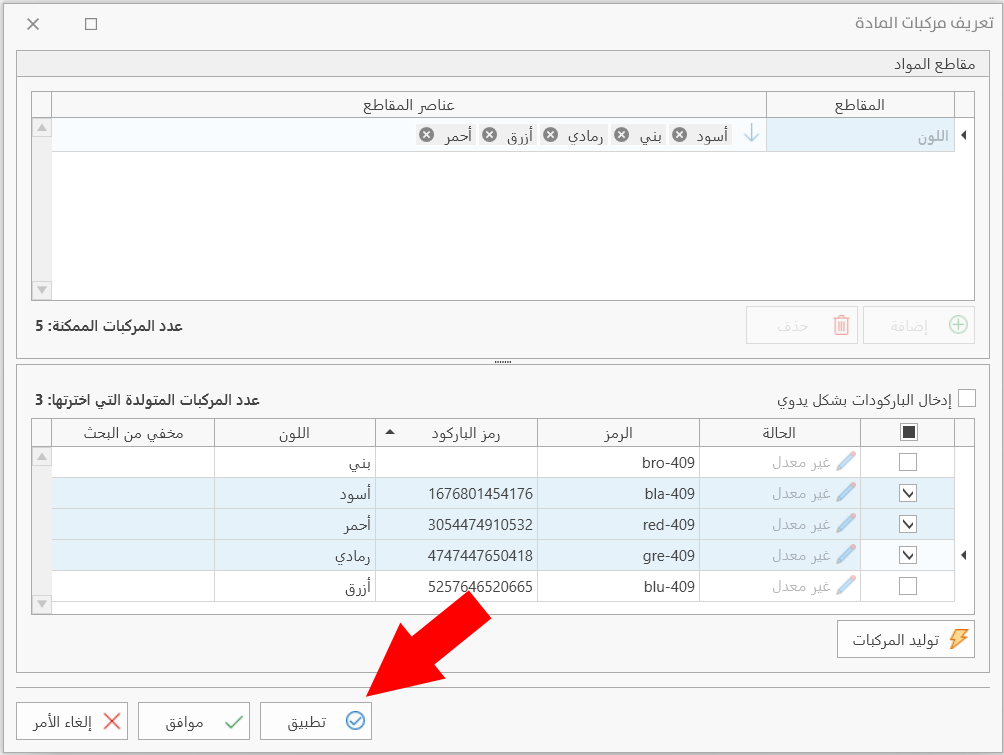
Only the selected combinations remain in the table; click "OK" to save them, and the combinations are added to the material.
After you finish adding the combinations of the material and close the "Define Material Combinations" window, clicking the "Combinations" button in the same material card shows the added combinations, and you can modify the elements of the segments.
You can also generate new combinations, but you must first delete the previous combinations (if they have not been used yet), add the segments and their elements again, and generate the combinations.