Material Card - Units
The Units tab contains a number of fields for defining the default unit of the material that you use in purchase and sale operations, and for defining additional units and the conversion factor between them, as well as setting the material limits and gifts.
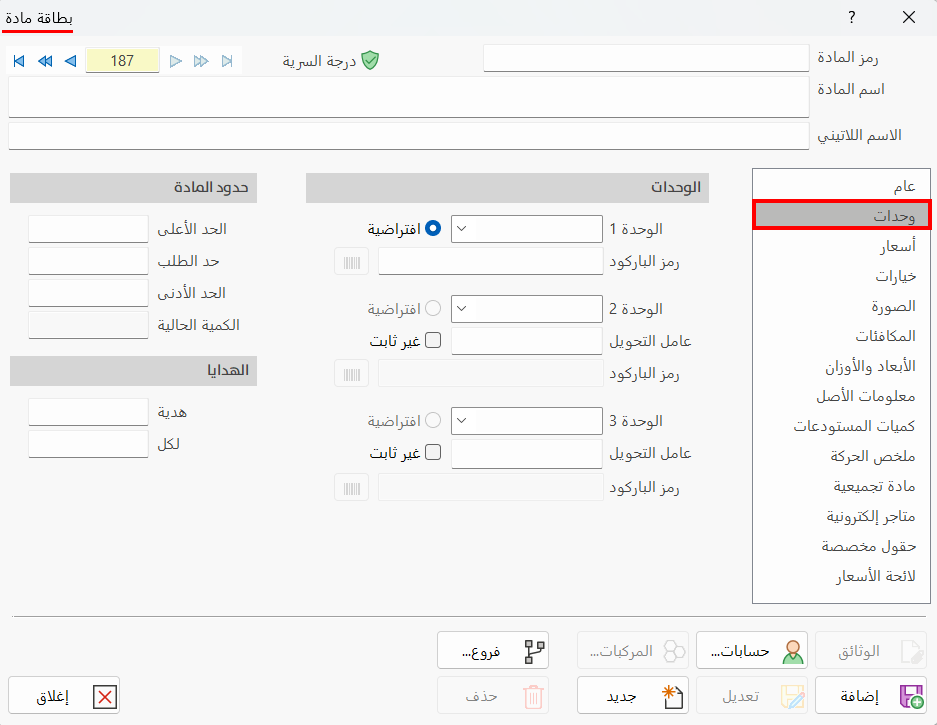
You can define the units with the following fields:
Unit 1
Enter the unit of measure of the material (gram, can, piece, bottle...). This field is mandatory.
Unit 2/ Unit 3
Define additional units for the material in the Unit 2 and Unit 3 fields (kilogram, box, dozen...).
Conversion Factor
Enter in the Conversion Factor field next to the Unit 2 field the amount of the conversion to Unit 1. For example, when you define Unit 1 as "kg" and Unit 2 as "Ton", the conversion factor must be "1000", since 1 ton in kilograms = 1000 kg.
When you change the default unit in the card of a material on which some sale and purchase operations have already been carried out, the new default unit does not affect the previous operations; it is applied only to later operations.
Barcode
When you deal with materials that are read with barcode devices, enter the barcode of each unit of the material in the "Barcode" field.
The material card lets you add more than one barcode for a unit: click the button that is enabled after you enter the barcode in the field, then enter the barcodes in the fields of the "Barcode Alternatives" window that opens.
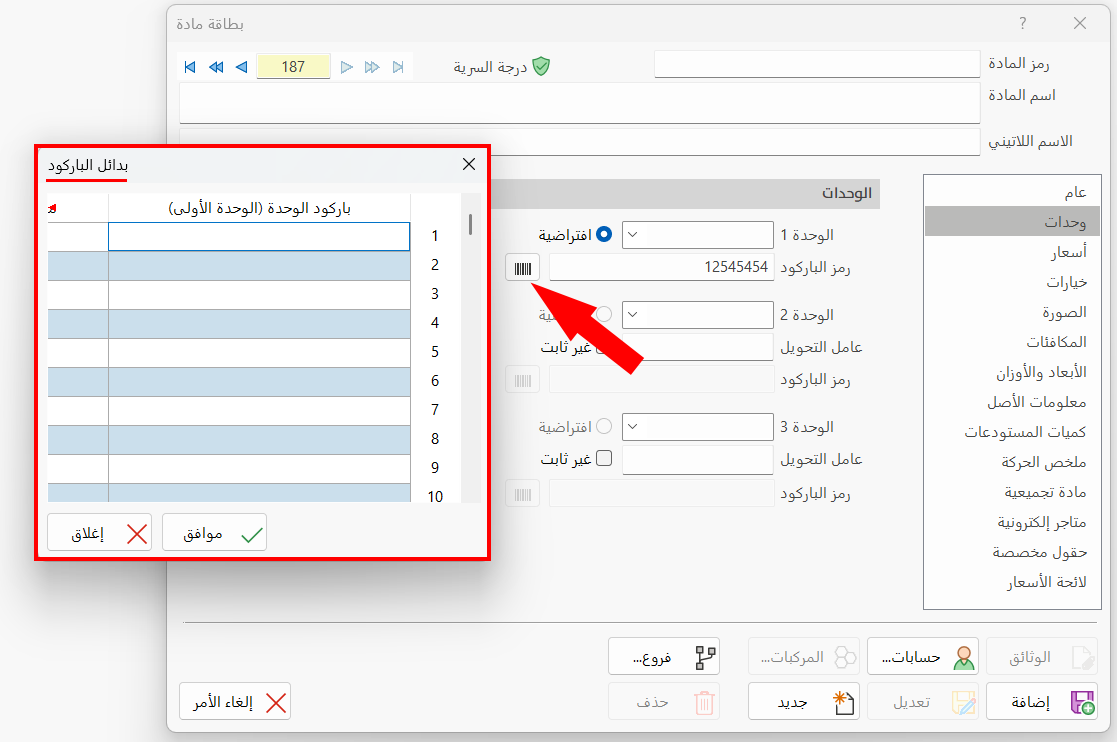
Default
Enable the "Default" option next to the unit you want to use in business operations on the material, such as sales and purchases.
Variable
Enable the "Variable" option if the conversion factor between the first unit and the second unit is not fixed, for example when the first unit is a piece and the second unit is a box.
Maximum Limit
Enter the maximum quantity of the material allowed in the warehouses. When the quantity of the material in a purchase operation exceeds this limit, the program shows a warning message that the material has exceeded the maximum limit. You can continue and store quantities above the maximum limit, and later see the materials that exceeded the maximum limit in the Materials Exceeded Limit report.
Re-Order Point
Sets a default for the quantity to order each time the available quantity runs out or reaches the minimum limit. You can later see the materials that fell below or exceeded this limit in the Materials Exceeded Limit report, by selecting the "Less than Re-order Point" option in the report window.
Minimum Limit
Enter the minimum quantity of the material allowed in the warehouses, also called the reorder level. When the quantity of the material in a sale operation falls below this limit, the program shows a warning message that the material has fallen below the minimum limit.
You can continue, and later see the materials that fell below the minimum limit in the Materials Exceeded Limit report, by selecting the "Less than Min Limit" option in the report window.
Current Quantity
The contents of this field change when business operations are carried out on the material: it is a read-only field that shows the current quantity of the material, in the first unit you set, in all the warehouses.
Gift
You can give a number of units of the material free in exchange for selling a specific number of units (or receive a number of units free in exchange for buying a specific number of units).
In this field you set the quantity of units you want to give (or will receive) in exchange for selling (or buying) the quantity set in the next field (For).
For
Set in this field the quantity of material units for which, if you sell/buy them, you will give/receive a gift item. For example, if you enter "10" in the For field and "1" in the Gift field, when you sell 10 pieces of any unit of the material, the customer receives one piece of the same unit as a gift.
The gift unit is the unit of the material in the invoice. That is, if this material has three different units: piece, box, ton, and you set "2" gift for every "10" units in the material card, the result is as follows:
- The gift given is (2) pieces when (10) pieces of this material are sold or bought.
- The gift given is (2) boxes when (10) boxes of this material are sold or bought.
- The gift given is (2) tons when (10) tons of this material are sold or bought.
You can use the "Convert gifts into discount" option in the Program Options window - Warnings tab when gift quantities come out as fractions.