Material Card - Picture
With the Picture tab of the material card, you can add one or more pictures to the card, and set a picture for each combination of the material.
Add Pictures to the Material Card
Click "New" to add a picture from the window that opens, choosing it from the right folder on the computer.
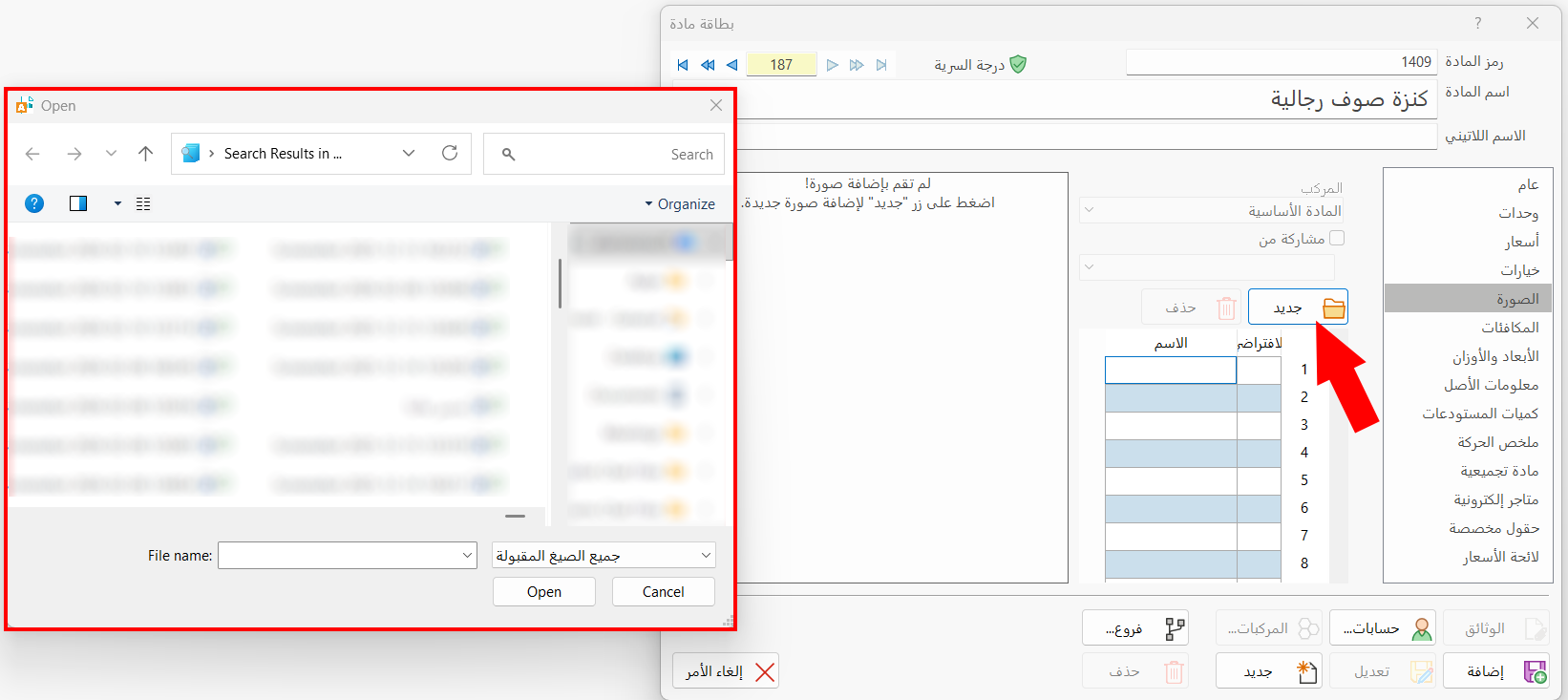
After you choose the picture, it is listed in the table directly, and the program keeps its name as it is on the computer.
To add another picture, click an empty row in the table, then click "New".
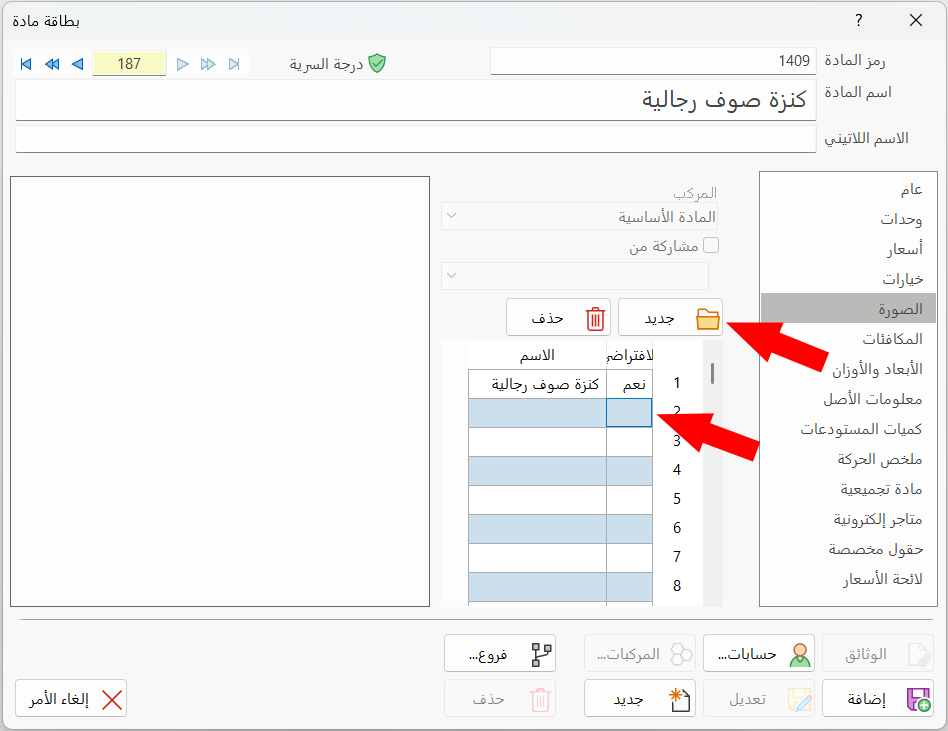
The program supports multiple pictures in the material card: you can add 100 pictures to each material card, keeping to the suitable picture formats to reduce the size of the database and prevent printing and memory problems.
alameen ERP keeps the added pictures in the program's database, so you can still reach a picture even if it is deleted from its original location on the computer or its path changes.
Set the Default Picture of the Material
You can choose a default picture for the material after adding more than one picture to the material card. The default picture is the one that appears first in the picture window, or on the materials buttons of the POS interface.
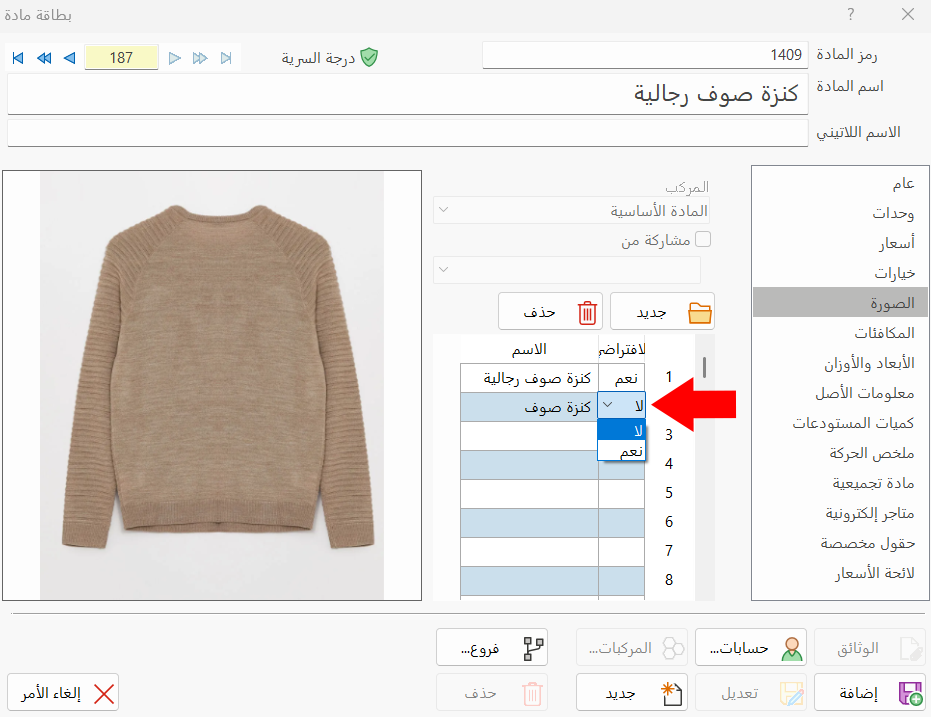
When you add a single picture to the material card, the program uses it as the default picture of the material, so you see the word "Yes" in the "Default" field of the picture's row in the table.
Note that you cannot save the pictures you add to the card without setting a default picture.
After adding the picture to the table of the material card, click in the Default field of the picture's row, then choose "Yes".
Add a Picture for the Material's Combinations
Combinations are the materials that belong to one basic material and differ from each other in size, color, or other properties related to the type of material. For example, in the material card "Men's Cotton Sweater", there are a number of combinations for colors and design (black L, black M...).
The "Combination" field is available on the Picture tab of the material card when the material has combinations, so you can set a picture for each combination separately.
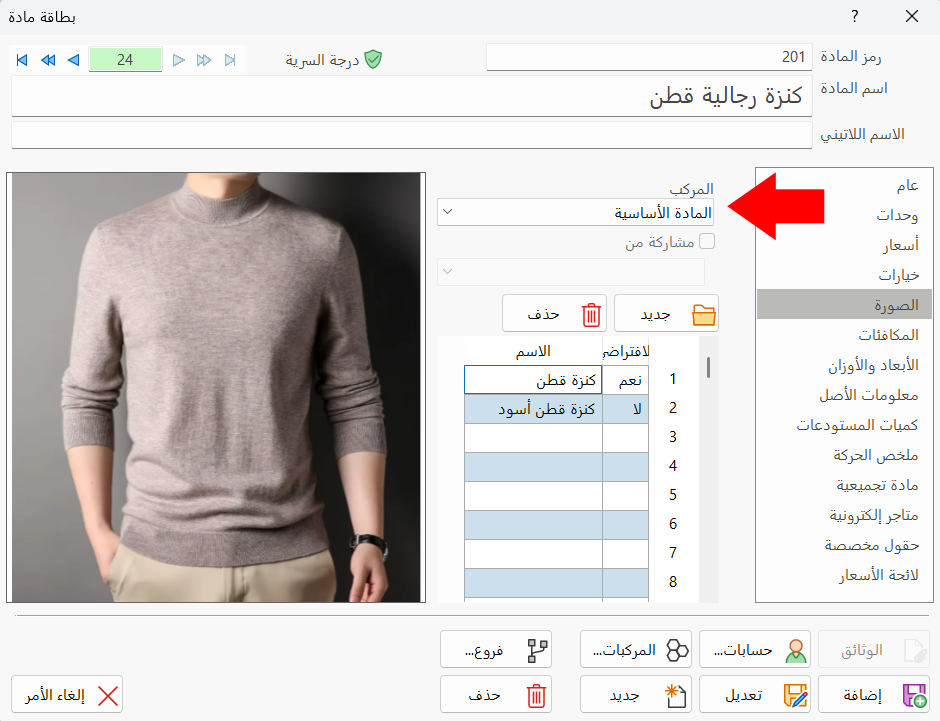
The Combination field opens a list of all the combinations of the material you added in the "Define Material Combinations" window. Click the combination you want to set a picture for, then follow the steps above to add one or more pictures for it.
The program lets you add more than one picture for each combination: after you choose the combination in the Combination field, the picture table of that combination appears, so the contents of the table change each time you change the combination in the field.
Share a Combination's Picture from Another Combination
You can use a picture shared by more than one combination: after adding the pictures of the combinations, you can choose a picture shared between the current combination (the one you choose in the Combination field) and another combination.
Choose the combination to which you want to add a picture from a different combination or from the basic material, then enable the "Share from" option; the field in which you choose the combination to share from becomes available.
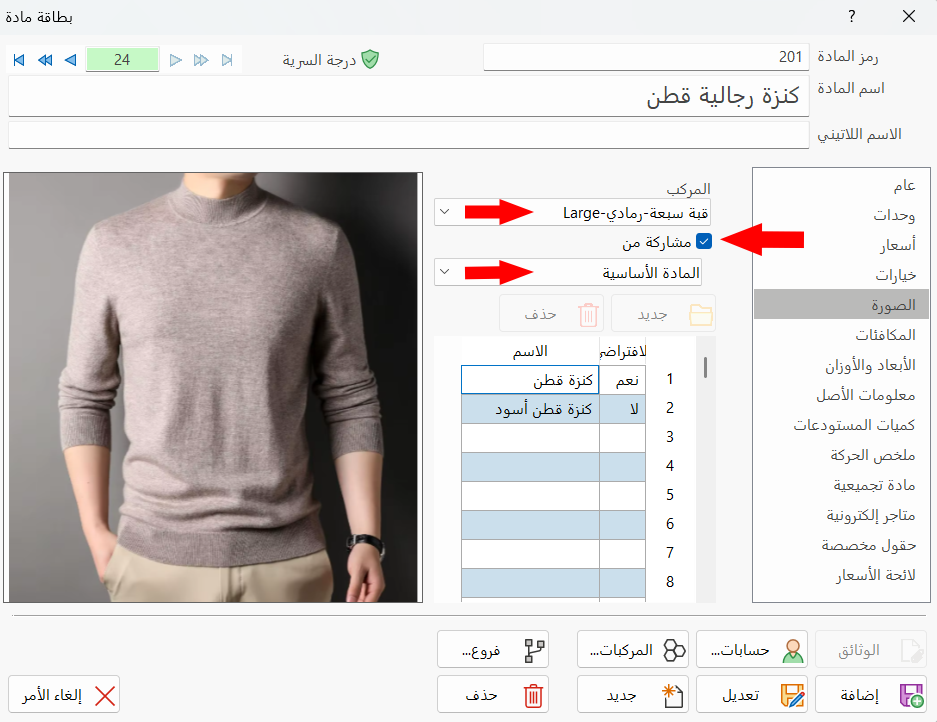
Choose the combination in the "Share from" field; all the pictures you added earlier for that combination appear in the pictures table.
In the example shown in the previous image, the picture "Cotton Sweater" was clicked in the pictures table of the basic material to share it with the combination "Crew neck-Gray-Large".
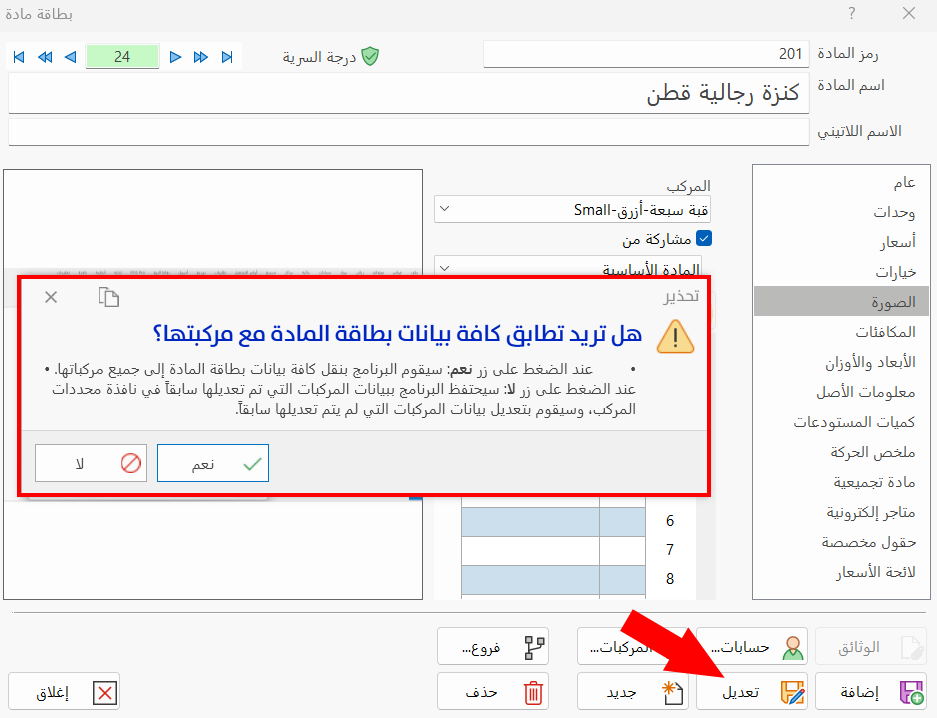
Click the name of the picture you want to share with the combination in the "Combination" field, then click "Modify" to complete sharing the picture; the following message appears:
Delete a Material Picture
You can delete one, several, or all of the pictures of a material in alameen ERP with the "Delete" button, after selecting the picture to delete.
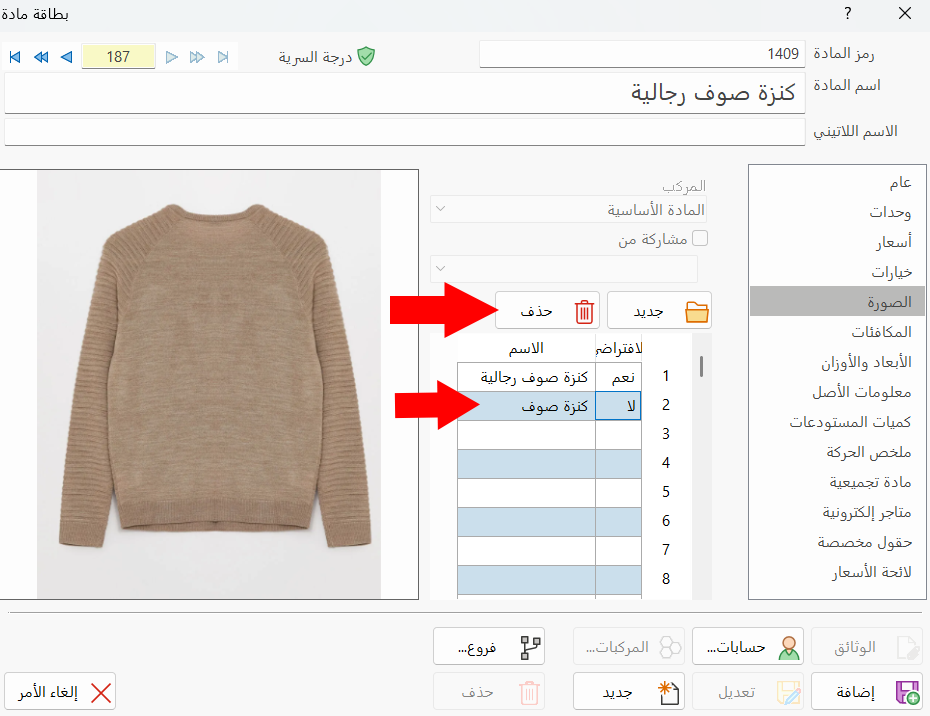
The program deletes the picture immediately without a confirmation message, so you must save the changes with the "Modify" button.