Material Card - Options
The material card provides a set of options that affect its contents: some tabs of the material card depend on enabling certain options on the "Options" tab. For example, you cannot add the components of a material before enabling the "Assembled Material" option.
After you open a material card, move to the "Options" tab; the contents of the card appear as follows:
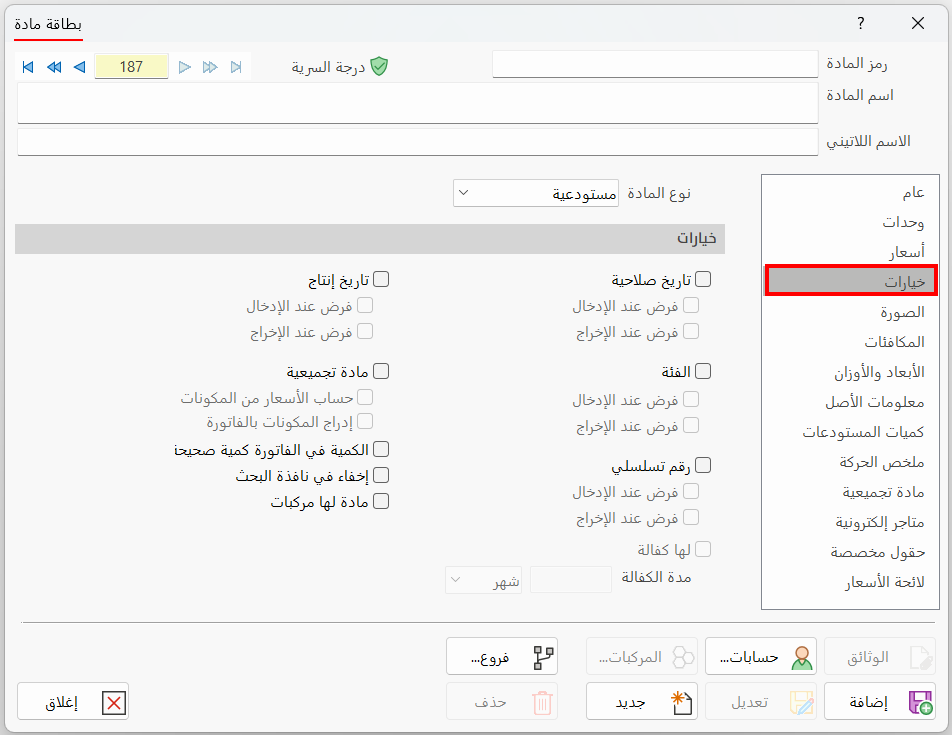
Material Type
Choose the type of the material you are defining a card for from the drop-down list of the field. The material type affects the movement of accounts such as inventory and assets. The list provides the following types:
Stock
Tangible materials that you can store, and buy in order to sell, such as clothes, foodstuffs, and ready-made household items. It is the default type of the card when you open it.
For example, if you want to define a card for the material "Women's Jacket" to buy it and then sell it in a clothes shop, the suitable material type is "Stock".
Service
You can use the "Service" material type to define the services you provide to customers, such as maintenance, installation, cleaning...
A service material does not affect the warehouses and has no specific units: when you choose it, the material limit fields (maximum, minimum, re-order point) and the current quantity field disappear from the "Units" tab of the material card.
Use the "Accounts" button in the material card to assign the accounts of the service material that move when invoices are issued: you can set the following accounts for all the invoices forms: materials, discounts, extras, gifts, gifts contra, cash.
Fixed Asset
A material of the "Fixed Asset" type is one of the fixed assets held for investment, not for sale, such as the cars you buy to transport goods, buildings, and tools.
When you choose the "Fixed Asset" material type, the "Serial Number" options for forcing the serial number on input and output are enabled automatically, and you cannot disable them.
Expiry Date
Enable this option so the program lets you enter the expiry date of the material, which helps you see the materials movement by expiry date.
You must show the expiry date field in the invoice windows, from the invoices forms - Table Fields tab, so you can add the expiry date of the material in the invoice rows.
You can force entering the expiry date of the material when issuing a purchase invoice by enabling the "Force on Input" option, and force entering the date when issuing a sales invoice by enabling the "Force on Output" option.
Production Date
Enable this option so the program lets you enter the production date of the material in the invoice rows. You must also show the production date field in the invoice windows, from the invoices forms - Table Fields tab.
You can force entering the production date of the material when issuing a purchase invoice by enabling the "Force on Input" option, and force entering the date when issuing a sales invoice by enabling the "Force on Output" option.
Category
Enable this option so the program lets you enter the category of the material in the invoice rows. You must also show the "Category" field in the invoice windows, from the invoices forms - Table Fields tab.
You can use the category you enter in the invoice to easily reach the materials you gave a common category, by requesting many reports by a specific category, such as: Material Movement, Materials Movement by Customers, Customers Movement by Entries.
You can force entering the category of the material when issuing a purchase invoice by enabling the "Force on Input" option, and force entering the category when issuing a sales invoice by enabling the "Force on Output" option.
Assembled Material
Enable this option if the material is made up of a number of other materials that you use in assembly and disassembly invoices. After enabling the option, you can add the components of the material in the field on the Material Card - Assembled Material tab.
Calculate Prices from Components
Available after enabling "Assembled Material": the price of the current "assembled" material is calculated from the prices of its component materials. For example, the program calculates the wholesale price of the assembled material as the total of the "Wholesale" prices of the default unit in all the material cards of its components, and applies the same method to all the prices of the material (consumer, last purchase...).
Insert Components in Bill
Available after enabling "Assembled Material": when enabled, all the components of the assembled material are listed in the invoice rows. For example, if the assembled material is "Mother's Day Gift" and its components are "flowers, perfume, scarf", then when you add the assembled material "Mother's Day Gift" to a sales invoice, only its components "flowers, perfume, scarf" are listed in the invoice rows, and the entry is generated with the components as well.
Quantity in Bill is Integer
Enable this option to allow only integer values for the quantity of the material in the invoice. For example, when you add a card for the material "Natural Juice" and set unit 2 "Box" as the default unit, with a conversion factor of "12" between it and unit 1 "Bottle", you can set the quantity in a sales invoice to "1.5", that is, a box and a half.
But when you enable the "Quantity in Bill is Integer" option in the card of the material "Natural Juice", you cannot set the quantity in the invoice to "1.5", because it is not an integer; you can only use integer quantities such as 1, 2, 3...
Hide in Selection Window
The program lets you hide a material card when you search for materials in the "Select Material" window, which reduces the materials shown that you are not currently using. To do so, enable the "Hide in Selection Window" option in the card of the material.
Hiding a material does not delete its card: you can view the card and disable the option to show the material again in the search window (the Select Material window).
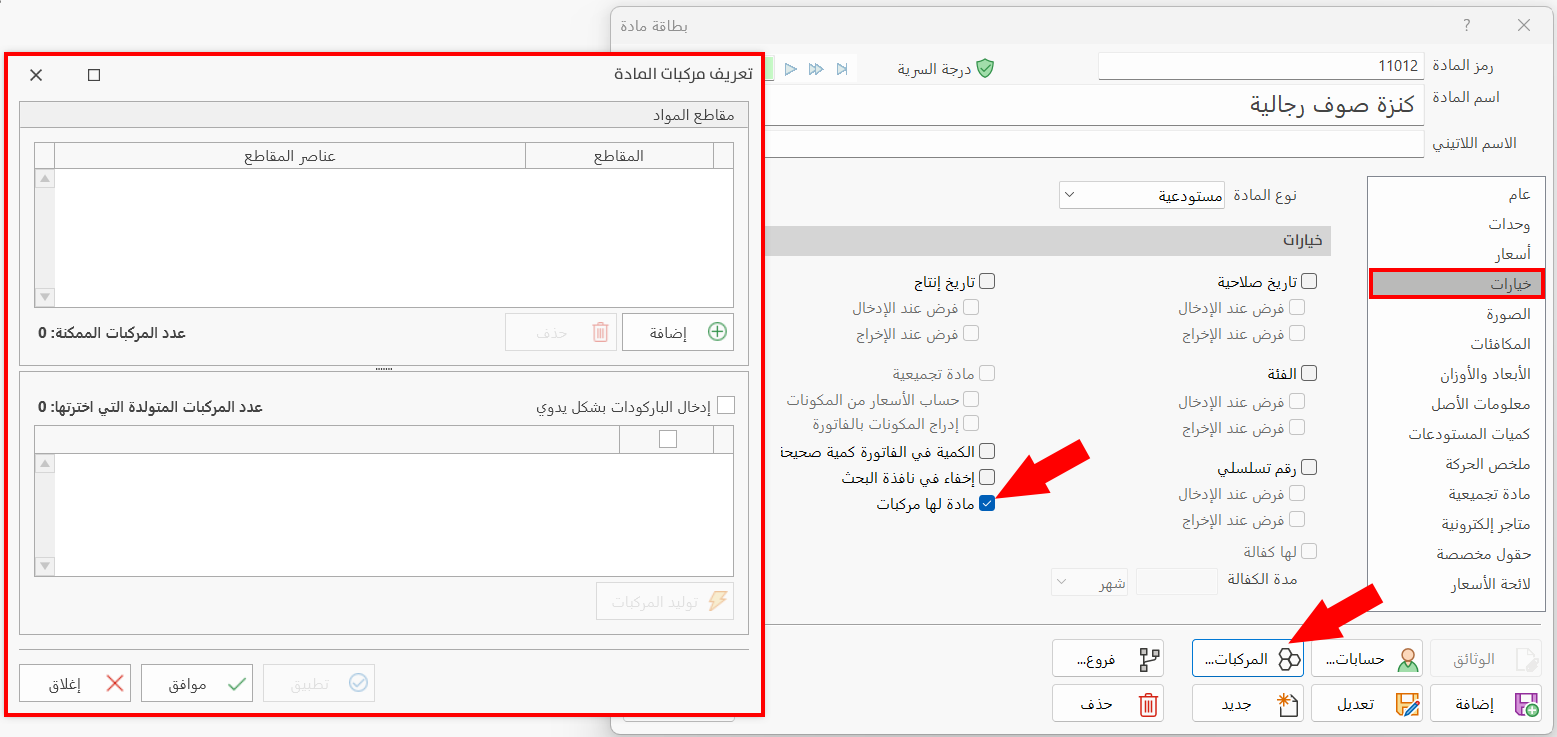
Material has Combinations
Sometimes you deal with a type of material that is similar in name, price, and group, but differs in some properties. For example, if you deal in clothes and want to enter a material named "Men's Wool Sweater", this material has different properties such as size (XS, S, M, L...) and color (black, brown, white...).
To inventory the material better and see its movement and shortages by these properties, enable the "Material has Combinations" option. The "Combinations" button becomes available in the material card, so you can start defining the combinations of the material and adding them in the window that opens with the "Combinations" button.
Serial Number
Enable this option if the material is of a type that carries serial numbers, such as cars, smartphones, and washing machines. This makes it easier to get accurate data when you request serial number reports (Serial Numbers Inventory, Missing Numbers...).
To enter the serial number of a material after adding it to the invoice rows, press F8 to open the "Serial Numbers" window, with which you can enter the numbers in more than one way.
You can force entering the serial number of the material when issuing a purchase invoice by enabling the "Force on Input" option, and force entering the serial number when issuing a sales invoice by enabling the "Force on Output" option.
With Warranty
The "With Warranty" option is available after enabling the "Serial Number" option, because granting a warranty for a particular material is linked to its serial number: when a material with a particular serial number is taken out, it is easy to see how much of its warranty remains.
The material card lets you set the validity of the warranty with the following fields:
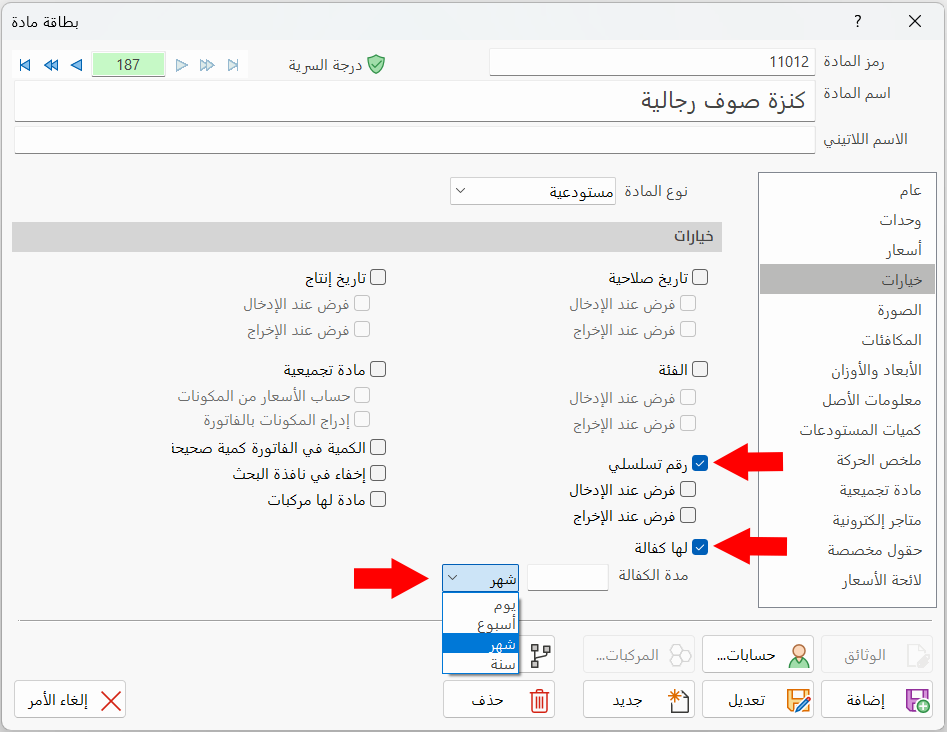
Warranty Duration
Set the validity period of the current material's warranty. After enabling the "With Warranty" option, you can set it as follows:
- Warranty Duration
Enter the number that matches your choice in the adjacent field.
- Month
The field opens a list of the available periods: day, week, month, year.
Choose the period, then enter the number in the Warranty Duration field, for example, 3 months or 1 year.