Material Card
The material card defines each material you deal with in the program, whether a raw material used in manufacturing operations or a finished material ready for sale and purchase.
You can record all the basic information about the material, such as its name, code, and units, as well as set its sale and purchase prices and the warehouses linked to it.
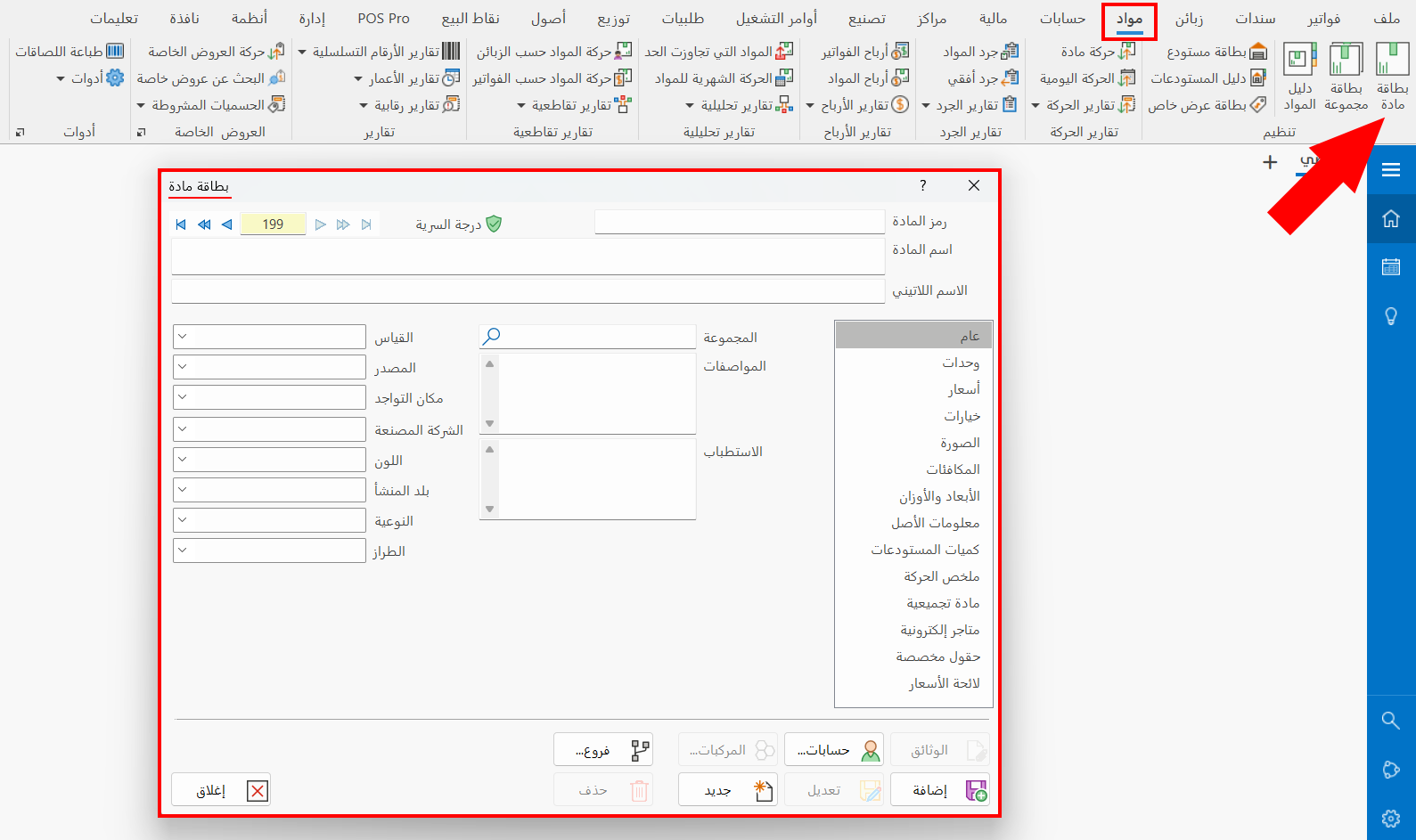
You can reach the card from the Materials tab on the program's main ribbon; it appears as follows:
Main Fields
The material card consists of several fields that include all the information needed to define the material:
Serial Number and Navigation Buttons
Please see Serial Number and Navigation Buttons.
Security Level
Please see Security Level.
Material Code
Set in this field the code of the material you are defining a card for (this field is mandatory).
Material Name
Type in the field the name of the material you are defining a card for (this field is mandatory), for example Abu Al-Walad Cheese.
Latin Name
You can enter the name of the material in another language.
Tabs
The material card contains a number of tabs that help you add data and details about the material. The contents of the card window change with the tab you are on:
General
The fields of this tab set the group the material belongs to, and hold general data about the material such as size, source, country of origin, and color (this tab appears by default when you open the card).
Units
Defines the basic unit used in purchase and sale operations of the material, with the option to define other units with a conversion factor between them, and to set the minimum or maximum quantity allowed in the company's warehouses, among other details.
Prices
The tab provides a set of fields for entering the prices of the units defined for the material, such as the wholesale, semi wholesale, and consumer prices, as well as setting the pricing policy and the currency used.
Options
The tab includes various options that affect the movement of the material and some tabs of the material card window. For example, you can use the "Assembled Material" tab of the material card only after enabling the "Assembled Material" option.
Picture
Adds pictures to the material and sets the default picture, as well as a picture for each combination of the material.
Equivalents
The tab contains a table for adding the equivalent materials of the material you are adding a card for.
Weights and Dimensions
Sets the dimension and weight units of the material, and the dimension and weight measurements of the defined units, to use them in the "Packing List".
Asset Information
The tab contains a number of fields that help you set the asset accounts and the productive age when the material type is "Fixed Asset".
Warehouses Quantity
The tab shows the quantities of the material in all the warehouses defined in the program.
Movement Summary
The tab shows the type of movements carried out on the material, that is, the invoices forms in which the material moved and the quantities and values moved in each form. It also shows the lowest price and the average price of the inputs and outputs.
Assembled Material
Adds the materials used to make up the assembled material, or the materials produced by disassembling it.
Online Stores
The tab shows all the online stores linked to alameen ERP, so you can select the store to which you want to export the current material.
Custom Fields
The tab shows the custom fields you link to the material card from the Program Options window - Custom Fields tab.
Price List
The tab shows the price lists you added the material to: after you use the "Price List" tool and add a new list that contains the current material, the name of the price list, whether it is active, and the prices you gave the material's units appear here, on the "Price List" tab of the material card.
Accounts
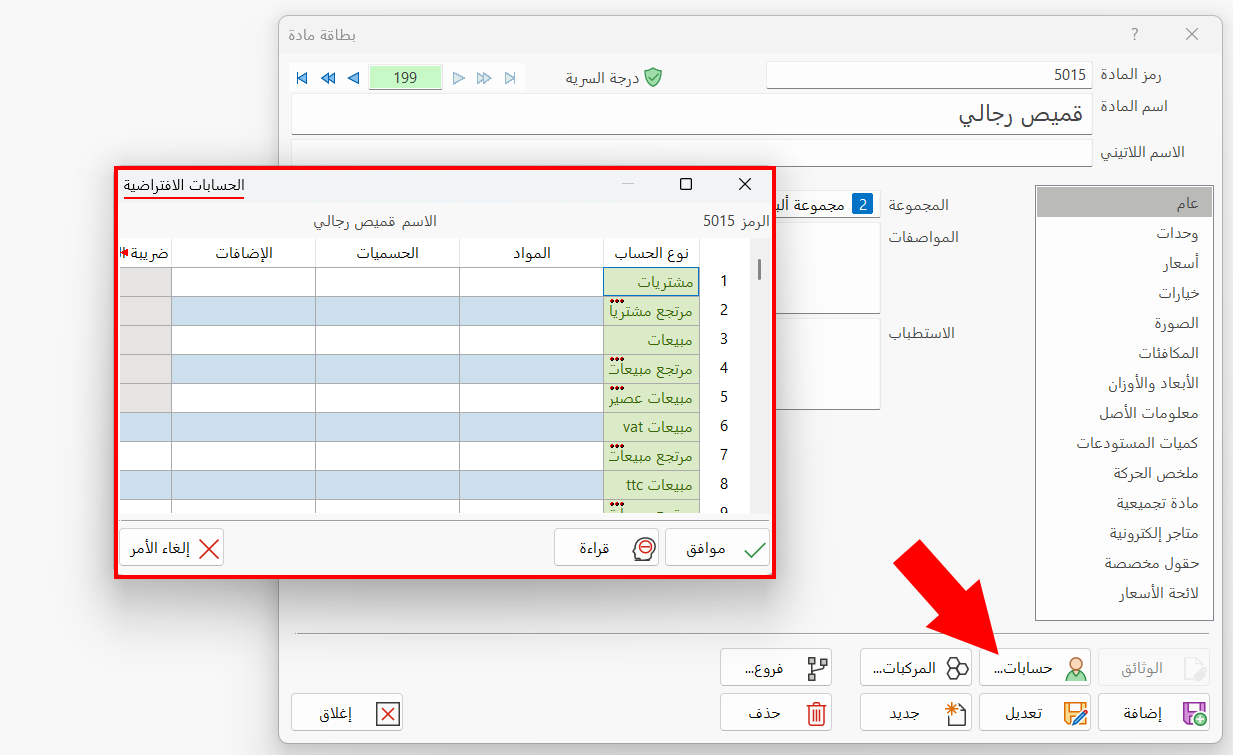
The "Accounts" button assigns an account for each invoices form defined in the program: in the window that opens you can set an account for each of: materials, discounts, extras, taxes, and gifts contra.
Combinations
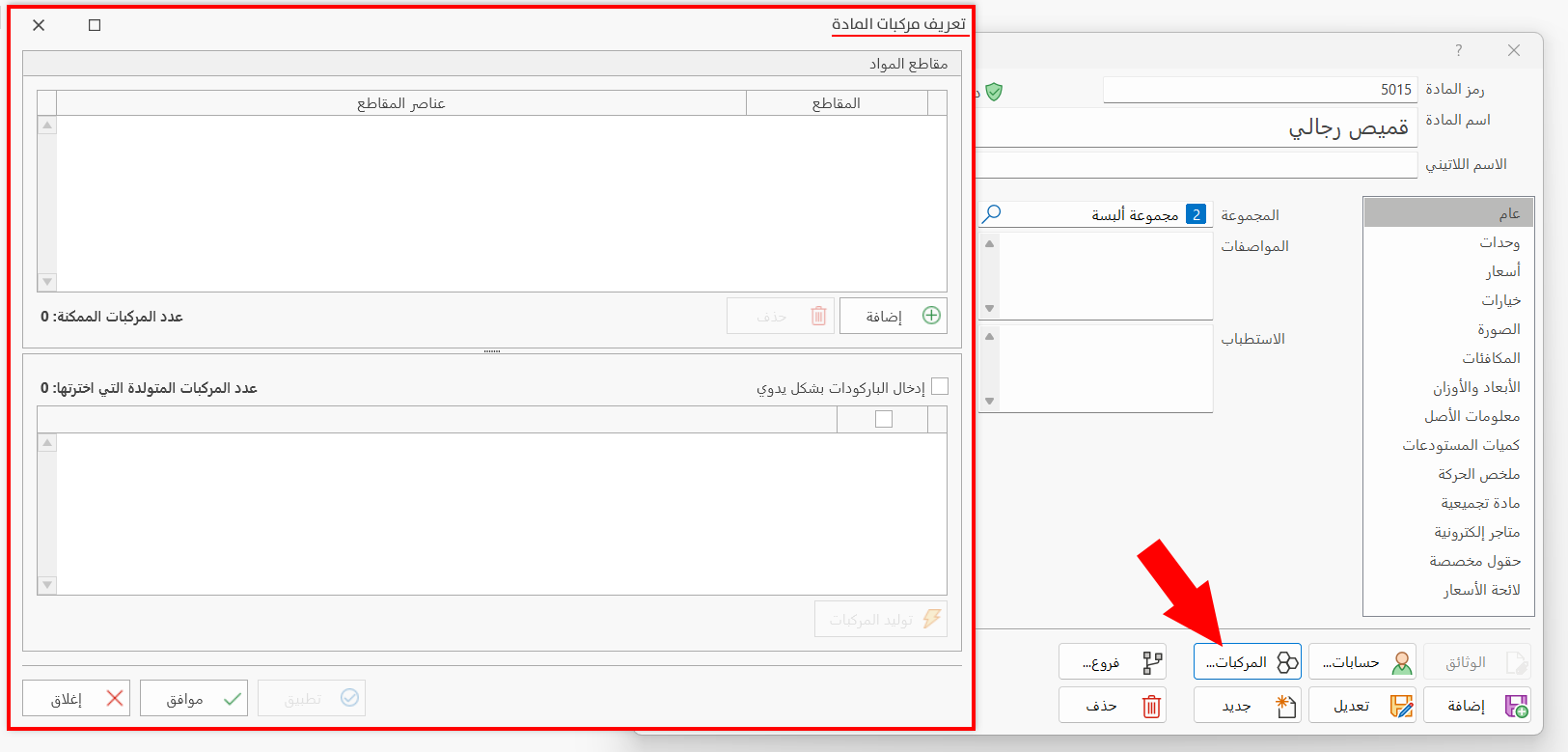
The "Combinations" button is available in the material card after enabling the "Material has Combinations" option on the "Options" tab of the card.
After you click the button, the "Define Material Combinations" window opens, where you add the segments and their elements and generate the combinations.
Standard Commands
Please see Standard Commands.