Group Card
You can organize the materials you deal with in groups, which makes it easier to get more accurate and detailed reports.
For example, you can create a group named "Refrigerator" and another named "Washing Machine", then produce reports on the inventory of a particular group or the movement of its materials.
You open the group card from the Materials tab on the main ribbon - "Settings" group.
Or with the shortcut Shift + F5.
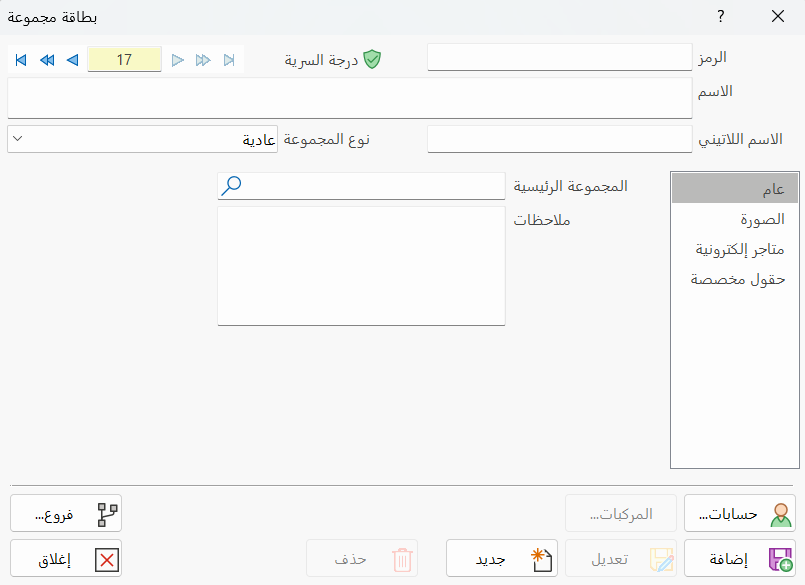
When requested, the group card appears as follows:
Main Fields
The group card consists of several fields for adding all the information needed to define it as one of the groups in alameen ERP 10:
Card Number and Navigation Buttons
Please see Serial Number and Navigation Buttons.
Security Level
Please see Security Level.
Code
Set in this field the code of the group you are defining (this field is mandatory).
Name
Enter the name of the group you are defining a card for (this field is mandatory), for example: Soft Drinks.
Latin Name
You can enter the name of the group in another language.
Group Type
Set the group type as follows:
Normal: classifies materials by their type or source.
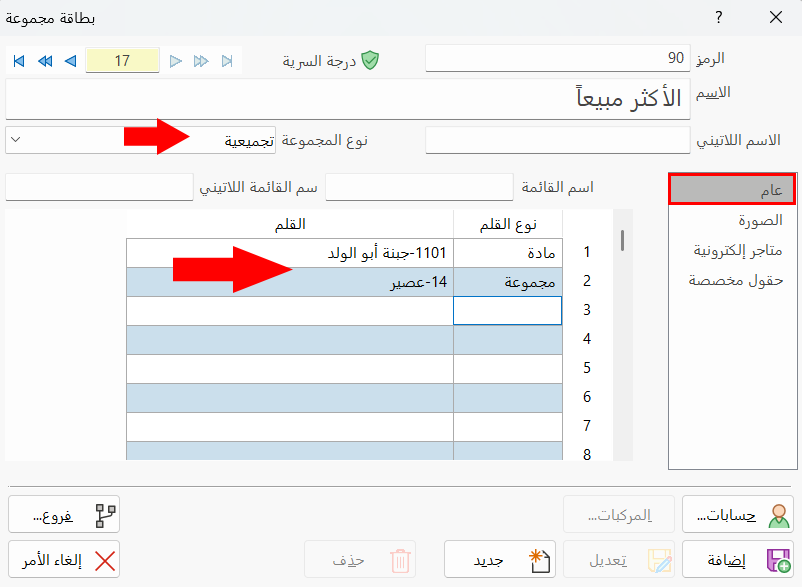
Assembly: used when you need to show the data of a number of materials and groups together in certain reports. With the "Assembly" type, you can add groups, and materials from different groups, to show their data in the report.
For example, you can choose the material "Abu Al-Walad Cheese" from the "Cheeses" group, and the "Juice" group, and add them to an assembly group named "Best Sellers". The group's data then appears when you request the Materials Movement report, after you put the group in the "Group" field of the report options window.
Tabs
The group card contains a number of tabs:
General
Contains fields for entering more detailed information about the group: you can enter the main group of the group you are adding, if there is one, or write a note related to the group in the Notes field.
Picture
You can add a picture of the group with the "New" button: a new window opens for choosing the picture on the computer, and after you select it, it appears as follows:
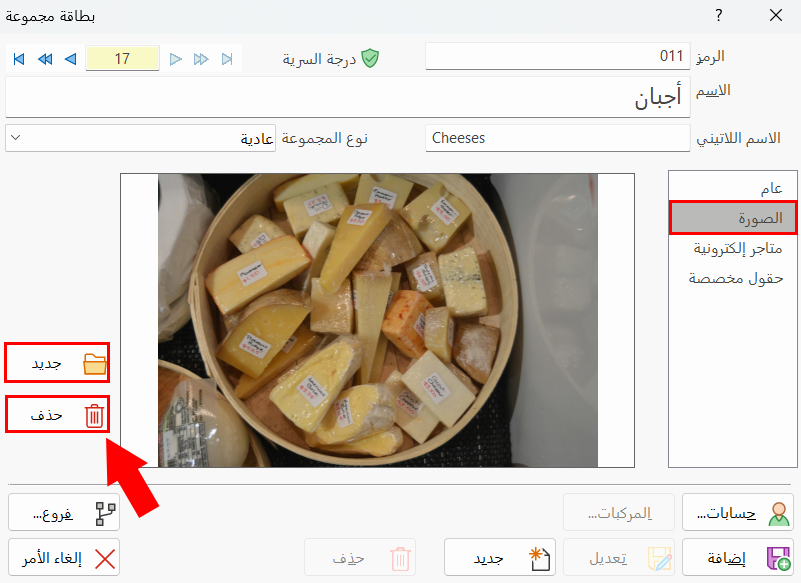
You can later delete the picture with the "Delete" button.
Online Stores
On this tab you can link the group to your online store.
Custom Fields
Used to add new fields to the card, and to design and arrange them to suit each user according to their own data. You can read more about the custom fields feature in alameen.
For more information, see Custom Fields.
Accounts
With this button you can define the accounts automatically for each material or group added to the selected group, or change the accounts of the materials that belong to the group. If no accounts are assigned, the accounts are read from the invoice properties when the journal entries of sales and purchase operations are generated.
Combinations
Used to define the combinations of the materials group, and to choose the segments and their elements.
Standard Commands
Please see Standard Commands.
Reading the accounts of a material is useful when you want the accounts of the group you are defining to match the accounts of that material.
When you change the accounts of a material or group, the accounts do not change in the journal entries already generated; to change them, you must regenerate the entries from Files Maintenance.
If you do not define accounts for a material, it takes the accounts of its main group; and if you have not defined accounts for that main group, the material takes the default accounts defined for it in the invoice properties.
When you change the accounts of a group, a message asks whether you want to change the accounts of the materials defined in this group (each material separately). You can answer Yes, No, Yes to All (that is, for all the materials defined in this group), or No to All (for all the materials defined in this group). Note that you cannot delete a main group until you have deleted all its sub groups.