Form Card
The form card sets the estimated cost of a finished product: in it you set the quantity and value of the raw materials, the direct expenses, and the additional costs needed to produce a specific quantity of a product. The output and input bills and the journal entries are generated from the contents of this card when a manufacturing operation is carried out with it.
In this card you list the components (the materials that go into the manufacturing operation), the direct and indirect costs, and the outputs of the manufacturing operation; the card supports more than one output for a manufacturing operation.
The cost of the manufacturing outputs is calculated from the values set for the components and the costs. You can later study price and cost variances by comparing the forms with the actual costs saved during the manufacturing operations.
These forms will also help you later find out the theoretical capacity to manufacture any of the products from the current stock of raw materials.
You can reach the bill of materials card from the Manufacturing tab on the main ribbon - "Settings" group.
Once requested, it appears as follows:
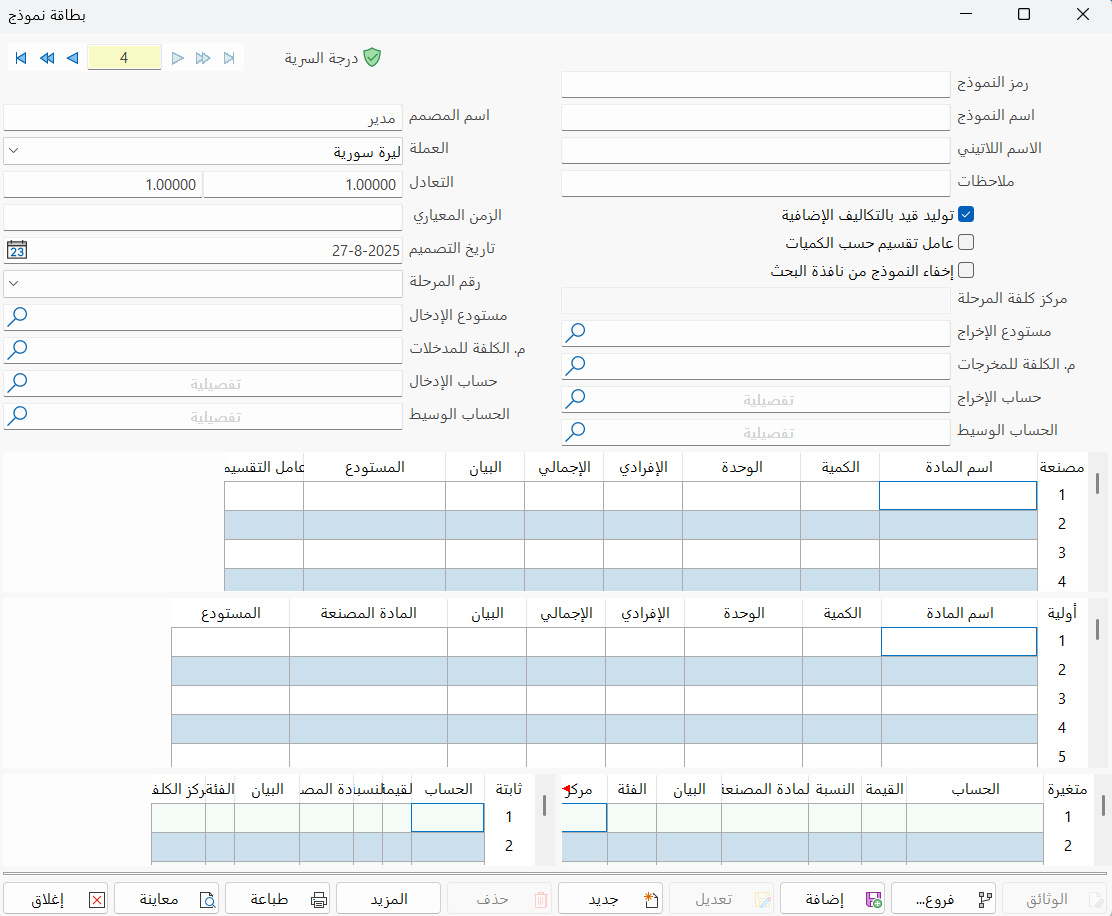
Main Fields
The form card consists of several fields for adding all the information needed to define it as one of the manufacturing forms in alameen ERP 10:
Card Number and Navigation Buttons
Please see Serial Number and Navigation Buttons.
Security Level
Please see Security Level.
Form Code
Set the code of the form you are defining a card for (this field is mandatory).
Form Name
Type the name of the manufacturing form you are defining a card for (this field is mandatory), for example: Dissolved Sugar.
Latin Name
You can enter the name of the manufacturing form in another language.
Designer Name
Enter the name of the person who designed the form.
Design Date
Enter the design date of the form by typing it directly, or with the calendar window that opens when you click the calendar icon in the field.
Notes
Write additional information or important notes about the manufacturing form you are defining a card for.
Currency
Set the currency in which you want to show the prices of the manufactured materials, or look it up in the drop-down list of the arrow in the field.
Parity
Set the parity of the currency set in the Currency field.
Standard Time
Enter the expected time for manufacturing this form.
Phase Number
Type the phase number, or click the arrow in the field to choose it from the drop-down list.
Phase Cost Center
After setting the phase number, you can set the cost center of the phase in this field.
Output Warehouse
Set the default output warehouse from which the raw materials will be taken out, or look it up with the search icon in the field.
Input Warehouse
Set the default input warehouse into which the finished materials will be entered after manufacturing, or look it up with the search icon in the field.
Out Job Cost
Set the cost center that the raw materials used to manufacture this form belong to.
For example, you can set the production line for which the raw materials are taken out, or look it up with the search icon in the field.
In Job Cost
Set the cost center that the manufactured finished materials belong to.
For example, you can set the production line in which the finished materials are manufactured, or look it up with the search icon in the field.
Output Account
Type the name or code of the output account, or look it up with the search icon in the field.
Input Account
Type the name or code of the input account, or look it up with the search icon in the field.
Mediator Account (Output)
The field below the Output Account field: type in it the name or code of the account that will mediate the output operation, or look it up with the search icon in the field.
Mediator Account (Input)
The field below the Input Account field: type in it the name or code of the account that will mediate the input operation, or look it up with the search icon in the field.
Manufactured Materials Table
The manufactured materials table consists of the following fields:
Material Name
You can set in this field the name of the material manufactured with this form.
Qty
You can set the quantity of the material manufactured, according to the quantity of raw materials consumed in this form.
Unit
This field sets the unit in which the quantity of the manufactured material is measured in the form.
Unit Price
This field shows the cost of manufacturing one unit of the manufactured material. The unit price of the manufactured material is calculated from the prices of the raw materials plus the unit and total costs, according to the share of the raw materials and of the unit and total costs consumed by the manufactured material.
Total Price
This field shows the total price of the quantity of the material manufactured in this form.
Notes
You can enter a description of the manufactured material in this field.
Warehouse
Sets the warehouse the manufactured material will be entered into. If no warehouse is set, the manufactured material is entered into the default input warehouse.
Division Factor
Set the share of the raw materials consumed, with the variable and fixed expenses, needed to manufacture this material compared with the other outputs of the manufacturing operation.
If the manufacturing operation has a single output, all the raw materials are used to produce it, so put the value 100 in this field.
The cost of each material produced by the operation is calculated from this percentage, and you can use the cost price calculated by this card to generate the bills that enter the finished material into the warehouses.
Raw Materials Table
The raw materials table consists of the following fields:
Material Name
Set the name of the raw material consumed during the manufacturing operation.
Qty
Set the quantity of the raw material consumed during the manufacturing operation.
Unit
Type the unit in which the quantity of raw materials is measured.
Unit Price
You must set the unit price of the raw material that goes into the manufacturing operation, to calculate the unit price of the manufactured materials.
Total Price
This field shows the total price of the raw material, but the total price is not calculated unless the quantity and unit price of the raw material are set.
Notes
You can enter a description of the raw material in the field.
Manufactured Material
You can add the manufactured material by double-clicking in the field and choosing from the drop-down list.
Warehouse
If one or some of the raw materials are in a warehouse other than the default warehouse set in the "Output Warehouse" field, you can record that warehouse in this field, so that the material is taken out of it and the output bill is generated accordingly.
Variable Costs Table
You can set a list of the variable costs consumed while manufacturing this form. The variable costs of each manufactured material are calculated by multiplying the value of the additional costs by the quantity of that material in the table.
For example: paying the worker a wage of 5 SYP for each piece produced.
These costs are taken into account when calculating the estimated cost of the manufactured material. Remember that these costs are not included in the entry generated by the manufacturing operation if you do not enable the "Generate Entry for Charges" option, which means you must generate it manually.
Fixed Costs Table
You can set a list of the fixed costs consumed during the manufacturing of this form. These costs apply to all the materials manufactured with the form, for example: electricity and water costs.
For both variable and fixed costs, the table consists of the following columns:
Account
You can set the name of the account that the unit and total costs belong to.
Value
You can set the value of the costs consumed by the form.
Percentage
Set the percentage of the costs spent on this account.
Manufactured Material
You can add the manufactured material on which the costs were spent by double-clicking in the field and choosing from the drop-down list.
Notes
You can enter in this field a description of the costs that belong to this account (for example, workers' salaries and wages).
Category
Sets the category the entry will be posted to.
Cost Center
Sets the cost center the account will be posted to.
Standard Commands
Please see Standard Commands.