Substitute User Card
Sets the absent user, and the user who acts for them in approval decisions while they are absent.
For example, to have the "Assistant Manager" act for the "Manager" in approving purchase invoices, you must create a substitute user card. You open the card from the Management tab on the main ribbon - "Approvals" group.
Once requested, it appears as follows:
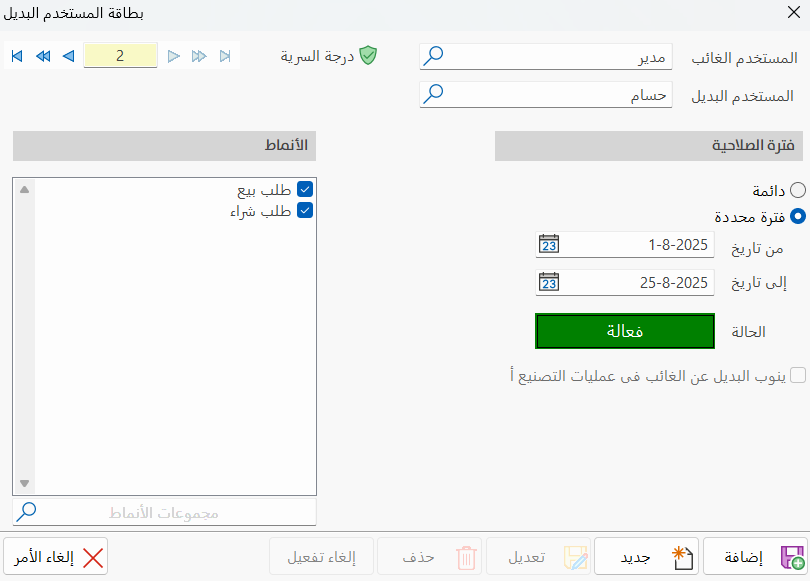
Main Fields
The substitute user card consists of several fields for adding the information needed to define the card:
Card Number and Navigation Buttons
Please see Serial Number and Navigation Buttons.
Security Level
Please see Security Level.
Absent User
Type the name of the absent user directly in the field, or click the search icon in the field and choose the user name from the window that opens.
Substitute
Type the name of the substitute user directly in the field, or click the search icon in the field and choose the user name from the window that opens.
Tabs
The substitute user card includes a set of fields and options on the following tabs:
Validity Period
You can set the validity period of the substitute user from the available options:
Permanent
You can give the user permanent authority (the default period), which runs from the beginning of the current year to its end.
Specific Period
If you want to set the period during which the card is active, click the check box next to the "Specific Period" option; the two period fields are enabled:
From: set the start of the period during which the card is active, by typing the date or choosing it in the calendar window that opens when you click the calendar icon in the field.
To: set the end of the period during which the card is active, by typing the date or choosing it in the calendar window that opens when you click the calendar icon in the field.
Status
The color of the status shows whether the card is in effect:
Green (Active): the default status. You can disable or enable the card at any time. This status is for cards in effect, that is, whose rules apply according to the set period.
Red (Cancelled): cards whose rules do not apply, whatever their period.
Gray (Finished): a card for a specific period that has ended.
Orange (Not started yet): used when you choose dates for a coming period.
Substitute can replace the absent user for manufacturing operations too
This option is disabled by default. You cannot enable it if approvals are not enabled in the manufacturing options, or if they are enabled but the absent user's approvals are not required.
Please see the approvals system. (link to the approvals system)
Forms
The box that contains "Forms" shows all the forms the absent user has the right to approve, so you can choose from them the ones the substitute user is assigned to approve.
You can search for the forms group you want with the search icon in the "Groups of forms" field, which makes it easy to reach the forms you want to select.
Standard Commands
Please see Standard Commands.
You cannot modify or delete a substitute user card after the first action has been taken with it.
You can modify the date in a temporary card, provided that the new temporary period includes all the approvals made with it; otherwise, the following error message appears: "The period entered in the card conflicts with the approvals made based on it by the substitute user. Cannot continue."
The substitute user cannot take a decision on an operation on which the absent user has already taken a decision, even if the operation is within the substitute user's period.