Sub Profit Center Card
Adds a profit center that belongs to a main profit center defined in the program, so you can see the net profit or loss of this center.
You can reach the card from the Centers tab on the main ribbon - "Settings" group.
Once requested, it appears as follows:
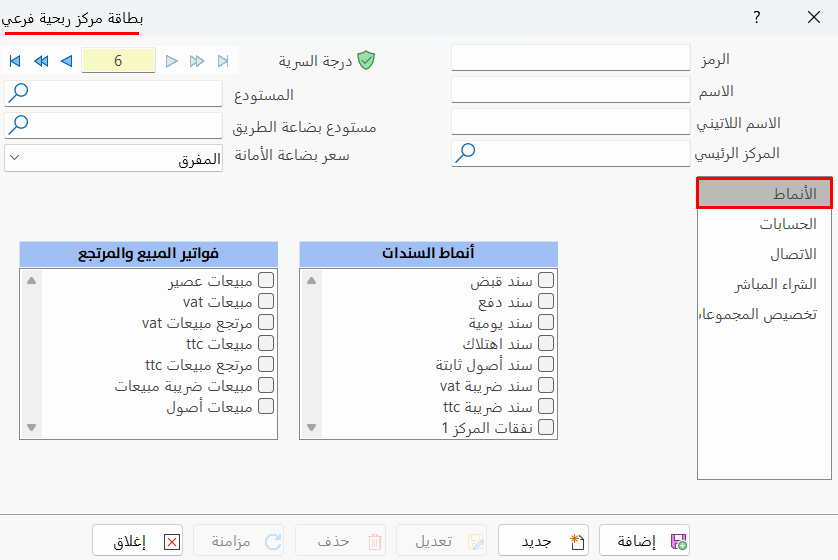
Main Fields
The sub profit center card consists of several fields for adding all the information needed to define it in alameen ERP:
Card Number and Navigation Buttons
Please see Serial Number and Navigation Buttons.
Security Level
Please see Security Level.
Name
Enter the name of the sub profit center you are defining a card for (this field is mandatory), for example: Damascus Center.
Latin Name
You can enter the name of the sub profit center in another language.
Main Center
Enter the name or code of the main center, defined earlier, that the sub center you are defining belongs to.
You can use the search icon in the field to choose the main center from the window that opens, and you can also create a main profit center from that window by clicking the "New" icon on its main toolbar.
Warehouse
After defining a warehouse for the center with a warehouse card, enter it in the field, or use the search icon in the field to choose it from the warehouse selection window.
Goods in Transit Warehouse
You must define a warehouse card for the goods in transit warehouse you will use in this center, with the warehouse card on the Materials tab. Once it is defined, enter it in this field, or look it up with the search icon.
Consigned Goods Price
The program provides six different prices, so you can use the price that suits the profit center you are defining. The prices are: Wholesale, Semi wholesale, Export, Distribution, Retail, Consumer.
Tabs
The sub profit center card contains several tabs:
Forms
There are two lists of forms in which you can select what will be used in this center:
Entries forms, and sales and return invoices.
You cannot use the same form in more than one profit center, so the list of forms gets shorter each time you select a form from it: the forms selected in the defined centers disappear from the list.
Accounts
Define the accounts to use in the following fields:
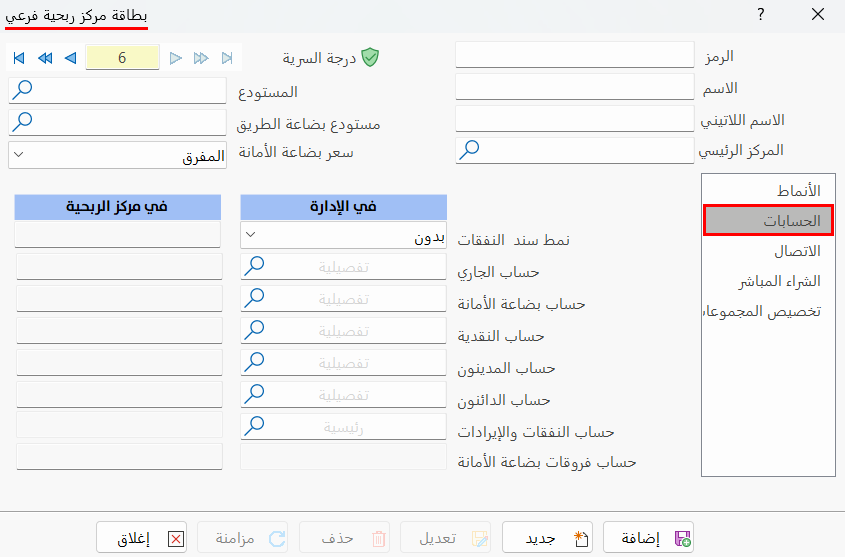
The cash account in the sales and return invoice forms selected on the Forms tab must match the consigned goods account on the Accounts tab of the sub profit center card.
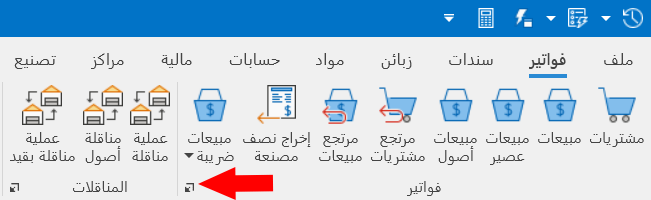
You can reach the invoices forms from the Invoices tab, by clicking the small arrow shown in the image.
You can create the expenses entry form with the small arrow on the Entries tab.
Connecting
You can connect to the sub profit centers through:
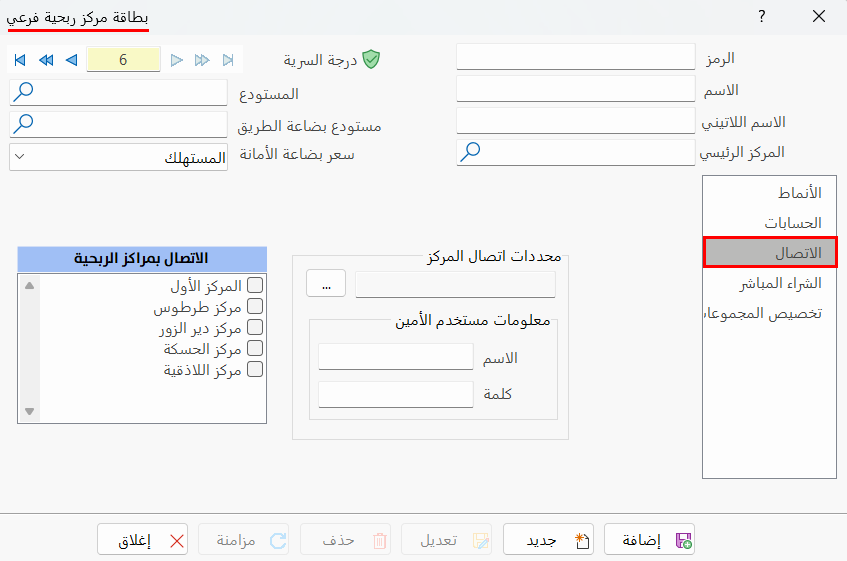
Center Connection Parameters
Enter the information needed to connect to the server by clicking the three dots next to the field; the following window opens:
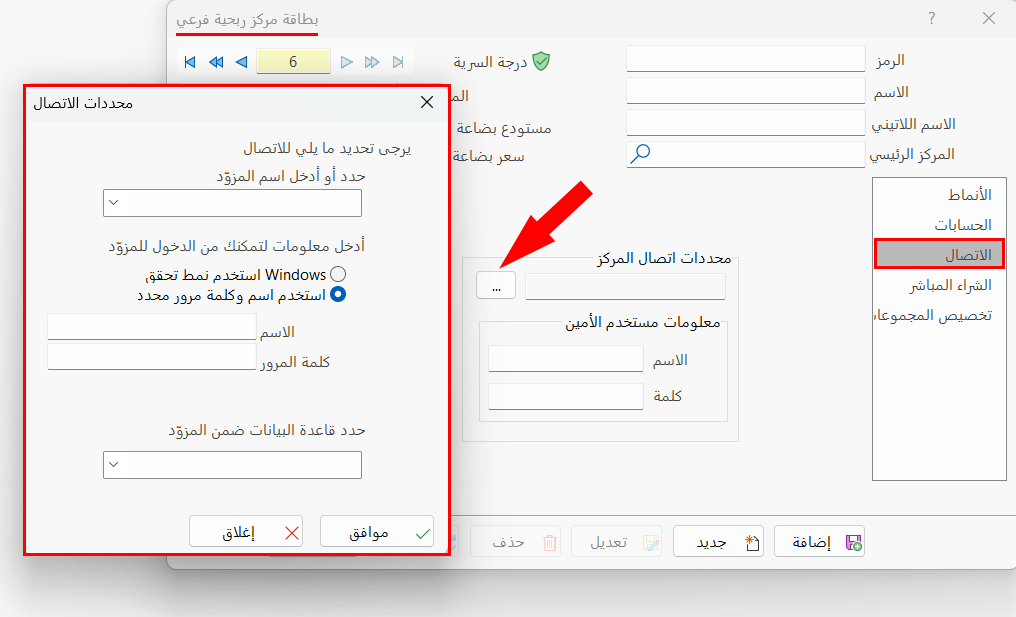
Connect to Profit Centers
Select, from the list of defined centers, the profit center whose server data you entered, to complete the connection.
Direct Purchase
To enable direct purchase, you first have to set the suppliers accounts on the Profit Centers tab of the Program Options window.
After you enable direct purchase, you can start filling in the following fields:
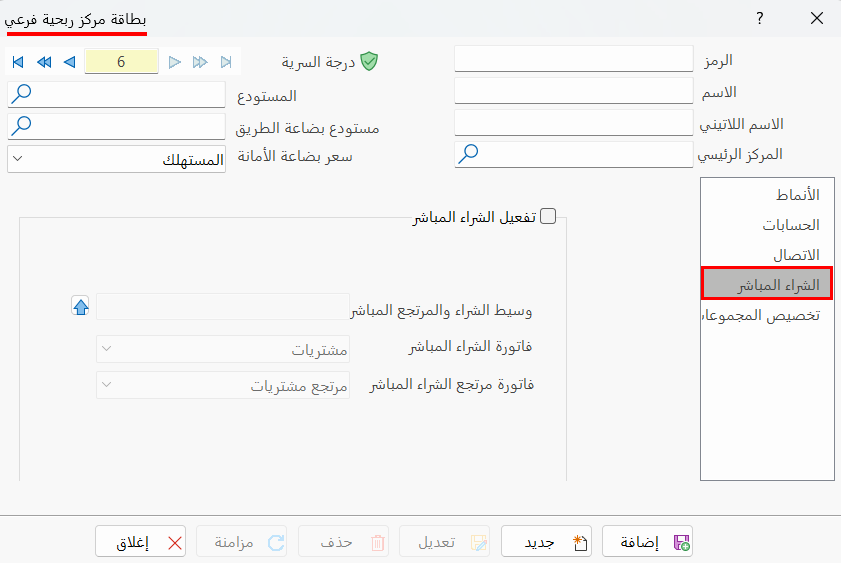
Customize Groups
You can add the groups that will be used in the center you are defining, by listing them in the following table:
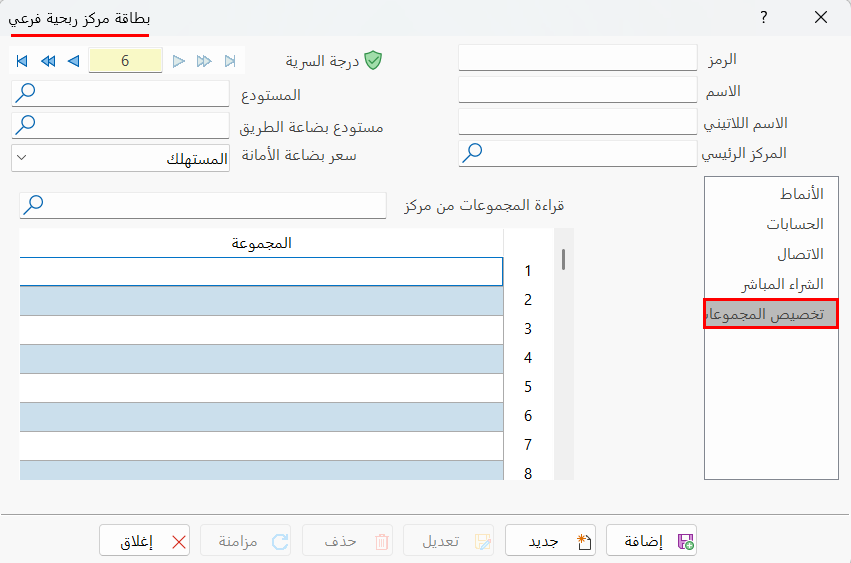
Type the name or code of the group; you can also type just one letter of its name and press enter to open a list of the groups that contain this letter.
If you want to add groups that match the groups used in another center, use the "Read groups from center" field, then type the name or code of that center, or look it up with the icon in the field.
After you choose the center in the "Read groups from center" field, the groups used in that center are listed in the group table of this card.
You can delete a group after listing it in the table by right-clicking it and choosing Delete from the menu that opens.
Sync
The first sync transfers the accounts and currencies (the profit center file must be locked during the first sync).
Standard Commands
Please see Standard Commands.