Cost Center Card
The cost center card defines the cost of a center (a project, an activity...) in terms of the expenses spent on it or the revenues collected from it. A cost center is not an actual account, so it does not affect the accounting operations; it helps you produce reports that show the cost of the various projects or activities separately from the general accounts.
You can reach the card from the Centers tab on the main ribbon - "Settings" group.
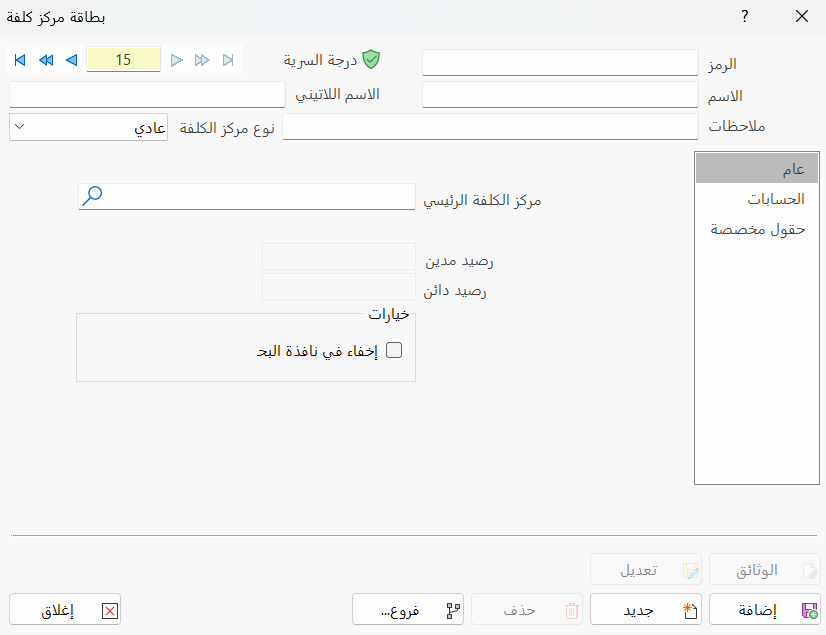
Once requested, it appears as follows:
Main Fields
The cost center card consists of several fields for adding all the information needed to define it as one of the cost centers in alameen ERP:
Card Number and Navigation Buttons
Please see Serial Number and Navigation Buttons.
Security Level
Please see Security Level.
Code
Enter the code of the center you are defining a card for (this field is mandatory).
Name
Enter the name of the cost center you are defining a card for (this field is mandatory), for example: Production Center.
Latin Name
You can enter the name of the cost center in another language.
Notes
Enter any additional information or important notes about the cost center you are defining.
Cost Center Type
You can choose the cost center type by clicking the arrow in the field. It contains the following types:
Normal cost center: used to add a new cost center, whether main or sub. It is the program's default cost center type.
Aggregative cost center: gathers a number of cost centers into one center, so the cost of this center equals the total cost of the centers gathered in it.
Distributive cost center: distributes the cost of the center over a number of centers according to the percentage set for each cost center.
Tabs
The cost center card contains a number of tabs used to define the cost center:
General Tab
The contents of the tab depend on the cost center type, as follows:
Normal Cost Center
When the type is Normal (the default), the General tab contains the following:
- Main Cost Center
When you define a sub cost center, you must add a main cost center from the cost centers you defined earlier: type the name or code of the cost center, or click the search icon in the field to choose from the cost center selection window that opens.
- Debit Balance
This field is read-only. It shows the current balance of the center defined in this card, if it is debit: the program calculates it with each operation and puts the result in the cost center card, so you can see the current balance of any cost center in this field of its card.
- Credit Balance
This field is read-only too. It shows the current balance of the center defined in this card, if it is credit: the program calculates it with each operation and puts it in this field, so you can see the credit balance of this center in this field of its card.
- Options
The window provides the Hide in Search Window option: you can enable it when this cost center is no longer used, to keep it from appearing in the search list again.
Aggregative Cost Center
As an aggregative cost center gathers more than one other center, you must enter the centers to be gathered in the cost center table.
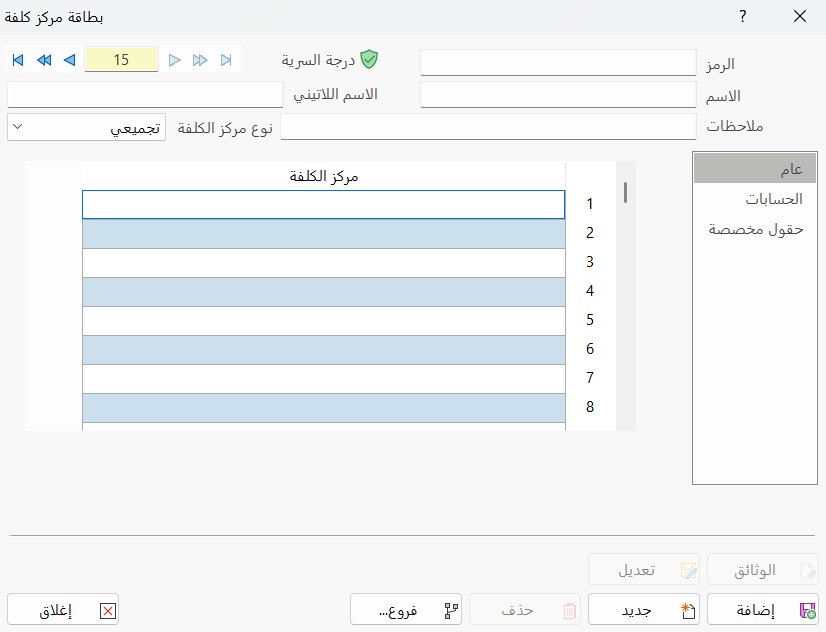
In the fields of the table, type the name or code of a cost center defined earlier; the program lets you gather a large number of centers into one center.
Distributive Cost Center
For the distributive type, the General tab contains a set of fields and options:
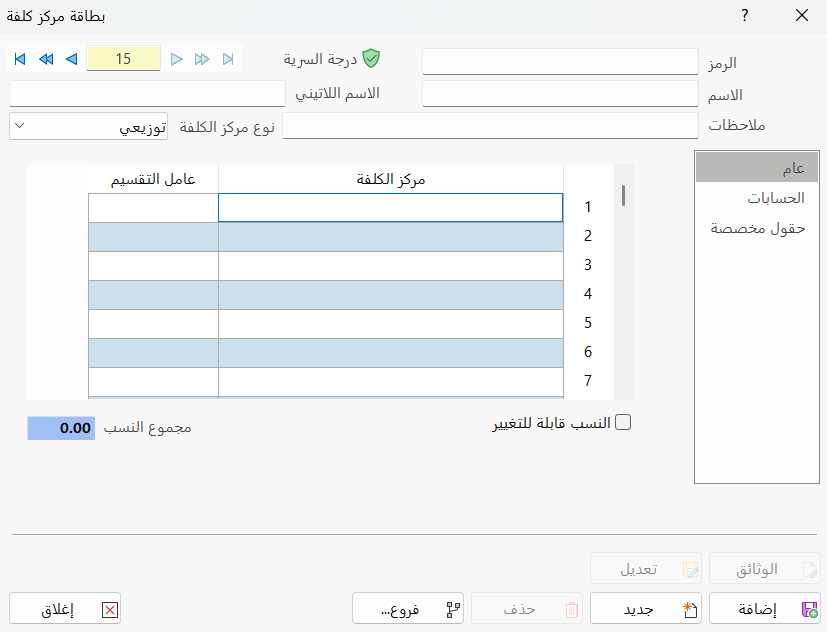
- Cost Center
Add the cost centers over which you want to distribute this center (the one you are defining a card for): type the name or code of the center directly in the field, or enter one letter of its name and press Enter to open the cost center selection window.
- Division Factor
After adding the center in the Cost Center field, type the percentage you want to give this center out of the total percentages of the distributive cost center you are defining.
The total of the percentages in the Division Factor field must equal 100.
- Rates are changeable
Enable this option so you can modify the percentages distributed over the centers in a journal entry: to modify the percentages, press F6 while in the Cost Center field, and the "Change Distribution Rates" window opens.
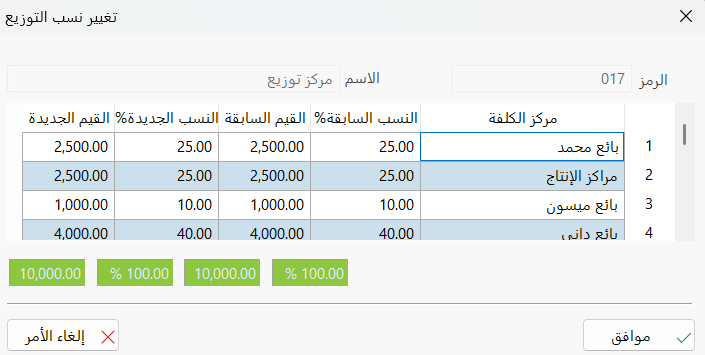
Changing the percentage in the "Change Distribution Rates" window does not affect the percentages in the cost center card; they stay as they are until you modify them in the card when needed.
- Total ratios
This field shows the total of the percentages distributed over the centers, which must equal 100%. If the total is more or less than 100, an error message asks you to correct the percentages in the Division Factor field before the card can be saved.
Accounts Tab
The tab is used to define the following accounts:
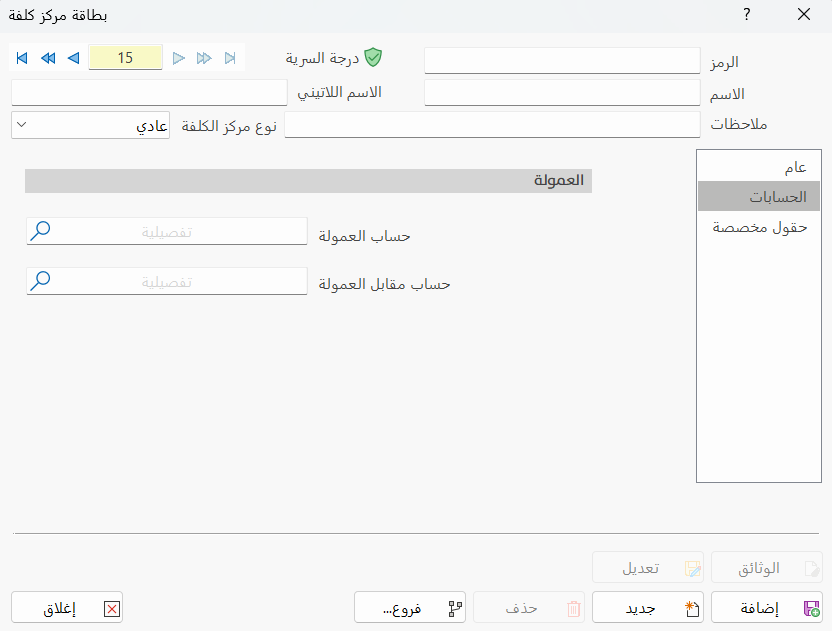
Commission Account
Type the account name or code in the field, or click the search icon to list all the accounts defined in the program and select the commission account you want.
Commission Contra Account
Type the account name or code in the field, or click the search icon to list all the accounts defined in the program and select the commission contra account you want.
Custom Fields Tab
Used to add data specific to the cost center: you can create a set of fields on the "Custom Fields" tab of the Program Options window.
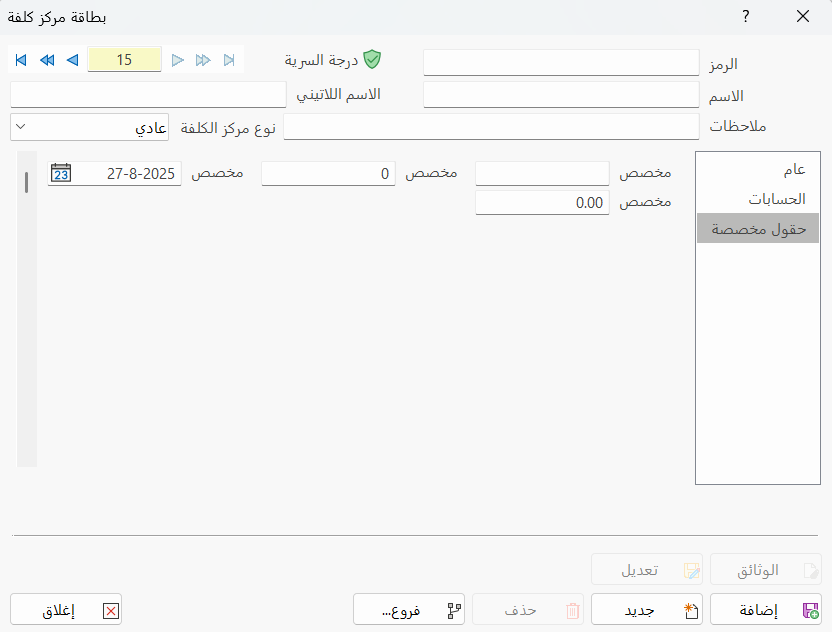
For more information, see Custom Fields.
Standard Commands
Please see Standard Commands.