Sub Asset Card
After you define all the assets of your company with the material card, you have to enter them with a purchase invoice, which asks you to record serial numbers for each of them. A sub asset card is then generated with the name of the material you defined in the card.
For example, if you have 5 trucks, you first define a material card, then set the material type to "Fixed Asset" on the Options tab of the card. Then you buy these five trucks (create a purchase invoice), and in the serial number window you can record the engine numbers of the trucks.
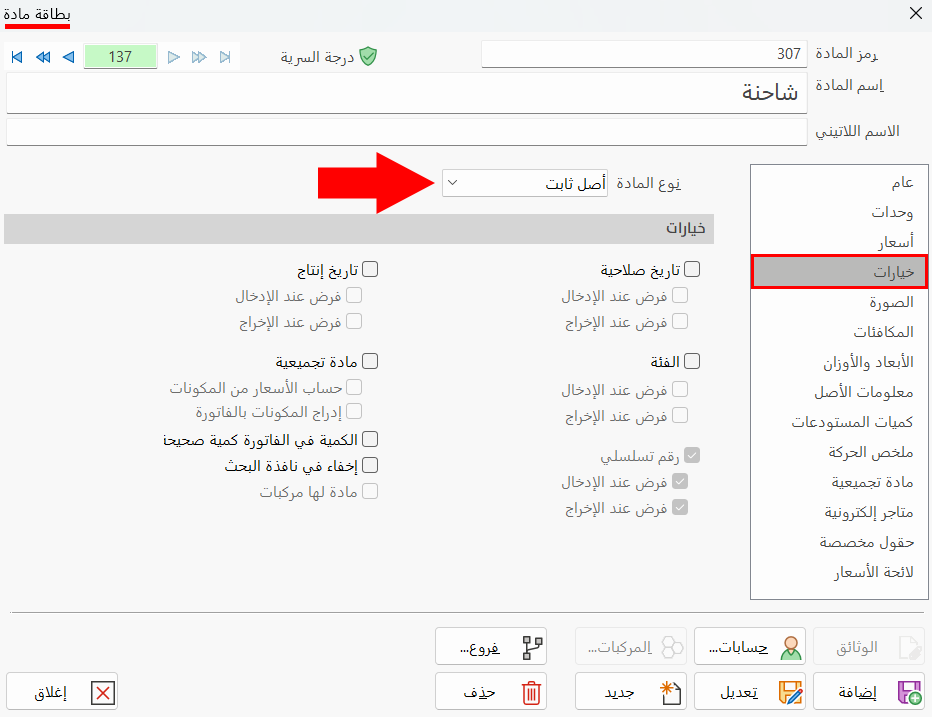
Giving each sub asset a serial number helps you track the operations carried out on all or any of these sub assets. You can also enter the specifications of each sub asset with this card.
You can reach the card from the Assets tab on the main ribbon - "Settings" group.
Or from the material card - "Asset Information" tab - Details button; then, in the Asset Details window, click "Info".
Once requested, it appears as follows:
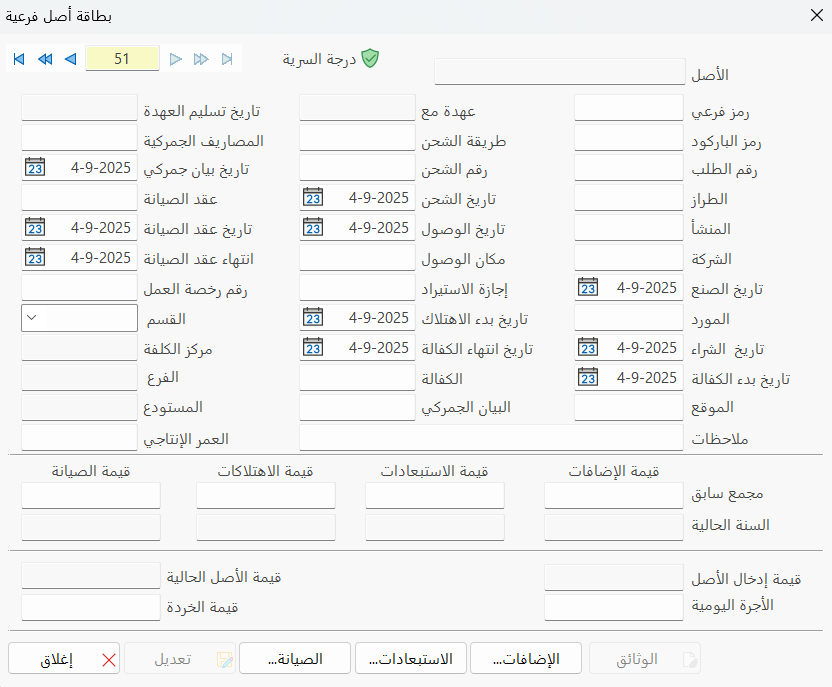
Card Fields
The card window contains a number of fields for adding detailed information about the asset, among them: Shipping Type, Arrival Date, Customs Statement, Maintenance Contract, Productive Age.
The read-only fields of the card show the total value of the additions, reductions, depreciations, and maintenance carried out on each sub asset. To see the details, use the buttons at the bottom of the window.
Please see Standard Commands.